There are a few established ways to deploy Office templates via Intune, for example via SharePoint CDN org assets library, OneDrive automount with a workgroup path or a Win32 app dropping a “.potx” into a user profile. The following approach described here adds a few other things like per-department targeting, self-healing template updates and Graph API authentication running exclusively as SYSTEM, meaning credentials never touch user context and cannot be extracted by the logged-in user.
Security: Read This First
Fair warning: This is not a perfect solution but just my personal thoughts on what it does well and what to watch out for.
This solution uses two Entra ID app registrations:
“OfficeTemplates” is the one that authenticates to SharePoint and downloads templates.
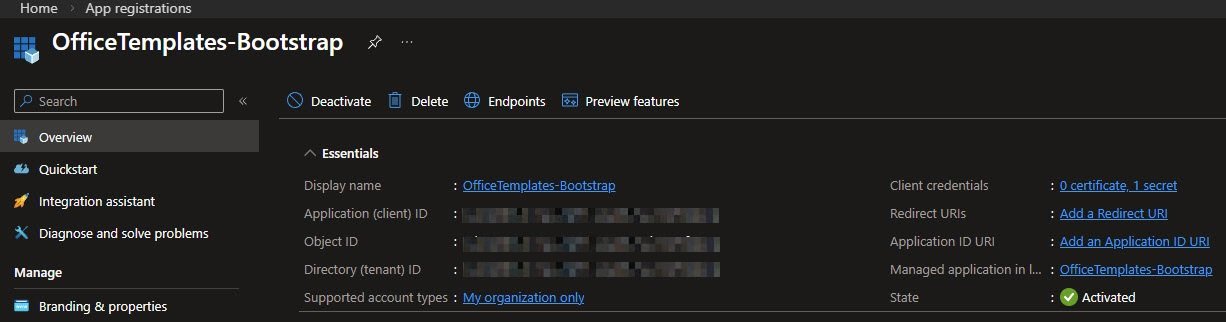
“OfficeTemplates-Bootstrap” is a helper that exists only to register a per-device certificate during first install and is never used again after that. If those terms are unfamiliar, the Architecture Overview section below covers them in detail.
What this does well:
Graph API runs as SYSTEM only, using a device certificate stored in “Cert:\LocalMachine\My” so no user account can access it.
The app registration is scoped to one SharePoint site via “Sites.Selected” which limits the damage if the certificate is ever compromised.
“OfficeTemplates” is a standalone app registration, completely isolated from everything else in the tenant.
Users cannot browse the template library directly and templates reach them only through the managed delivery mechanism.
SharePoint versioning is enabled so if a bad template gets uploaded by mistake, rollback is also possible.
If a template gets deleted or replaced locally, it comes back automatically on the next sync.
What to be aware of:
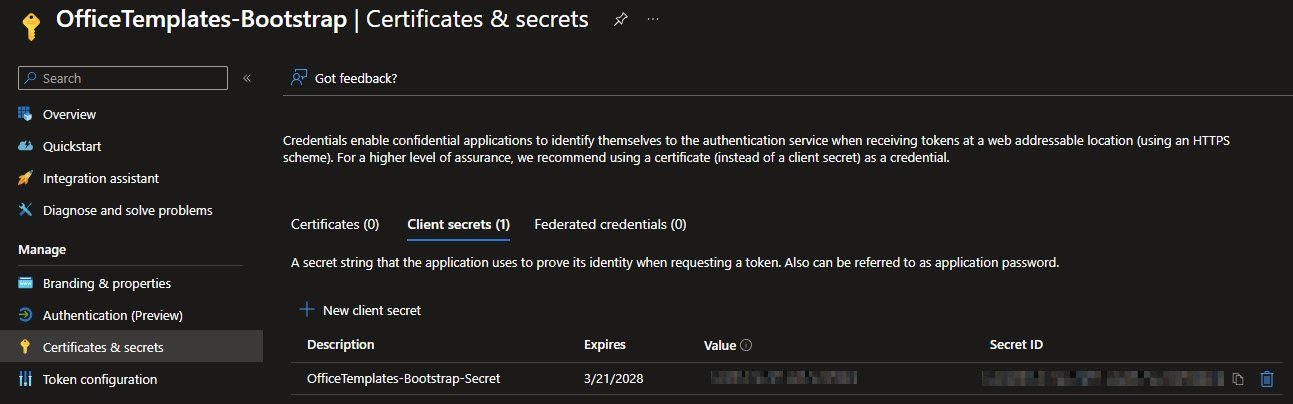
The bootstrap client secret is hardcoded in the install and uninstall scripts so anyone who can extract the “.intunewin” package can read it but secrets expire and when they do both scripts break, so set a calendar reminder and rotate it before that happens.
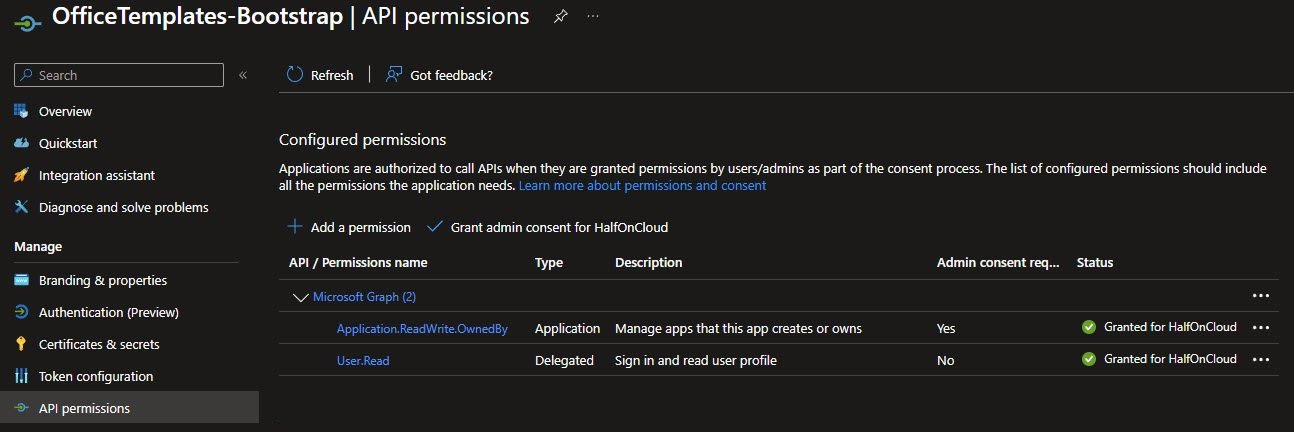
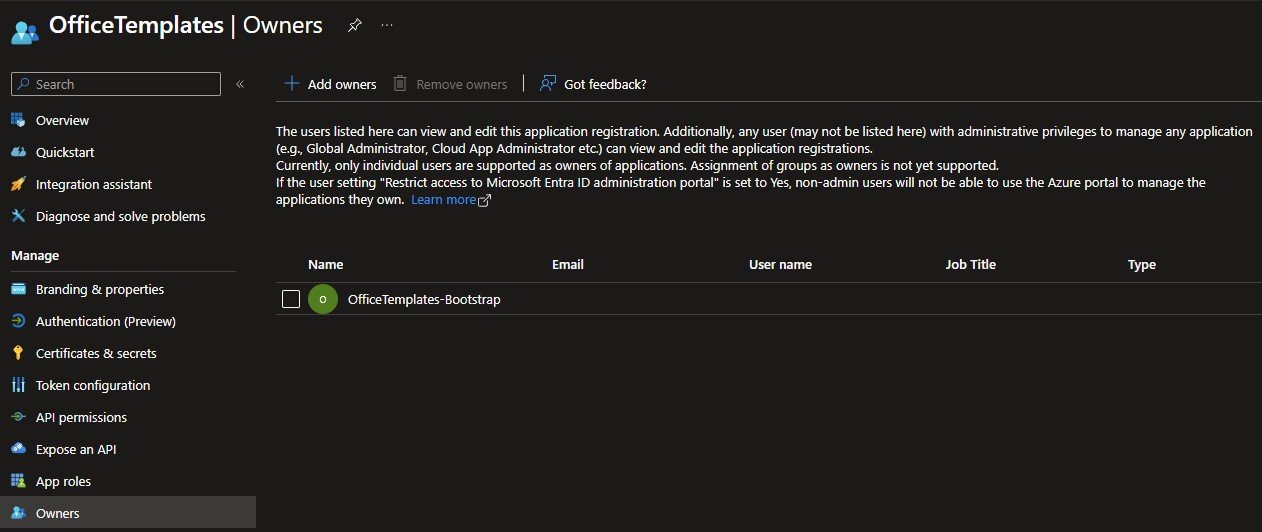
The bootstrap secret has “Application.ReadWrite.OwnedBy” permission which means it can only modify the “OfficeTemplates” app registration because “OfficeTemplates-Bootstrap” is its registered owner. If the secret is compromised, the damage is limited to one app registration and only to key credentials on that registration.
Once the install script runs, the bootstrap secret is never used again on that device. The device registers its own self-signed certificate and all subsequent Graph API calls use that device certificate only, so the bootstrap secret just sits there doing nothing after first use.
A cleaner alternative using Cloud PKI (Intune Suite) or SCEPman would eliminate the bootstrap secret entirely, but that is for a future article.
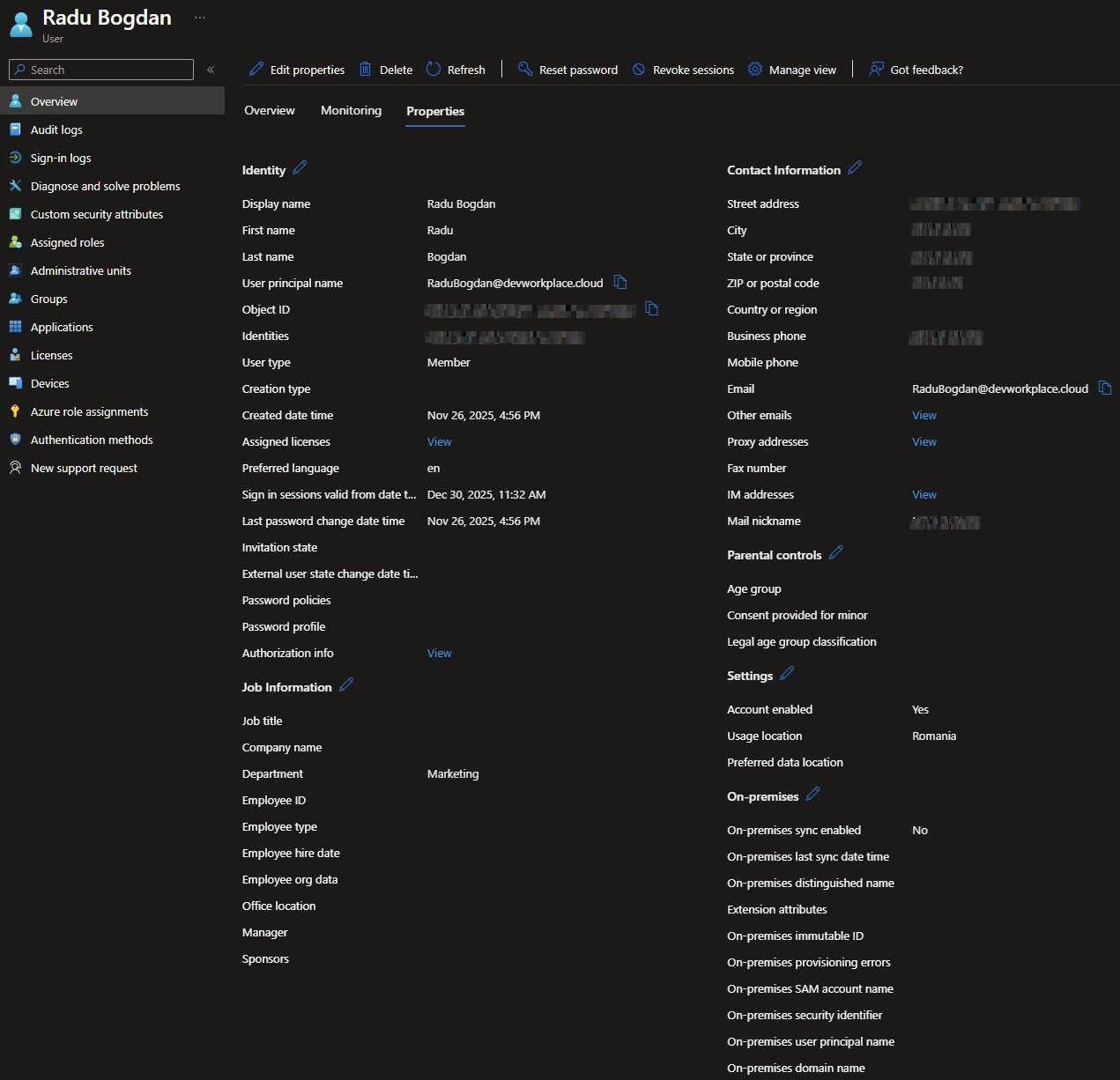
The “Department” attribute on the Entra ID user profile must be populated in advance otherwise the install script exits with an error and no templates are deployed, which is intentional.
Architecture Overview
The solution has three components working together:
Component 1: Win32 App (SYSTEM context) - Runs once on enrollment, generates a per-device certificate, registers it on the “OfficeTemplates” app registration, authenticates to Graph API using that certificate, downloads templates from SharePoint and writes a version manifest and detection registry key.
Component 2: Proactive Remediation: Sync (SYSTEM context, hourly) - Runs every hour and re-downloads the latest templates from SharePoint, copies them to all user profile template folders and keeps everything in sync without any user involvement.
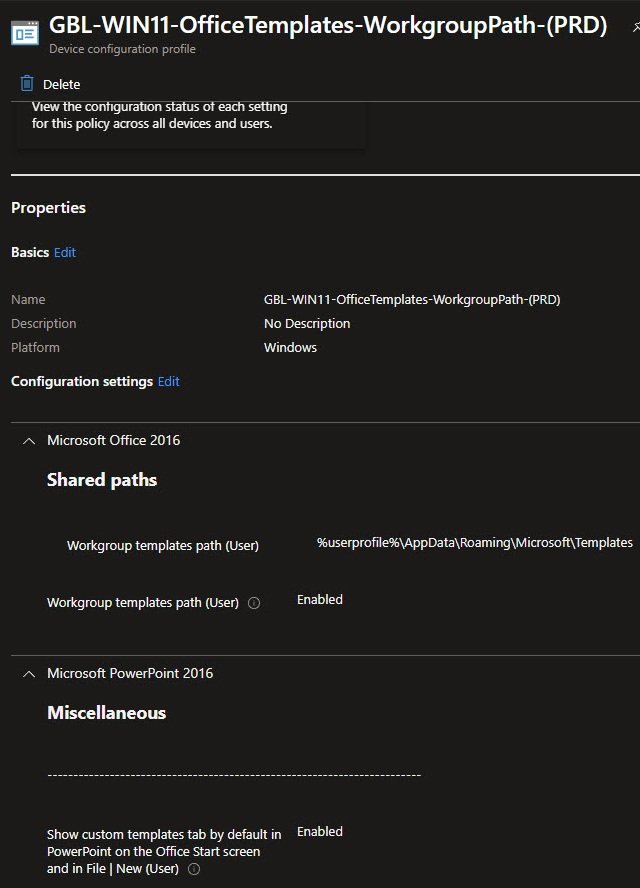
Component 3: Settings Catalog Policy - Two settings deployed together: the workgroup templates path so Office knows where to find company templates and the “Show custom templates tab by default” setting so PowerPoint displays the Shared tab automatically, both of which are mandatory for this to work correctly.
Step 1: Create the OfficeTemplates App Registration
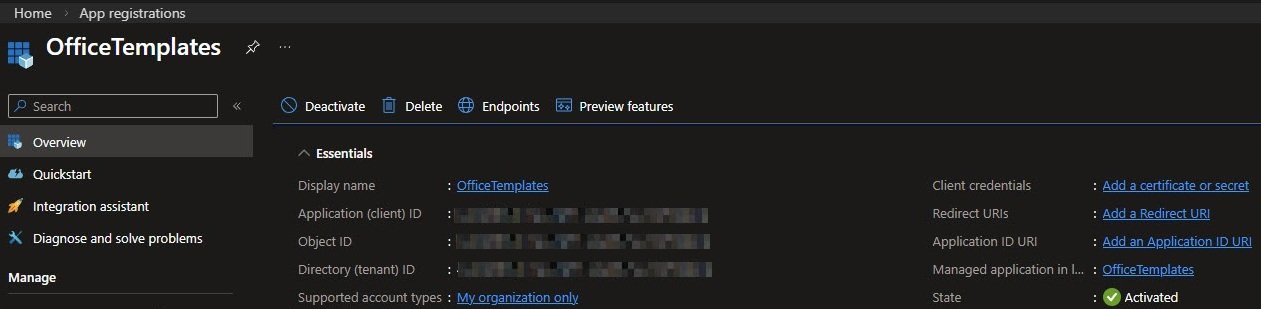
Go to Entra ID -> App registrations -> New registration and create a new app registration with the following settings:
Name: “OfficeTemplates”
Supported account types: “Accounts in this organizational directory only”
Redirect URI: leave blank
Once created you will land on the Overview page where you can grab the Application (client) ID and Object ID for later use.
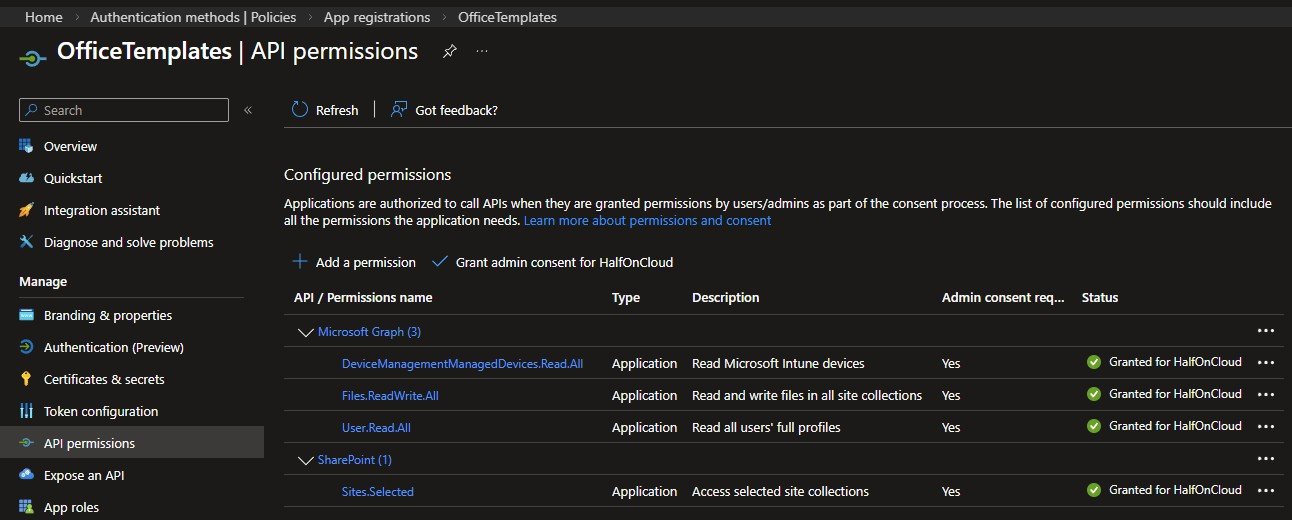
Under API permissions add the following Microsoft Graph application permissions and grant admin consent for all of them:
“DeviceManagementManagedDevices.Read.All” - needed to find the device in Intune and get its primary user
“Files.ReadWrite.All” - needed to download templates from SharePoint
“User.Read.All” - needed to read the department attribute from the user profile
Then add a SharePoint application permission:
“Sites.Selected” - limits access to one specific SharePoint site only, scoped in Step 4
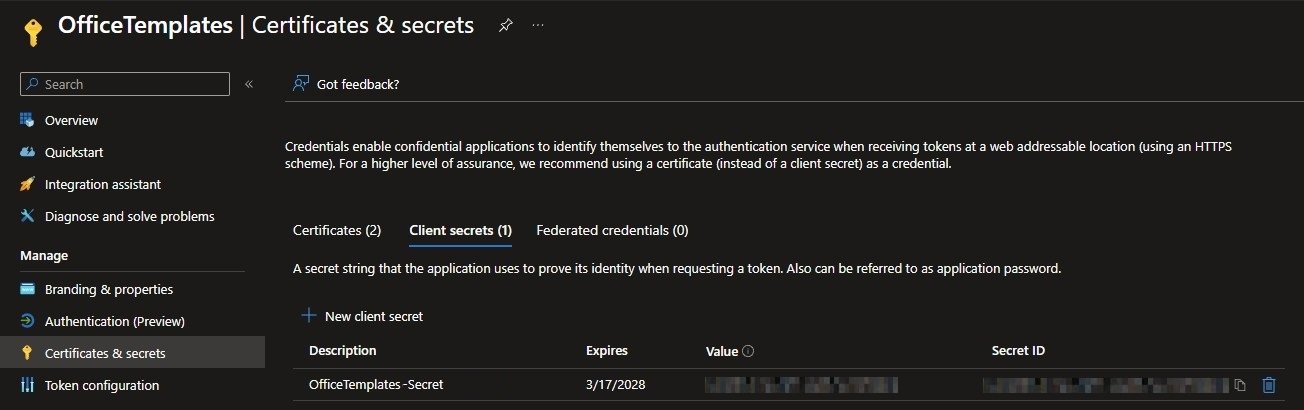
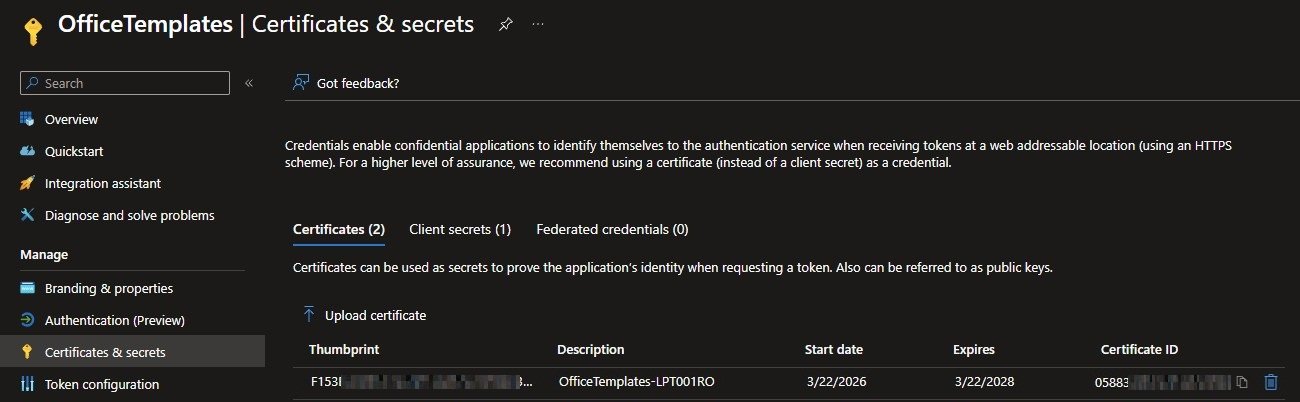
Under Certificates & secrets you will notice this app registration ends up with both a client secret and device certificates. The client secret belongs to the bootstrap pattern covered in Step 3.
Note: The device certificates are registered automatically by the install script on each enrolled device, one per machine.
After the Win32 app runs on a device for the first time, the install script automatically registers a per-device certificate on this app registration so each enrolled device ends up with its own certificate listed here.
Step 2: Set up the SharePoint Site
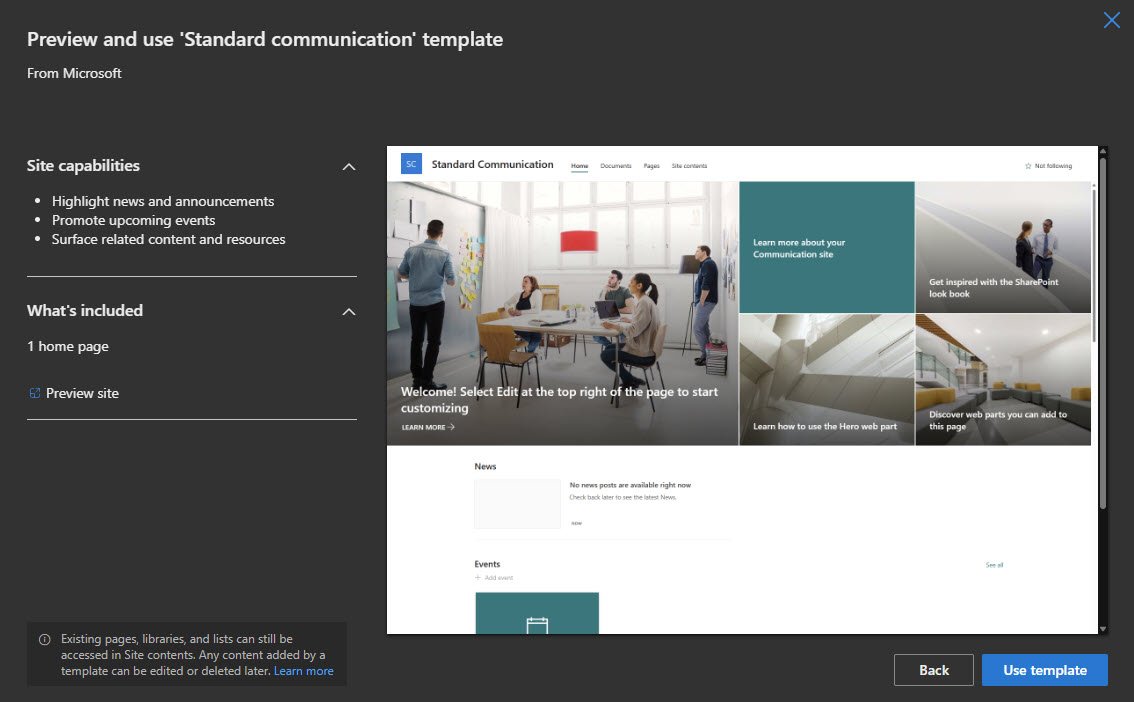
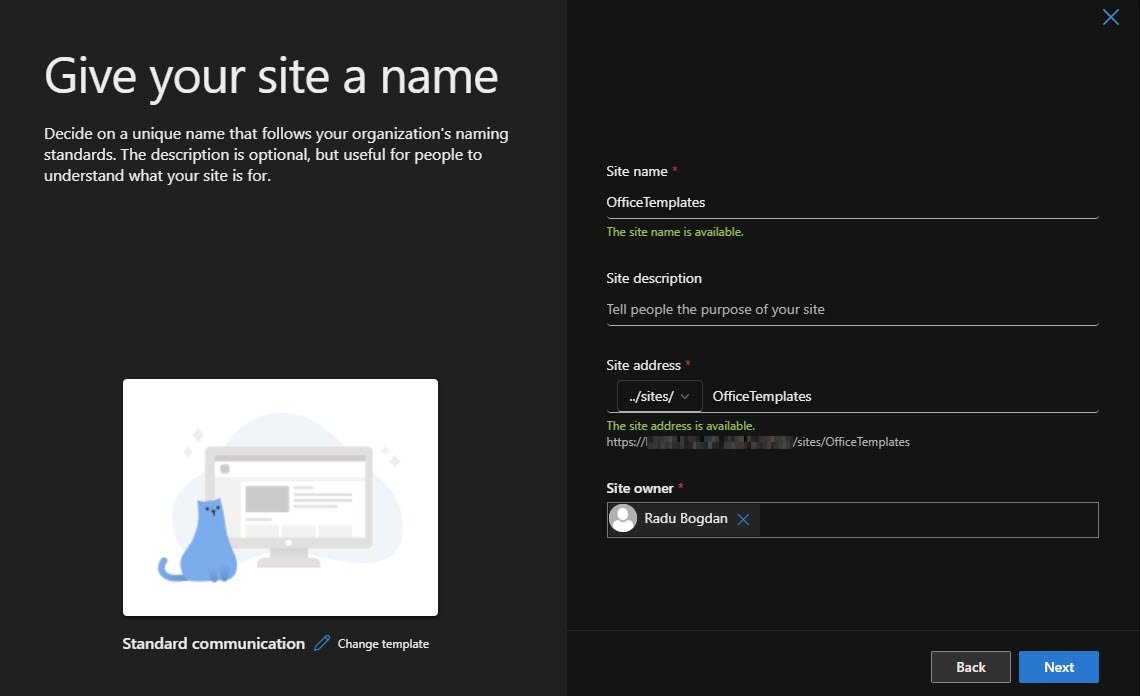
Go to SharePoint Admin Center -> Active sites -> Create and select Communication site as the site type.
Name the site “OfficeTemplates”, set yourself as the site owner and keep the address as-is since the install script references it directly.
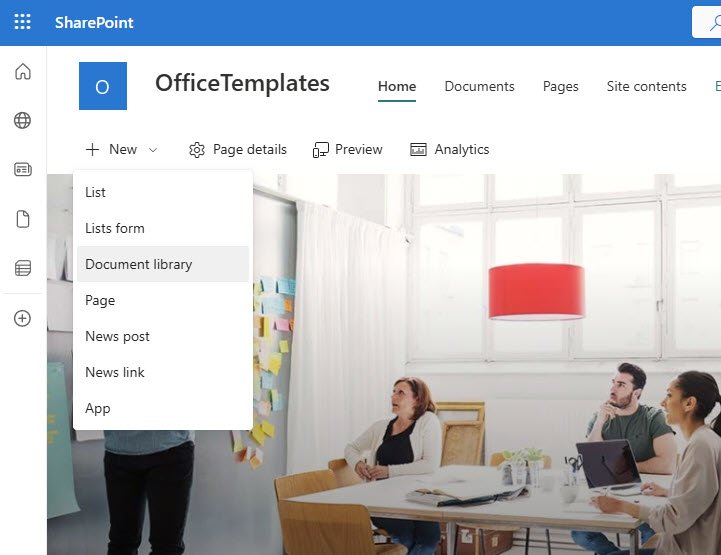
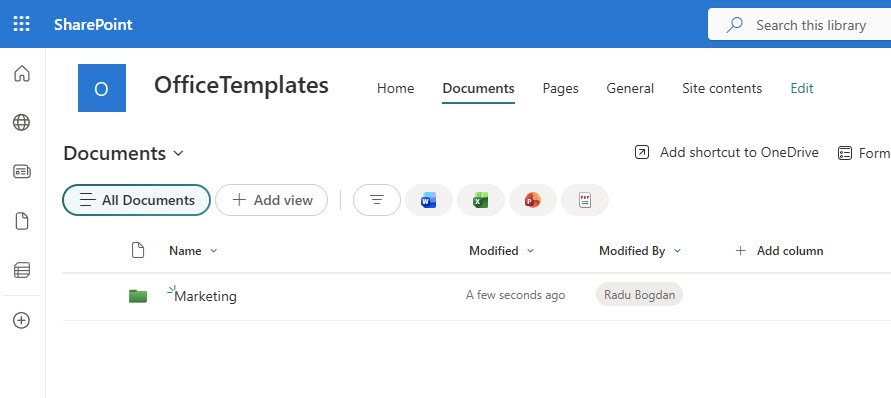
Once the site is created, go to New -> Document library and name it “Documents” if it does not already exist.
Inside the Documents library create a folder matching the department name exactly as it appears in Entra ID. The install script reads the department attribute from the user profile and looks for a folder with that exact name in SharePoint, so casing matters.
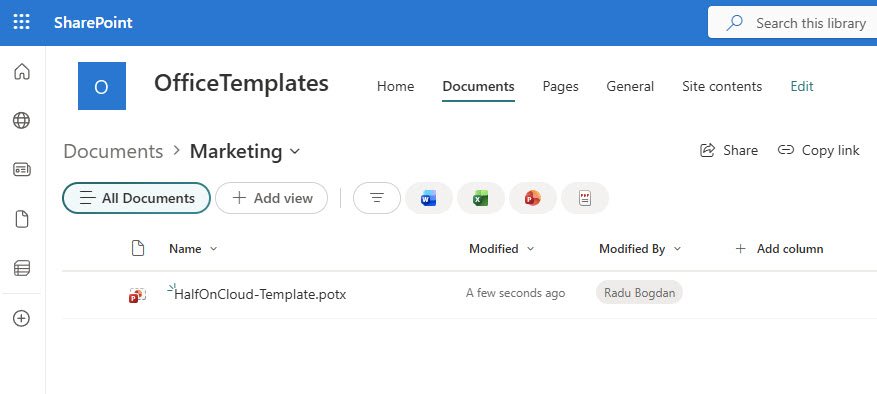
Upload your “.potx” template file into the department folder, in my case named: “HalfOnCloud-Template.potx”
Speaking of department names, the install script reads the Department field directly from the Entra ID user profile so make sure it is populated for every user before deploying the Win32 app, otherwise the script exits with an error and no templates are deployed.
Step 3: Create the Bootstrap App Registration
Create a second app registration named “OfficeTemplates-Bootstrap” single tenant and no redirect URI.
Under Certificates & secrets create a new client secret named “OfficeTemplates-Bootstrap-Secret” with a 24 month expiry and copy the value immediately since you will not see it again.
Important: This is the only secret in the entire solution and it only gets used once per device during first install.
Under API permissions add “Application.ReadWrite.OwnedBy” as an application permission and grant admin consent. This is what allows the bootstrap secret to register a device certificate on the “OfficeTemplates” app registration without being able to touch anything else in the tenant.
The Entra ID portal owner search only surfaces user accounts and you will not find app registrations or service principals there no matter how hard you look, so PowerShell is the only way to do this.
Note: Replace “< OfficeTemplates-Bootstrap-AppId >” and “< OfficeTemplates-ObjectId >” with your own values before running it!
# Get the service principal Object ID of OfficeTemplates-Bootstrap$sp = Invoke-MgGraphRequest -Method GET `
-Uri "https://graph.microsoft.com/v1.0/servicePrincipals?`$filter=appId eq '<OfficeTemplates-Bootstrap-AppId>'"$BootstrapSpId = $sp.value[0].id
# Add it as owner of OfficeTemplates$OfficeTemplatesObjectId = "<OfficeTemplates-ObjectId>"New-MgApplicationOwnerByRef -ApplicationId $OfficeTemplatesObjectId `
-OdataId "https://graph.microsoft.com/v1.0/directoryObjects/$BootstrapSpId"# VerifyGet-MgApplicationOwner -ApplicationId $OfficeTemplatesObjectId | Select-Object Id
Step 4: Scope Sites.Selected to the SharePoint Site
“Sites.Selected” permission does nothing on its own so you need to explicitly grant the “OfficeTemplates” service principal read access to your SharePoint site.
Note: Replace “< your-tenant >” and “< OfficeTemplates-ClientId >” with your own values before running it.
# Connect to GraphConnect-MgGraph -Scopes "Sites.FullControl.All"# Get the SharePoint site ID$site = Invoke-MgGraphRequest -Method GET `
-Uri "https://graph.microsoft.com/v1.0/sites/<your-tenant>.sharepoint.com:/sites/OfficeTemplates"$siteId = $site.id
# Get the OfficeTemplates service principal object ID$sp = Invoke-MgGraphRequest -Method GET `
-Uri "https://graph.microsoft.com/v1.0/servicePrincipals?`$filter=displayName eq 'OfficeTemplates'"$spId = $sp.value[0].id
# Grant read access to the site$body = @{
roles = @("read")
grantedToIdentities = @(@{
application = @{
id = "<OfficeTemplates-ClientId>" displayName = "OfficeTemplates" }
})
} | ConvertTo-Json -Depth 5Invoke-MgGraphRequest -Method POST `
-Uri "https://graph.microsoft.com/v1.0/sites/$siteId/permissions" `
-Body $body `
-ContentType "application/json"
Verify it worked:
Invoke-MgGraphRequest -Method GET `
    -Uri "https://graph.microsoft.com/v1.0/sites/$siteId/permissions"
Step 5: Create the Win32 App
This is the main script that runs once on enrollment. It generates a per-device certificate, registers it on the “OfficeTemplates” app registration using the bootstrap secret, then authenticates to Graph API using that device certificate, finds the primary user, reads their department from Entra ID, downloads the matching templates from SharePoint and copies them to all local user profile template folders.
“Install-OfficeTemplates.ps1” PS script contents:
Install-OfficeTemplates.ps1
# =============================================================================# Install-OfficeTemplates.ps1# Win32 app install script — runs as SYSTEM via Intune## What this script does:# 1. Generate a self-signed certificate on the device# 2. Authenticate to Graph using the Bootstrap client secret# 3. Register the device certificate on the OfficeTemplates app registration# 4. Clear the bootstrap secret from memory# 5. Authenticate to Graph using the new device certificate# 6. Query the primary user of this device from Intune# 7. Look up that user's Department attribute in Entra ID# 8. Download templates from SharePoint /sites/OfficeTemplates/<Department>/# 9. Copy templates to all local user profile template folders# 10. Write version manifest to C:\ProgramData\CompanyTemplates\# 11. Write detection registry key## Author : RaduBogdan @ devworkplace.cloud# =============================================================================# =============================================================================# CONFIGURATION# =============================================================================$TenantID = "<Your-own-TenatID-here>"$BootstrapClientID = "<Your-own-BootstrapClientID-here>"$BootstrapSecret = "<Your-own-BootstrapSecret-here>"$OfficeTemplatesClientID = "<Your-own-OfficeTemplatesClientID-here>"$StagingFolder = "C:\ProgramData\CompanyTemplates"$ManifestPath = "$StagingFolder\manifest.json"$DetectionPath = "HKLM:\SOFTWARE\CompanyTemplates"$DetectionValue = "Version"$DetectionData = "1.0"$LogPath = "C:\ProgramData\Microsoft\IntuneManagementExtension\Logs\Install-OfficeTemplates.log"$SharePointHost = "<Your-own-SharePointHost-here>"$SharePointSite = "OfficeTemplates"# =============================================================================# LOGGING# =============================================================================function Write-Log {
param([string]$Message, [string]$Level = "INFO")
$entry = "[$(Get-Date -Format 'yyyy-MM-dd HH:mm:ss')] [$Level] $Message" Add-Content -Path $LogPath -Value $entry -Force
Write-Host $entry}
Write-Log "=== Install-OfficeTemplates.ps1 started ==="# =============================================================================# STEP 1: Generate self-signed certificate on this device# =============================================================================Write-Log "STEP 1: Generating device certificate..."$CertSubject = "CN=OfficeTemplates-$env:COMPUTERNAME"$ExistingCert = Get-ChildItem Cert:\LocalMachine\My | Where-Object { $_.Subject -eq$CertSubject }
if ($ExistingCert) {
Write-Log "Certificate already exists. Thumbprint: $($ExistingCert.Thumbprint). Reusing."$DeviceCert = $ExistingCert} else {
$DeviceCert = New-SelfSignedCertificate `
-Subject $CertSubject `
-CertStoreLocation "Cert:\LocalMachine\My" `
-KeyExportPolicy NonExportable `
-KeySpec Signature `
-KeyLength 2048 `
-HashAlgorithm SHA256 `
-NotAfter (Get-Date).AddYears(2)
Write-Log "Certificate generated. Thumbprint: $($DeviceCert.Thumbprint)"}
$CertBase64 = [System.Convert]::ToBase64String($DeviceCert.RawData)
# =============================================================================# STEP 2: Authenticate to Graph using Bootstrap client secret# =============================================================================Write-Log "STEP 2: Authenticating via Bootstrap client secret..."$SecureSecret = ConvertTo-SecureString $BootstrapSecret -AsPlainText -Force
$BSTR = [System.Runtime.InteropServices.Marshal]::SecureStringToBSTR($SecureSecret)
$PlainSecret = [System.Runtime.InteropServices.Marshal]::PtrToStringAuto($BSTR)
$TokenBody = @{
grant_type = "client_credentials" client_id = $BootstrapClientID client_secret = $PlainSecret scope = "https://graph.microsoft.com/.default"}
$BootstrapToken = (Invoke-RestMethod -Method Post `
-Uri "https://login.microsoftonline.com/$TenantID/oauth2/v2.0/token" `
-Body $TokenBody).access_token
[System.Runtime.InteropServices.Marshal]::ZeroFreeBSTR($BSTR)
$PlainSecret = $null[System.GC]::Collect()
Write-Log "Bootstrap token acquired."# =============================================================================# STEP 3: Register device certificate on OfficeTemplates app registration# =============================================================================Write-Log "STEP 3: Registering device certificate on OfficeTemplates app registration..."$AppResponse = Invoke-RestMethod -Method Get `
-Uri "https://graph.microsoft.com/v1.0/applications?`$filter=appId eq '$OfficeTemplatesClientID'" `
-Headers @{ Authorization = "Bearer $BootstrapToken" }
$AppObjectId = $AppResponse.value[0].id
$ExistingKeys = $AppResponse.value[0].keyCredentials
$AlreadyExists = $ExistingKeys | Where-Object { $_.displayName -eq"OfficeTemplates-$env:COMPUTERNAME" }
if ($AlreadyExists) {
Write-Log "Device certificate already registered. Skipping."} else {
$NewKey = @{
type = "AsymmetricX509Cert" usage = "Verify" displayName = "OfficeTemplates-$env:COMPUTERNAME" key = $CertBase64 }
$AllKeys = @($ExistingKeys) + @($NewKey)
$PatchBody = @{ keyCredentials = $AllKeys } | ConvertTo-Json -Depth 5 Invoke-RestMethod -Method Patch `
-Uri "https://graph.microsoft.com/v1.0/applications/$AppObjectId" `
-Headers @{ Authorization = "Bearer $BootstrapToken"; "Content-Type" = "application/json" } `
-Body $PatchBody Write-Log "Device certificate registered successfully."}
$BootstrapToken = $null[System.GC]::Collect()
Write-Log "Bootstrap token cleared from memory."# =============================================================================# STEP 4: Authenticate to Graph using device certificate# =============================================================================Write-Log "STEP 4: Authenticating via device certificate..."$Now = [System.DateTimeOffset]::UtcNow
$JwtHeader = [System.Convert]::ToBase64String(
[System.Text.Encoding]::UTF8.GetBytes(
(@{ alg = "RS256"; x5t = [System.Convert]::ToBase64String($DeviceCert.GetCertHash()) } | ConvertTo-Json -Compress)
)
).TrimEnd('=').Replace('+','-').Replace('/','_')
$JwtPayload = [System.Convert]::ToBase64String(
[System.Text.Encoding]::UTF8.GetBytes(
(@{
aud = "https://login.microsoftonline.com/$TenantID/oauth2/v2.0/token" iss = $OfficeTemplatesClientID sub = $OfficeTemplatesClientID jti = [System.Guid]::NewGuid().ToString()
nbf = $Now.ToUnixTimeSeconds()
exp = $Now.AddMinutes(10).ToUnixTimeSeconds()
} | ConvertTo-Json -Compress)
)
).TrimEnd('=').Replace('+','-').Replace('/','_')
$JwtUnsigned = "$JwtHeader.$JwtPayload"$RSA = [System.Security.Cryptography.X509Certificates.RSACertificateExtensions]::GetRSAPrivateKey($DeviceCert)
$Signature = [System.Convert]::ToBase64String(
$RSA.SignData(
[System.Text.Encoding]::UTF8.GetBytes($JwtUnsigned),
[System.Security.Cryptography.HashAlgorithmName]::SHA256,
[System.Security.Cryptography.RSASignaturePadding]::Pkcs1)
).TrimEnd('=').Replace('+','-').Replace('/','_')
$ClientAssertion = "$JwtUnsigned.$Signature"$Token = (Invoke-RestMethod -Method Post `
-Uri "https://login.microsoftonline.com/$TenantID/oauth2/v2.0/token" `
-Body @{
grant_type = "client_credentials" client_id = $OfficeTemplatesClientID client_assertion_type = "urn:ietf:params:oauth:client-assertion-type:jwt-bearer" client_assertion = $ClientAssertion scope = "https://graph.microsoft.com/.default" }).access_token
Write-Log "Device certificate authentication successful."# =============================================================================# STEP 5: Get primary user of this device from Intune# =============================================================================Write-Log "STEP 5: Querying primary user from Intune..."# Win32_BIOS returns "Default string" on VMware VMs — fall back to UUID construction$BiosSerial = (Get-WmiObject Win32_BIOS).SerialNumber -replace'\s',''if ($BiosSerial-eq"Defaultstring"-or$BiosSerial.Length -lt5) {
$uuid = (Get-WmiObject Win32_ComputerSystemProduct).UUID
$p = $uuid-replace'-',''$SerialNumber = ("VMware-" +
$p.Substring(6,2) + $p.Substring(4,2) + $p.Substring(2,2) + $p.Substring(0,2) +
$p.Substring(10,2) + $p.Substring(8,2) + $p.Substring(14,2) + $p.Substring(12,2) + "-" +
$p.Substring(16,4) + $p.Substring(20,12)).ToLower()
Write-Log "Win32_BIOS returned placeholder - using UUID fallback. Serial: $SerialNumber"} else {
$SerialNumber = $BiosSerial Write-Log "Serial number: $SerialNumber"}
$DeviceSearch = Invoke-RestMethod -Method Get `
-Uri "https://graph.microsoft.com/v1.0/deviceManagement/managedDevices?`$filter=serialNumber eq '$SerialNumber'" `
-Headers @{ Authorization = "Bearer $Token" }
if (-not$DeviceSearch.value -or$DeviceSearch.value.Count -eq0) {
Write-Log "ERROR: Device not found in Intune by serial number: $SerialNumber" -Level ERROR
exit 1}
$PrimaryUserUPN = $DeviceSearch.value[0].userPrincipalName
Write-Log "Primary user UPN: $PrimaryUserUPN"# =============================================================================# STEP 6: Get user Department from Entra ID# =============================================================================Write-Log "STEP 6: Querying user department from Entra ID..."$UserResponse = Invoke-RestMethod -Method Get `
-Uri "https://graph.microsoft.com/v1.0/users/$PrimaryUserUPN`?`$select=department" `
-Headers @{ Authorization = "Bearer $Token" }
$Department = $UserResponse.department
if ([string]::IsNullOrEmpty($Department)) {
Write-Log "ERROR: Department attribute is empty for user $PrimaryUserUPN. Set the Department attribute in Entra ID first." -Level ERROR
exit 1}
Write-Log "Department: $Department"# =============================================================================# STEP 7: Get SharePoint site and drive IDs# =============================================================================Write-Log "STEP 7: Resolving SharePoint site and drive IDs..."$SiteId = (Invoke-RestMethod -Method Get `
-Uri "https://graph.microsoft.com/v1.0/sites/$SharePointHost`:/sites/$SharePointSite" `
-Headers @{ Authorization = "Bearer $Token" }).id
$DriveId = (Invoke-RestMethod -Method Get `
-Uri "https://graph.microsoft.com/v1.0/sites/$SiteId/drives" `
-Headers @{ Authorization = "Bearer $Token" }).value[0].id
Write-Log "Drive ID: $DriveId"# =============================================================================# STEP 8: Download templates from SharePoint# =============================================================================Write-Log "STEP 8: Downloading templates from SharePoint /$Department/..."$FilesResponse = Invoke-RestMethod -Method Get `
-Uri "https://graph.microsoft.com/v1.0/drives/$DriveId/root:/$Department`:/children" `
-Headers @{ Authorization = "Bearer $Token" }
if (-not$FilesResponse.value -or$FilesResponse.value.Count -eq0) {
Write-Log "ERROR: No files found in SharePoint folder /$Department/" -Level ERROR
exit 1}
Write-Log "Found $($FilesResponse.value.Count) file(s) in /$Department/"if (-not (Test-Path $StagingFolder)) {
New-Item -Path $StagingFolder -ItemType Directory -Force | Out-Null
Write-Log "Created staging folder: $StagingFolder"}
$DeptStagingFolder = "$StagingFolder\$Department"if (-not (Test-Path $DeptStagingFolder)) {
New-Item -Path $DeptStagingFolder -ItemType Directory -Force | Out-Null
}
# Allow user context to write the flag file used by drift detection$Acl = Get-Acl $StagingFolder$UserRule = New-Object System.Security.AccessControl.FileSystemAccessRule("Users", "Write", "None", "None", "Allow")
$Acl.AddAccessRule($UserRule)
Set-Acl -Path $StagingFolder -AclObject $Acl$ManifestFiles = @()
foreach ($Filein$FilesResponse.value) {
$LocalPath = "$DeptStagingFolder\$($File.name)" Write-Log "Downloading: $($File.name)" Invoke-WebRequest -Uri $File."@microsoft.graph.downloadUrl" -OutFile $LocalPath -UseBasicParsing
$ManifestFiles += @{
name = $File.name
sharepointVersion = $File.file.hashes.quickXorHash
localHash = (Get-FileHash -Path $LocalPath -Algorithm MD5).Hash
}
}
Write-Log "All files downloaded."# =============================================================================# STEP 9: Copy templates to all local user profile template folders# =============================================================================Write-Log "STEP 9: Copying templates to user profile template folders..."$ProfileList = Get-ItemProperty "HKLM:\SOFTWARE\Microsoft\Windows NT\CurrentVersion\ProfileList\*" |
Where-Object {
$_.ProfileImagePath -like"C:\Users\*"-and$_.ProfileImagePath -notlike"*systemprofile*"-and$_.ProfileImagePath -notlike"*NetworkService*"-and$_.ProfileImagePath -notlike"*LocalService*"-and$_.ProfileImagePath -notlike"*defaultuser*" }
foreach ($Profilein$ProfileList) {
$TemplatePath = "$($Profile.ProfileImagePath)\AppData\Roaming\Microsoft\Templates"if (-not (Test-Path $TemplatePath)) {
New-Item -Path $TemplatePath -ItemType Directory -Force | Out-Null
}
foreach ($Filein (Get-ChildItem $DeptStagingFolder)) {
Copy-Item -Path $File.FullName -Destination "$TemplatePath\$($File.Name)" -Force
Write-Log "Copied $($File.Name) to $TemplatePath" }
}
# =============================================================================# STEP 10: Write version manifest# =============================================================================Write-Log "STEP 10: Writing version manifest..."$Manifest = @{
department = $Department lastSync = (Get-Date -Format "o")
files = $ManifestFiles} | ConvertTo-Json -Depth 5Set-Content -Path $ManifestPath -Value $Manifest -Force
Write-Log "Manifest written to $ManifestPath"# =============================================================================# STEP 11: Write detection registry key# =============================================================================Write-Log "STEP 11: Writing detection registry key..."$Reg = [Microsoft.Win32.RegistryKey]::OpenBaseKey(
[Microsoft.Win32.RegistryHive]::LocalMachine,
[Microsoft.Win32.RegistryView]::Registry64
)
$Key = $Reg.CreateSubKey("SOFTWARE\CompanyTemplates")
$Key.SetValue("Version", $DetectionData)
$Key.SetValue("Department", $Department)
$Key.SetValue("LastSync", (Get-Date -Format "o"))
$Key.Close()
$Reg.Close()
Write-Log "Detection key written: HKLM:\SOFTWARE\CompanyTemplates\Version = $DetectionData"Write-Log "=== Install-OfficeTemplates.ps1 completed successfully ==="exit 0
# =============================================================================# Install-OfficeTemplates.ps1# Win32 app install script — runs as SYSTEM via Intune## What this script does:# 1. Generate a self-signed certificate on the device# 2. Authenticate to Graph using the Bootstrap client secret# 3. Register the device certificate on the OfficeTemplates app registration# 4. Clear the bootstrap secret from memory# 5. Authenticate to Graph using the new device certificate# 6. Query the primary user of this device from Intune# 7. Look up that user's Department attribute in Entra ID# 8. Download templates from SharePoint /sites/OfficeTemplates/<Department>/# 9. Copy templates to all local user profile template folders# 10. Write version manifest to C:\ProgramData\CompanyTemplates\# 11. Write detection registry key## Author : RaduBogdan @ devworkplace.cloud# =============================================================================# =============================================================================# CONFIGURATION# =============================================================================$TenantID = "<Your-own-TenatID-here>"$BootstrapClientID = "<Your-own-BootstrapClientID-here>"$BootstrapSecret = "<Your-own-BootstrapSecret-here>"$OfficeTemplatesClientID = "<Your-own-OfficeTemplatesClientID-here>"$StagingFolder = "C:\ProgramData\CompanyTemplates"$ManifestPath = "$StagingFolder\manifest.json"$DetectionPath = "HKLM:\SOFTWARE\CompanyTemplates"$DetectionValue = "Version"$DetectionData = "1.0"$LogPath = "C:\ProgramData\Microsoft\IntuneManagementExtension\Logs\Install-OfficeTemplates.log"$SharePointHost = "<Your-own-SharePointHost-here>"$SharePointSite = "OfficeTemplates"# =============================================================================# LOGGING# =============================================================================function Write-Log {
param([string]$Message, [string]$Level = "INFO")
$entry = "[$(Get-Date -Format 'yyyy-MM-dd HH:mm:ss')] [$Level] $Message" Add-Content -Path $LogPath -Value $entry -Force
Write-Host $entry}
Write-Log "=== Install-OfficeTemplates.ps1 started ==="# =============================================================================# STEP 1: Generate self-signed certificate on this device# =============================================================================Write-Log "STEP 1: Generating device certificate..."$CertSubject = "CN=OfficeTemplates-$env:COMPUTERNAME"$ExistingCert = Get-ChildItem Cert:\LocalMachine\My | Where-Object { $_.Subject -eq$CertSubject }
if ($ExistingCert) {
Write-Log "Certificate already exists. Thumbprint: $($ExistingCert.Thumbprint). Reusing."$DeviceCert = $ExistingCert} else {
$DeviceCert = New-SelfSignedCertificate `
-Subject $CertSubject `
-CertStoreLocation "Cert:\LocalMachine\My" `
-KeyExportPolicy NonExportable `
-KeySpec Signature `
-KeyLength 2048 `
-HashAlgorithm SHA256 `
-NotAfter (Get-Date).AddYears(2)
Write-Log "Certificate generated. Thumbprint: $($DeviceCert.Thumbprint)"}
$CertBase64 = [System.Convert]::ToBase64String($DeviceCert.RawData)
# =============================================================================# STEP 2: Authenticate to Graph using Bootstrap client secret# =============================================================================Write-Log "STEP 2: Authenticating via Bootstrap client secret..."$SecureSecret = ConvertTo-SecureString $BootstrapSecret -AsPlainText -Force
$BSTR = [System.Runtime.InteropServices.Marshal]::SecureStringToBSTR($SecureSecret)
$PlainSecret = [System.Runtime.InteropServices.Marshal]::PtrToStringAuto($BSTR)
$TokenBody = @{
grant_type = "client_credentials" client_id = $BootstrapClientID client_secret = $PlainSecret scope = "https://graph.microsoft.com/.default"}
$BootstrapToken = (Invoke-RestMethod -Method Post `
-Uri "https://login.microsoftonline.com/$TenantID/oauth2/v2.0/token" `
-Body $TokenBody).access_token
[System.Runtime.InteropServices.Marshal]::ZeroFreeBSTR($BSTR)
$PlainSecret = $null[System.GC]::Collect()
Write-Log "Bootstrap token acquired."# =============================================================================# STEP 3: Register device certificate on OfficeTemplates app registration# =============================================================================Write-Log "STEP 3: Registering device certificate on OfficeTemplates app registration..."$AppResponse = Invoke-RestMethod -Method Get `
-Uri "https://graph.microsoft.com/v1.0/applications?`$filter=appId eq '$OfficeTemplatesClientID'" `
-Headers @{ Authorization = "Bearer $BootstrapToken" }
$AppObjectId = $AppResponse.value[0].id
$ExistingKeys = $AppResponse.value[0].keyCredentials
$AlreadyExists = $ExistingKeys | Where-Object { $_.displayName -eq"OfficeTemplates-$env:COMPUTERNAME" }
if ($AlreadyExists) {
Write-Log "Device certificate already registered. Skipping."} else {
$NewKey = @{
type = "AsymmetricX509Cert" usage = "Verify" displayName = "OfficeTemplates-$env:COMPUTERNAME" key = $CertBase64 }
$AllKeys = @($ExistingKeys) + @($NewKey)
$PatchBody = @{ keyCredentials = $AllKeys } | ConvertTo-Json -Depth 5 Invoke-RestMethod -Method Patch `
-Uri "https://graph.microsoft.com/v1.0/applications/$AppObjectId" `
-Headers @{ Authorization = "Bearer $BootstrapToken"; "Content-Type" = "application/json" } `
-Body $PatchBody Write-Log "Device certificate registered successfully."}
$BootstrapToken = $null[System.GC]::Collect()
Write-Log "Bootstrap token cleared from memory."# =============================================================================# STEP 4: Authenticate to Graph using device certificate# =============================================================================Write-Log "STEP 4: Authenticating via device certificate..."$Now = [System.DateTimeOffset]::UtcNow
$JwtHeader = [System.Convert]::ToBase64String(
[System.Text.Encoding]::UTF8.GetBytes(
(@{ alg = "RS256"; x5t = [System.Convert]::ToBase64String($DeviceCert.GetCertHash()) } | ConvertTo-Json -Compress)
)
).TrimEnd('=').Replace('+','-').Replace('/','_')
$JwtPayload = [System.Convert]::ToBase64String(
[System.Text.Encoding]::UTF8.GetBytes(
(@{
aud = "https://login.microsoftonline.com/$TenantID/oauth2/v2.0/token" iss = $OfficeTemplatesClientID sub = $OfficeTemplatesClientID jti = [System.Guid]::NewGuid().ToString()
nbf = $Now.ToUnixTimeSeconds()
exp = $Now.AddMinutes(10).ToUnixTimeSeconds()
} | ConvertTo-Json -Compress)
)
).TrimEnd('=').Replace('+','-').Replace('/','_')
$JwtUnsigned = "$JwtHeader.$JwtPayload"$RSA = [System.Security.Cryptography.X509Certificates.RSACertificateExtensions]::GetRSAPrivateKey($DeviceCert)
$Signature = [System.Convert]::ToBase64String(
$RSA.SignData(
[System.Text.Encoding]::UTF8.GetBytes($JwtUnsigned),
[System.Security.Cryptography.HashAlgorithmName]::SHA256,
[System.Security.Cryptography.RSASignaturePadding]::Pkcs1)
).TrimEnd('=').Replace('+','-').Replace('/','_')
$ClientAssertion = "$JwtUnsigned.$Signature"$Token = (Invoke-RestMethod -Method Post `
-Uri "https://login.microsoftonline.com/$TenantID/oauth2/v2.0/token" `
-Body @{
grant_type = "client_credentials" client_id = $OfficeTemplatesClientID client_assertion_type = "urn:ietf:params:oauth:client-assertion-type:jwt-bearer" client_assertion = $ClientAssertion scope = "https://graph.microsoft.com/.default" }).access_token
Write-Log "Device certificate authentication successful."# =============================================================================# STEP 5: Get primary user of this device from Intune# =============================================================================Write-Log "STEP 5: Querying primary user from Intune..."# Win32_BIOS returns "Default string" on VMware VMs — fall back to UUID construction$BiosSerial = (Get-WmiObject Win32_BIOS).SerialNumber -replace'\s',''if ($BiosSerial-eq"Defaultstring"-or$BiosSerial.Length -lt5) {
$uuid = (Get-WmiObject Win32_ComputerSystemProduct).UUID
$p = $uuid-replace'-',''$SerialNumber = ("VMware-" +
$p.Substring(6,2) + $p.Substring(4,2) + $p.Substring(2,2) + $p.Substring(0,2) +
$p.Substring(10,2) + $p.Substring(8,2) + $p.Substring(14,2) + $p.Substring(12,2) + "-" +
$p.Substring(16,4) + $p.Substring(20,12)).ToLower()
Write-Log "Win32_BIOS returned placeholder - using UUID fallback. Serial: $SerialNumber"} else {
$SerialNumber = $BiosSerial Write-Log "Serial number: $SerialNumber"}
$DeviceSearch = Invoke-RestMethod -Method Get `
-Uri "https://graph.microsoft.com/v1.0/deviceManagement/managedDevices?`$filter=serialNumber eq '$SerialNumber'" `
-Headers @{ Authorization = "Bearer $Token" }
if (-not$DeviceSearch.value -or$DeviceSearch.value.Count -eq0) {
Write-Log "ERROR: Device not found in Intune by serial number: $SerialNumber" -Level ERROR
exit 1}
$PrimaryUserUPN = $DeviceSearch.value[0].userPrincipalName
Write-Log "Primary user UPN: $PrimaryUserUPN"# =============================================================================# STEP 6: Get user Department from Entra ID# =============================================================================Write-Log "STEP 6: Querying user department from Entra ID..."$UserResponse = Invoke-RestMethod -Method Get `
-Uri "https://graph.microsoft.com/v1.0/users/$PrimaryUserUPN`?`$select=department" `
-Headers @{ Authorization = "Bearer $Token" }
$Department = $UserResponse.department
if ([string]::IsNullOrEmpty($Department)) {
Write-Log "ERROR: Department attribute is empty for user $PrimaryUserUPN. Set the Department attribute in Entra ID first." -Level ERROR
exit 1}
Write-Log "Department: $Department"# =============================================================================# STEP 7: Get SharePoint site and drive IDs# =============================================================================Write-Log "STEP 7: Resolving SharePoint site and drive IDs..."$SiteId = (Invoke-RestMethod -Method Get `
-Uri "https://graph.microsoft.com/v1.0/sites/$SharePointHost`:/sites/$SharePointSite" `
-Headers @{ Authorization = "Bearer $Token" }).id
$DriveId = (Invoke-RestMethod -Method Get `
-Uri "https://graph.microsoft.com/v1.0/sites/$SiteId/drives" `
-Headers @{ Authorization = "Bearer $Token" }).value[0].id
Write-Log "Drive ID: $DriveId"# =============================================================================# STEP 8: Download templates from SharePoint# =============================================================================Write-Log "STEP 8: Downloading templates from SharePoint /$Department/..."$FilesResponse = Invoke-RestMethod -Method Get `
-Uri "https://graph.microsoft.com/v1.0/drives/$DriveId/root:/$Department`:/children" `
-Headers @{ Authorization = "Bearer $Token" }
if (-not$FilesResponse.value -or$FilesResponse.value.Count -eq0) {
Write-Log "ERROR: No files found in SharePoint folder /$Department/" -Level ERROR
exit 1}
Write-Log "Found $($FilesResponse.value.Count) file(s) in /$Department/"if (-not (Test-Path $StagingFolder)) {
New-Item -Path $StagingFolder -ItemType Directory -Force | Out-Null
Write-Log "Created staging folder: $StagingFolder"}
$DeptStagingFolder = "$StagingFolder\$Department"if (-not (Test-Path $DeptStagingFolder)) {
New-Item -Path $DeptStagingFolder -ItemType Directory -Force | Out-Null
}
# Allow user context to write the flag file used by drift detection$Acl = Get-Acl $StagingFolder$UserRule = New-Object System.Security.AccessControl.FileSystemAccessRule("Users", "Write", "None", "None", "Allow")
$Acl.AddAccessRule($UserRule)
Set-Acl -Path $StagingFolder -AclObject $Acl$ManifestFiles = @()
foreach ($Filein$FilesResponse.value) {
$LocalPath = "$DeptStagingFolder\$($File.name)" Write-Log "Downloading: $($File.name)" Invoke-WebRequest -Uri $File."@microsoft.graph.downloadUrl" -OutFile $LocalPath -UseBasicParsing
$ManifestFiles += @{
name = $File.name
sharepointVersion = $File.file.hashes.quickXorHash
localHash = (Get-FileHash -Path $LocalPath -Algorithm MD5).Hash
}
}
Write-Log "All files downloaded."# =============================================================================# STEP 9: Copy templates to all local user profile template folders# =============================================================================Write-Log "STEP 9: Copying templates to user profile template folders..."$ProfileList = Get-ItemProperty "HKLM:\SOFTWARE\Microsoft\Windows NT\CurrentVersion\ProfileList\*" |
Where-Object {
$_.ProfileImagePath -like"C:\Users\*"-and$_.ProfileImagePath -notlike"*systemprofile*"-and$_.ProfileImagePath -notlike"*NetworkService*"-and$_.ProfileImagePath -notlike"*LocalService*"-and$_.ProfileImagePath -notlike"*defaultuser*" }
foreach ($Profilein$ProfileList) {
$TemplatePath = "$($Profile.ProfileImagePath)\AppData\Roaming\Microsoft\Templates"if (-not (Test-Path $TemplatePath)) {
New-Item -Path $TemplatePath -ItemType Directory -Force | Out-Null
}
foreach ($Filein (Get-ChildItem $DeptStagingFolder)) {
Copy-Item -Path $File.FullName -Destination "$TemplatePath\$($File.Name)" -Force
Write-Log "Copied $($File.Name) to $TemplatePath" }
}
# =============================================================================# STEP 10: Write version manifest# =============================================================================Write-Log "STEP 10: Writing version manifest..."$Manifest = @{
department = $Department lastSync = (Get-Date -Format "o")
files = $ManifestFiles} | ConvertTo-Json -Depth 5Set-Content -Path $ManifestPath -Value $Manifest -Force
Write-Log "Manifest written to $ManifestPath"# =============================================================================# STEP 11: Write detection registry key# =============================================================================Write-Log "STEP 11: Writing detection registry key..."$Reg = [Microsoft.Win32.RegistryKey]::OpenBaseKey(
[Microsoft.Win32.RegistryHive]::LocalMachine,
[Microsoft.Win32.RegistryView]::Registry64
)
$Key = $Reg.CreateSubKey("SOFTWARE\CompanyTemplates")
$Key.SetValue("Version", $DetectionData)
$Key.SetValue("Department", $Department)
$Key.SetValue("LastSync", (Get-Date -Format "o"))
$Key.Close()
$Reg.Close()
Write-Log "Detection key written: HKLM:\SOFTWARE\CompanyTemplates\Version = $DetectionData"Write-Log "=== Install-OfficeTemplates.ps1 completed successfully ==="exit 0
This script runs when the Win32 app is uninstalled. It removes the local template files, cleans up the staging folder, removes the detection registry key and deletes the device certificate from the local machine store.
# =============================================================================# Uninstall-OfficeTemplates.ps1# Win32 app uninstall script, runs as SYSTEM via Intune## What this script does:# 1. Remove templates from all local user profile template folders# 2. Remove the staging folder C:\ProgramData\CompanyTemplates\# 3. Remove the detection registry key## No Graph API calls needed — uninstall is local only.## Author : RaduBogdan @ devworkplace.cloud# =============================================================================# =============================================================================# CONFIGURATION# =============================================================================$StagingFolder = "C:\ProgramData\CompanyTemplates"$DetectionPath = "HKLM:\SOFTWARE\CompanyTemplates"$LogPath = "C:\ProgramData\Microsoft\IntuneManagementExtension\Logs\Uninstall-OfficeTemplates.log"# =============================================================================# LOGGING# =============================================================================function Write-Log {
param([string]$Message, [string]$Level = "INFO")
$entry = "[$(Get-Date -Format 'yyyy-MM-dd HH:mm:ss')] [$Level] $Message" Add-Content -Path $LogPath -Value $entry -Force
Write-Host $entry}
Write-Log "=== Uninstall-OfficeTemplates.ps1 started ==="# =============================================================================# STEP 1: Remove templates from all user profile template folders# =============================================================================Write-Log "STEP 1: Removing templates from user profile template folders..."if (Test-Path $StagingFolder) {
# Only remove files that were deployed — don't wipe the entire Templates folder$DeployedFiles = Get-ChildItem -Path $StagingFolder -Recurse -File |
Select-Object -ExpandProperty Name
$ProfileList = Get-ItemProperty "HKLM:\SOFTWARE\Microsoft\Windows NT\CurrentVersion\ProfileList\*" |
Where-Object {
$_.ProfileImagePath -like"C:\Users\*"-and$_.ProfileImagePath -notlike"*systemprofile*"-and$_.ProfileImagePath -notlike"*NetworkService*"-and$_.ProfileImagePath -notlike"*LocalService*" }
foreach ($Profilein$ProfileList) {
$TemplateFolder = "$($Profile.ProfileImagePath)\AppData\Roaming\Microsoft\Templates"foreach ($FileNamein$DeployedFiles) {
$TargetFile = "$TemplateFolder\$FileName"if (Test-Path $TargetFile) {
Remove-Item -Path $TargetFile -Force
Write-Log "Removed: $TargetFile" }
}
}
} else {
Write-Log "Staging folder not found. Skipping user profile cleanup."}
# =============================================================================# STEP 2: Remove staging folder# =============================================================================Write-Log "STEP 2: Removing staging folder..."if (Test-Path $StagingFolder) {
Remove-Item -Path $StagingFolder -Recurse -Force
Write-Log "Staging folder removed: $StagingFolder"} else {
Write-Log "Staging folder not found. Nothing to remove."}
# =============================================================================# STEP 3: Remove detection registry key# =============================================================================Write-Log "STEP 3: Removing detection registry key..."if (Test-Path $DetectionPath) {
Remove-Item -Path $DetectionPath -Recurse -Force
Write-Log "Detection registry key removed: $DetectionPath"} else {
Write-Log "Detection registry key not found. Nothing to remove."}
Write-Log "=== Uninstall-OfficeTemplates.ps1 completed successfully ==="exit 0
# =============================================================================# Uninstall-OfficeTemplates.ps1# Win32 app uninstall script, runs as SYSTEM via Intune## What this script does:# 1. Remove templates from all local user profile template folders# 2. Remove the staging folder C:\ProgramData\CompanyTemplates\# 3. Remove the detection registry key## No Graph API calls needed — uninstall is local only.## Author : RaduBogdan @ devworkplace.cloud# =============================================================================# =============================================================================# CONFIGURATION# =============================================================================$StagingFolder = "C:\ProgramData\CompanyTemplates"$DetectionPath = "HKLM:\SOFTWARE\CompanyTemplates"$LogPath = "C:\ProgramData\Microsoft\IntuneManagementExtension\Logs\Uninstall-OfficeTemplates.log"# =============================================================================# LOGGING# =============================================================================function Write-Log {
param([string]$Message, [string]$Level = "INFO")
$entry = "[$(Get-Date -Format 'yyyy-MM-dd HH:mm:ss')] [$Level] $Message" Add-Content -Path $LogPath -Value $entry -Force
Write-Host $entry}
Write-Log "=== Uninstall-OfficeTemplates.ps1 started ==="# =============================================================================# STEP 1: Remove templates from all user profile template folders# =============================================================================Write-Log "STEP 1: Removing templates from user profile template folders..."if (Test-Path $StagingFolder) {
# Only remove files that were deployed — don't wipe the entire Templates folder$DeployedFiles = Get-ChildItem -Path $StagingFolder -Recurse -File |
Select-Object -ExpandProperty Name
$ProfileList = Get-ItemProperty "HKLM:\SOFTWARE\Microsoft\Windows NT\CurrentVersion\ProfileList\*" |
Where-Object {
$_.ProfileImagePath -like"C:\Users\*"-and$_.ProfileImagePath -notlike"*systemprofile*"-and$_.ProfileImagePath -notlike"*NetworkService*"-and$_.ProfileImagePath -notlike"*LocalService*" }
foreach ($Profilein$ProfileList) {
$TemplateFolder = "$($Profile.ProfileImagePath)\AppData\Roaming\Microsoft\Templates"foreach ($FileNamein$DeployedFiles) {
$TargetFile = "$TemplateFolder\$FileName"if (Test-Path $TargetFile) {
Remove-Item -Path $TargetFile -Force
Write-Log "Removed: $TargetFile" }
}
}
} else {
Write-Log "Staging folder not found. Skipping user profile cleanup."}
# =============================================================================# STEP 2: Remove staging folder# =============================================================================Write-Log "STEP 2: Removing staging folder..."if (Test-Path $StagingFolder) {
Remove-Item -Path $StagingFolder -Recurse -Force
Write-Log "Staging folder removed: $StagingFolder"} else {
Write-Log "Staging folder not found. Nothing to remove."}
# =============================================================================# STEP 3: Remove detection registry key# =============================================================================Write-Log "STEP 3: Removing detection registry key..."if (Test-Path $DetectionPath) {
Remove-Item -Path $DetectionPath -Recurse -Force
Write-Log "Detection registry key removed: $DetectionPath"} else {
Write-Log "Detection registry key not found. Nothing to remove."}
Write-Log "=== Uninstall-OfficeTemplates.ps1 completed successfully ==="exit 0
This is the detection script Intune uses to determine whether the Win32 app is already installed. It checks for the presence of the detection registry key and exits with the appropriate code so Intune knows whether to install or skip.
The packaging folder structure has two subfolders, the “Source” folder contains the install and uninstall scripts and the “Output” folder for the “.intunewin” file. Separately, the detection script and the app icon sit at the root level alongside both folders.
The install and uninstall scripts go into the “Source” folder and are packaged inside the “.intunewin” file since there is no executable or MSI involved, just the two PowerShell scripts.
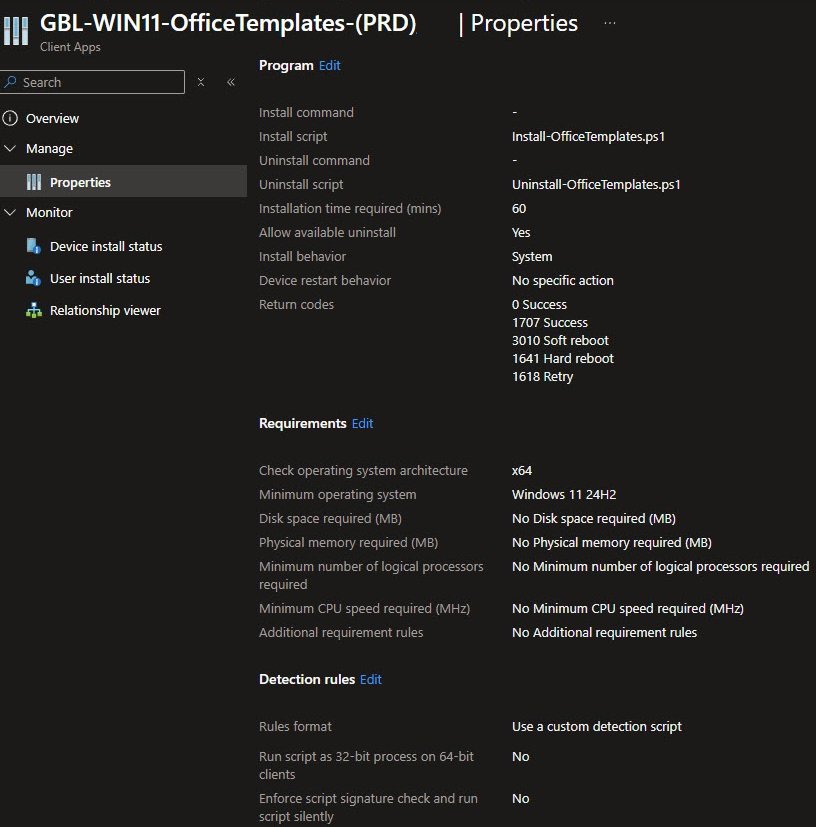
Install behavior is set to System which in this case is mandatory since the script needs to access “Cert:\LocalMachine\My” and also write to “C:\ProgramData”.
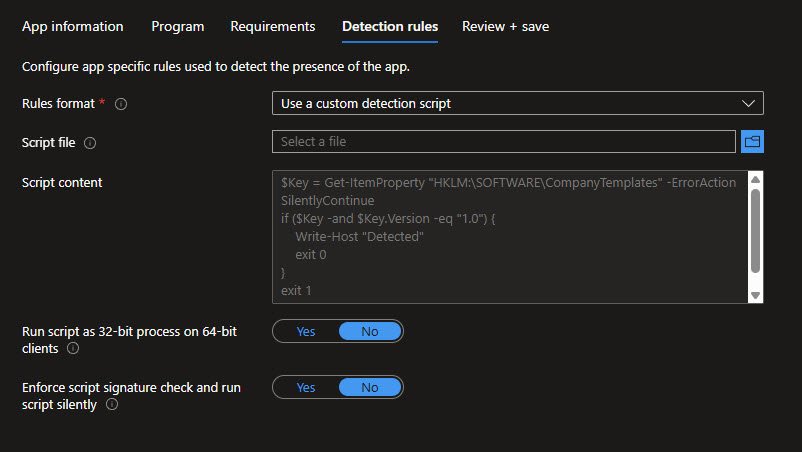
Note: The detection rule uses a custom script rather than a registry rule so Intune does not cache a stale positive result.
The detection script checks for the registry key at “HKLM:\SOFTWARE\CompanyTemplates” and exits 0 if the Version value is present, otherwise exits 1.
Step 6: Create the Settings Catalog Policy
Create a Settings Catalog policy, in my case I’ve named it “GBL-WIN11-OfficeTemplates-WorkgroupPath-(PRD)” with two settings configured together:
The workgroup templates path tells Office where to find the templates: “%userprofile%\AppData\Roaming\Microsoft\Templates”
The “Show custom templates tab by default…” setting makes PowerPoint display the Shared tab automatically.
Note: Both are mandatory because the workgroup path alone is not enough to make the templates visible.
Step 7: Create the Proactive Remediation
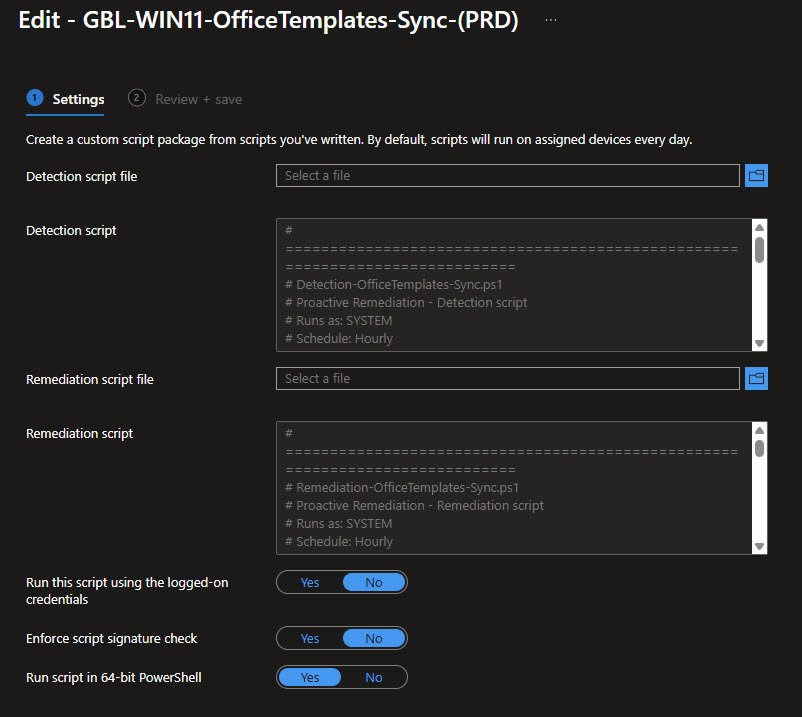
Create a new Proactive Remediation policy, which in my case I’ve named it “GBL-WIN11-OfficeTemplates-Sync-(PRD)”. The detection script always exits 1 which triggers the remediation every hour, the remediation script runs as SYSTEM, authenticates to Graph API using the device certificate and re-downloads the latest templates from SharePoint.
Set Run script in 64-bit PowerShell to Yes and leave Run this script using the logged-on credentials set to No so it runs as SYSTEM.
The detection script has one job: if the manifest exists, exit 1 to trigger the remediation. If it does not exist it means the Win32 app has not run yet on this device, so it exits 0 and leaves it alone.
# =============================================================================# Detection-OfficeTemplates-Sync.ps1# Runs as: SYSTEM# Schedule: Hourly## Author : RaduBogdan @ devworkplace.cloud# =============================================================================$ManifestPath = "C:\ProgramData\CompanyTemplates\manifest.json"# No manifest means the Win32 app hasn't run yet — not our job to fixif (-not (Test-Path $ManifestPath)) {
exit 0}
# Always trigger remediation to check SharePoint for updatesexit 1
The remediation script runs as SYSTEM every hour, it authenticates to Graph API using the device certificate, reads the department from the local manifest, downloads the latest templates from SharePoint and copies them to all user profile template folders.
The defaultuser * exclusion is important too especially during Autopilot enrollment since “defaultuser0” exists as a temporary profile during the Device Setup phase and copying templates there would be pointless as that profile gets discarded after OOBE completes.
Note: The device certificate is looked up by subject name “CN=OfficeTemplates-$env:COMPUTERNAME” so if the install script ever ran on a device with a different name, the remediation will fail silently.
The log file location Both scripts write to “C:\ProgramData\Microsoft\IntuneManagementExtension\Logs” which means troubleshooting is straightforward since everything lands in the same place as the rest of the Intune logs.
The remediation exits 1 on any error which means Intune will keep retrying, templates already on the device from the previous successful sync remain in place so users are not left without templates if there is a temporary connectivity issue.
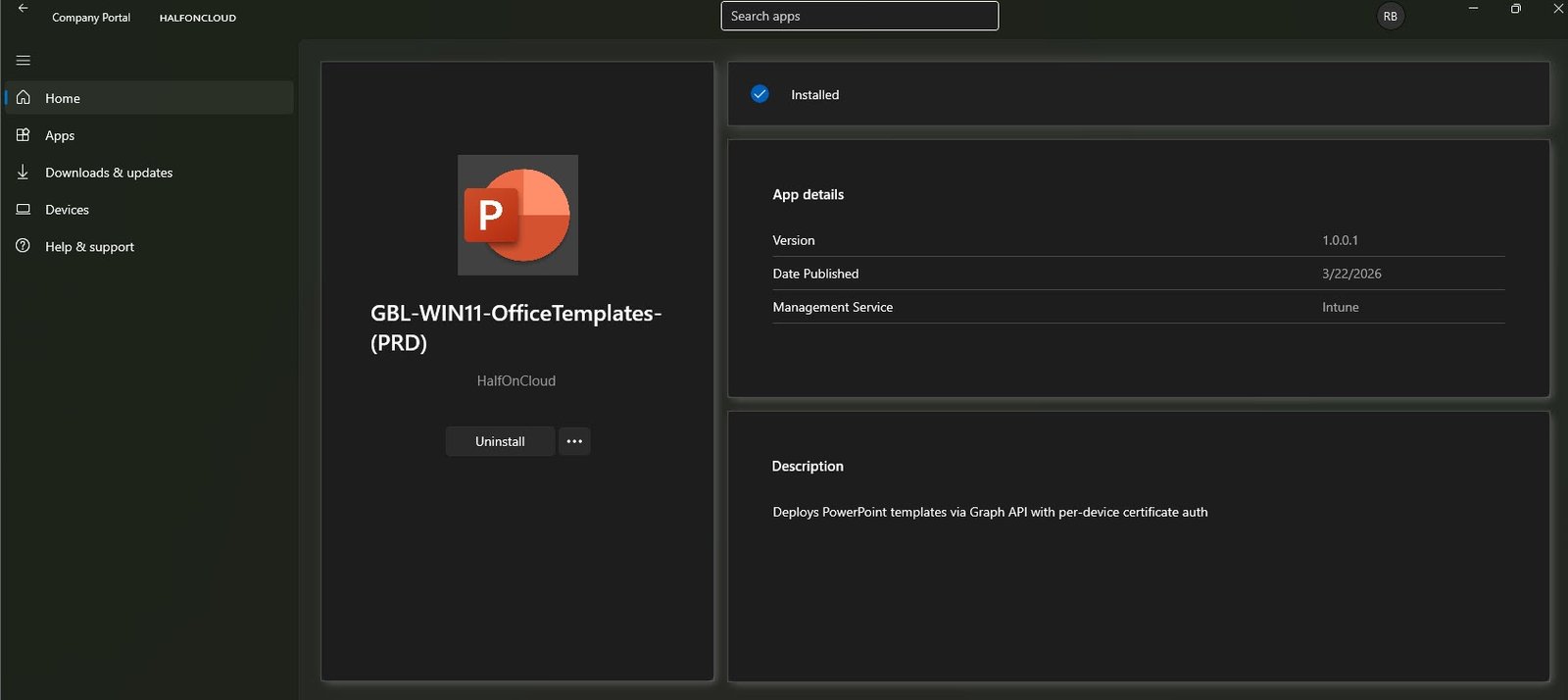
Once assigned, the Win32 app installs automatically on enrolled devices and shows as installed in Company Portal.
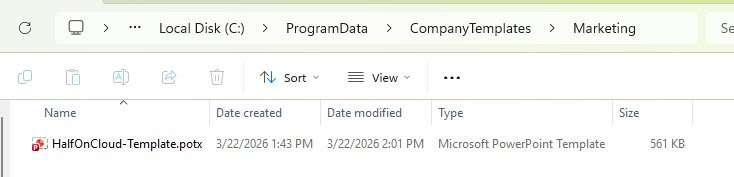
The install script downloads the templates into “C:\ProgramData\CompanyTemplates” under a subfolder matching the user’s department name in Entra ID.
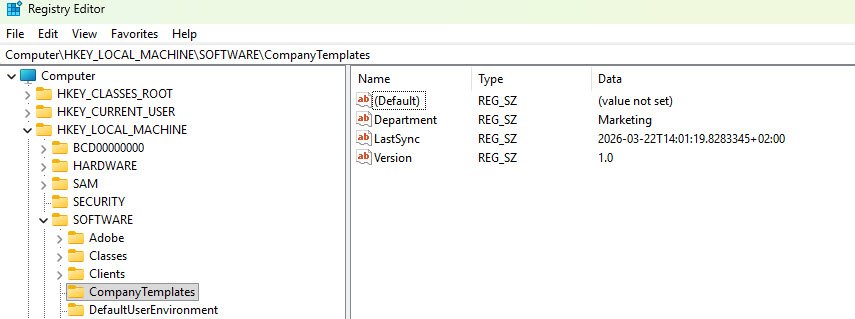
The detection registry key is written to “HKLM:\SOFTWARE\CompanyTemplates” with the department name, version and last sync timestamp so you can verify the install at a glance from any device.
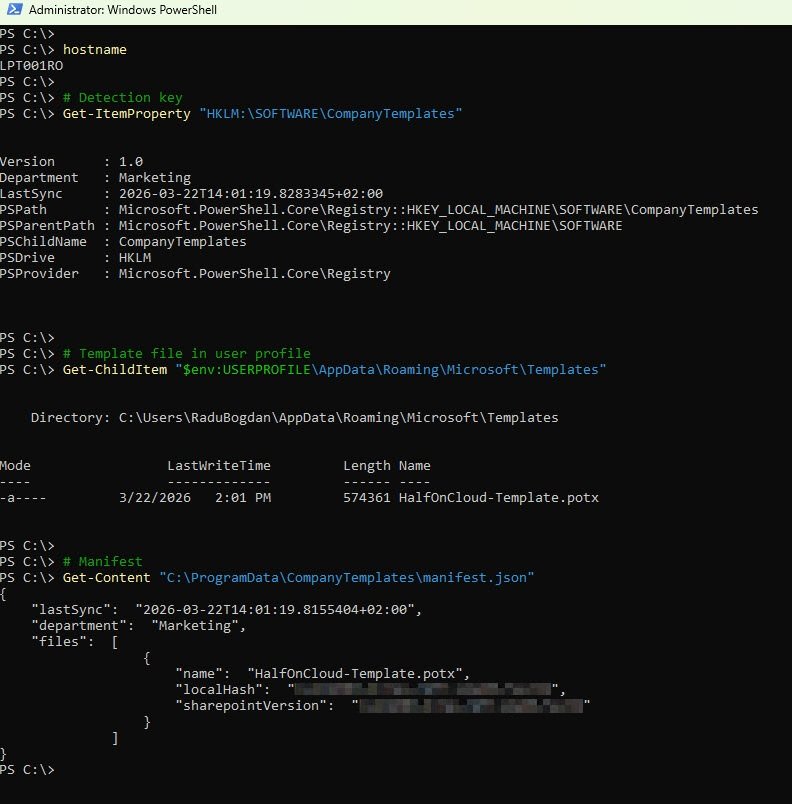
Running a quick verification from PowerShell on my test device LPT001RO confirms the detection key, the template file in the user profile template folder and the manifest all applied correctly.
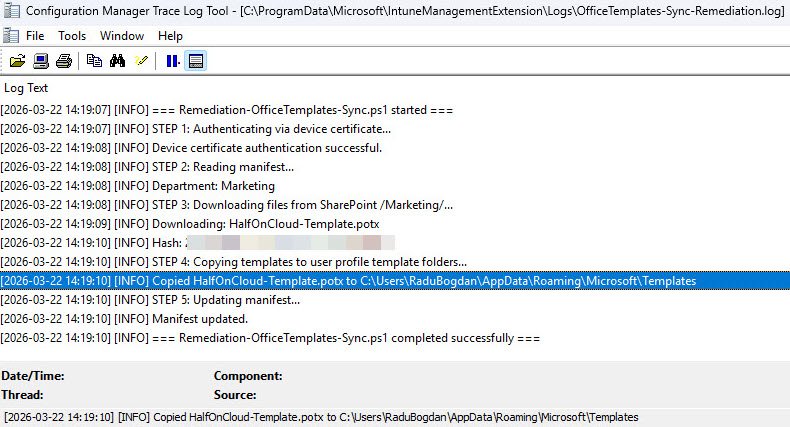
The remediation log at “C:\ProgramData\Microsoft\IntuneManagementExtension\Logs\OfficeTemplates-Sync-Remediation.log” shows each step completing successfully, certificate authentication, SharePoint download, copy to user profile and manifest update all in under a minute.
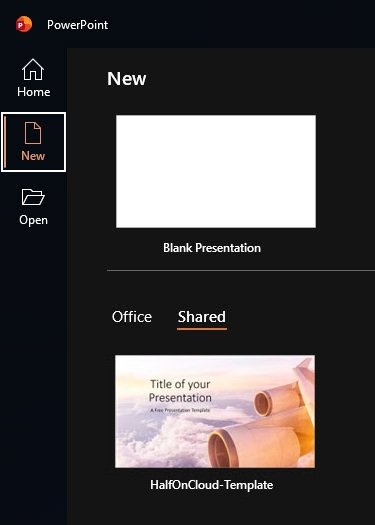
Finally, opening PowerPoint on any enrolled device where the Win32 app has successfully run will show the company templates under the Shared tab automatically, no other manual user action required.
Extending to Multiple Departments
To extend to other departments, create a subfolder per department in the SharePoint “OfficeTemplates” site matching the exact name used in the Entra ID Department attribute, for example “/HR/”, “/Finance/” or “/IT/” etc., and populate that attribute on each user profile accordingly.
No script changes are needed since the install script reads the department from the user profile and resolves the correct SharePoint folder automatically.
Final Thoughts
This started as unfinished business from a previous client engagement and turned into something more complete than originally planned. The bootstrap certificate pattern, the SYSTEM-only Graph API calls and the per-department targeting are all things I would have wanted documented when I first tackled this problem years ago. It is not an ideal solution and the security section at the top is honest about that, but I hope it might give someone a useful starting point.