Entra ID Security Hardening for M365 Business Premium: Practical Settings That Make a Difference
Table of Contents
Security Before Enrollment
Users should have MFA configured before they enroll devices, Conditional Access policies need to be in place before onboarding begins too.
Get this right and you have minor interruptions during onboarding, get it wrong and you’ll be fielding angry phone calls. This matches what I experienced in the past, having CA policies and authentication methods configured before Autopilot enrollment made the process smooth.
The Real Threat Landscape
Microsoft blocks an average of ~7,000 password attacks per second, Cyberattacks strike at an unprecedented scale, with Microsoft recording approximately ~600 million blocked threat attempts every 24 hours. This volume represents an increase in hostile actions, creating a threat environment where malicious packets slam into networks nearly every second.
Source: “Microsoft Digital Defense Report 2025” https://www.microsoft.com/en-us/corporate-responsibility/dmc/en-us/corporate-responsibility/cybersecurity/microsoft-digital-defense-report-2025/
80-90% of successful ransomware compromises originate through unmanaged devices. This is exactly why device compliance and Conditional Access matter, blocking unmanaged devices cuts off a major attack vector.
The good news: most successful cyberattacks could be stopped with basic security hygiene.
The 99% Rule
Basic security hygiene still protects against 99% of attacks. The five fundamentals are:
- Enable MFA
- Apply Zero Trust principles
- Use XDR and antimalware
- Keep systems up to date
- Protect data
What Are You Protecting?
Focus on what matters to the organization: sensitive information, device security, encryption and malware protection.
Few years ago I stumble across this quote worth remembering: “Try not to make it a dictatorship”!
Security that’s too restrictive gets bypassed, the goal is protection without killing productivity.
Entra Admin Center Overview
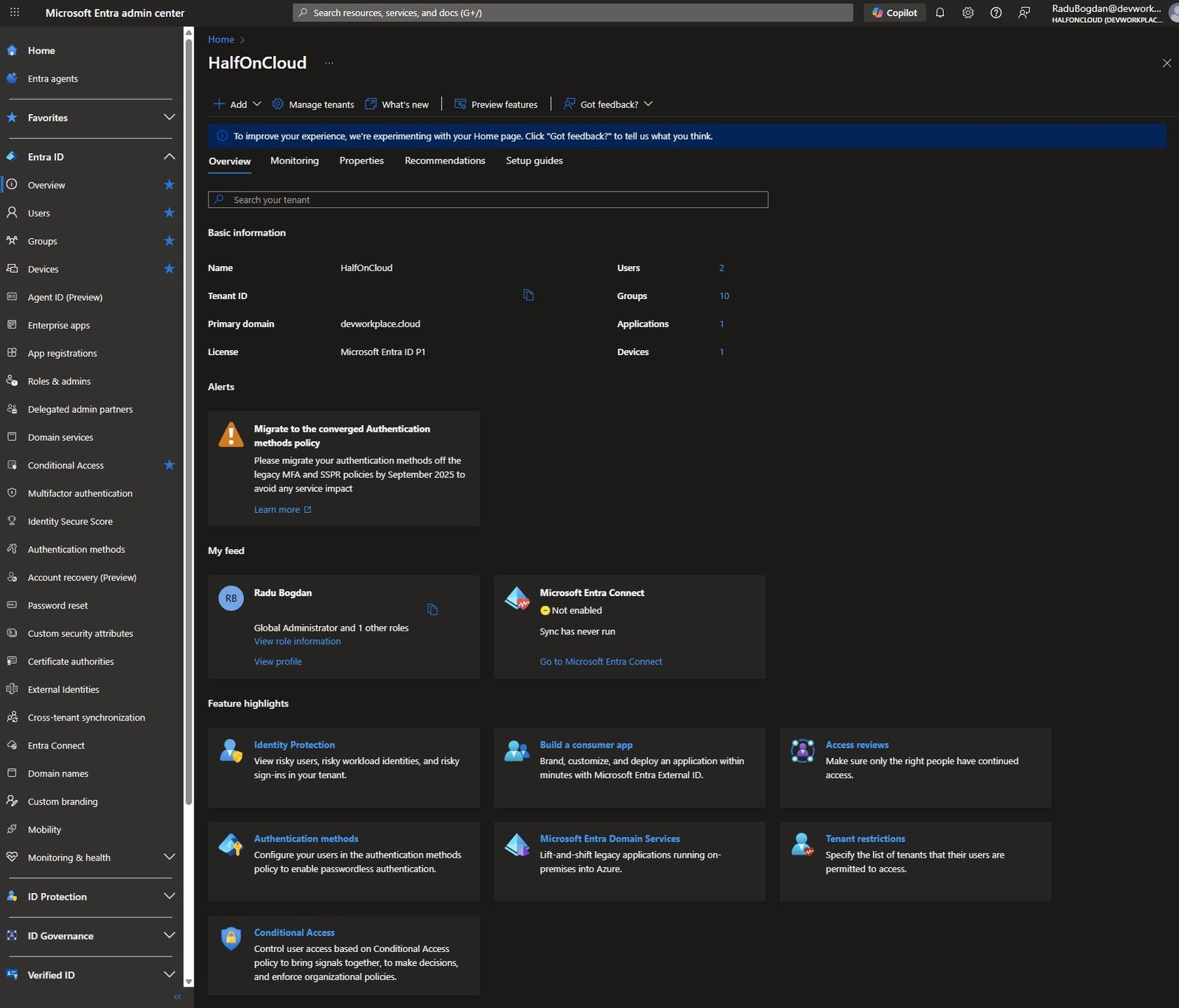
The Entra admin center gives you a quick snapshot of your tenant. Here you can see my tenant HalfOnCloud with the primary domain devworkplace.cloud and a Entra ID P1 licensing.
Tenant Properties
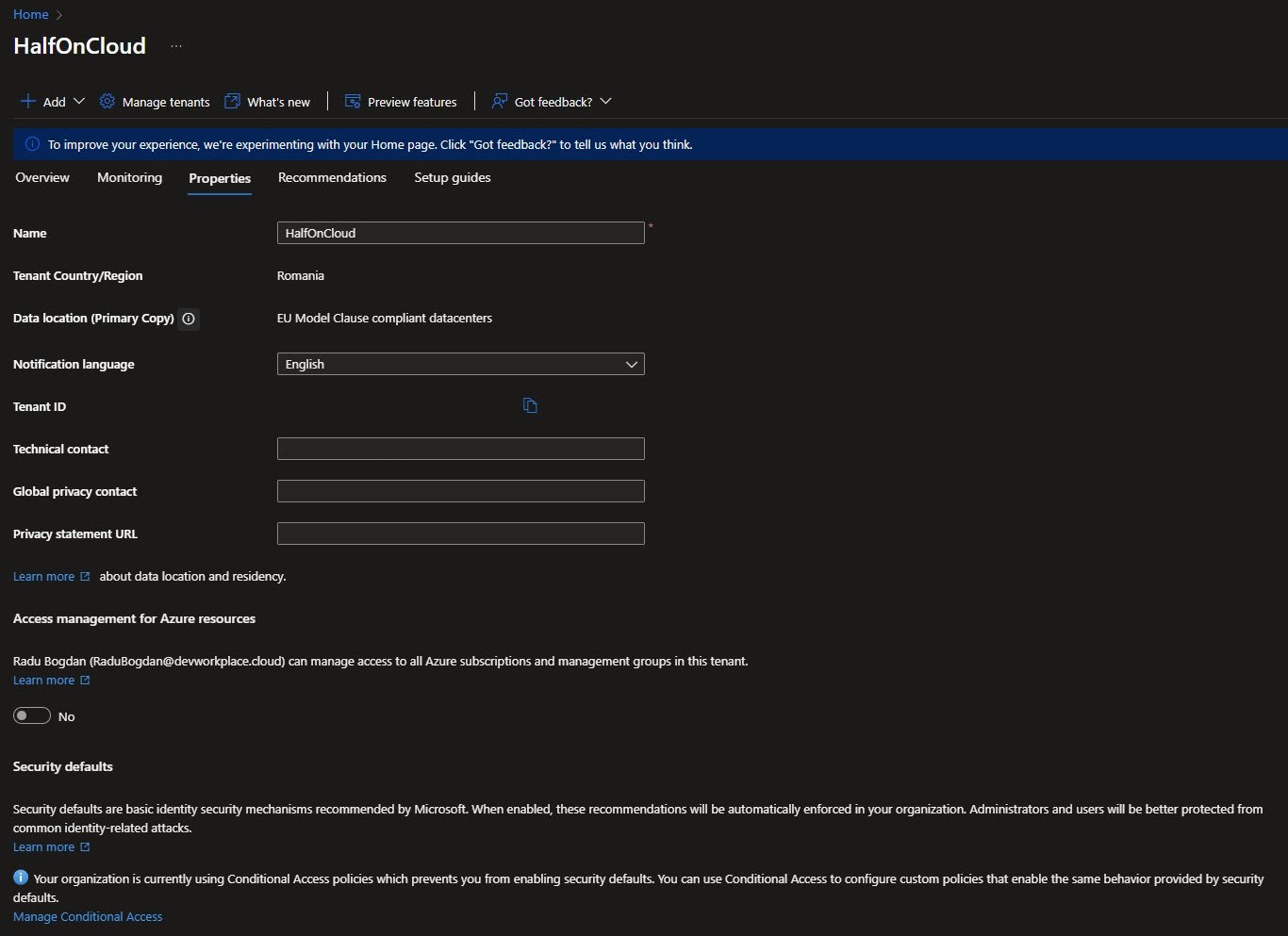
The Properties tab shows the tenant configuration, data is stored in EU Model Clause compliant datacenters, which matters for GDPR.
Note: Security Defaults is blocked because Conditional Access policies are already in use in my tenant, so that’s an expected behavior.
Identity Secure Score
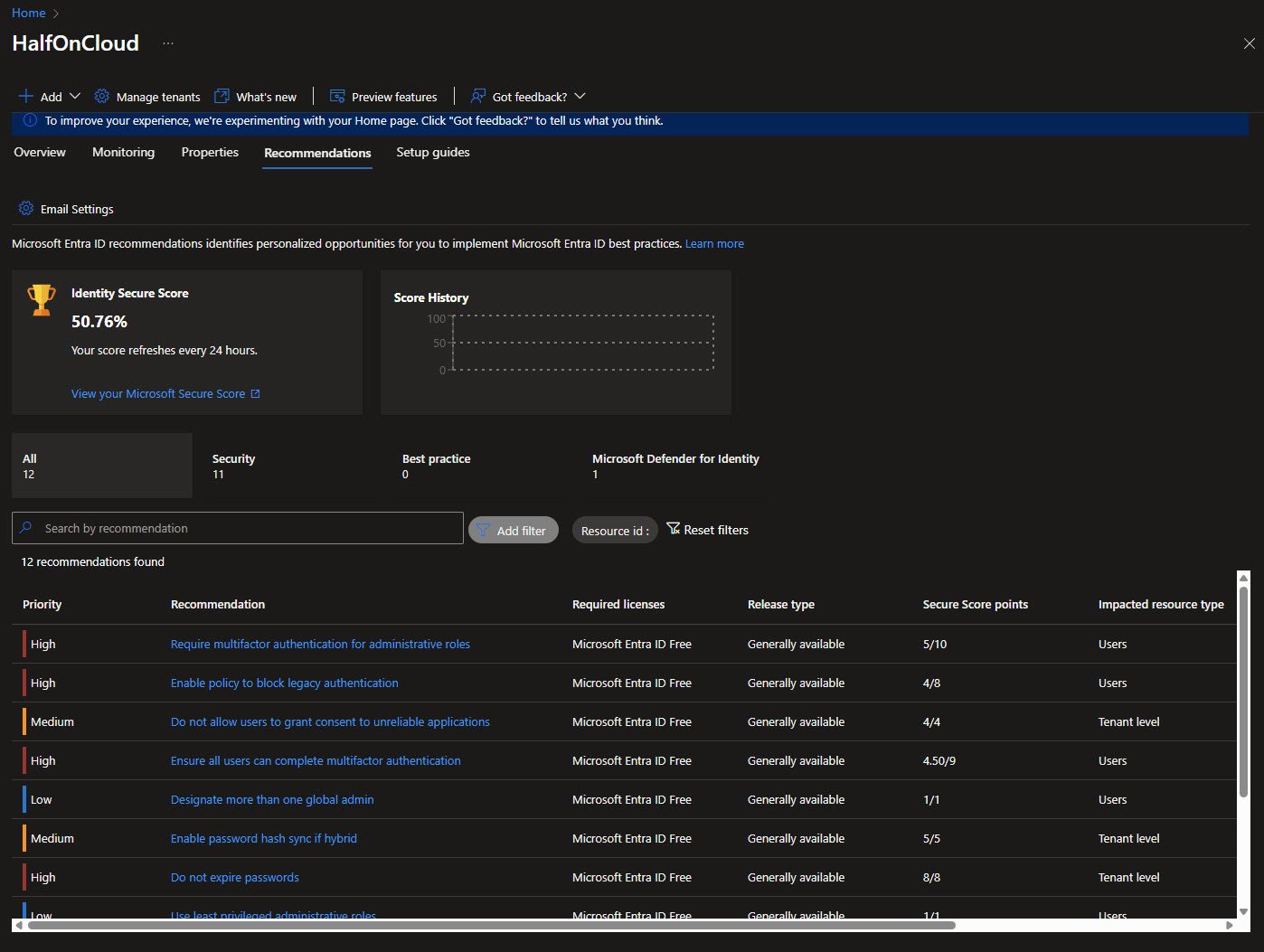
The Recommendations tab shows the Identity Secure Score at the moment 50.76% which refreshes every ~24 hours.
Probably you’ll see a couple of recommendations broken down by priority, the high-priority items include MFA for admins, blocking legacy authentication and ensuring all users can complete MFA:
Identity Secure Score - Status View
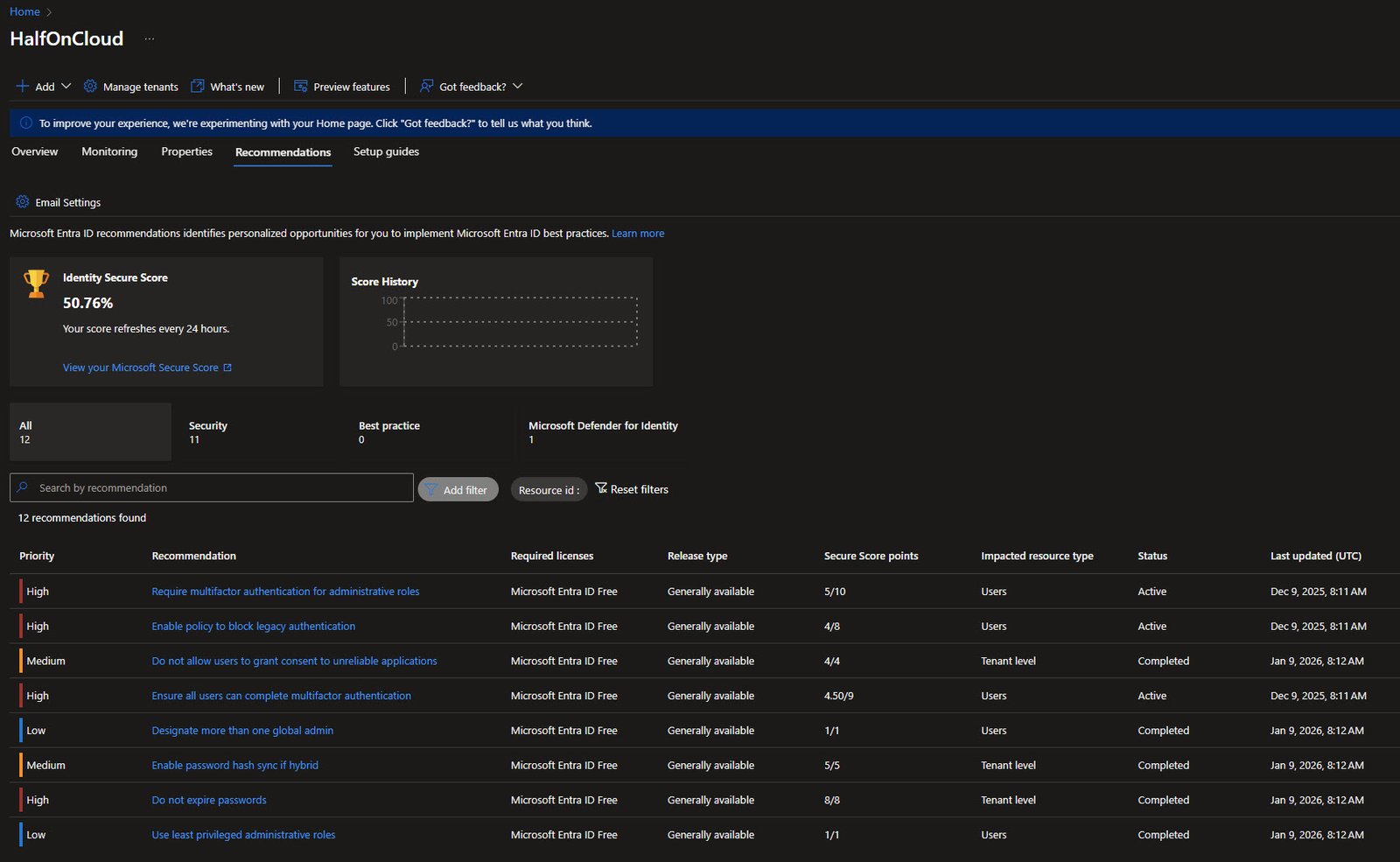
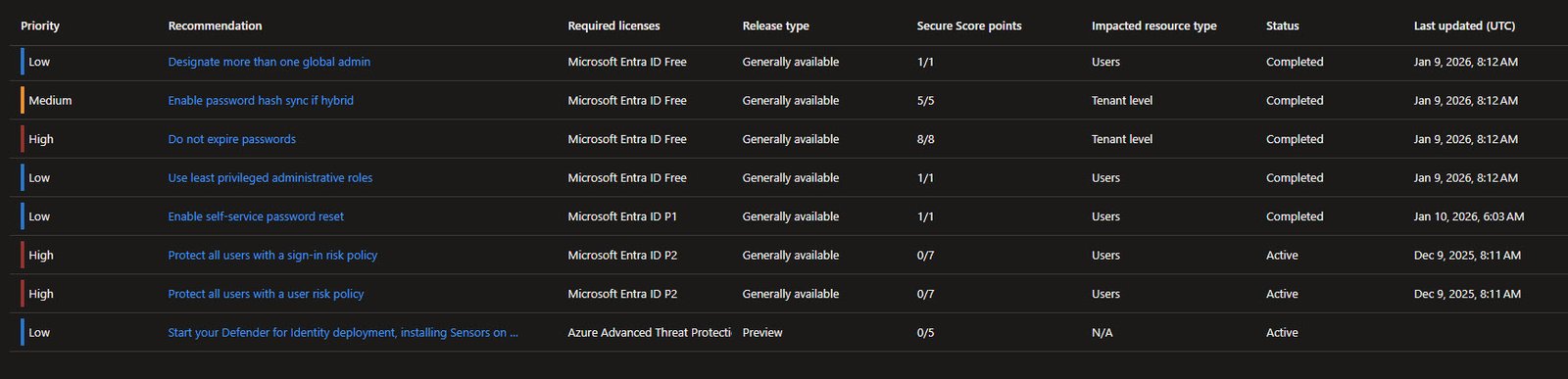
This expanded view shows which recommendations are completed and when.
Several items show “Completed” status: consent controls, multiple global admins, password expiration settings and least privileged roles.
Identity Secure Score - P2 Requirements
Scrolling down reveals items that require higher licensing. “Protect all users with a sign-in risk policy” and “Protect all users with a user risk policy” both need Entra ID P2, same with Defender for Identity deployment.
Note: These will be address in the future with the addition of the E5 Security add-on activation.
Named Locations
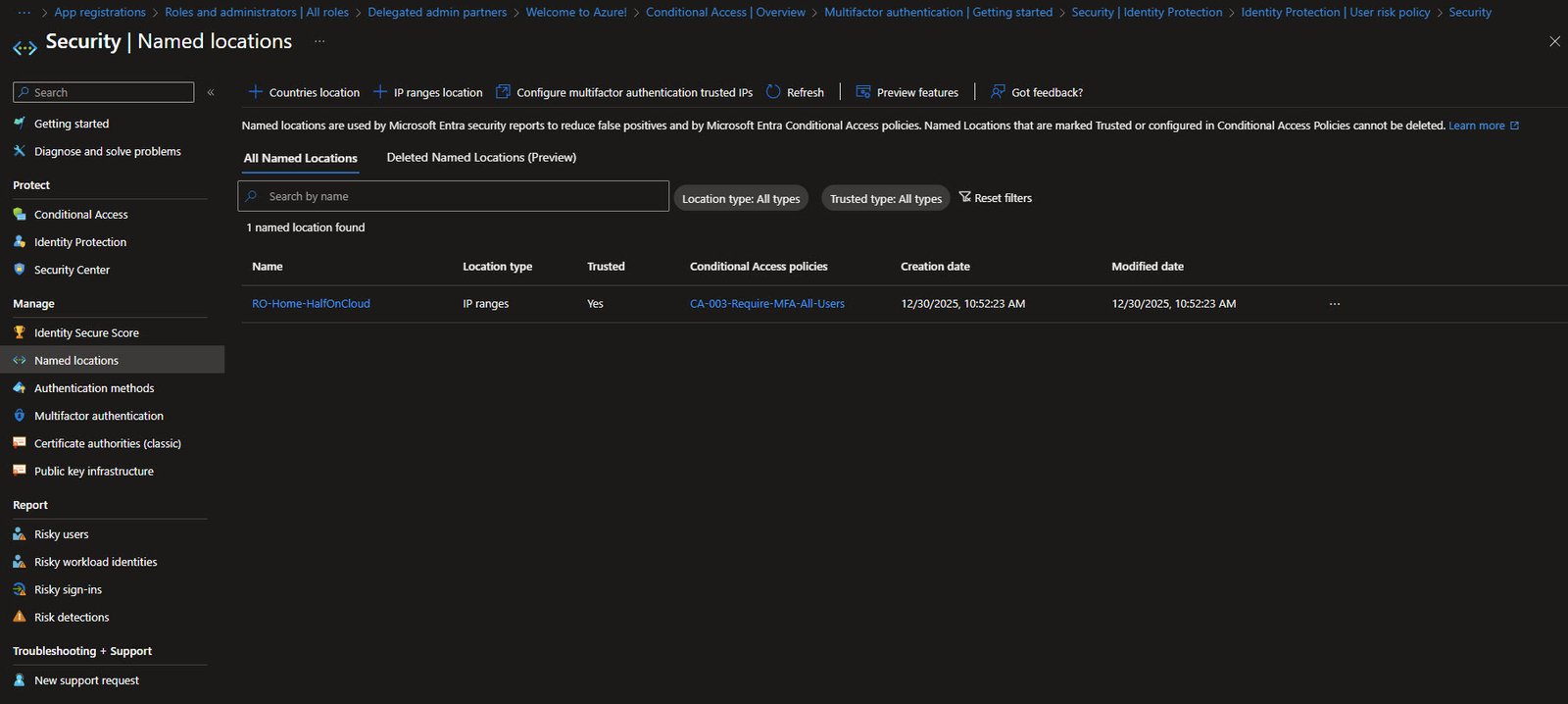
Named locations help reduce false positives in security reports and enable location-based Conditional Access policies.
In my tenant I’ve configured RO-Home-HalfOnCloud as a trusted IP ranges location using my own IP public address, which in this example it’s linked to one of my existing Conditional Access policies “CA-003-Require-MFA-All-Users”:
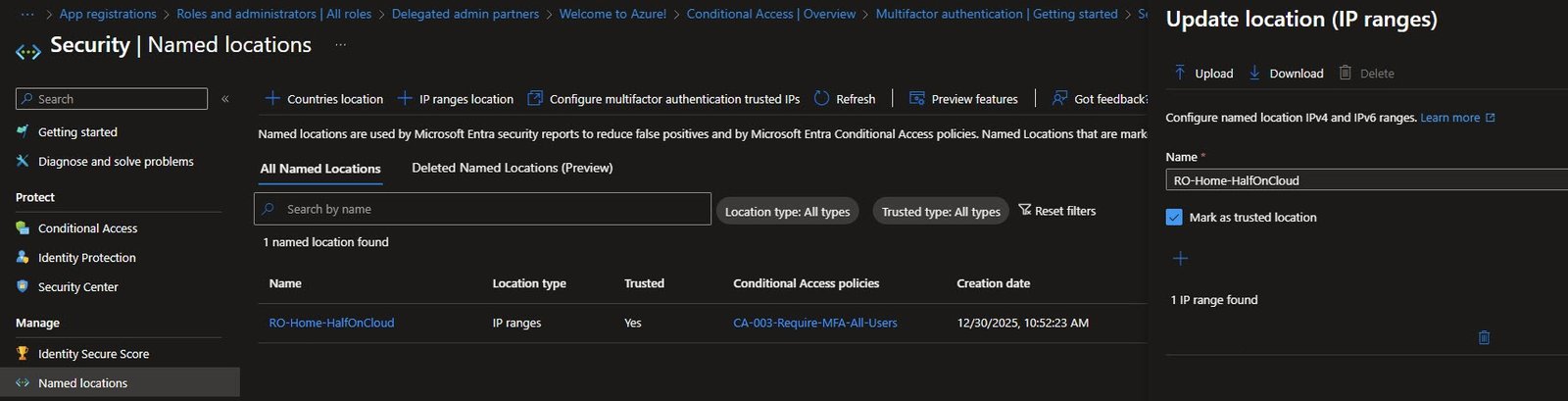
Named Location Details
Opening the location shows the configuration, the name follows my naming convention (Country-Context-Tenant).
Note: The “Naming Convention” section will be addressed in a future article.
“Mark as trusted location” is enabled with my home IP range configured, only mark locations as trusted if you genuinely control that network:
Authentication Methods
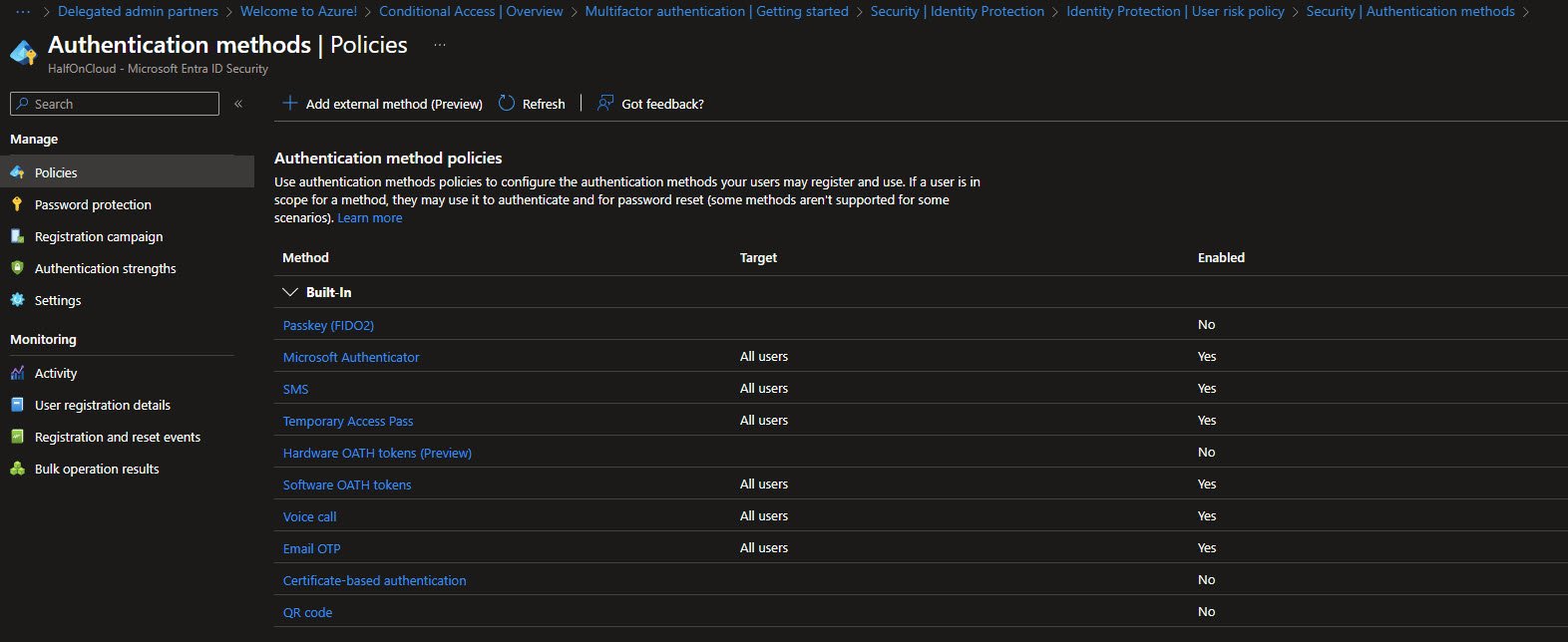
The Authentication methods Policies blade shows all available methods:
In my tenant, at least for the time being, only Microsoft Authenticator, SMS, Temporary Access Pass, Software OATH tokens, Voice call and Email OTP are enabled for all users.
Passkey (FIDO2), Hardware OATH tokens, Certificate-based authentication and QR code are disabled.
Note: In a hardened environment, you’d disable SMS and Voice call since they’re phishable methods, exploit human psychology through deception (social engineering) via email, phone (vishing), SMS (smishing) or fake websites.
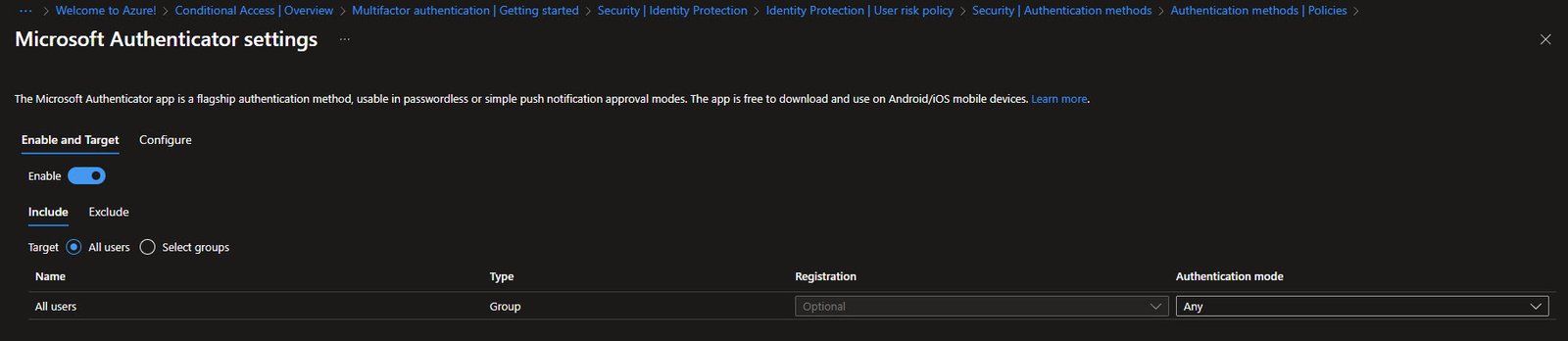
Microsoft Authenticator - Enable and Target
The Microsoft Authenticator settings show Enable and Target configuration.
It’s enabled for All users with Optional registration, authentication mode is set to “Any” which allows both push notifications and passwordless sign-in:
Microsoft Authenticator - Configure
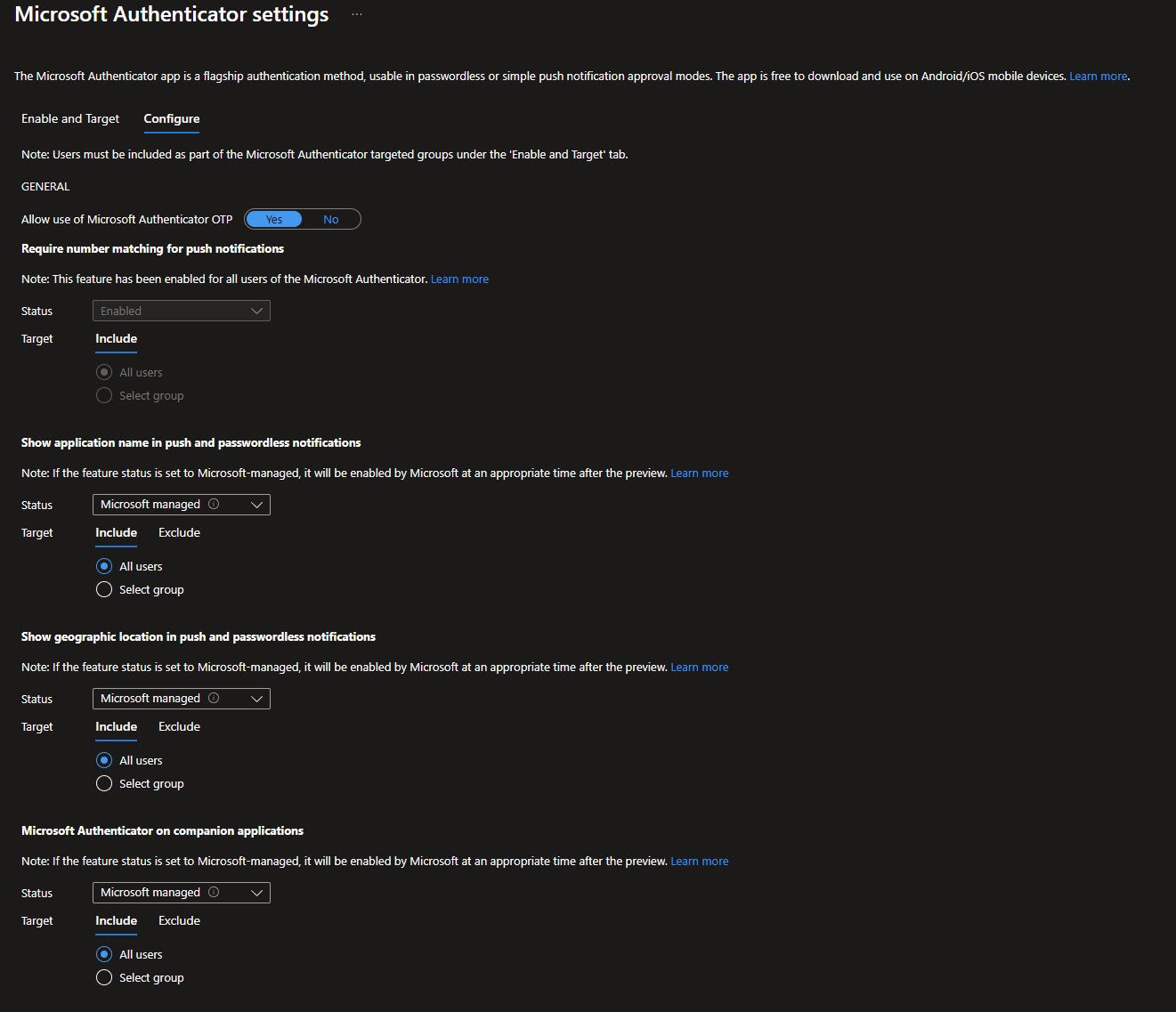
The Configure tab has the important security features.
“Require number matching for push notifications” is Enabled, this prevents MFA fatigue attacks by requiring users to type a number shown on screen.
“Show application name” and “Show geographic location” in notifications help users identify suspicious sign-in attempts:
Temporary Access Pass
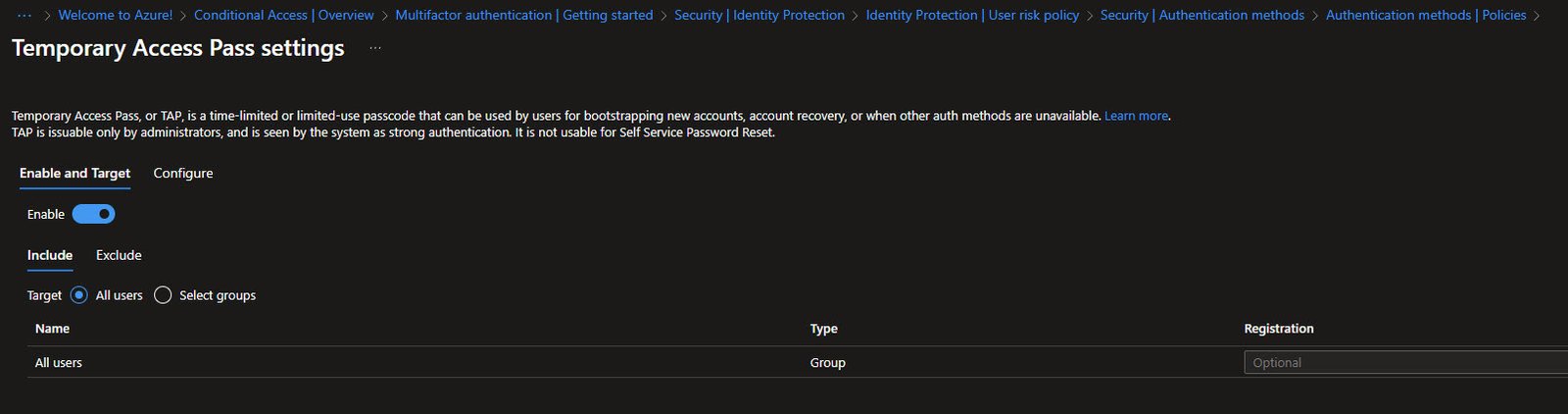
Temporary Access Pass (TAP) is enabled for All users with Optional registration.
TAP is a time-limited passcode for bootstrapping new accounts or account recovery. It’s essential for Autopilot scenarios where users need to complete Windows Hello setup before they have any other MFA method registered.
Note: Only administrators can issue TAP codes.
Temporary Access Pass - Configure
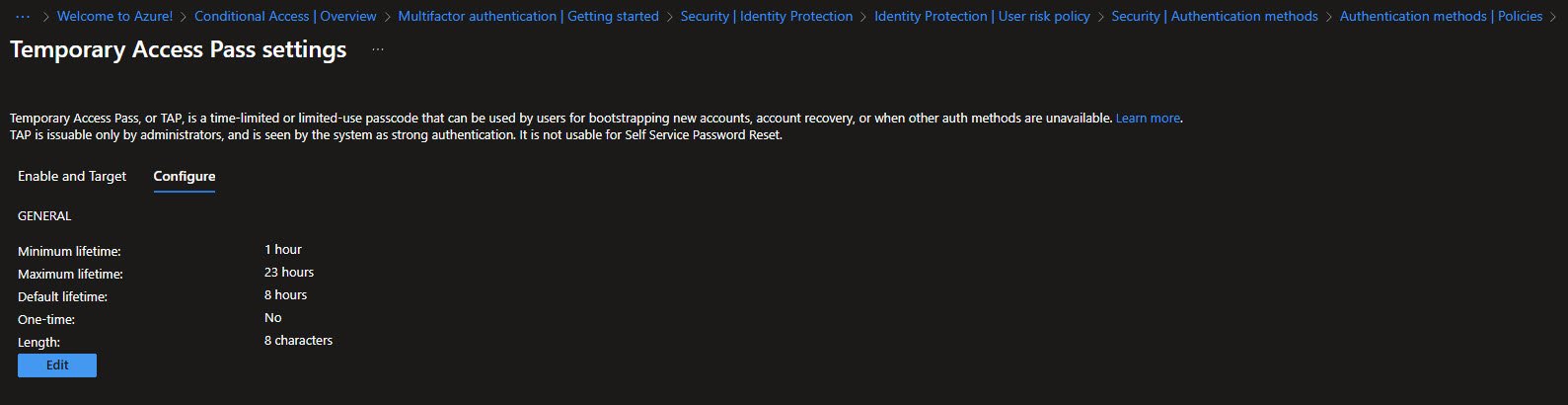
The Configure tab shows the TAP settings I’m using. Minimum lifetime is 1 hour, maximum is 23 hours, and default is 8 hours.
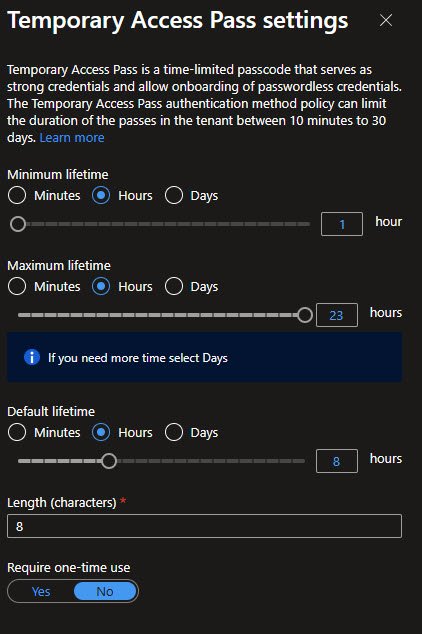
The important setting here is “One-time” set to No. One-time TAP codes break Intune enrollment because the code expires after first use and Autopilot needs multiple authentications during setup:
Temporary Access Pass - Settings
This is how the edit panel for TAP configuration looks, you can set lifetime in Minutes, Hours or Days.
I’ve configured 1 hour minimum, 23 hours maximum and 8 hours default, Length is 8 characters. “Require one-time use” is set to No for the Autopilot compatibility reason mentioned above:
Password Protection
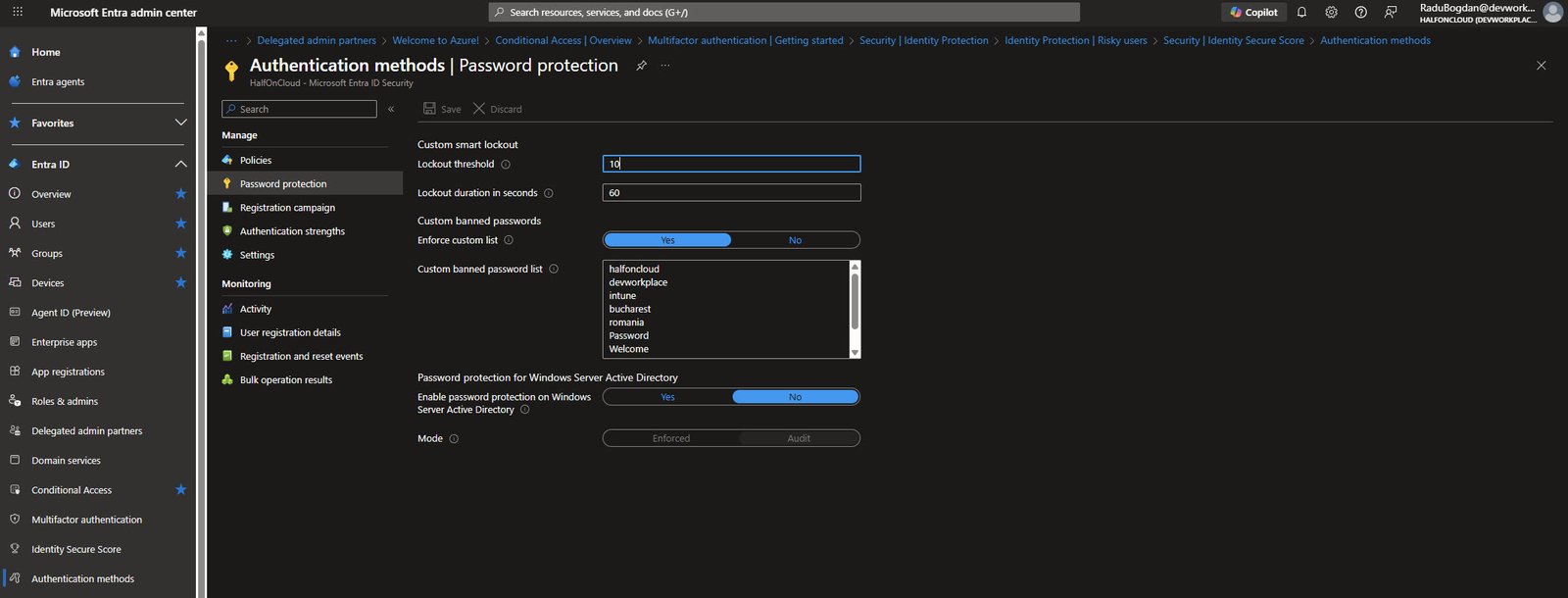
Password protection helps prevent weak and predictable passwords, Smart lockout is configured with 10 failed attempts before lockout and 60 seconds lockout duration.
I’ve enabled a custom banned password list with organization-specific terms, for example: halfoncloud, devworkplace, intune, bucharest, romania, Password, Welcome etc.. These are words attackers would likely try first.
Note: Password protection for Windows Server Active Directory is disabled since this is a cloud-only environment.
Authentication Strengths
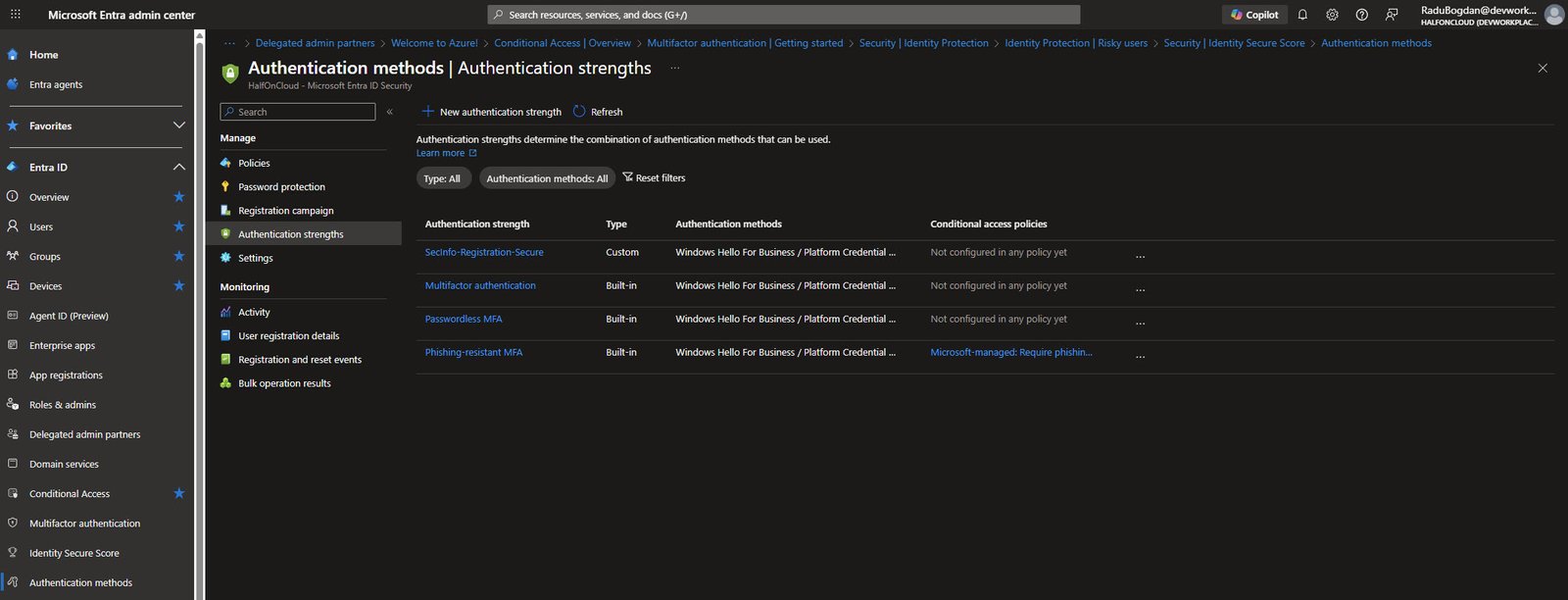
Authentication strengths let you define which MFA methods are acceptable for different scenarios. You can use built-in strengths or create custom ones.
I have one custom strength called “SecInfo-Registration-Secure”, plus the three built-in options: Multifactor authentication, Passwordless MFA and Phishing-resistant MFA.:
Custom Authentication Strength
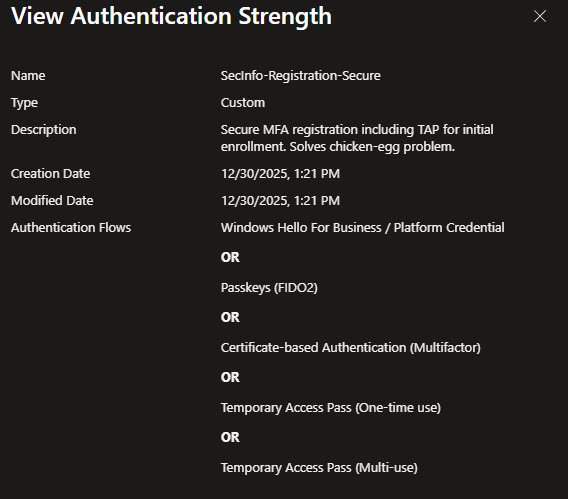
This shows my custom “SecInfo-Registration-Secure” authentication strength. It solves the chicken-and-egg problem where users need MFA to register their MFA methods.
The allowed methods are Windows Hello for Business, Passkeys (FIDO2), Certificate-based Authentication, and Temporary Access Pass (both one-time and multi-use). This lets new users authenticate with a TAP code to set up their permanent MFA method.
Note: The Phishing-resistant custom MFA is linked to a Microsoft-managed policy, which will be addressed in another article.
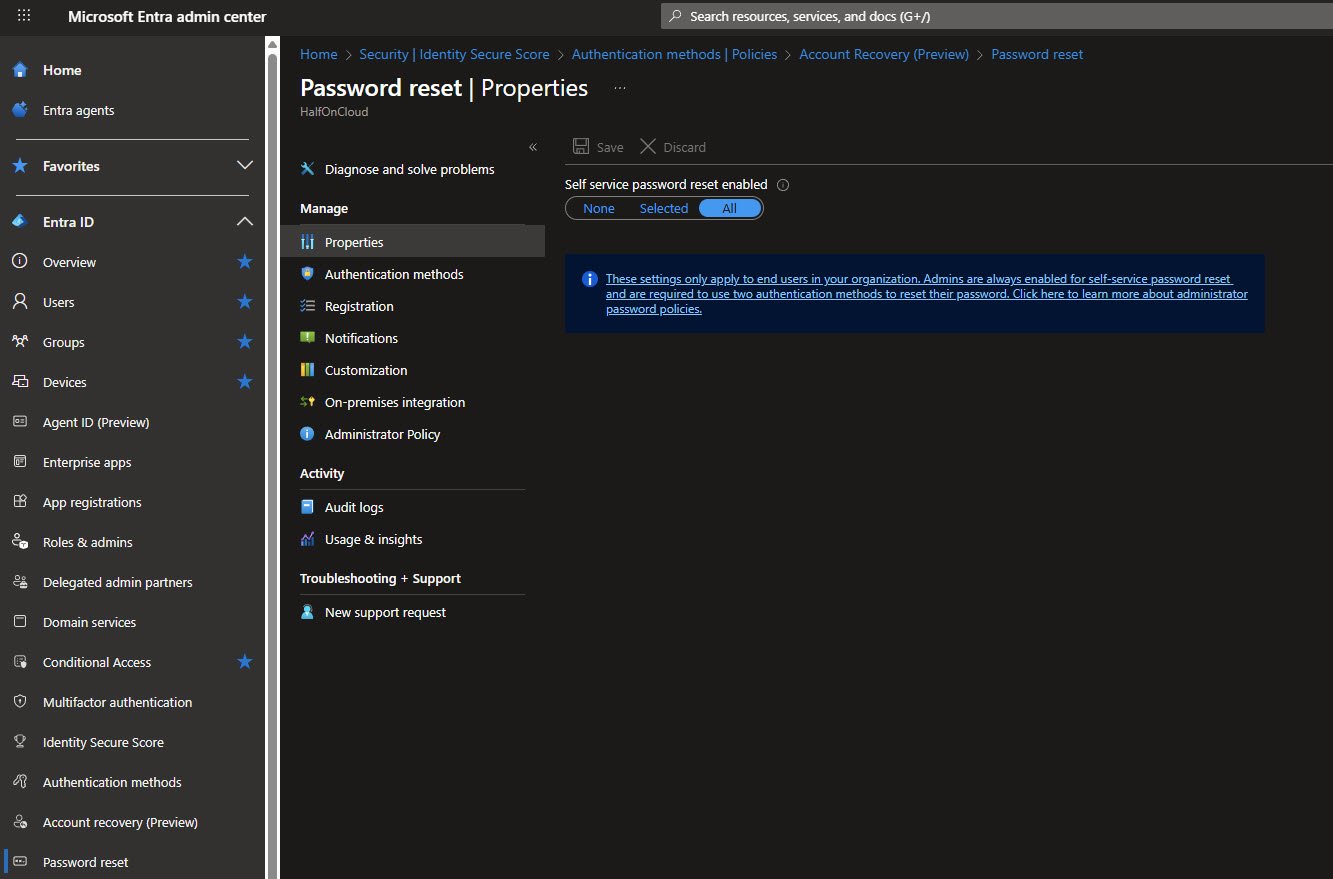
Password Reset - Properties
Self-service password reset is enabled for All users.
The blue banner is important: “Admins are always enabled for SSPR and require two authentication methods to reset their password”.
This page links to Authentication methods, Registration, Notifications and other SSPR settings:
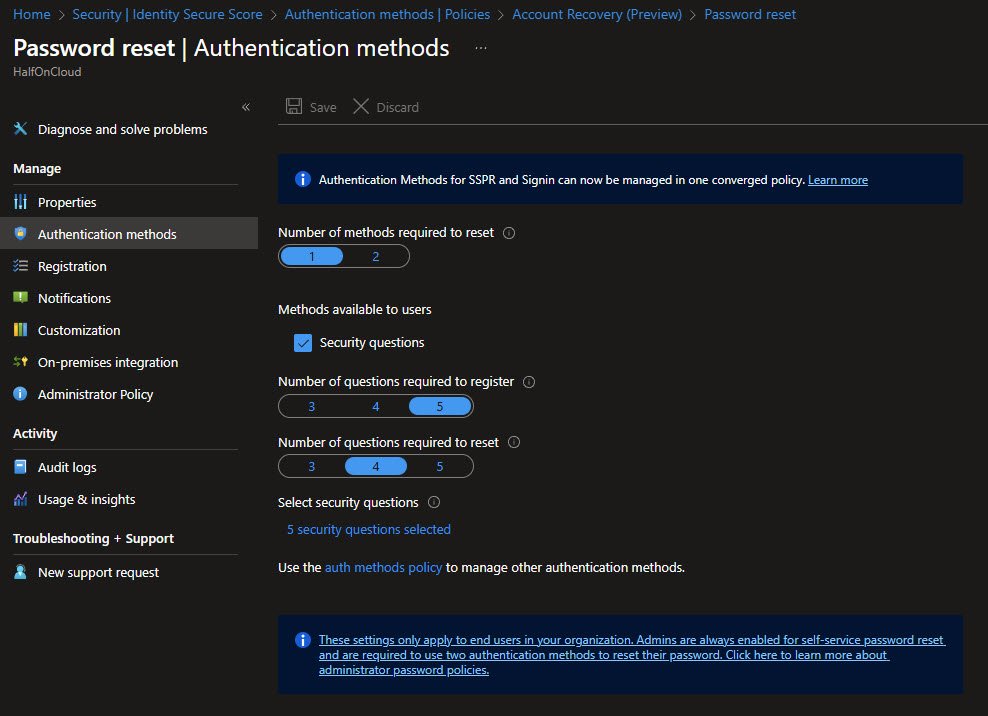
Password Reset - Authentication Methods
Users need 1 method to reset their password, also Security questions are available as an option.
For my tenant I’ve configured 5 questions required to register and 4 questions required to reset. The banner reminds us that admins always need 2 methods regardless of this setting:
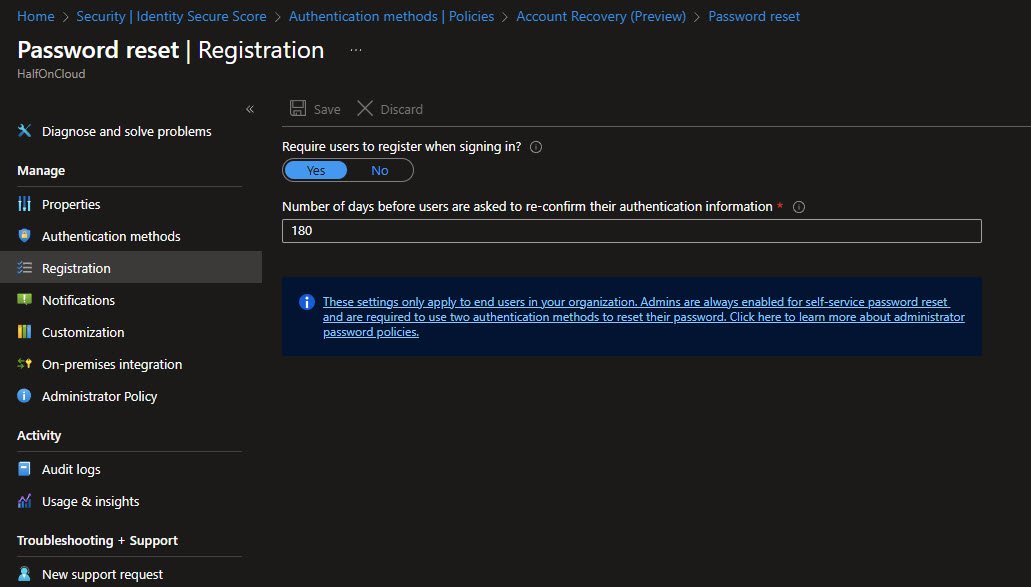
Password Reset - Registration
Users are required to register when signing in, this ensures everyone has SSPR methods configured before they actually need them.
Re-confirmation is set to 180 days, so users verify their authentication info every 6 months.
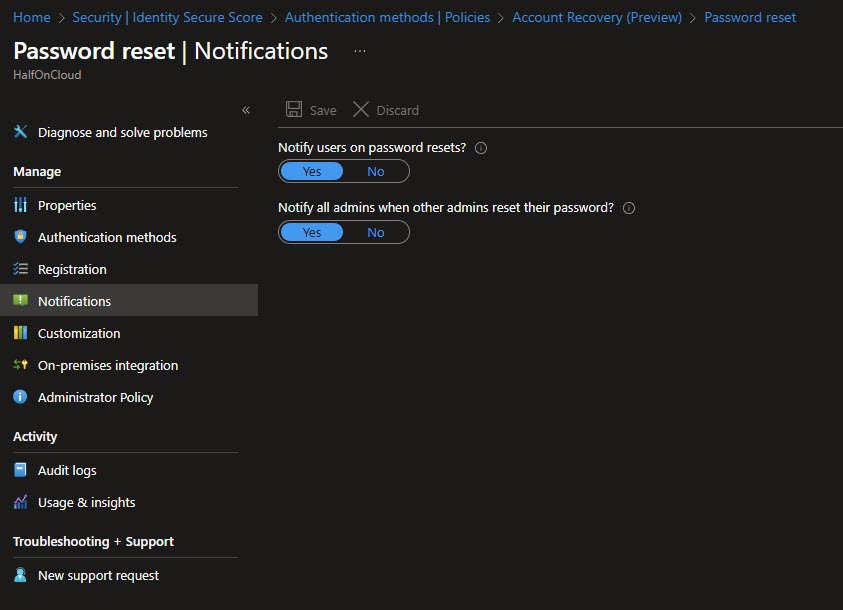
Password Reset - Notifications
Both notification options are enabled. Users get notified when their password is reset and all admins get notified when any admin resets their password.
The admin notification is a security feature, it helps detect if someone has compromised an admin account and is resetting passwords:
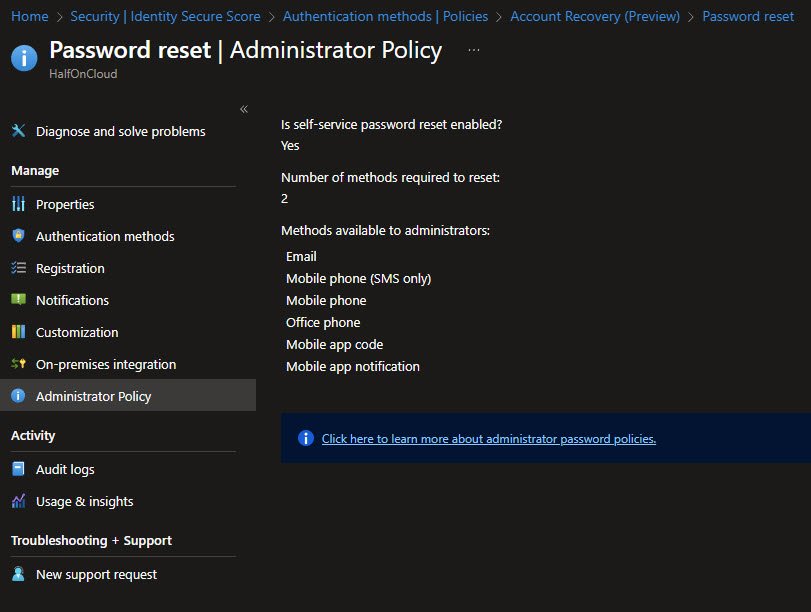
Password Reset - Administrator Policy
This read-only page shows the administrator-specific SSPR policy. Admins always have SSPR enabled and always require 2 methods to reset.
Available methods for admins include Email, Mobile phone (SMS), Mobile phone (voice), Office phone, Mobile app code and Mobile app notification.
Note: Security questions are not available for admins as they’re weak authentication, admins typically use stronger methods.
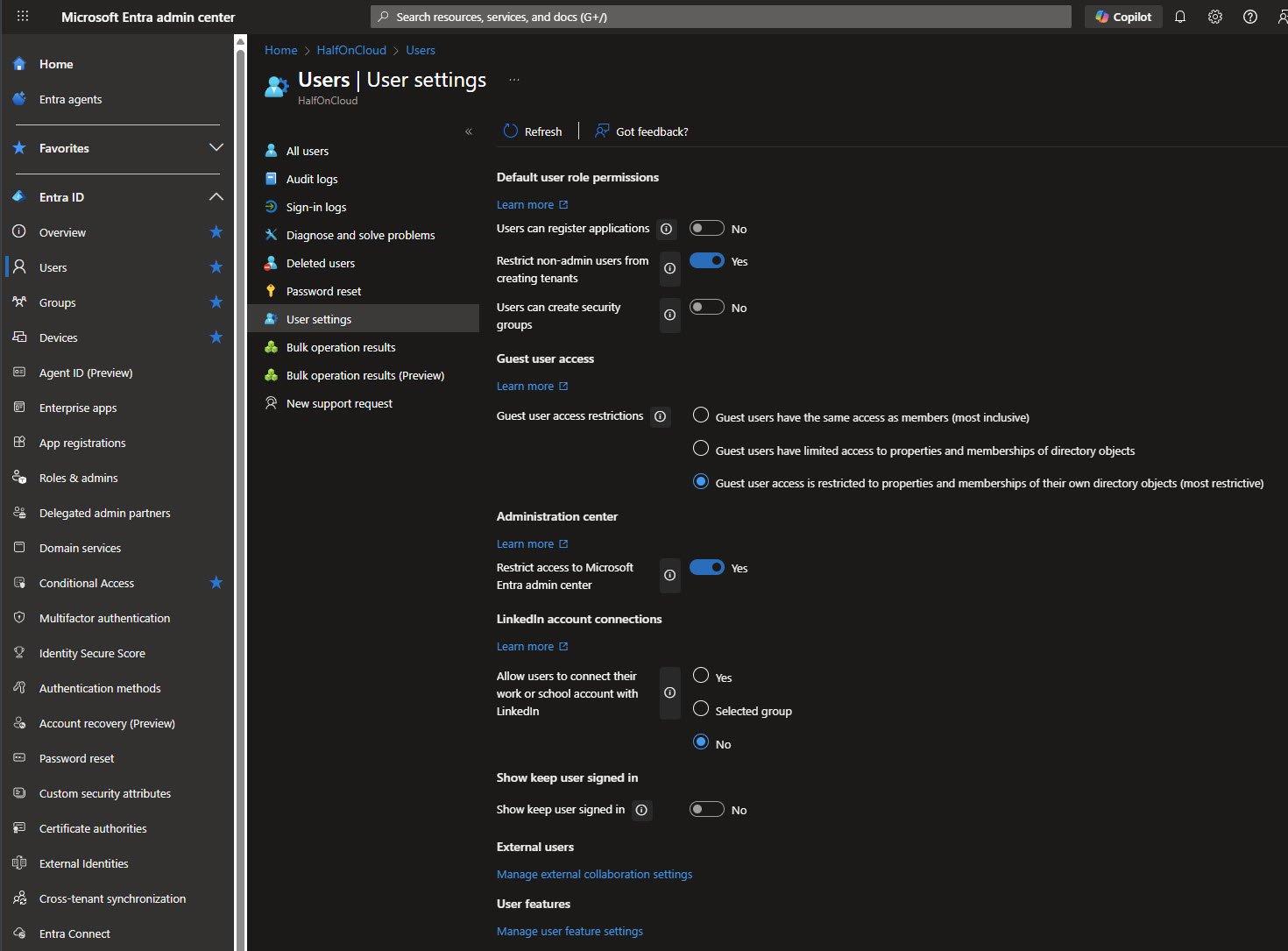
User Settings
User settings control what regular users can do in the tenant, hence I’ve disabled several self-service options.
Users cannot register applications or create security groups, Non-admin users are restricted from creating tenants, Guest user access is set to the most restrictive option, Access to the Entra admin center is restricted and LinkedIn account connections are disabled:
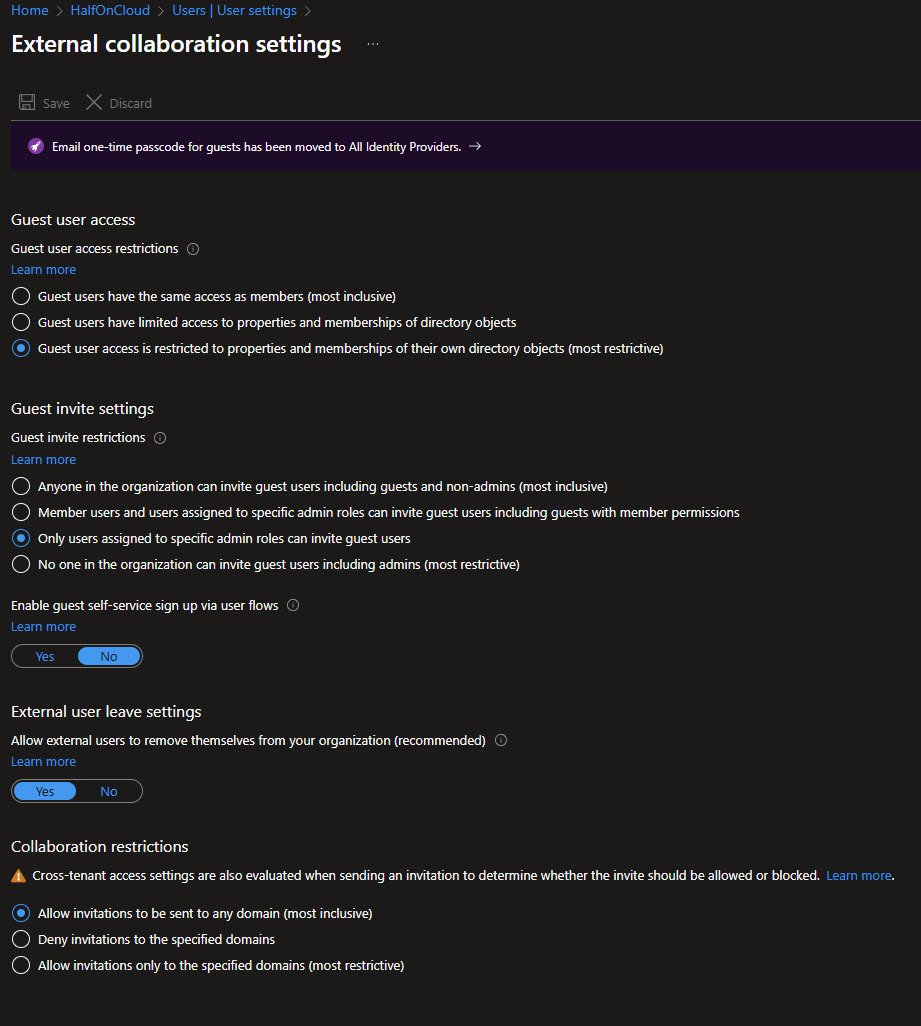
External Collaboration Settings
This page controls guest user behavior. Guest user access restrictions are set to the most restrictive option, guests can only see their own directory objects.
For guest invites, only users with specific admin roles can invite guests. Self-service sign up via user flows is disabled, External users can remove themselves from the organization. Collaboration restrictions allow invitations to any domain for now:
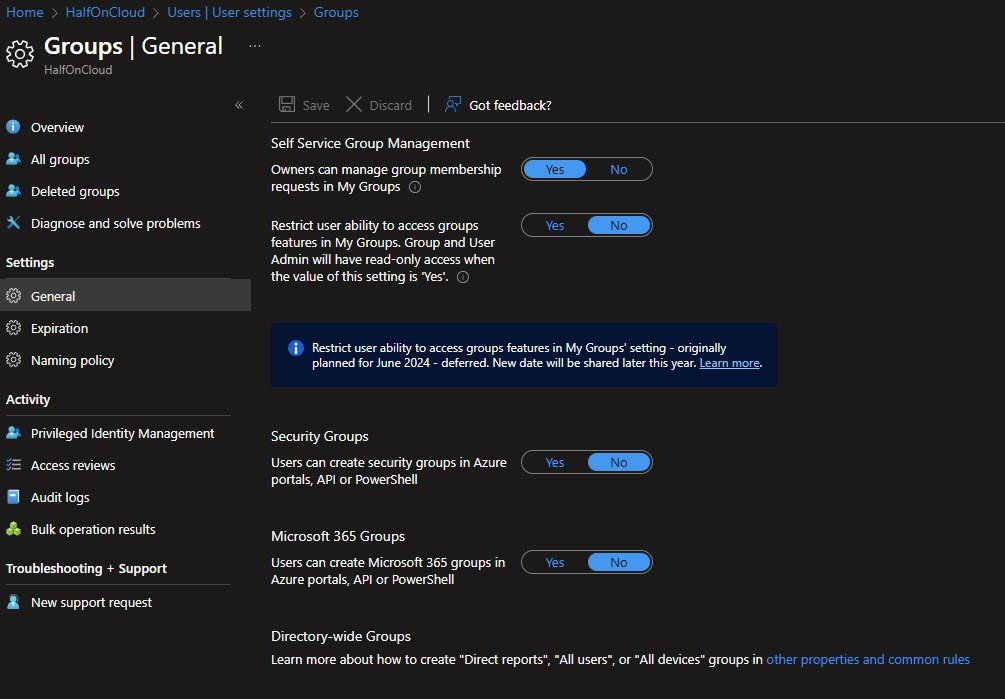
Groups - General Settings
Group settings control self-service group management, Owners can manage group membership requests in My Groups.
Users cannot create security groups or Microsoft 365 groups via Azure portals, API, or PowerShell.
Note: This prevents shadow IT and keeps group management centralized with admins.
Enterprise Applications
The Enterprise applications blade shows applications using your tenant as an identity provider, currently in my tenant there’s only one: “Microsoft Graph Command Line Tools”
Note: This was created on November 26, 2025 when I’ve first connected with the Microsoft Graph PowerShell module. As you add more integrations and consent to apps, they’ll appear here.

User Consent Settings
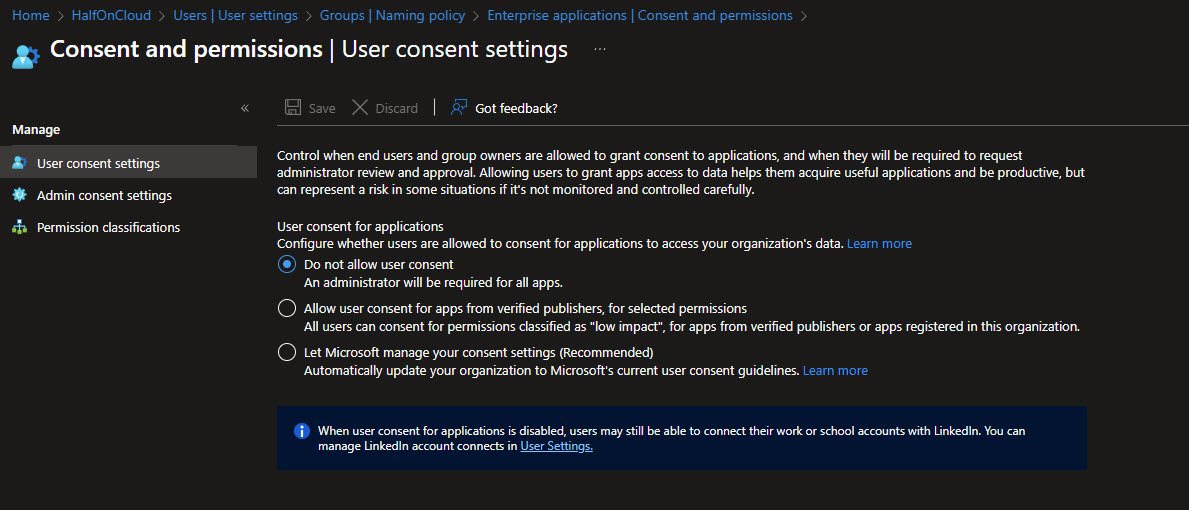
User consent for applications is set to “Do not allow user consent”, this means an administrator must approve all apps that request access to organizational data.
Note: This is more restrictive than the recommended “Allow user consent for apps from verified publishers” but prevents users from accidentally granting permissions to malicious apps:
Admin Consent Settings
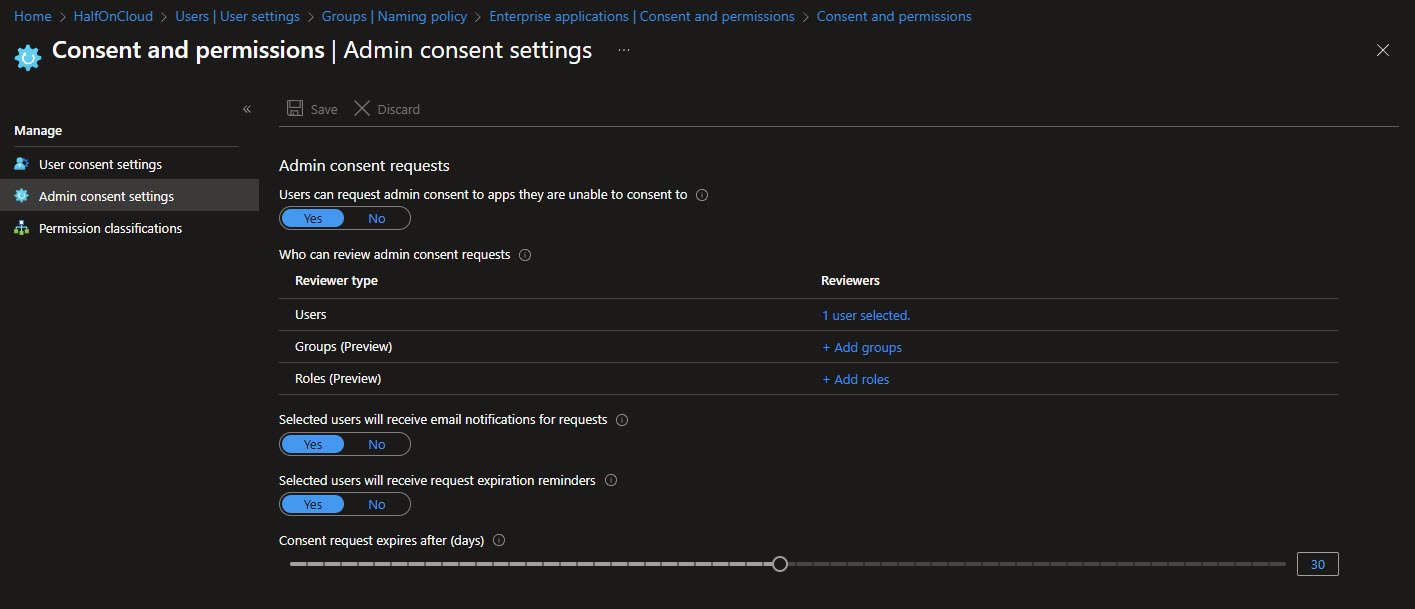
The admin consent workflow is enabled. When users try to access an app they can’t consent to, they can request admin approval.
One user is configured as a reviewer, Email notifications and expiration reminders are enabled.
Note: Consent requests expire after 30 days if not acted upon.
Admin Consent Request Reviewers
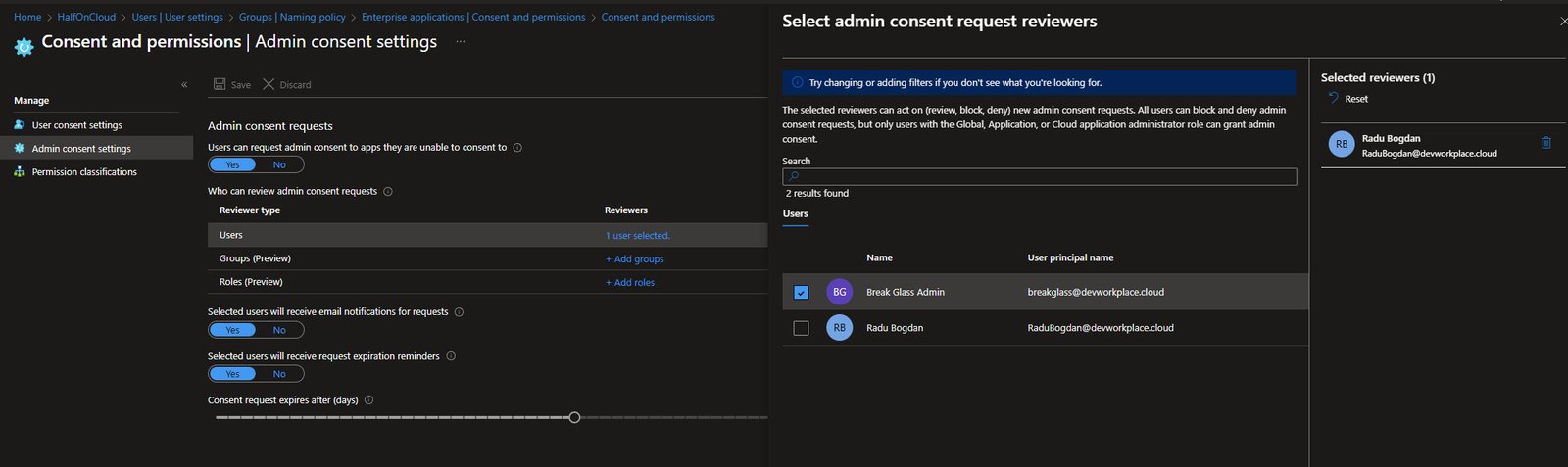
This shows the reviewer selection for admin consent requests, here I’ve selected my own user as the reviewer.
Note: Only users with Global Administrator, Application Administrator or Cloud Application Administrator roles can actually grant admin consent. Other reviewers can review, block or deny requests:
Admin Consent Requests Queue
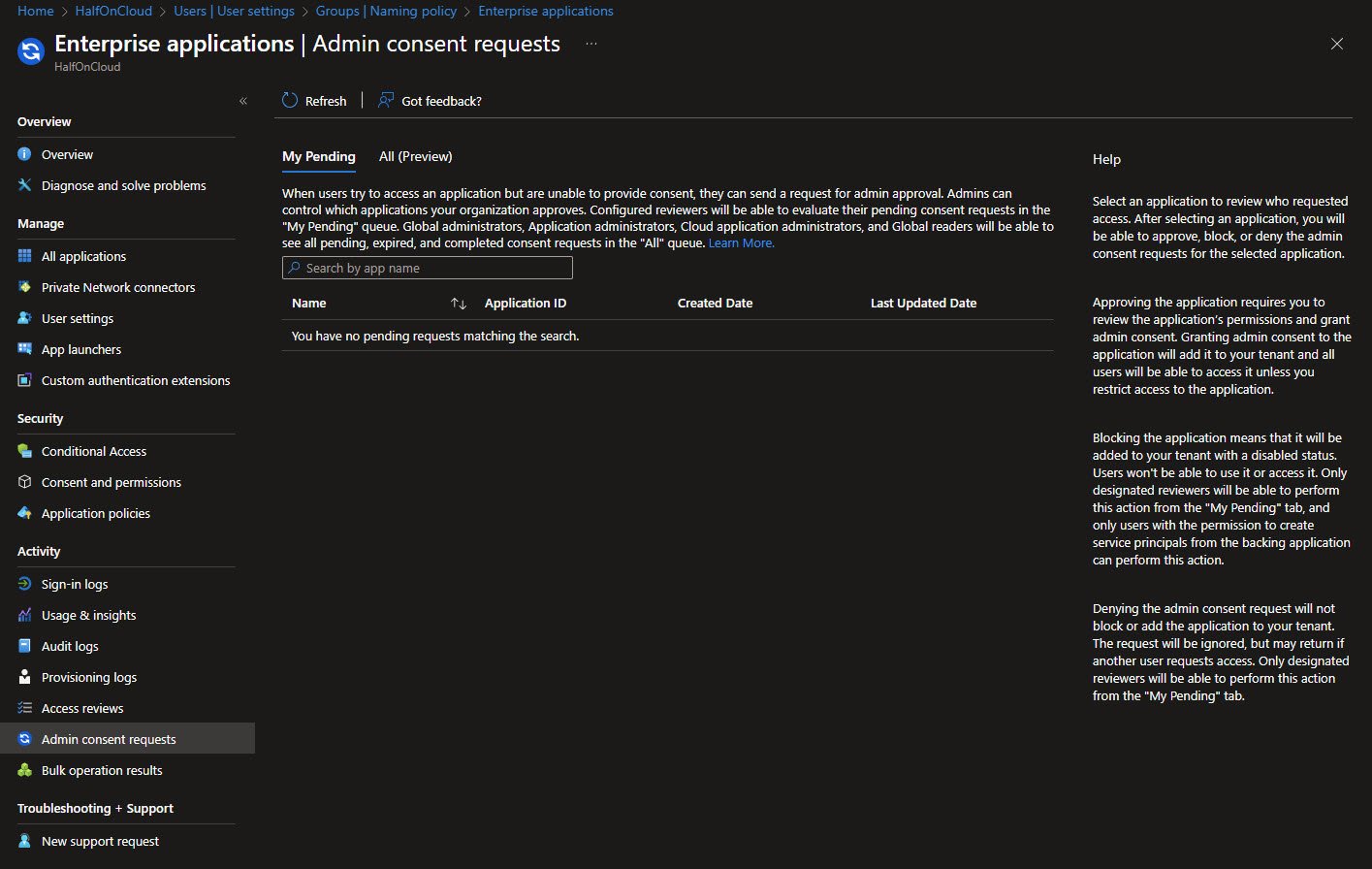
This is where pending consent requests appear, currently there are no pending requests.
When users request access to apps they can’t consent to themselves, the requests show up here. Reviewers can approve (grant consent), block (disable the app) or deny (ignore the request) from this queue:
What’s Next
In the next part, I’ll cover Conditional Access policies in detail, the actual policies I’ve implemented, how they work together and the lessons learned from testing them.
I’ll also walk through the Microsoft Intune prerequisites you need before enrolling your first device.