Conditional Access Policies for M365 Business Premium: MFA, Compliance and Location Rules
Table of Contents
The Policy Dashboard
The Conditional Access policies described below represent a baseline starting point for any tenant security. They are not a definitive or complete security model, but a minimal foundation that every tenant should have in place in some form. Whether you adopt these policies directly, adjust their scope or implement a variation that fits your environment, the key point is to start somewhere rather than operate without core Conditional Access controls.
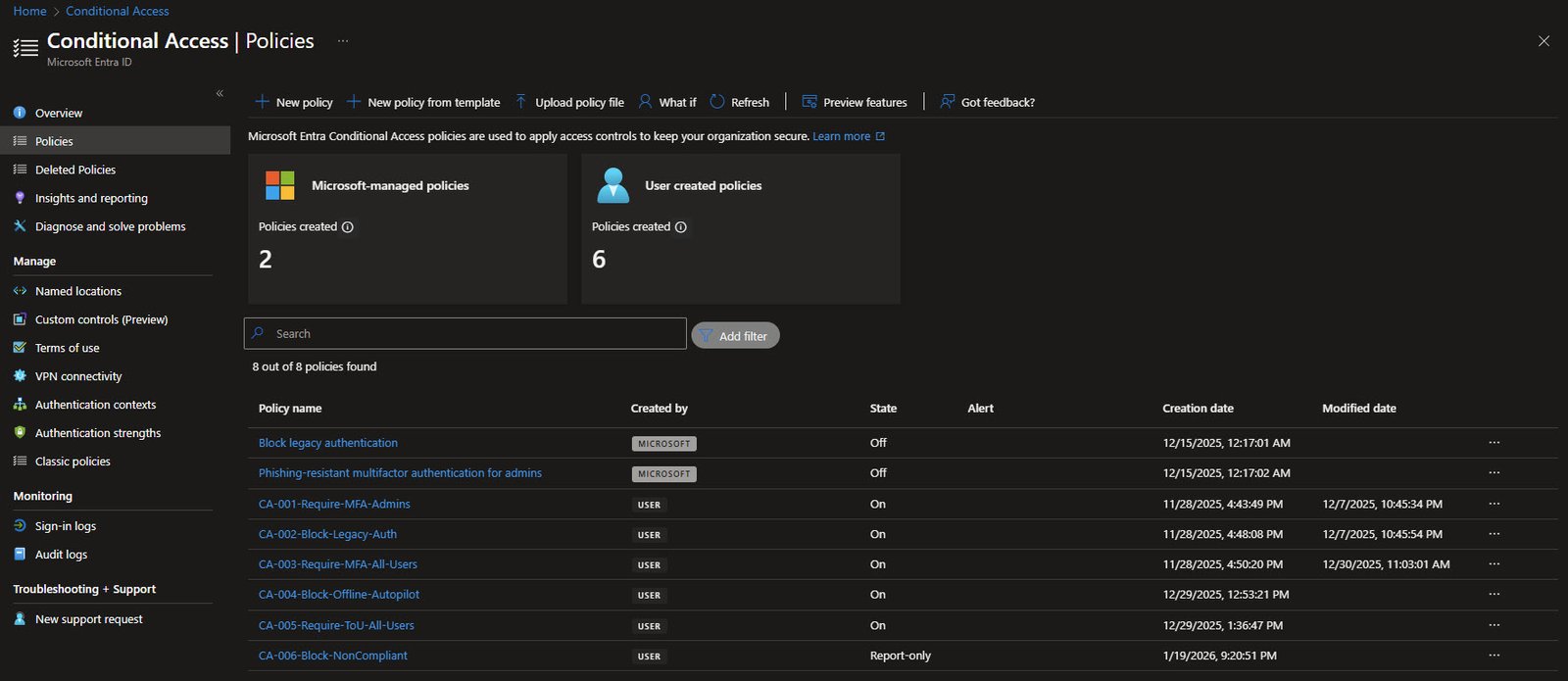
In my tenant, I currently have 8 Conditional Access policies in total:
- 2 Microsoft-managed (default policies)
- 6 custom user-created policies
The Microsoft-managed policies for blocking legacy authentication and requiring phishing-resistant MFA for administrators are currently set to Off. This is intentional, as I have implemented functionally equivalent policies with custom configurations tailored to my environment.
My custom policies follow a deliberate and explicit numbering convention (CA-001 through CA-006), making them easier to audit, discuss and troubleshoot, each policy targeting a specific security control:
- CA-001-Require-MFA-Admins
- CA-002-Block-Legacy-Auth
- CA-003-Require-MFA-All-Users
- CA-004-Block-Offline-Autopilot
- CA-005-Require-ToU-All-Users
- CA-006-Block-NonCompliant
This structure helps keep Conditional Access readable, predictable and maintainable over time, especially as additional policies are introduced:
Note: To keep things readable avoiding unnecessary repetition, I don’t re-show identical Conditional Access sections for every policy, common settings such as Users and groups and the usual Include / Exclude logic are explained in detail once and then reused across the other policies.
For each additional policy, I’ve focus only on what changes and why it matters. If a setting isn’t shown again, it follows the same pattern already introduced earlier unless I explicitly call out a difference.
CA-001: Require MFA for Admins
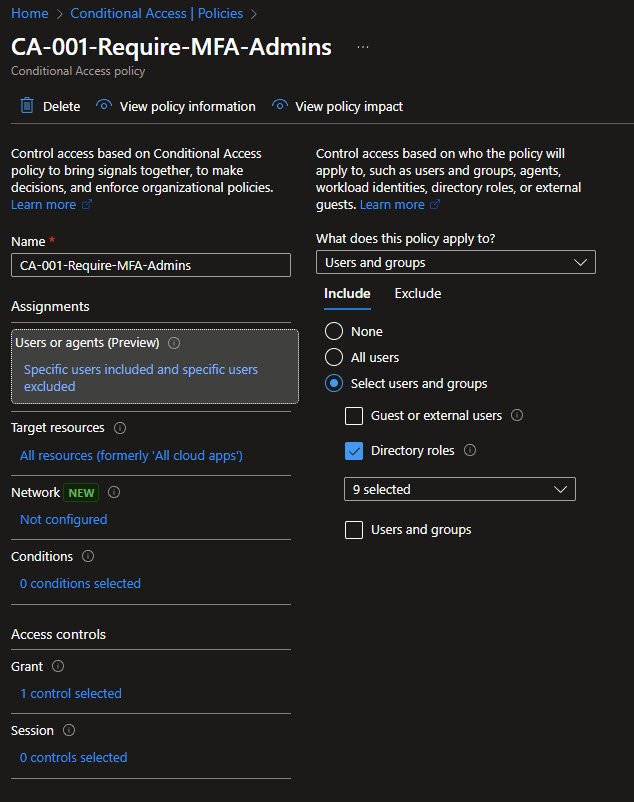
The first policy focuses on privileged identities, rather than targeting individual users, it is scoped to directory roles, with nine administrative roles selected. This ensures that Global Administrators, User Administrators, Exchange Administrators and other high-impact roles must complete MFA regardless of where the sign-in originates.
The critical configuration here is Select users and groups with Directory roles enabled. This approach is more resilient than assigning named accounts, as the policy automatically applies the moment a user is added to an administrative role and is removed just as cleanly when the role is revoked.
The Break-Glass Exclusion
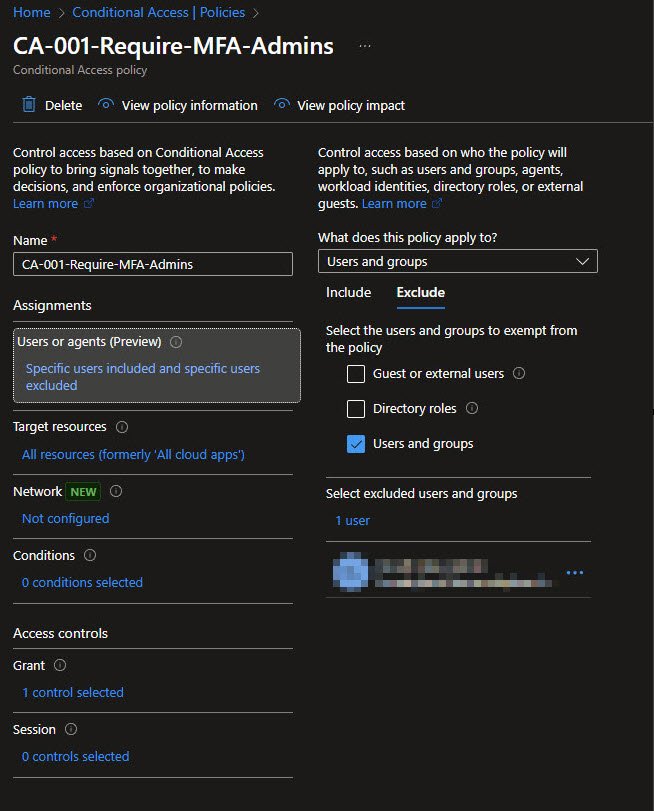
Every Conditional Access design needs an explicit emergency access path. I’ve exclude a dedicated “break-glass” account from all Conditional Access policies to guarantee tenant access in case of widespread authentication or policy misconfiguration.
This account uses a long, complex password stored offline and is never used for daily administration. The account name is intentionally blurred here, publishing break-glass account details publicly is a poor operational security practice.
Note: Microsoft’s current best practice recommends protecting emergency access accounts with FIDO2 keys or certificates rather than excluding them from MFA entirely. In this lab environment with limited hardware I’ve used the exclusion approach, but production deployments should implement phishing-resistant MFA for break-glass accounts.
Target Resources and the Lockout Warning
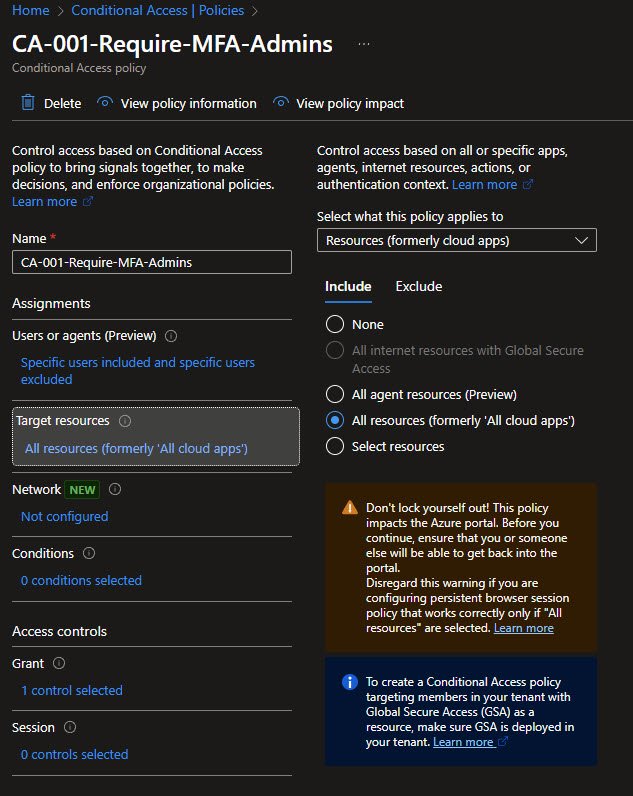
CA-001 targets All resources (formerly “All cloud apps”), meaning every Microsoft 365 service requires MFA for administrative access. Because this is a broad and restrictive scope, Entra ID displays a yellow warning banner reminding you of the risk of self-lockout.
This warning is expected and appropriate. Any policy that applies to all resources should be deployed cautiously, ideally first in report-only mode or during a controlled change window.
Note: The informational banner referencing Global Secure Access can be ignored unless you are actively deploying Microsoft’s SASE capabilities.
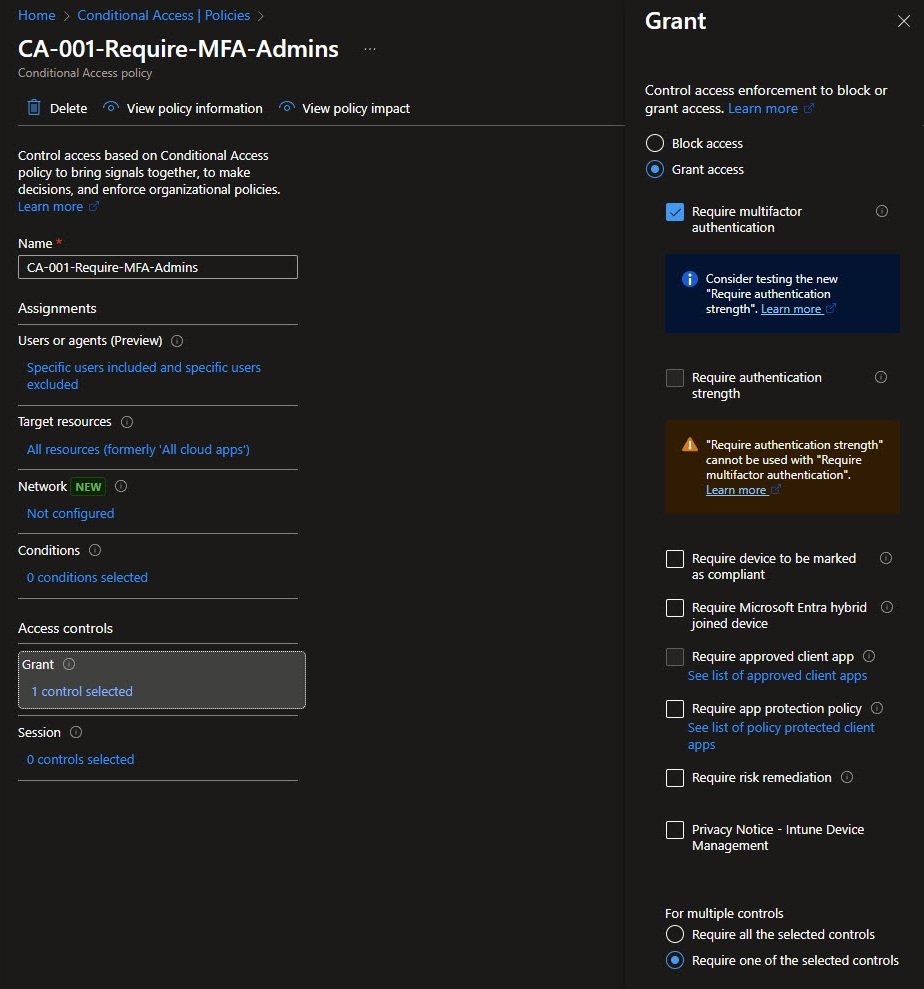
Grant Controls for Admin MFA
In the Grant controls, Require multifactor authentication is selected. Entra ID also surfaces a recommendation for Authentication Strength, along with a reminder that MFA and Authentication Strength cannot be combined in the same policy.
For now, standard MFA meets the intended risk reduction. Phishing-resistant authentication strength is planned for a later iteration once the environment is ready to absorb the stricter controls.
The For multiple controls option becomes relevant when more than one requirement is selected. “Require one of the selected controls” applies OR logic, while “Require all” enforces AND logic:
CA-002: Block Legacy Authentication
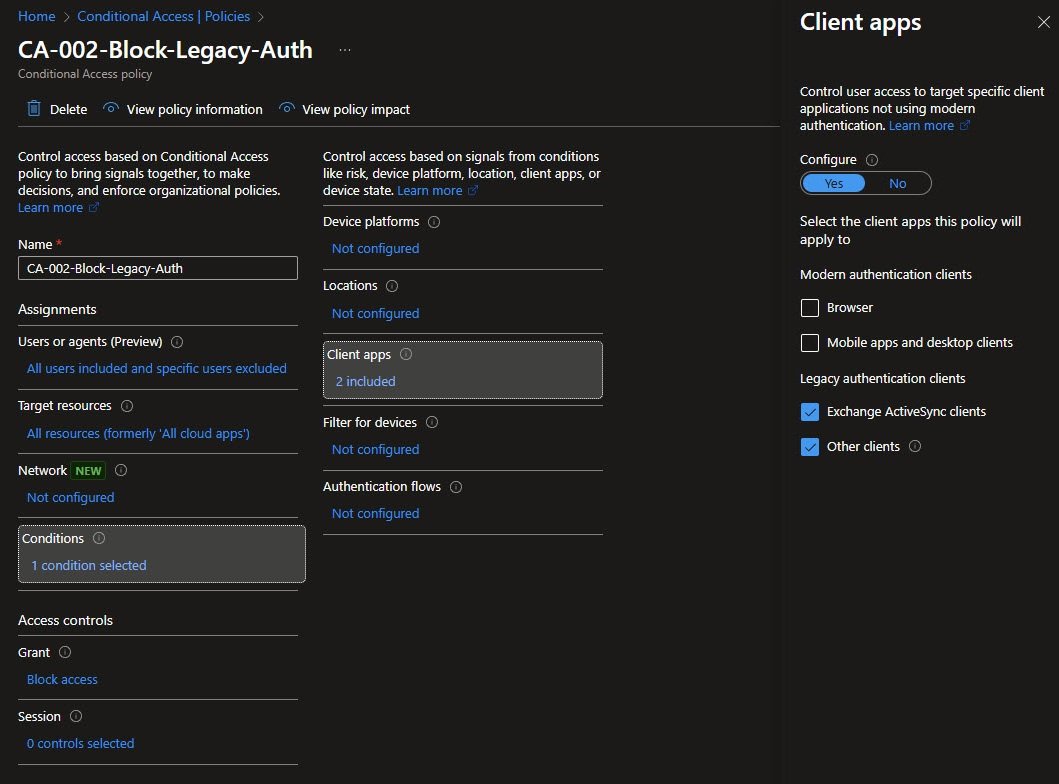
This policy has a fundamentally different goal: deny access outright. Legacy authentication protocols such as IMAP, POP3 and older SMTP variants do not support MFA and remain a common attack surface.
In the Conditions panel, Client apps are configured with two inclusions and the Grant control is set to Block access. The selected client apps Exchange ActiveSync clients and Other clients cover legacy protocols while leaving modern authentication flows unaffected:
Block Access Grant Control
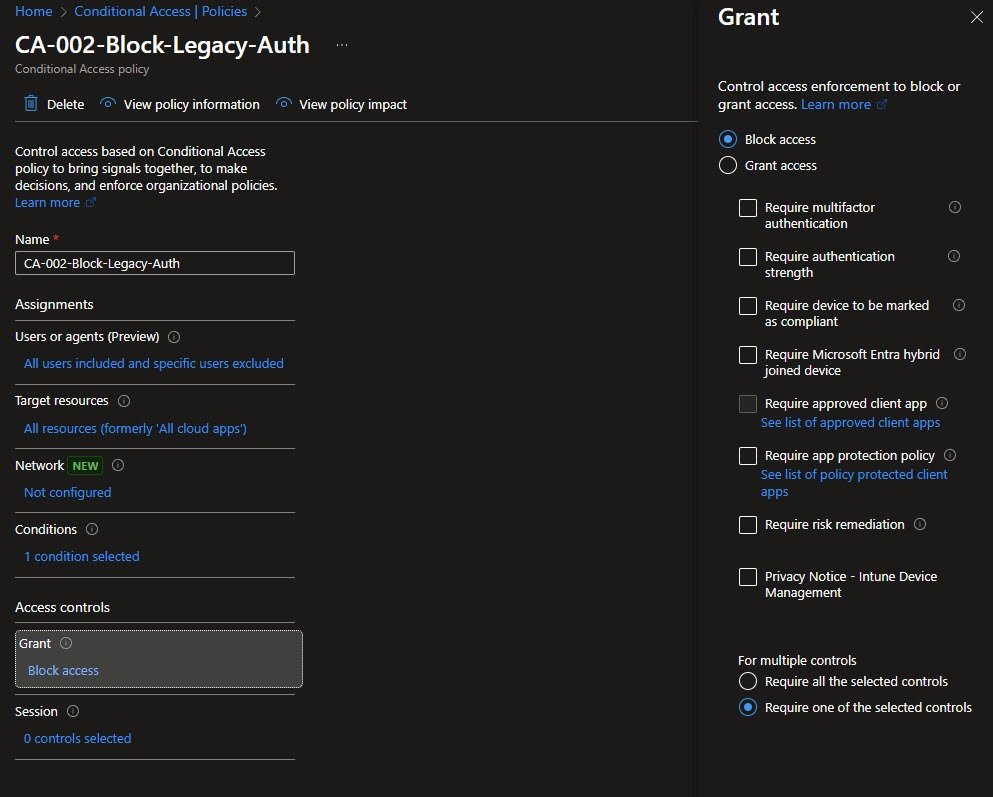
Unlike CA-001, which grants access after conditions are met, CA-002 enforces a hard stop. Once Block access is selected, all other grant options are disabled. There is no MFA challenge and no fallback condition, authentication simply fails.
This is the intended behavior, Legacy authentication should not be constrained or partially allowed, it should be removed entirely:
CA-003: Network-Aware MFA for All Users
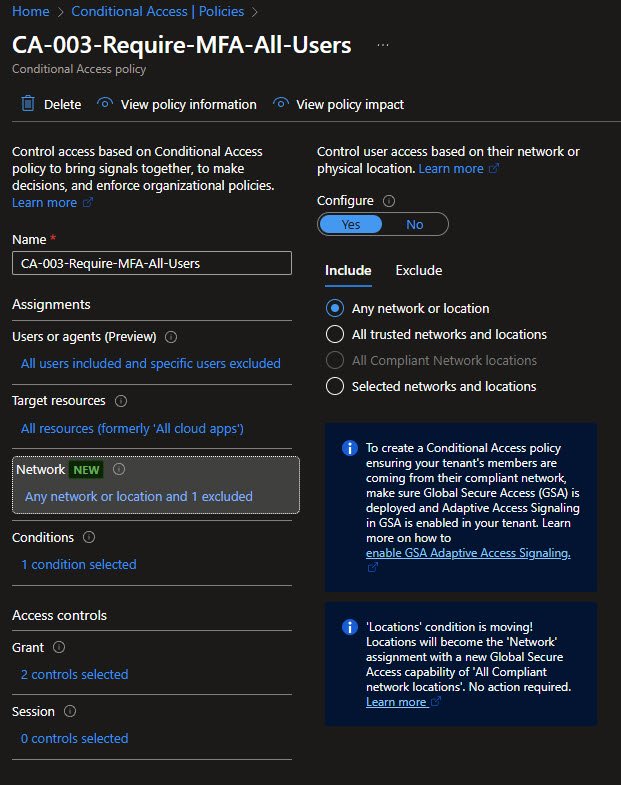
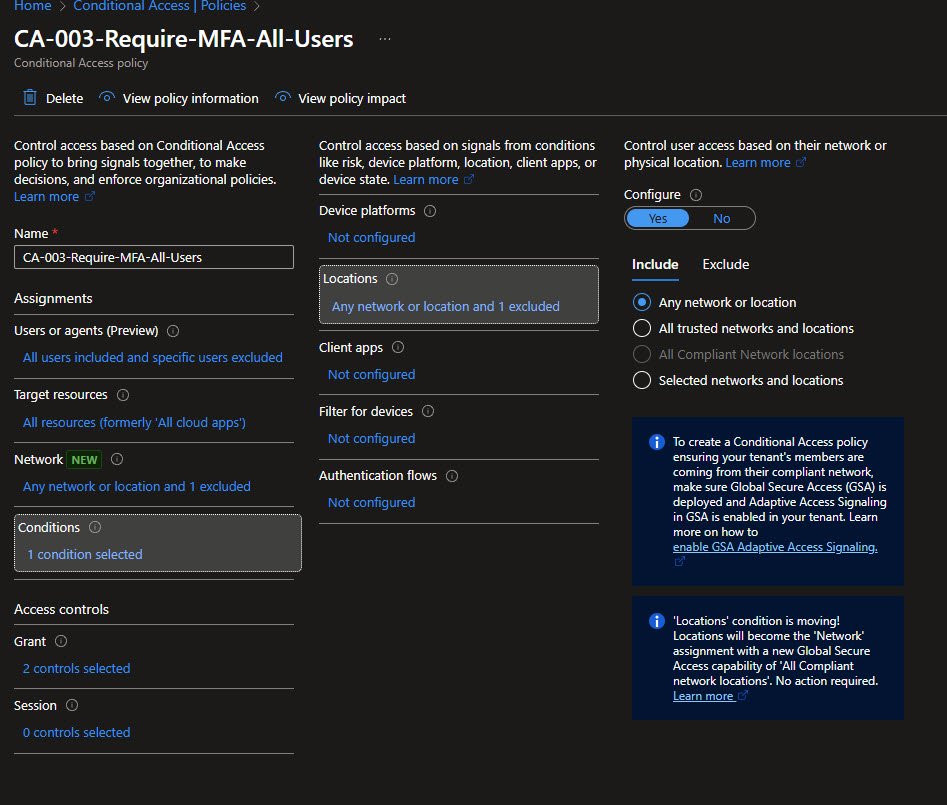
This policy extends MFA requirements to all users, not just administrators, while remaining aware of network context. The Network (formerly Locations) condition is configured as Any network or location, with one exclusion.
In practice MFA is required everywhere except a trusted home network. This balances usability with security by reducing friction in a controlled environment while maintaining strong authentication everywhere else.
Note: Microsoft is gradually transitioning location-based conditions into the broader Network model as part of its Global Secure Access strategy.
Creating Named Locations
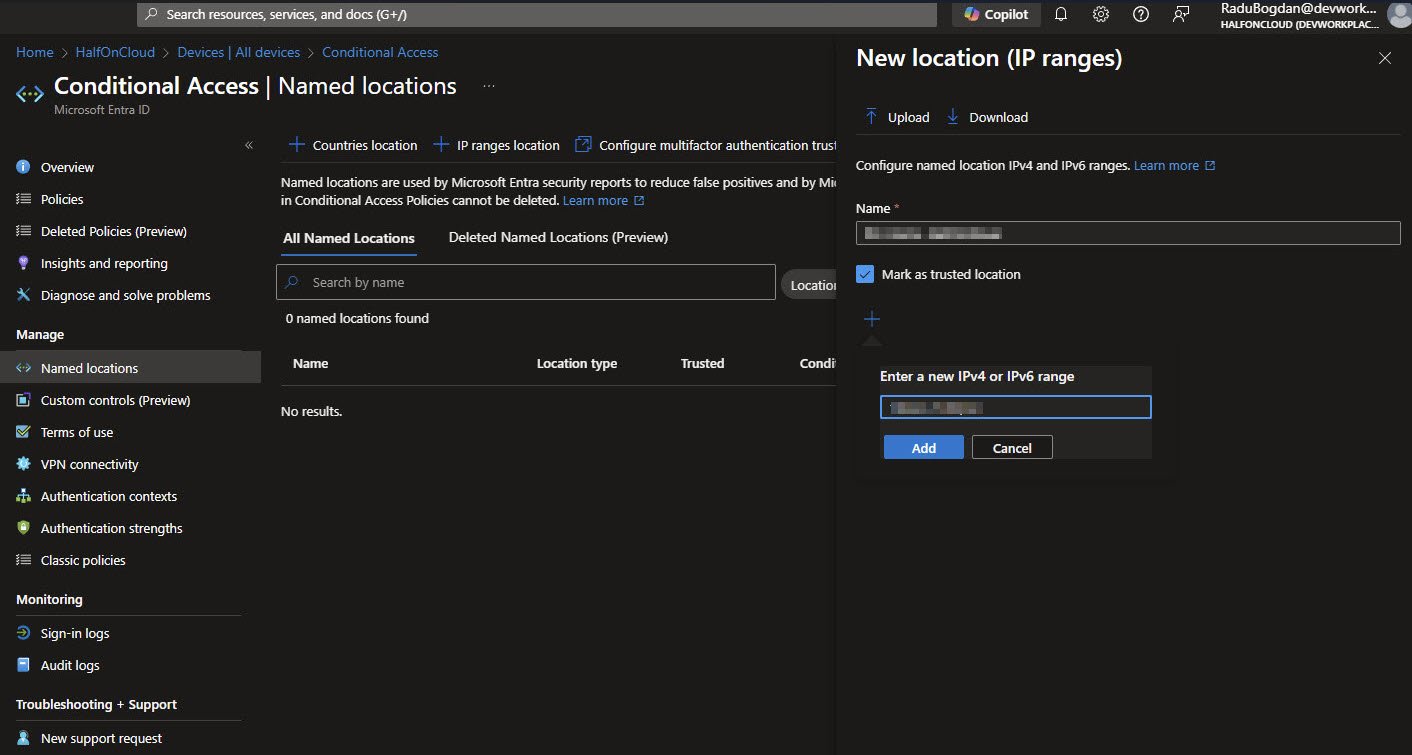
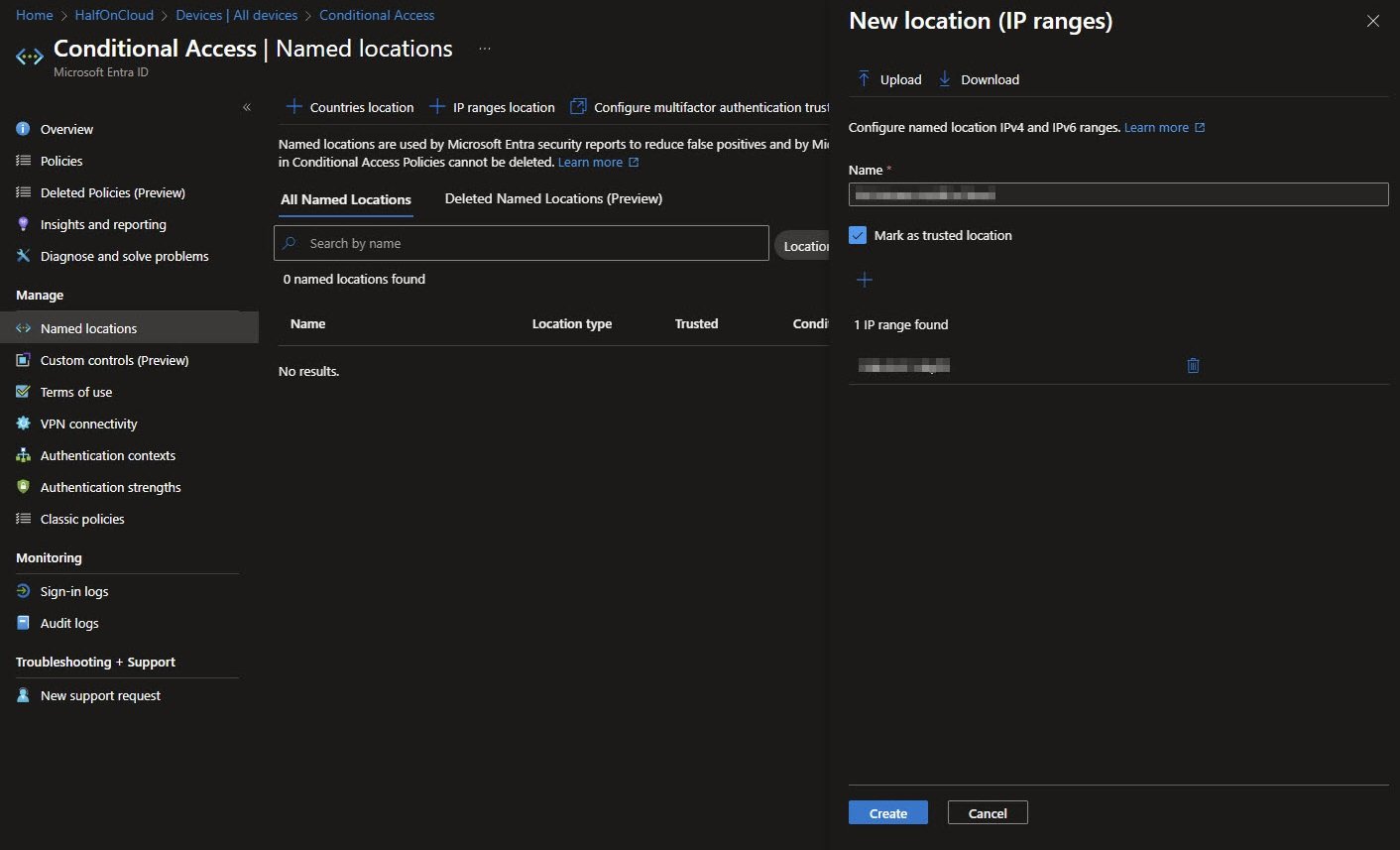
Named Locations define trusted networks for CA policies. The “New location (IP ranges)” panel shows creating " " with “Mark as trusted location” checked. The IP range field shows my subnet representing a single public IP address.
Note I’ve blurred some of the sensitive data since I don’t want to share any of my home or office public IPs.
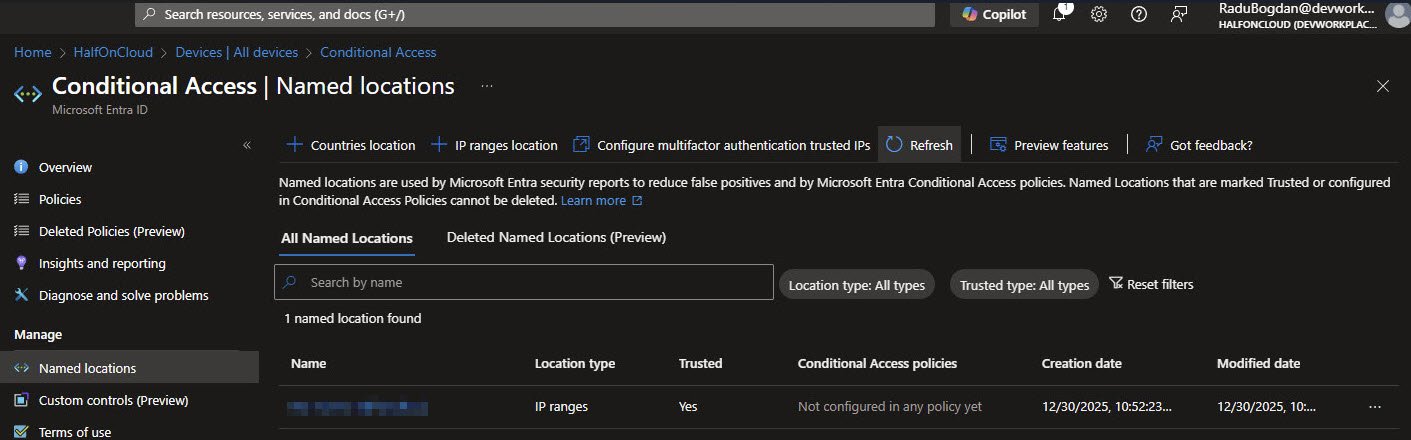
After creation, the Named Locations list shows my custom Named Location with Trusted: Yes and a Creation date. The status shows “Not configured in any policy yet” which will change once I assign it to CA-003’s exclusion list next:
Named Location Exclusions
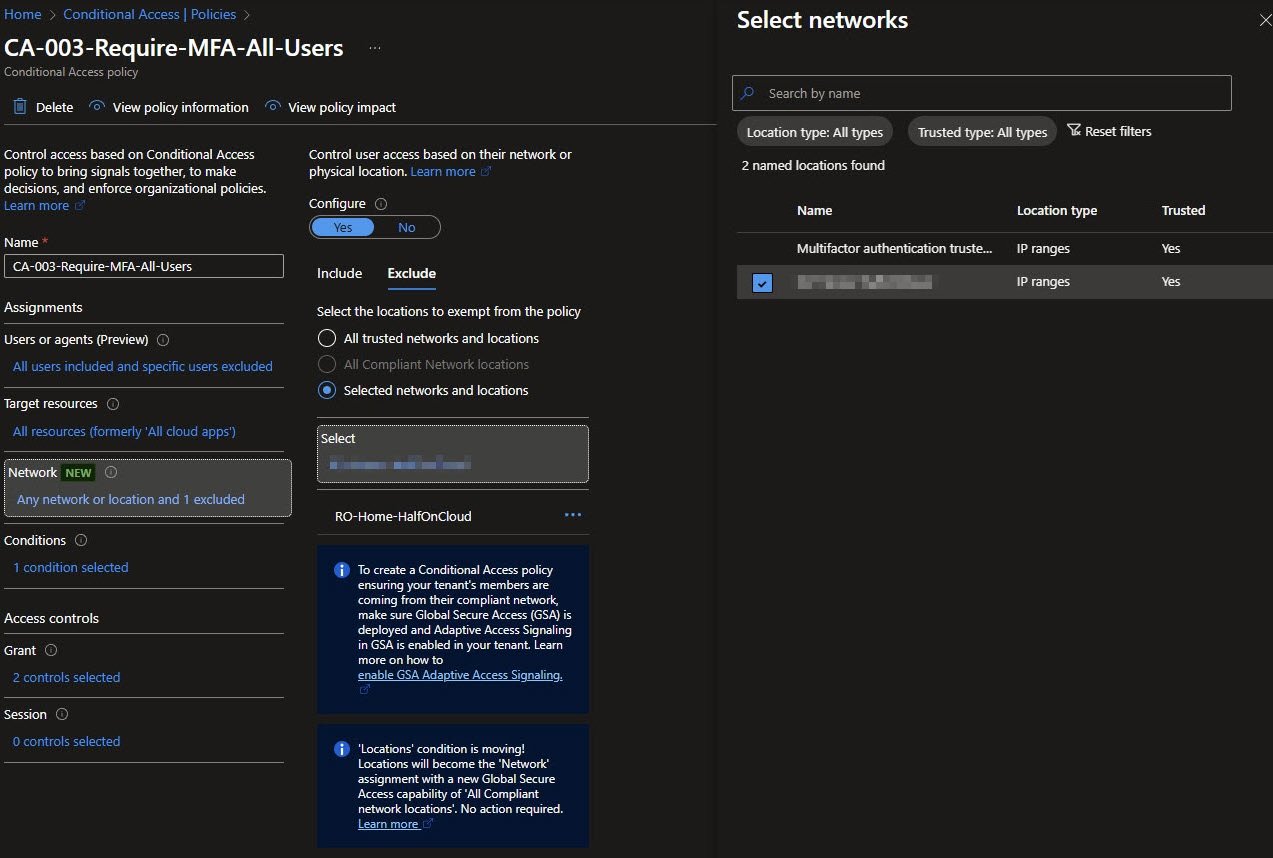
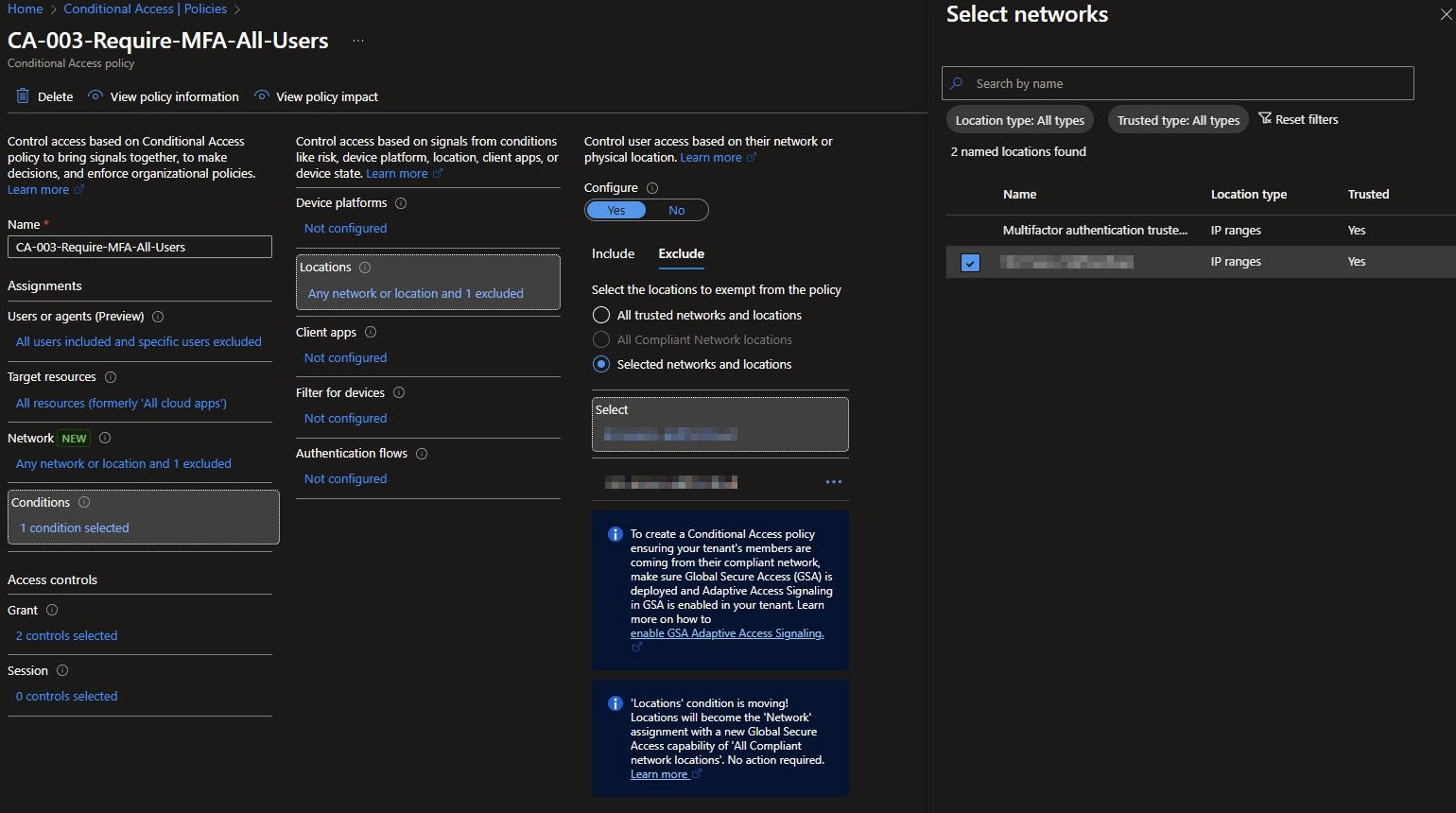
The exclusion relies on Named Locations, my home IP range is explicitly marked as trusted.
When a user signs in from this location the policy still evaluates, but the MFA requirement is bypassed due to the exclusion. From any other network, MFA is enforced:
Location Conditions Overview
The Conditions summary reflects a deliberately narrow scope. Network conditions are configured with Any network or location and 1 excluded, while Device platforms, Client apps, Filter for devices and Authentication flows remain not configured.
This is intentional, each policy is designed to do one thing well, CA-003 handles user MFA with network awareness, while device compliance and other signals are enforced elsewhere.
Selecting the Excluded Network
In the Select networks panel, both named locations are visible, the home network is explicitly selected under the Exclude tab using Selected networks and locations.
IP ranges are blurred here for obvious reasons, publishing home or corporate IP addresses is unnecessary and unsafe:
CA-003 Grant Controls
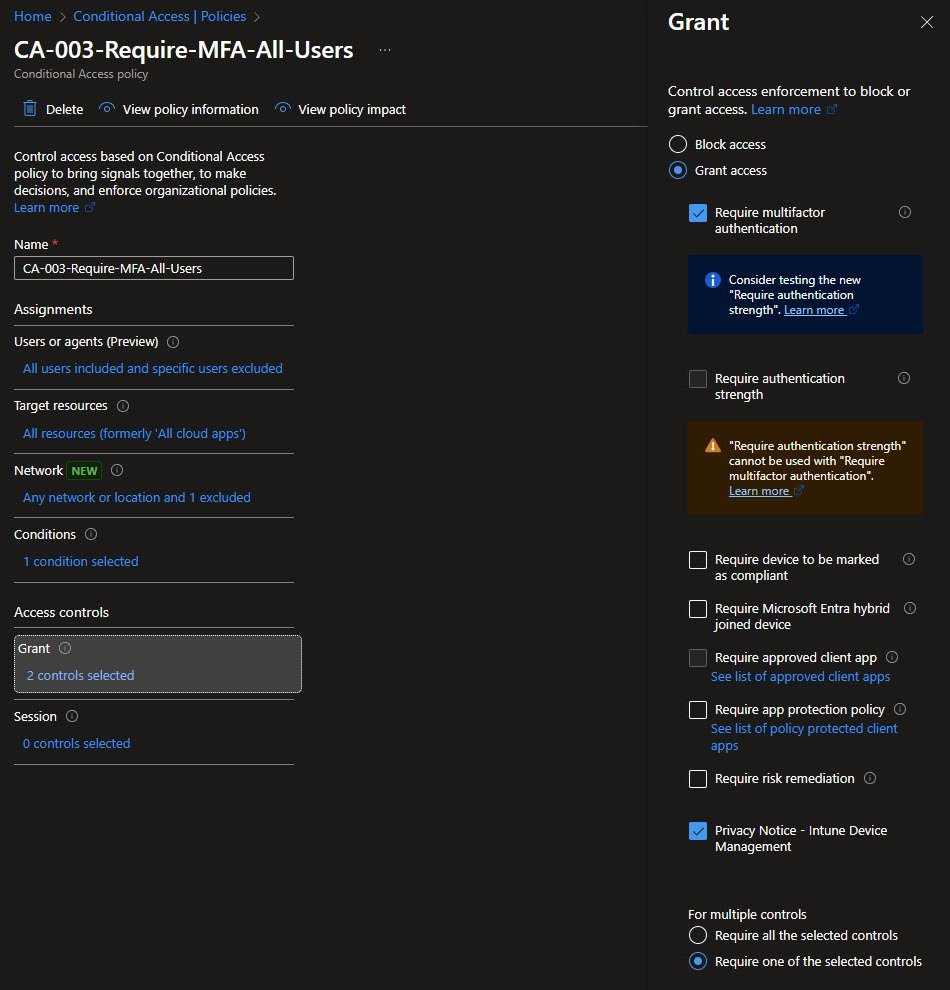
This policy requires either MFA or acceptance of the Intune Device Management Privacy Notice. By setting Require one of the selected controls, the policy applies OR logic between the two conditions.
This configuration aligns well with Intune enrollment and sign-in flows, where users may need to acknowledge device management terms. Combined with MFA, it enforces both identity assurance and user consent without creating unnecessary sign-in failures.
CA-004: Block Offline Autopilot Devices
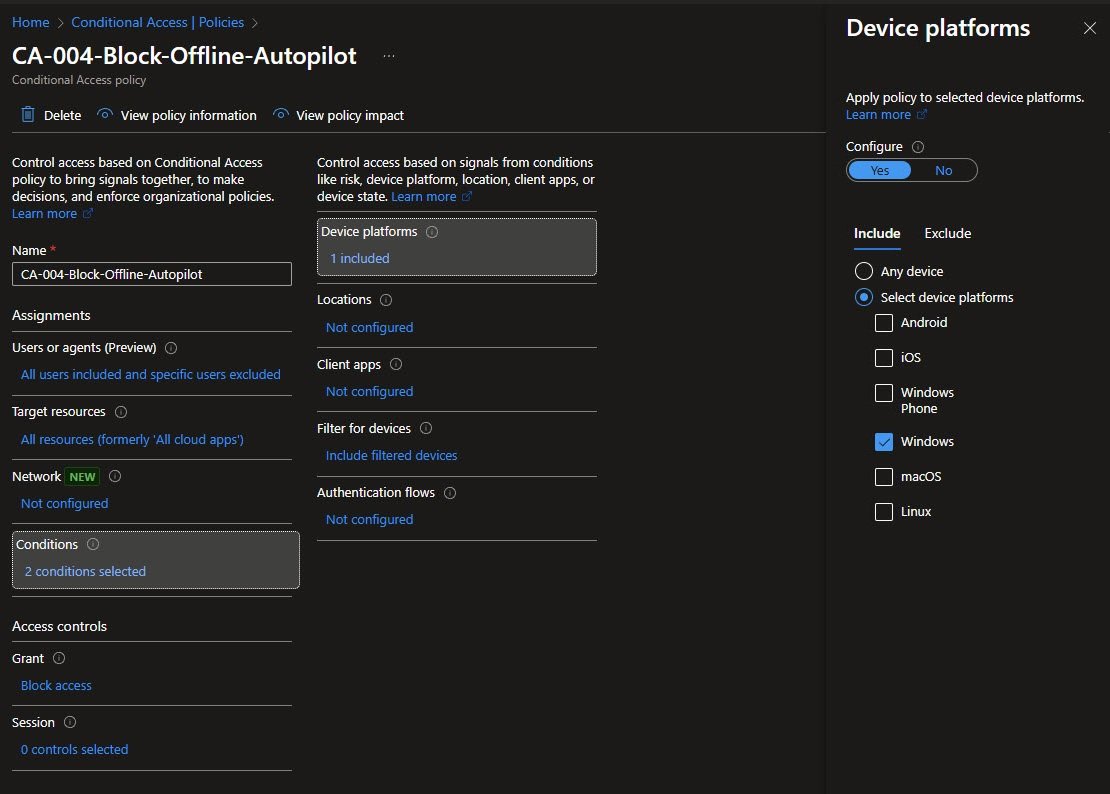
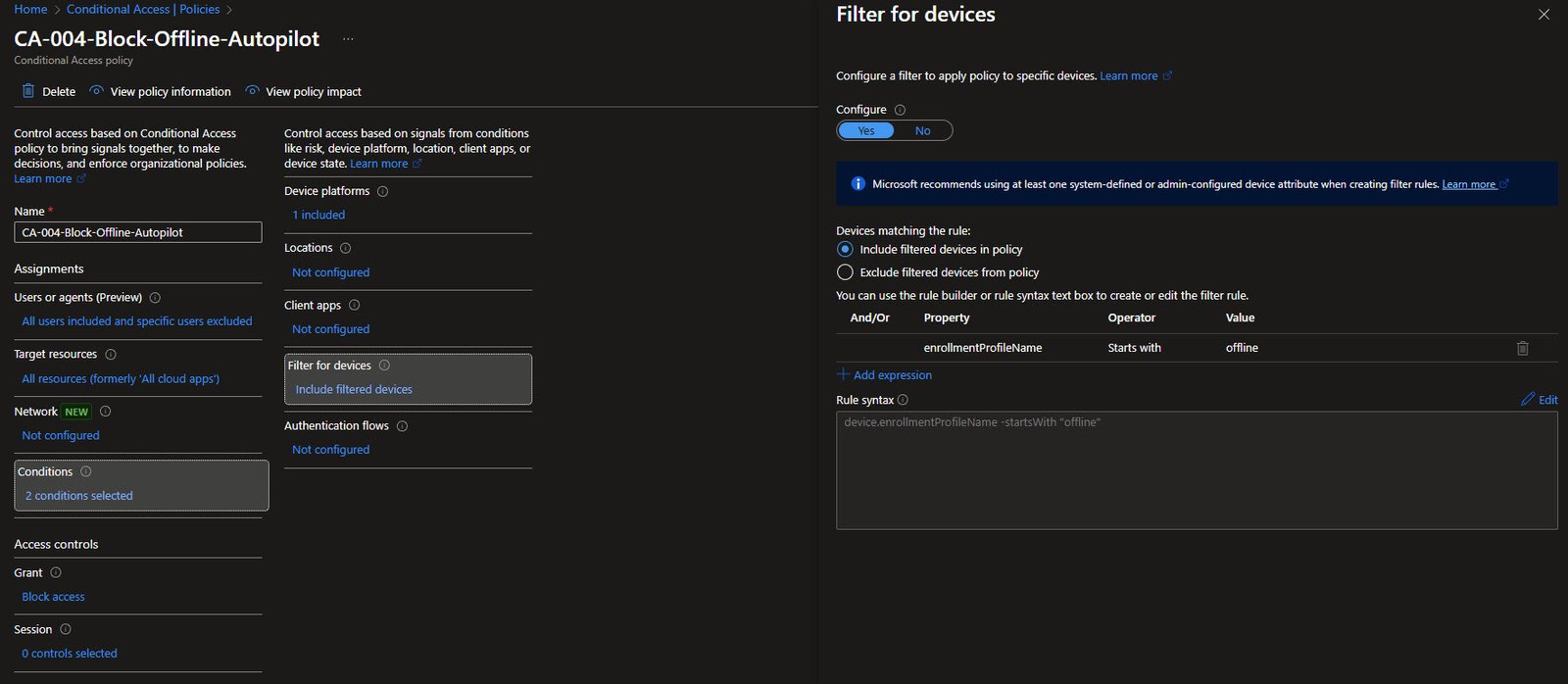
This policy addresses a very specific scenario: devices provisioned using offline Autopilot profiles. Since Autopilot is a Windows-only capability, the Device platforms condition is scoped exclusively to Windows.
Two conditions are configured in this policy and the Grant control is set to Block access. Offline Autopilot enables device provisioning without internet connectivity but the trade-off is that those devices may not receive the latest security policies or configurations during enrollment.
Device Filter for Offline Autopilot
The core logic of this policy lives in the Filter for devices condition. The filter uses the enrollmentProfileName attribute with the Starts with operator and the value offline.
In rule syntax, this appears as: device.enrollmentProfileName -startsWith “offline”
This design relies on a simple naming convention. Any Autopilot deployment profile intended for offline use starts with the prefix offline. As a result, only devices enrolled through those profiles are targeted, standard online Autopilot devices are unaffected.
CA-004 Grant Control
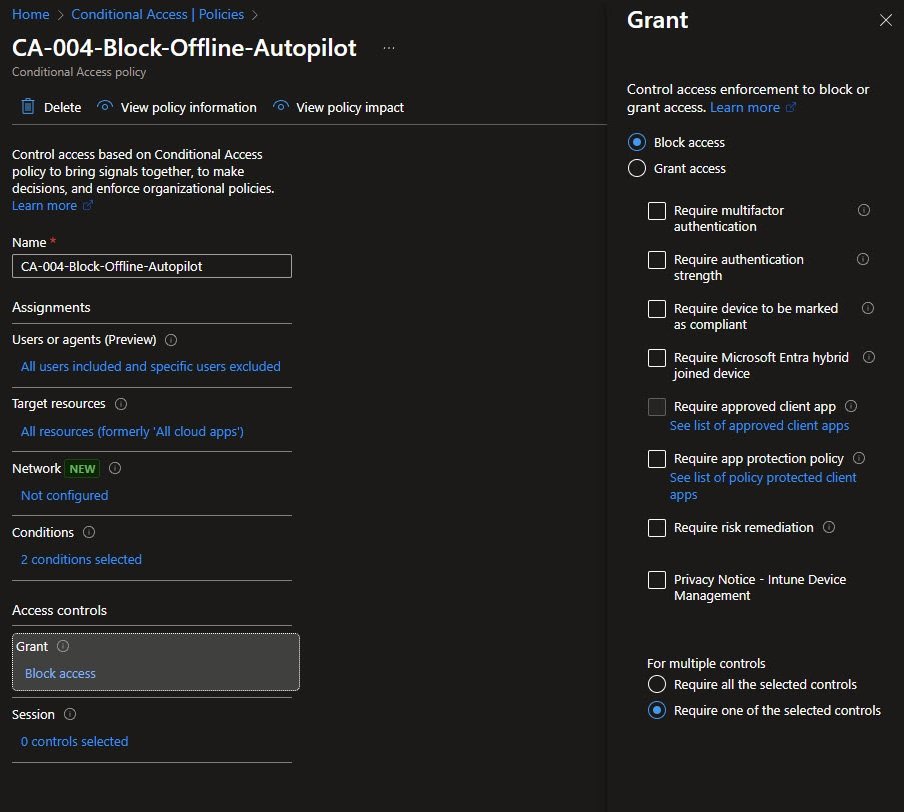
Like CA-002, this policy uses Block access rather than a conditional grant. When a Windows device matches the offline Autopilot filter, access is denied outright, there is no MFA prompt and no compliance evaluation.
The intent is not to punish the device, but to force it back through a proper online Autopilot enrollment, where it can receive current policies, applications and security baselines.
Creating Terms of Use
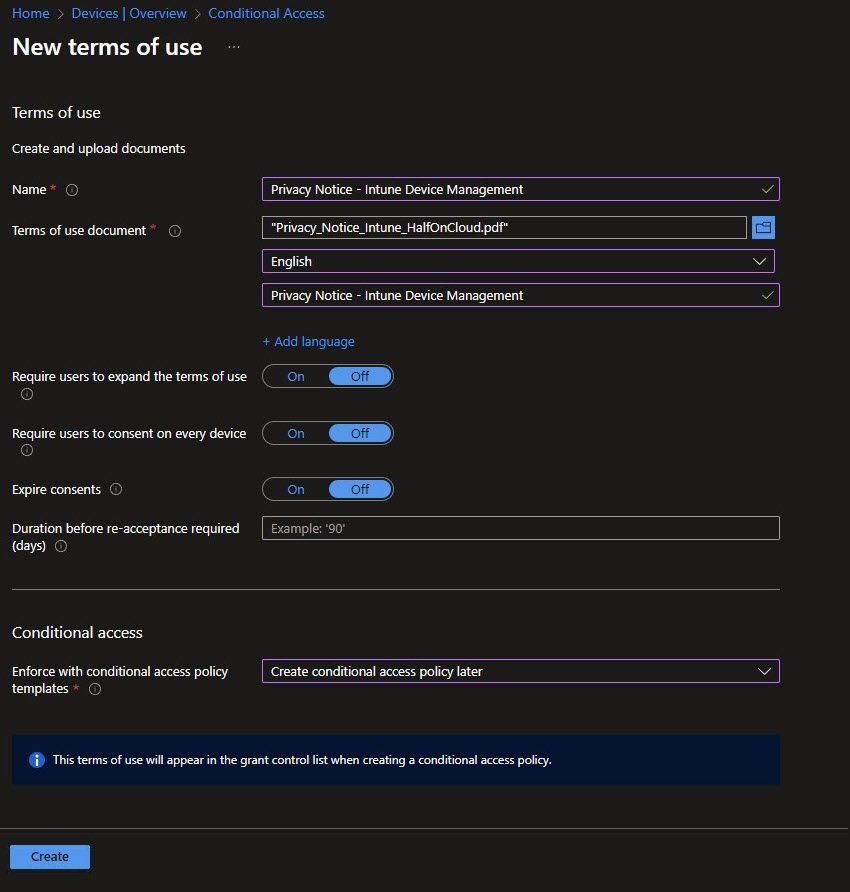
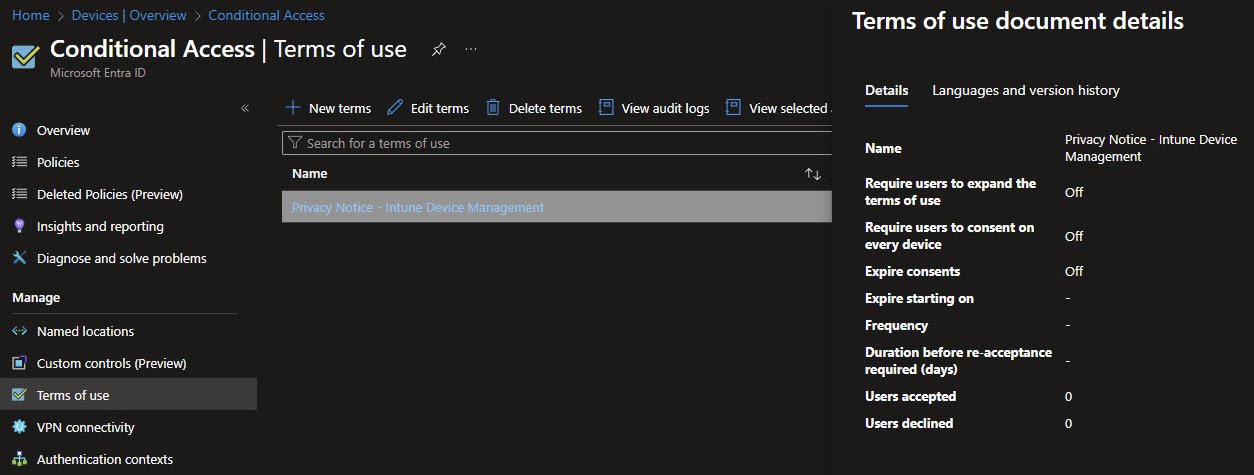
Before CA-005 can enforce Terms of Use, the document itself must exist. In the New terms of use workflow, I’ve created and uploaded a PDF privacy notice titled Privacy_Notice_Intune_HalfOnCloud.pdf.
To keep the user experience simple in this lab tenant, I’ve disabled:
- Require users to expand the terms of use
- Require users to consent on every device
Note: In a production environment these options are often enabled to meet stricter compliance or audit requirements.
Terms of Use Management
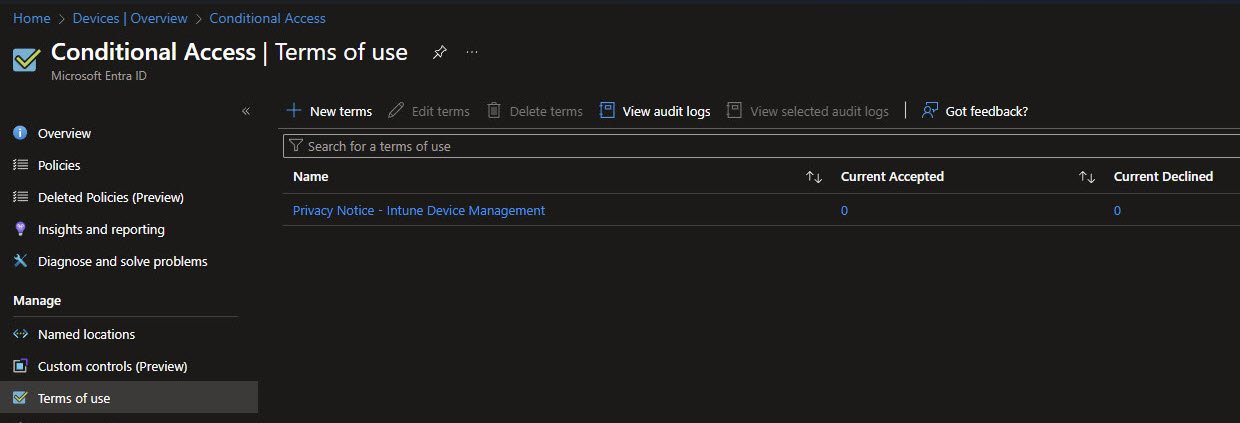
The Terms of use blade shows the document Privacy Notice – Intune Device Management. In the details panel, all behavioral options are turned off: users don’t need to expand the document, consent isn’t required per device and consents do not expire.
At this stage acceptance counters show zero activity. This is expected before the policy is enforced.
Note: This is the document referenced later by CA-005.
CA-005: Require Terms of Use
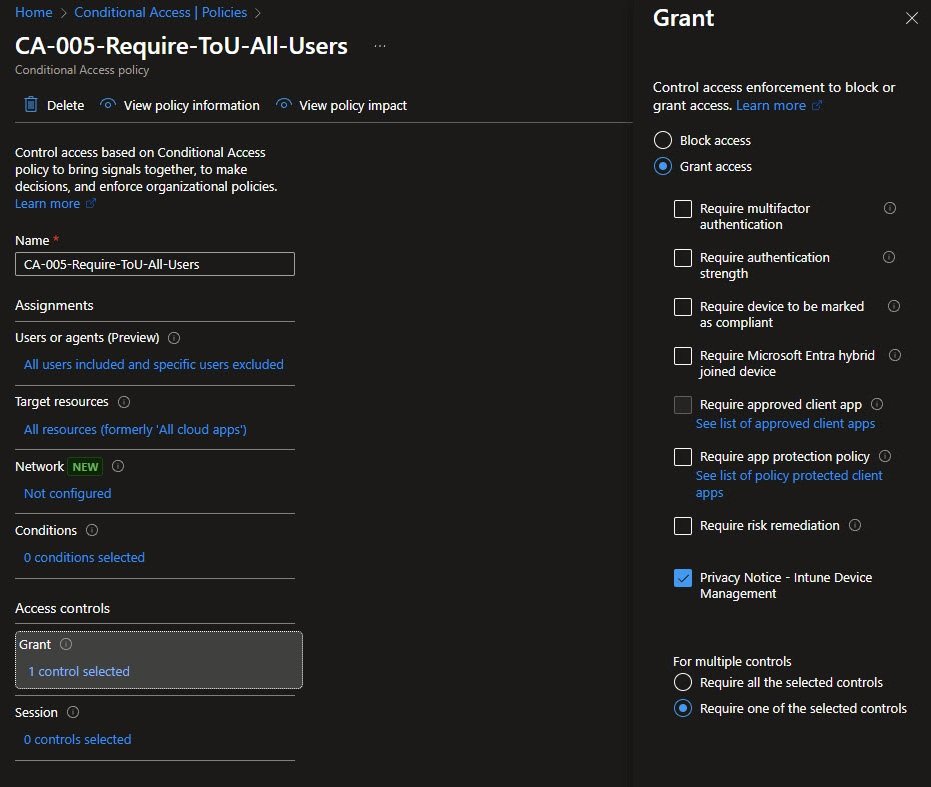
This policy ensures users acknowledge the Privacy Notice before accessing company resources. In the Grant controls, only Privacy Notice – Intune Device Management is selected.
There are no MFA or device compliance requirements in this policy. Its sole purpose is legal and informational acknowledgement. Because only one control is selected, the Require one of the selected controls setting has no practical impact here.
The User Experience
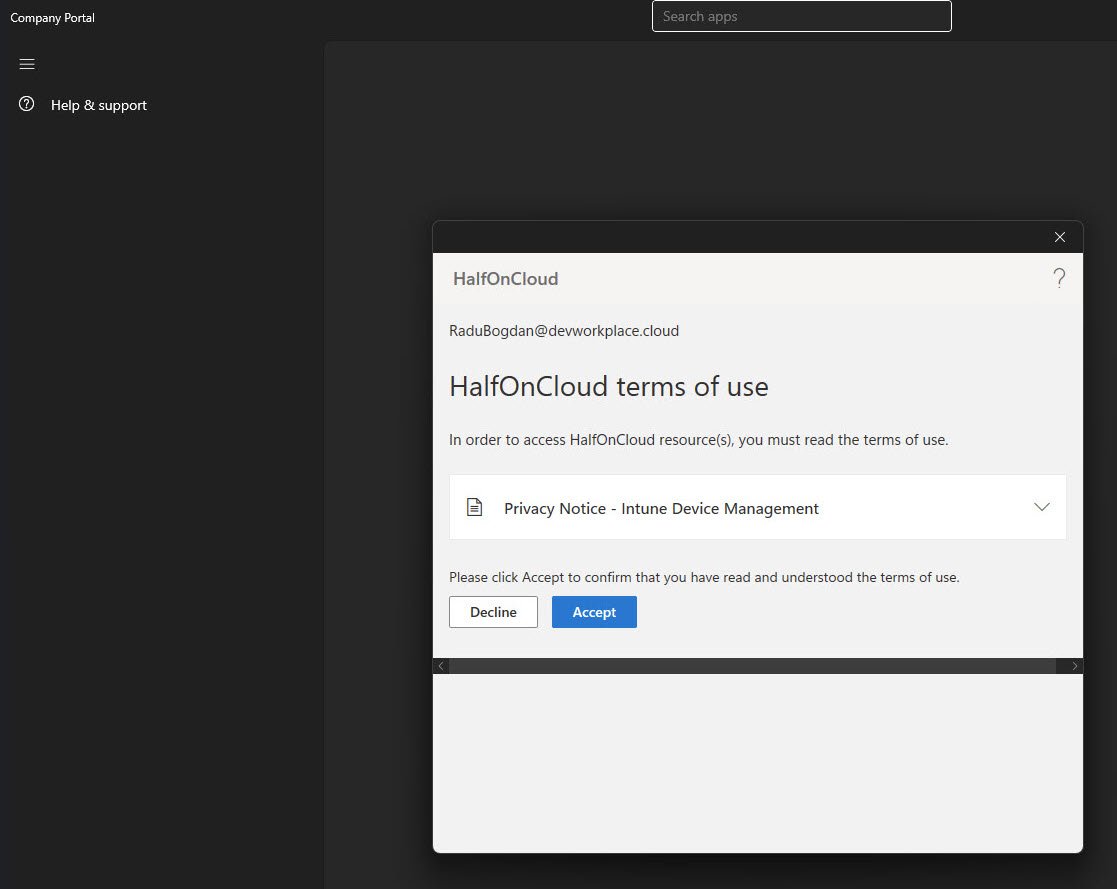
When the policy is enforced, users are presented with a Terms of Use prompt. In this case, the Company Portal displays a dialog showing the organization name HalfOnCloud and the user’s identity.
The message clearly states that access to company resources requires acceptance of the terms. Users must choose Accept or Decline. Declining immediately blocks access.
Viewing the Terms Document
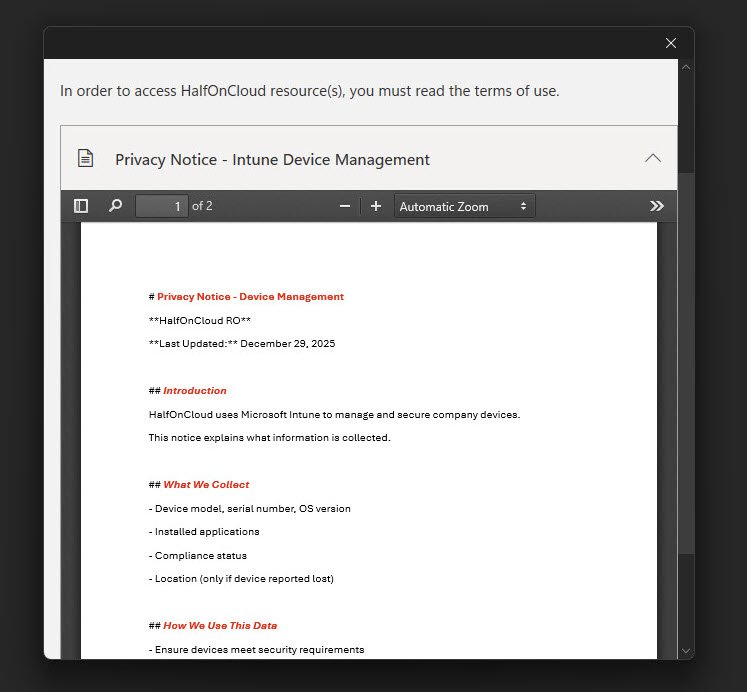
Expanding the Privacy Notice displays the PDF inline, the document outlines:
- An introduction explaining Intune device management.
- The types of data collected, such as device model, serial number, OS version, installed applications, compliance state, and location.
- How that data is used.
Note: This level of transparency is particularly important for EU tenants and supports GDPR notification requirements.
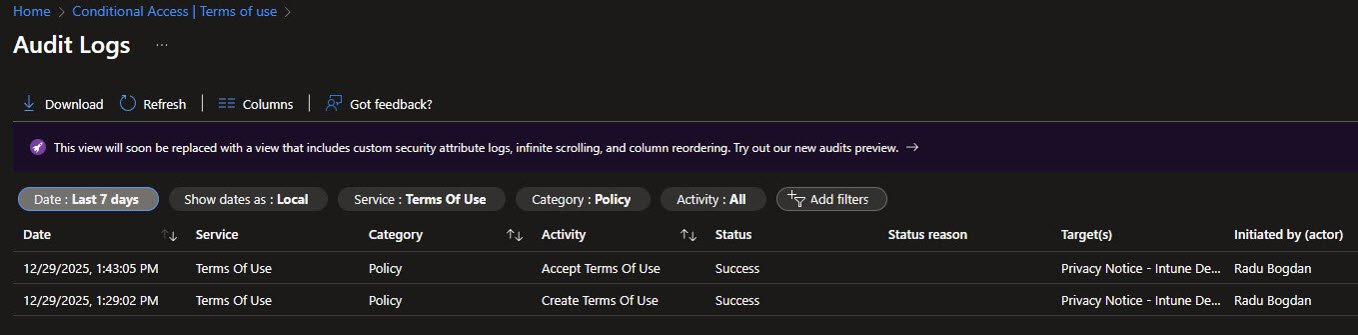
Terms of Use Audit Logs
All Terms of Use interactions are recorded in the Audit logs. This provides a verifiable record of when users accepted or declined the document, which is essential for compliance and audits:
Acceptance Tracking
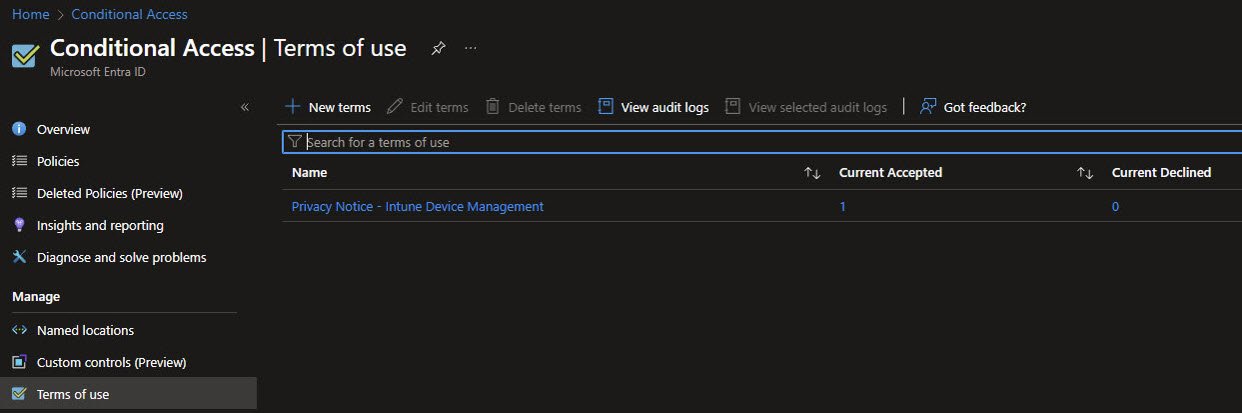
After enforcement the Terms of Use overview reflects real activity. The counters show Current Accepted: 1 and Current Declined: 0. These values update after the next device Sync as users interact with the prompt.
In larger environments this view becomes a quick health indicator during rollout. If users begin declining the terms, it’s immediately visible and can be investigated.
CA-006-Block-NonCompliant
Note: In this tenant I only have a single user, I’m on a monthly subscription with one license so I reuse my own account for testing. My account is also a Global Administrator, which means I have to be especially careful with Conditional Access changes. This setup isn’t ideal, but it’s a common reality for lab tenants and personal learning environments and it influenced how this policy was designed and tested.
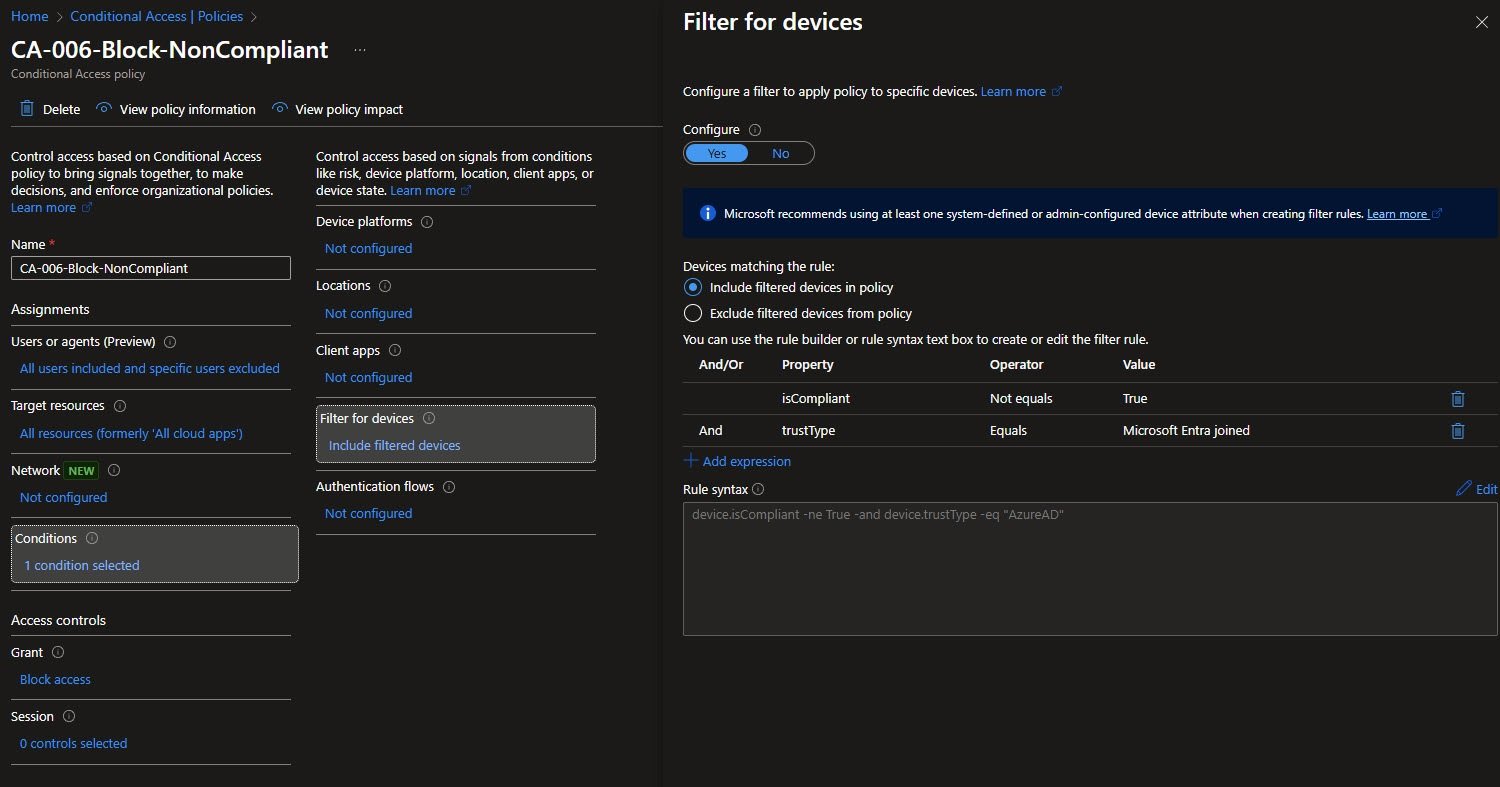
This policy ended up being one of the most instructive ones for me, CA-006 uses a device filter with two combined conditions:
- isCompliant not equal to True
- trustType equal to Microsoft Entra joined
In rule syntax this translates to:
device.isCompliant -ne True -and device.trustType -eq “AzureAD”
The intent is very specific: target only devices that are Entra joined and explicitly non-compliant.
Why Block Access Instead of Require Compliance
Initially I’ve built this policy using Require compliant device as the Grant control and within minutes I’ve managed to locked myself out of the tenant.
Note: The Grant control is configured as Block access not Require device to be marked as compliant
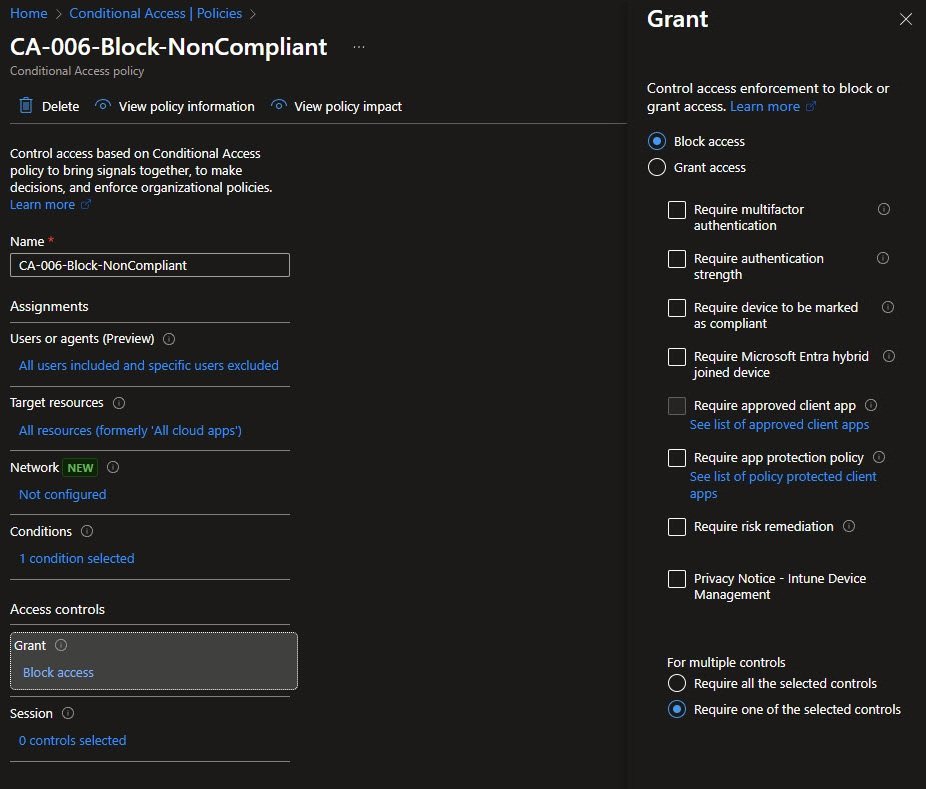
At first I’ve excluded my own user from the policy (together with the break-glass account), because this tenant only has one user and I didn’t want to lock myself out. Later I’ve temporarily removed my own exclusion just to test the behavior. The policy is intentionally left in Report-only mode, in a single-user tenant where the administrator and user are the same person enforcing device compliance offers little practical benefit
The confusing part is how Require compliant device really works.
When you use Require compliant device, Conditional Access doesn’t just look at the user, it also looks at the device trying to sign in. If that device is not enrolled or registered, it has no compliance status, Conditional Access treats “no status” the same as not compliant.
That means:
- An unmanaged or unknown device is automatically considered non-compliant.
- Excluding the user does not help because the device check still happens.
- The result is very easy self-lockout especially in lab or single-user tenants.
Using Block access together with a device filter works differently.
The device filter acts like a very strict gate, it only matches devices that are:
- Entra joined.
- And explicitly marked as non-compliant.
If a device doesn’t meet those exact conditions (for example a home PC that isn’t Entra joined), it doesn’t match the filter at all. When a device doesn’t match the filter, the policy is simply ignored.
This approach lets me:
- Block access only from known corporate devices that are non-compliant.
- Still manage the tenant from an unmanaged home PC.
- Avoid accidental lockouts while learning and testing.
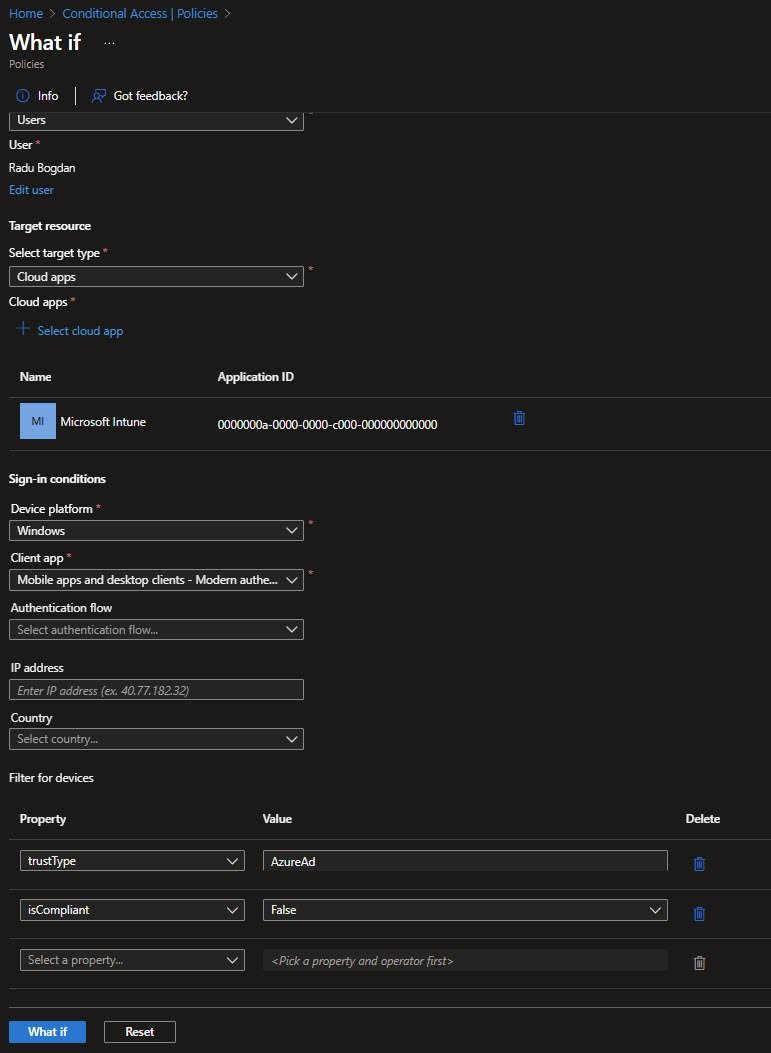
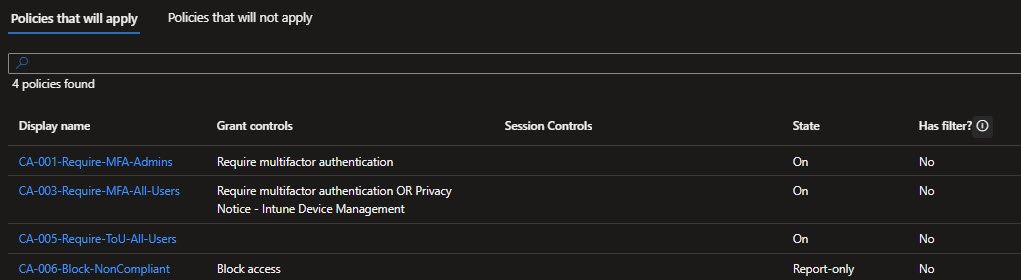
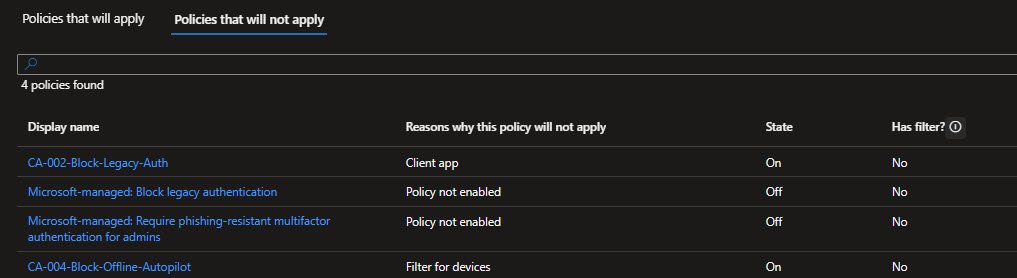
I confirmed this using the What If tool.
With my user excluded, CA-006 appeared under Policies that will not apply with the reason Users and groups. After temporarily removing my exclusion the same policy moved to Policies that will apply showing Block access as the result.
That told me exactly what would have happened if this policy had been enabled without careful exclusions: immediate lockout !
Authentication Strengths
Custom Authentication Strength Configuration
Authentication Strengths allow you to define exactly which authentication methods are acceptable for a Conditional Access policy. Instead of allowing any MFA method including easily phishable options such as SMS, you can restrict access to phishing-resistant methods only.
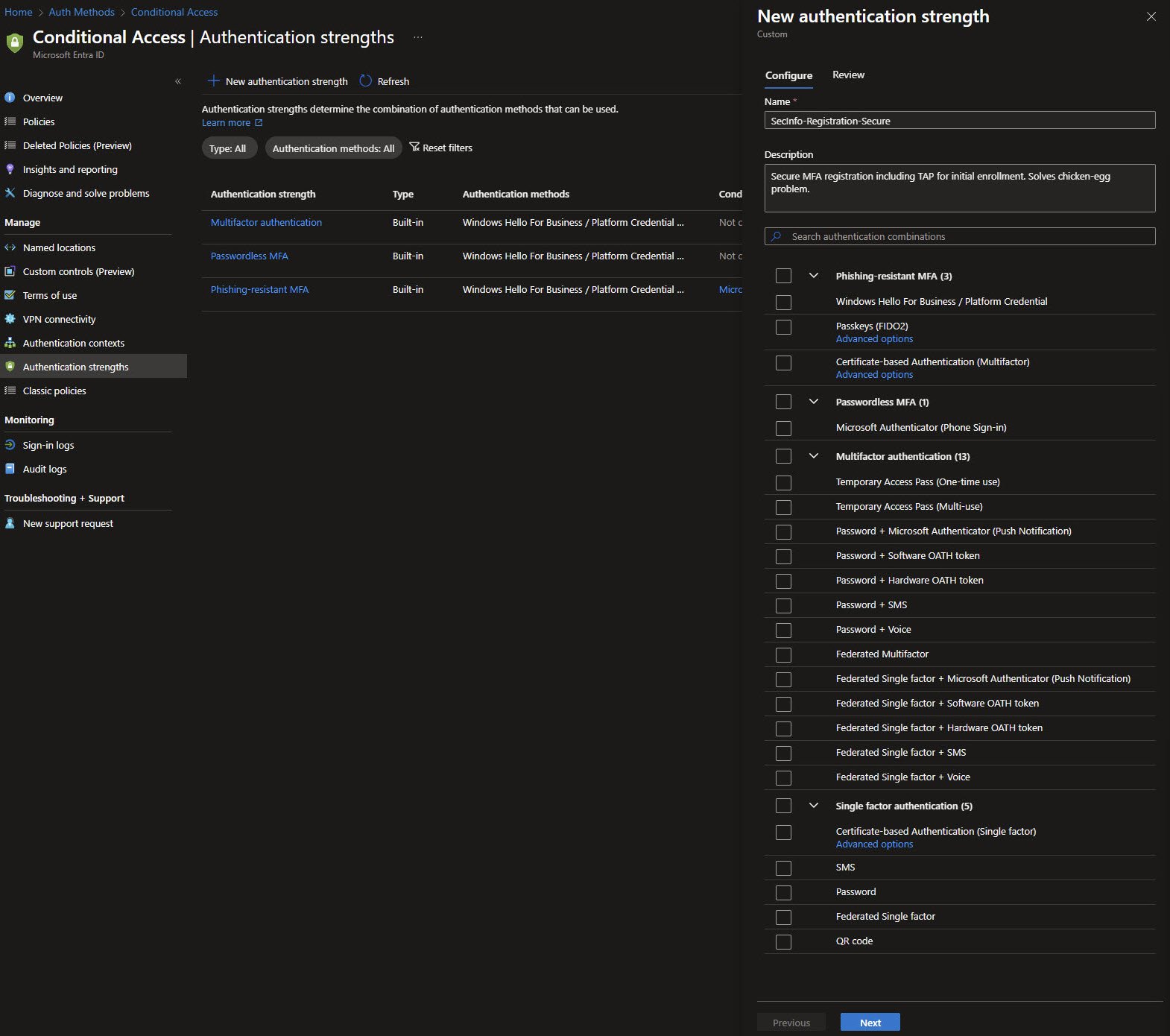
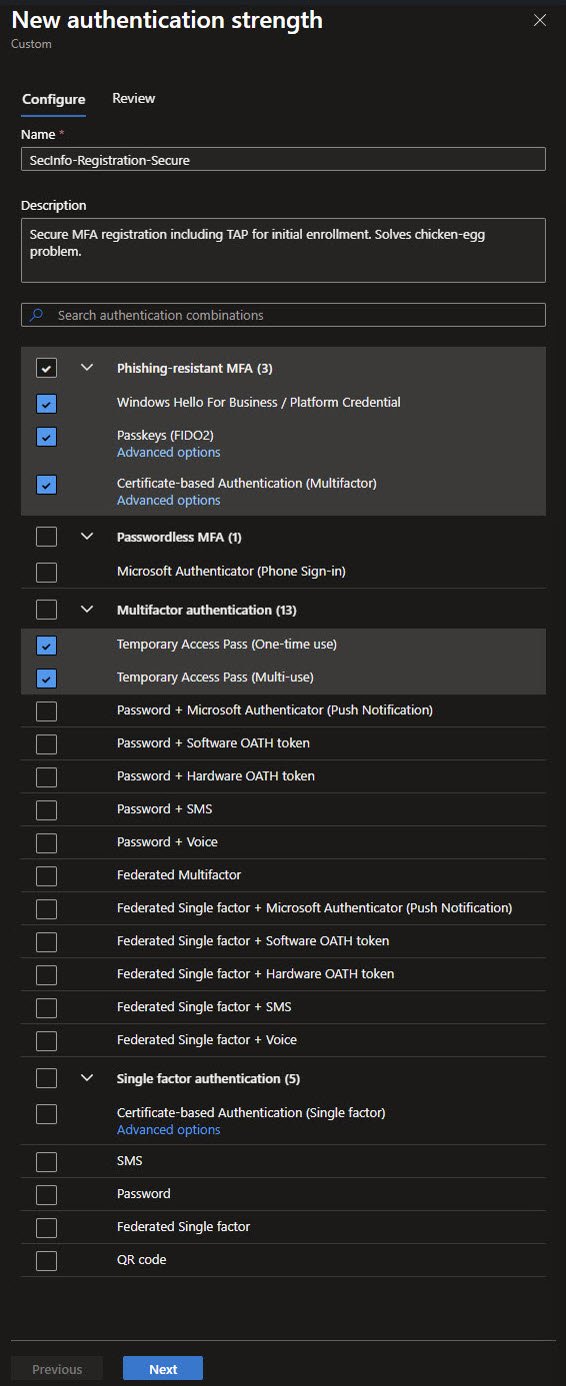
To explore this capability, I’ve created a custom authentication strength named SecInfo-Registration-Secure. The goal is to address a common chicken-and-egg problem: users need MFA to register MFA.
This custom strength includes:
- All phishing-resistant methods (Windows Hello for Business, Passkeys, certificate-based authentication)
- Both Temporary Access Pass (TAP) variants
TAP is the critical piece here, it allows users to authenticate securely during initial registration, before any permanent MFA method exists. Without TAP first-time enrollment flows can easily dead-end.
Authentication Strength Review Warnings
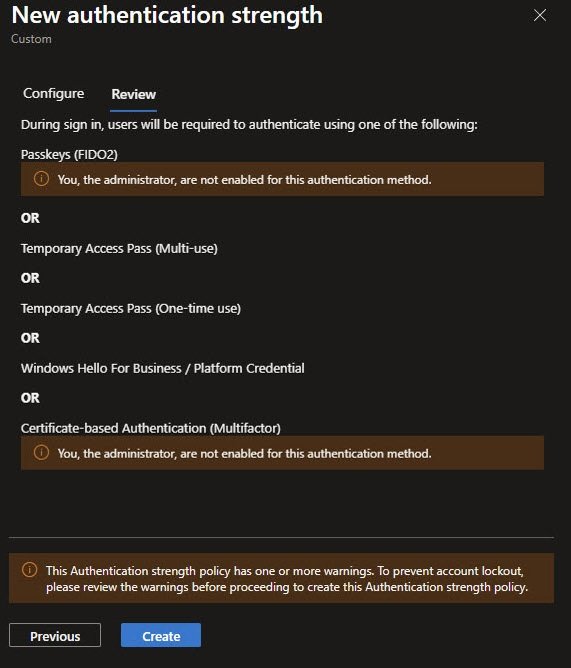
The Review tab shows which authentication methods are currently registered for my account. The warnings indicate that I’m not yet registered for Passkeys (FIDO2) or certificate-based authentication. These warnings are informational only, they don’t prevent the authentication strength from being created.
A reminder at the bottom reinforces an important rule: always verify that enforcing an authentication strength won’t lock you out. Since this strength is not applied to any Conditional Access policy yet, its safe to be created:
Authentication Strengths Overview
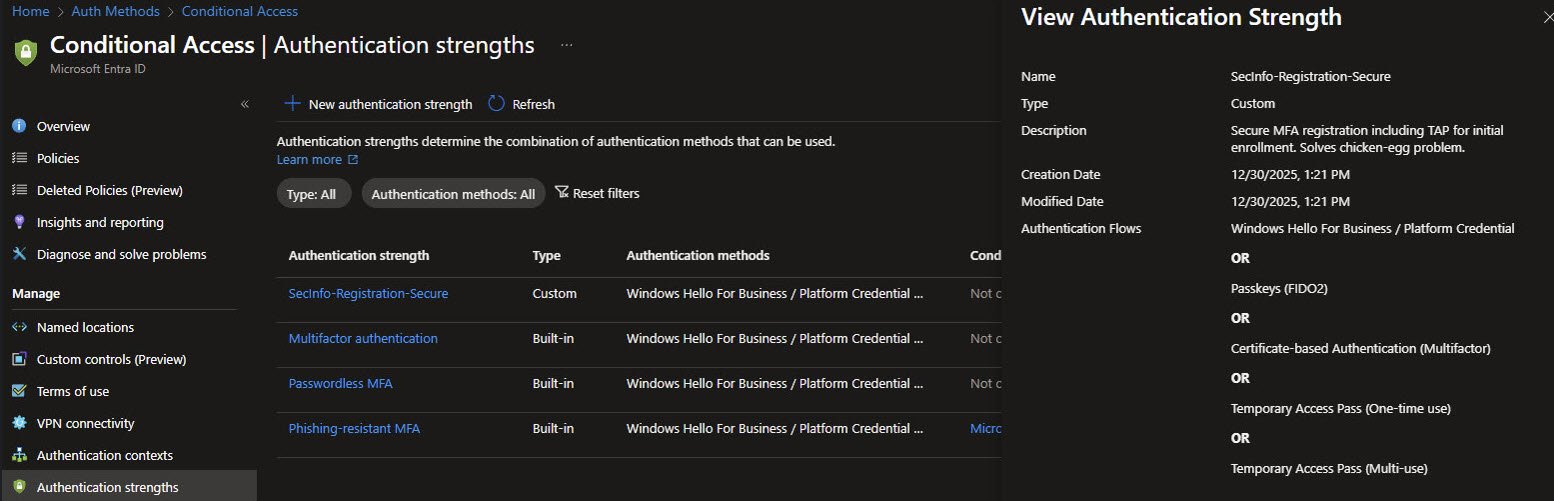
After creation the Authentication strengths blade lists my custom SecInfo-Registration-Secure alongside the three built-in strengths. The details panel confirms that five authentication methods are allowed.
At this stage, the strength is defined but unused. The intended future use is a policy such as Require secure authentication for security info registration, ensuring that users can only register or modify MFA methods after authenticating with a strong, phishing-resistant method. This helps prevent attackers from adding their own MFA to a compromised account.
Why I Haven’t Enforced Authentication Strengths Yet
In a single-user tenant where I am both the administrator and the only user, enforcing phishing-resistant authentication introduces a real lockout risk. My current CA-001 policy uses the generic Require MFA control, which allows Microsoft Authenticator push notifications, a method I have tested and rely on daily.
Enforcing Phishing-resistant MFA would restrict authentication to:
- Windows Hello for Business
- FIDO2 security keys
- Certificate-based authentication
While Windows Hello works on my virtual machines, I don’t (yet) have a FIDO2 hardware key, and certificate-based authentication would require PKI infrastructure that I haven’t deployed in this tenant.
For now the authentication strength exists as a prepared control. When the environment expands to multiple users, or once I introduce FIDO2 hardware, enforcement can be enabled with confidence knowing the configuration has already been designed and reviewed.
What’s Coming Next
This concludes the Conditional Access portion of my tenant, up to this point the focus has been on establishing a minimal but coherent identity security baseline using Conditional Access designed to be understandable, auditable and safe to evolve.
In the next article I’ll shift the focus to Intune best practices. That section will cover how device management, compliance and configuration policies complement Conditional Access and where responsibilities should be deliberately separated between identity and device controls.