Intune Foundation for Windows Autopilot: Enrollment, ESP, Compliance and Device Configuration
Table of Contents
Building a Production-Ready Intune Environment
This article walks through an Intune environment built in a small lab tenant. The focus is on the foundation that needs to be in place before Windows Autopilot can work reliably: tenant readiness, enrollment controls, device targeting, ESP behavior and a security baseline that holds up under real use. Everything shown reflects actual configuration, including what is enabled and how the pieces connect together.
The environment is Windows-only and centered on User Driven Autopilot with Microsoft Entra join. The screenshots walk through tenant health, service connectors, dynamic device groups and Enrollment Status Page behavior along with a few optimizations.
This includes a deliberate ESP blocking app strategy where Company Portal, VMware Tools and Microsoft 365 Apps are required during Autopilot installation. Because this is a small environment made up entirely of VMware Workstation Pro VMs, including VMware Tools was easier and efficient ensuring full driver support especially for the display adapter, while the Skip User ESP configuration helps reduce delays right after enrollment.
On the security side this article focuses on establishing a clean and enforceable baseline before Autopilot comes into play. This includes Windows Hello for Business configured through the Settings Catalog, TPM backed credential protection suitable for virtual machines and a production style compliance policy that validates BitLocker, Secure Boot, Defender health, OS version, Firewall state and Defender for Endpoint risk level. Non compliance actions and user notifications are configured so policy enforcement is visible from both the admin and user perspectives.
Think of this setup as the foundation along with a set of decisions that make the Autopilot experience in the next article stable, repeatable and easier to understand when something does not behave as expected.
Tenant Administration Overview
Before looking at device policies and configurations, it helps to start with the health of the Intune tenant itself. The Tenant Admin | Tenant Status blade in the Intune admin center provides a quick snapshot of the foundation the rest of the configuration depends on.
Tenant Details
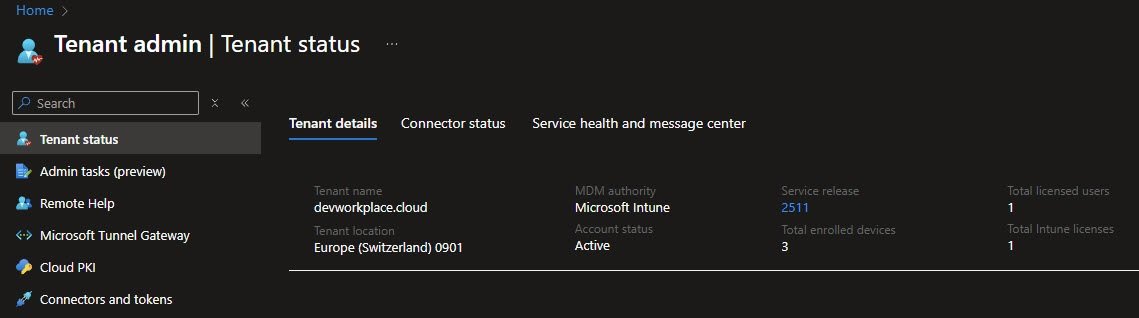
The first tab shows basic tenant information such as tenant name, datacenter location, service release version, MDM authority, account status, total enrolled devices and available Intune licenses. This view makes it easy to confirm that the tenant is active, properly licensed and running on the expected service release.
Connector Status
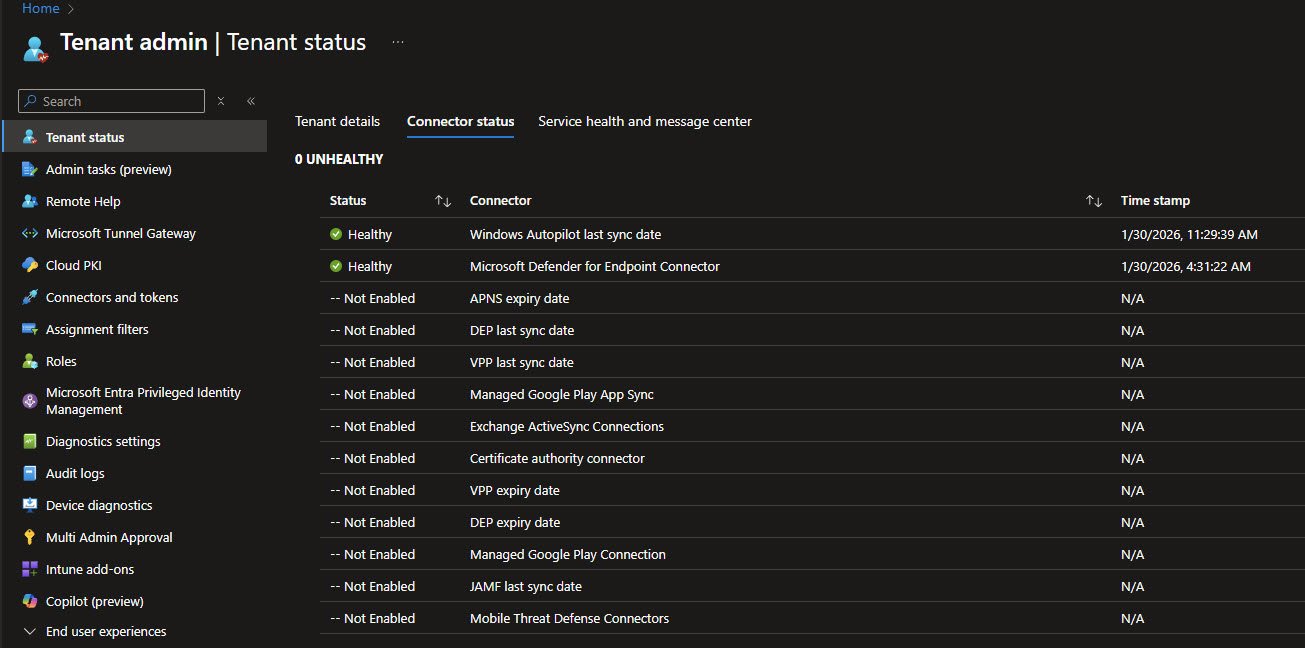
The second tab shows the health of various connectors that integrate Intune with other services. For Windows-focused environments, the key connectors to watch are Windows Autopilot last sync date and Microsoft Defender for Endpoint Connector. A healthy status with recent sync timestamps means the tenant is communicating properly with these services.
Connectors marked as not enabled are not an issue here. They simply reflect services that are not in scope for this environment. APNS and DEP apply to Apple devices, Google Play connectors apply to Android and JAMF is used for macOS management through a third party MDM.
Automatic Enrollment Configuration
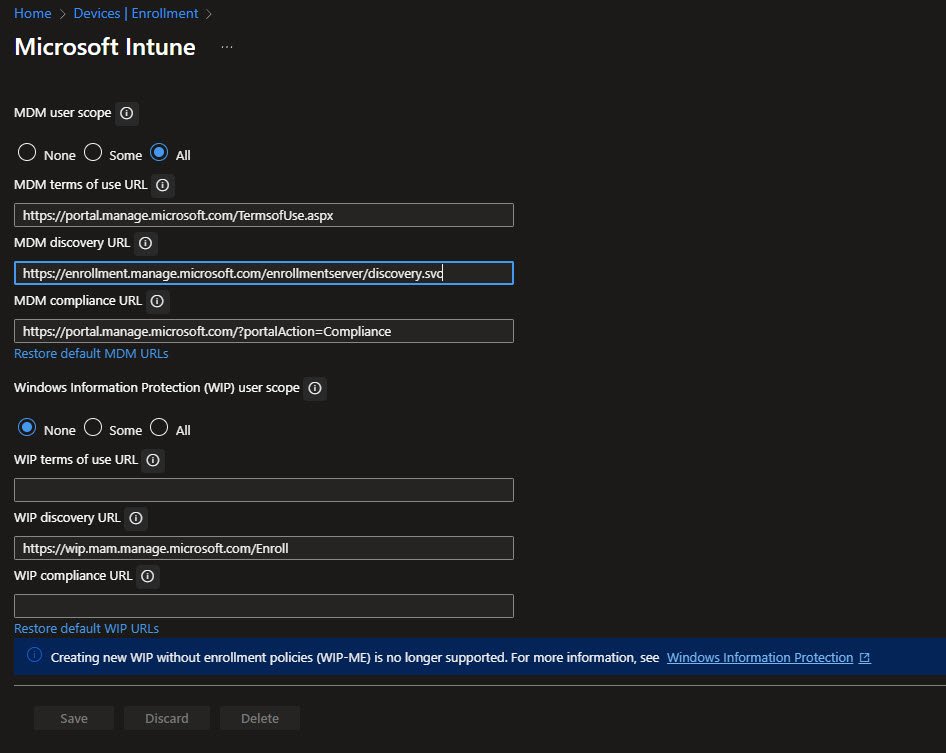
The Automatic Enrollment settings determine which users can enroll Windows devices into Intune MDM management, the MDM user scope being set to “All” which means any user in the tenant can enroll devices.
The three URLs from the screenshot below are the endpoints that Windows uses during enrollment, Microsoft’s default URLs and rarely need modification. The MDM terms of use URL points to a generic terms page, the discovery URL is how devices find the enrollment server and the compliance URL is where devices check their compliance status.
Note: The Windows Information Protection (WIP) section at the bottom shows the deprecation notice, WIP is no longer supported for new deployments so the scope is set to “None”. Organizations still using WIP should plan their migration to Microsoft Purview Information Protection.
Windows Data and Diagnostic Configuration
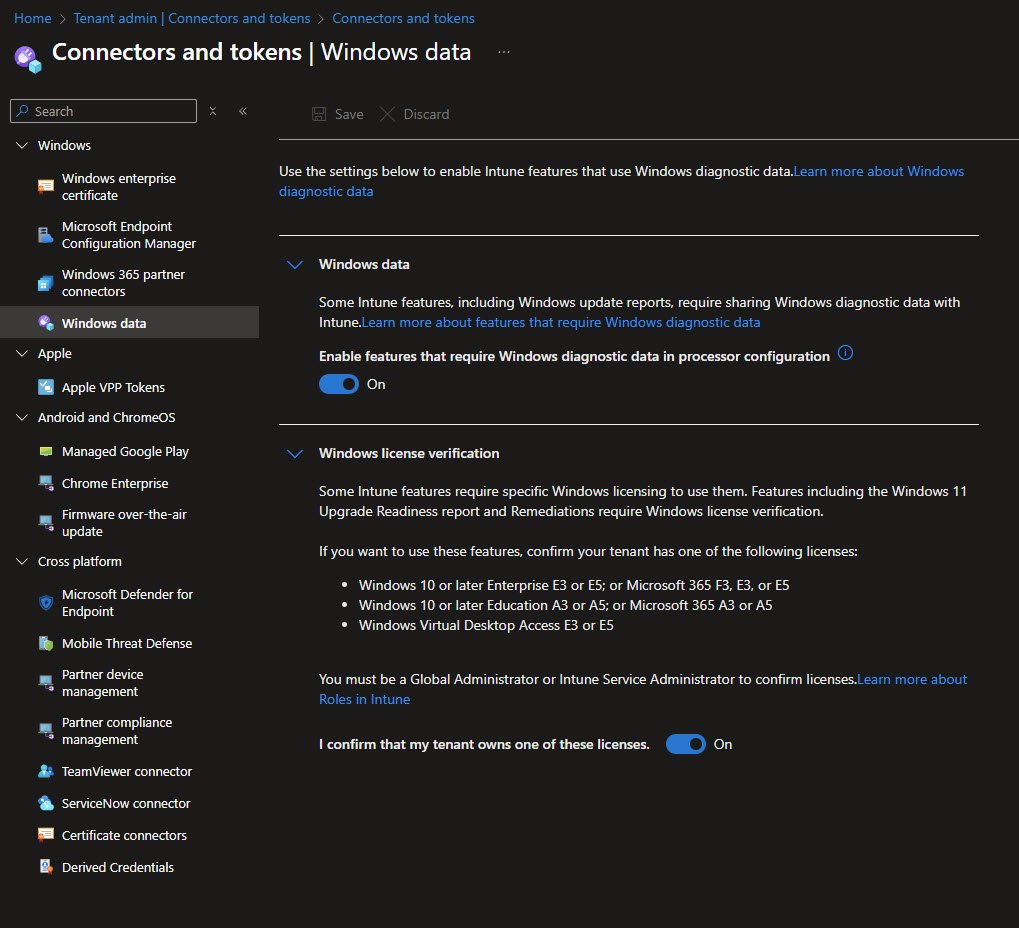
Under Tenant Administration -> Connectors and tokens -> Windows data, two settings control diagnostic data collection for the tenant:
Windows data enables features that require Windows diagnostic data in processor configuration. This unlocks detailed reporting capabilities for Windows Updates, including installation stages, error codes and failure reasons. Without this enabled only basic service-side data is available, not enough for a valuable troubleshooting.
Windows license verification confirms the tenant has appropriate licensing for advanced features like Windows 11 Upgrade Readiness reports and Proactive Remediations, Microsoft 365 Business Premium includes the required licensing.
The Auto-Created Policy
Here’s something that might catch some administrators off guard: when these settings are enabled and Endpoint Analytics is accessed for the first time, Intune automatically creates a configuration profile called “Intune data collection policy.” This isn’t something that needs to be manually configured since Intune generates it as part of the onboarding process.
This auto-created policy is a Windows health monitoring profile that deploys to all devices and enables the telemetry collection required for Endpoint Analytics. It configures devices to send startup performance metrics, application reliability scores and device health signals back to the Intune service.
The relationship works like this: the tenant-level toggle in Windows data enables the infrastructure, while the auto-created policy deploys the configuration to devices that actually collects and sends the data.
Note: The policy can be safely renamed to match organizational naming conventions despite being auto-created, it’s a standard configuration profile under full administrative control.
Endpoint Analytics Settings
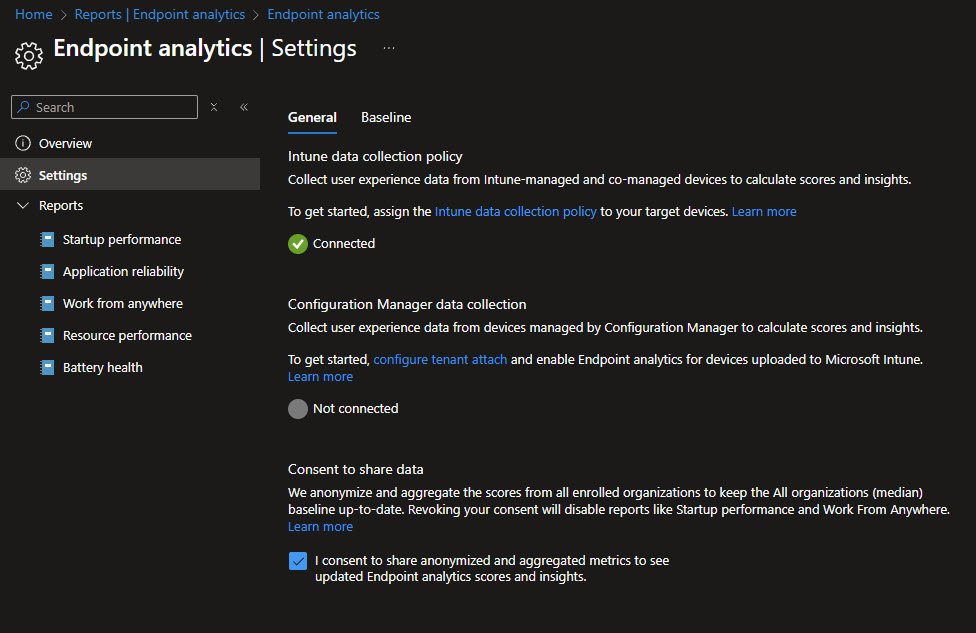
The Endpoint Analytics Settings page shows the data collection status for the tenant. The Intune data collection policy is listed as “Connected” which means devices are actively sending user experience data back to Intune. This telemetry powers the reports visible in the left navigation: Startup performance, Application reliability, Work from anywhere, Resource performance and Battery health.
Below that is the Configuration Manager data collection option which remains “Not connected” at least in my environment for the time being. This would only be relevant for organizations running a hybrid setup with on-premises Microsoft Configuration Manager (SCCM) and tenant attach configured.
Windows Health Monitoring Profile
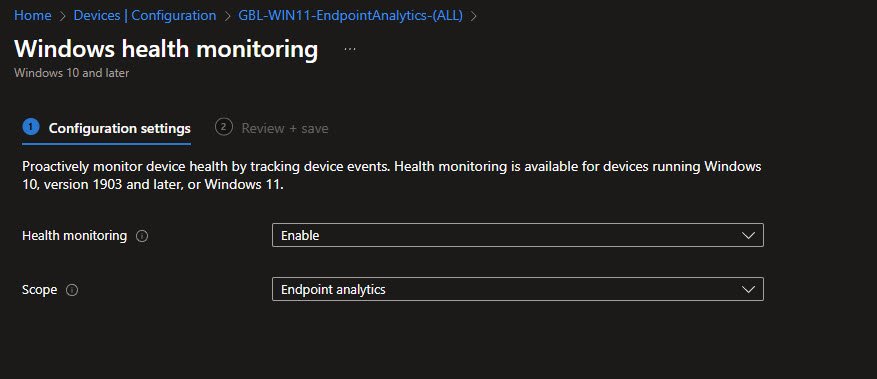
This is the configuration profile that actually deploys to devices to enable health monitoring. The profile itself is straightforward with just two settings: Health monitoring set to Enable and Scope set to Endpoint analytics. This profile was auto-created when Endpoint Analytics was first accessed which I’ve also manually renamed to GBL-WIN11-EndpointAnalytics-(ALL) to align with my naming standards convention:
Windows Enrollment Overview
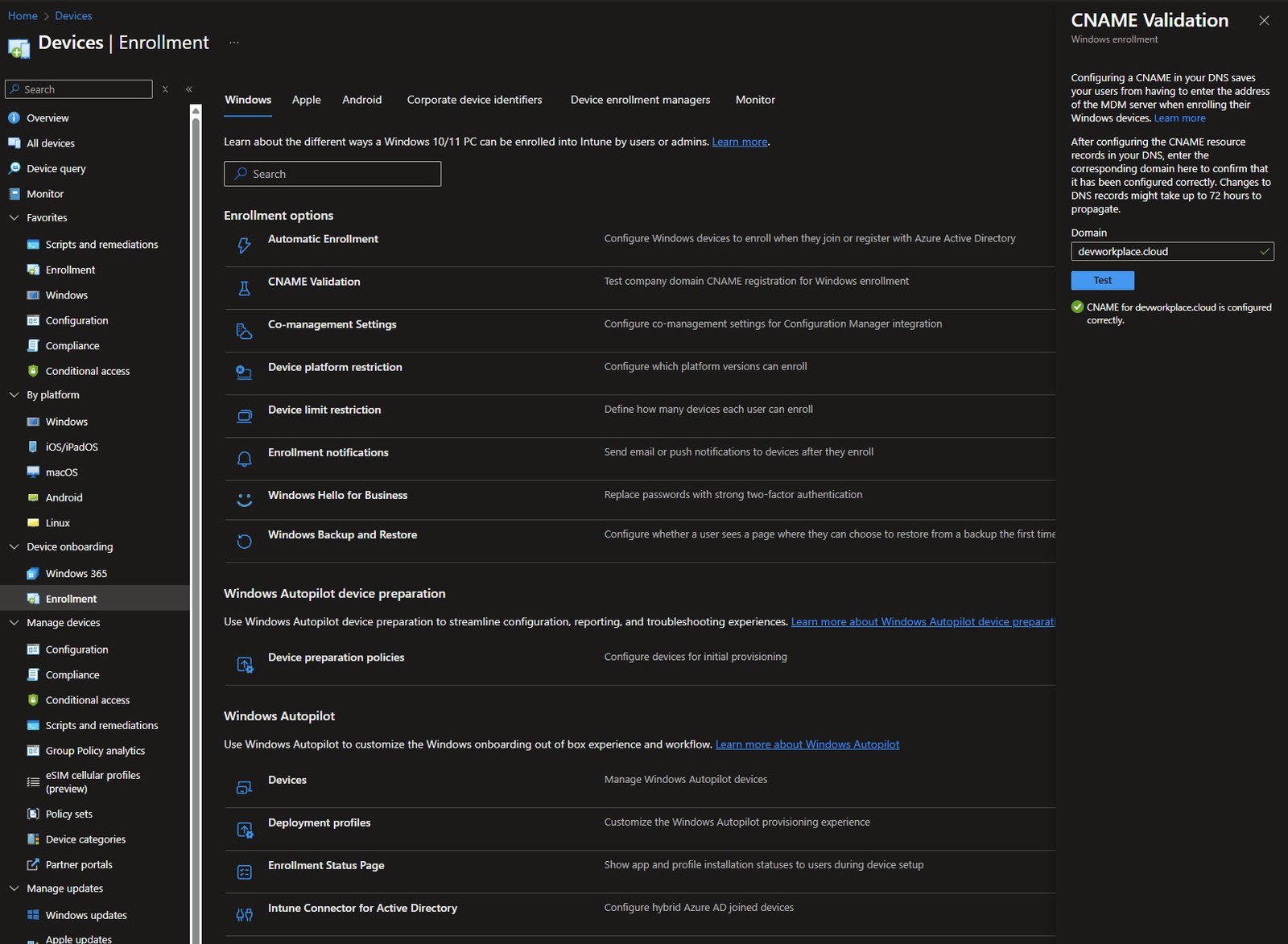
The Devices | Enrollment blade is the central hub for everything related to getting devices into Intune with various enrollment options available.
On the right side, the CNAME Validation panel confirms that the DNS records for the custom domain are configured properly. The green checkmark next to “CNAME for devworkplace.cloud is configured correctly” means users can enroll devices using their email addresses without needing to manually specify the MDM server address.
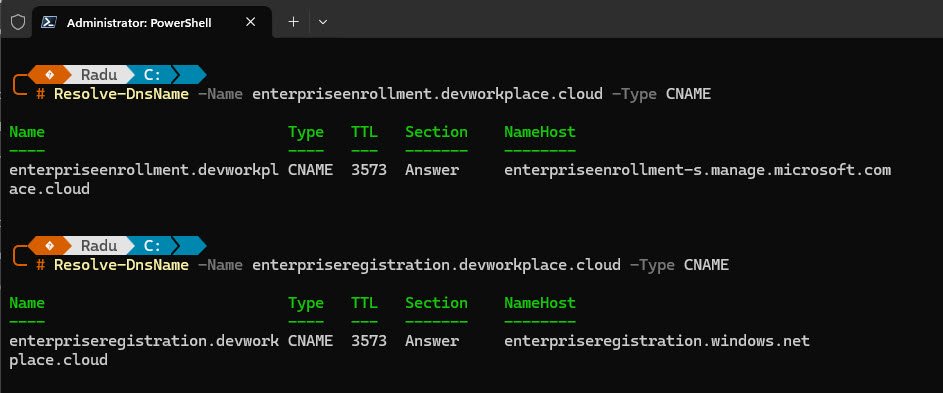
Both records can also be verified from the command line, the enterpriseenrollment record points to the Intune MDM enrollment endpoint while enterpriseregistration handles Azure AD device registration:
The page is organized into three sections:
- Enrollment options covers the day-to-day settings like automatic enrollment scope and device restrictions.
- Windows Autopilot device preparation is the newer v2 provisioning method.
- Windows Autopilot at the bottom contains the traditional v1 Autopilot components including device registration, deployment profiles and the Enrollment Status Page (ESP).
Device Platform Restrictions
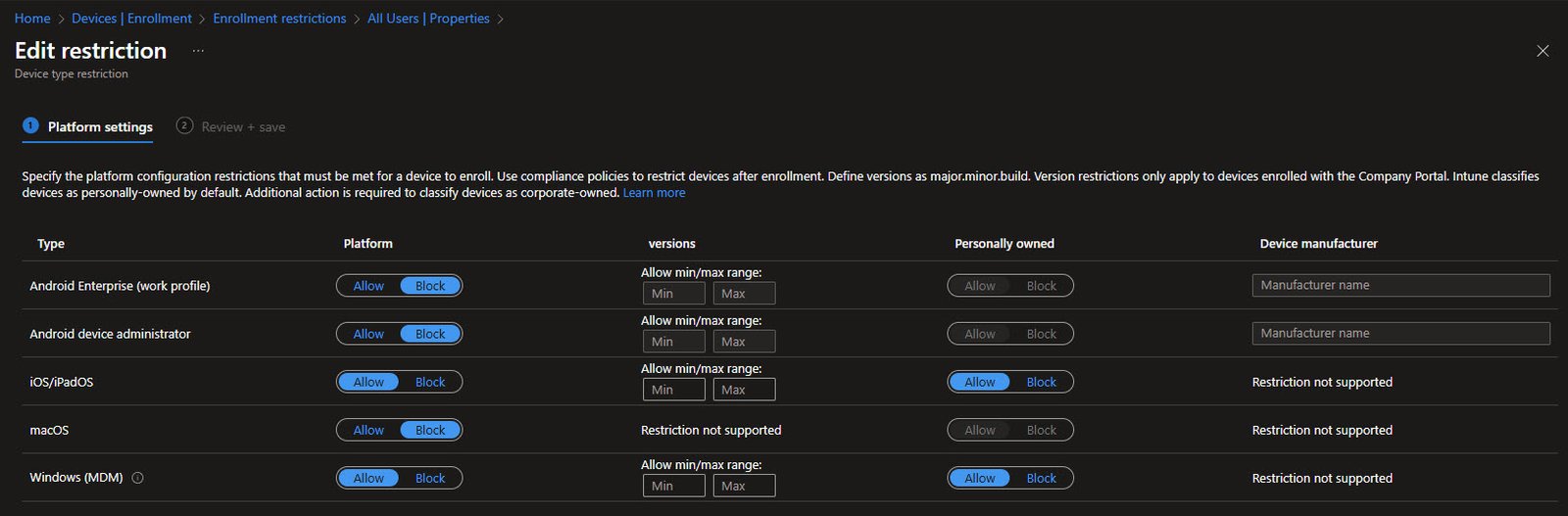
Platform restrictions act as a gatekeeper for enrollment, determining which device types are allowed to enroll in the first place. This is different from compliance policies which evaluate devices after they are already enrolled.
Each platform can be set to Allow or Block, the versions column lets you restrict enrollment to specific OS versions using the major.minor.build format. The Personally owned column controls whether users can enroll their personal devices or only corporate-owned devices.
In this environment the focus is currently on Windows virtual machines running in VMware Workstation for lab testing and learning purposes. The plan is to eventually bring mobile devices into management as well, likely starting with Android and then iOS down the road.
Version restrictions only apply to Company Portal enrollments not Autopilot. Devices are considered personally owned by default unless explicitly marked otherwise. Manufacturer restrictions are not supported for Windows since hardware comes from a wide range of vendors.
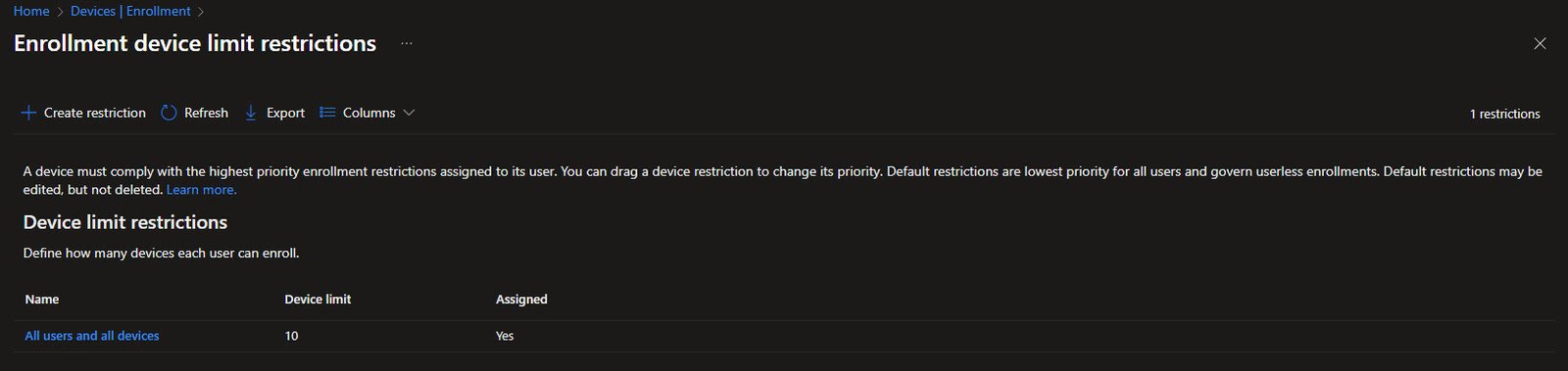
Device Limit Restrictions
Device limit restrictions control how many devices each user can enroll in Intune. The default policy “All users and all devices” allows up to 10 devices per user which is usually sufficient for most scenarios.
This limit applies across all device types combined, if a user has enrolled 10 devices and tries to add another, the enrollment will be blocked until they remove an existing device. For organizations with users who legitimately need more devices, additional restriction policies can be created and assigned to specific groups with higher limits.
Note: The priority system mentioned at the top means that if a user is targeted by multiple restriction policies, the one with the highest priority wins.
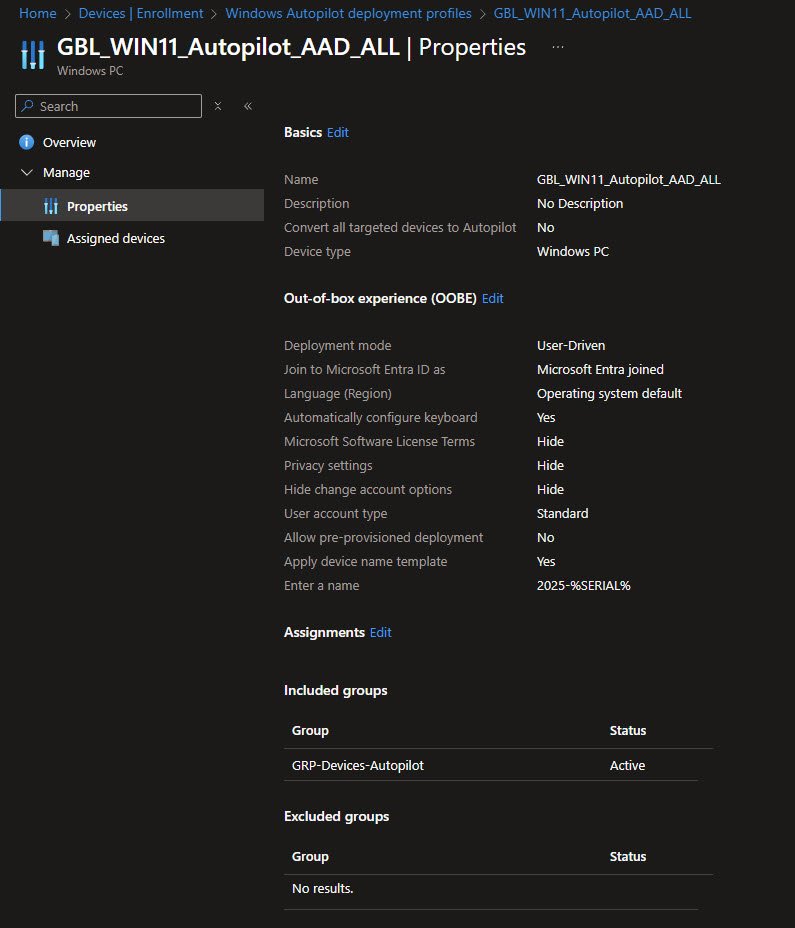
Autopilot Deployment Profile
My custom GBL_WIN11_Autopilot_AAD_ALL deployment profile defines how Windows devices behave during the Out of Box Experience when they are provisioned through Autopilot.
This profile is configured for User-Driven deployment with devices joining Microsoft Entra ID. That means the end user signs in during OOBE and the device is directly joined to Entra ID without any hybrid dependency. This keeps the flow simple and efficient for cloud-only environments.
Several OOBE screens are intentionally hidden including Microsoft Software License Terms, Privacy settings and the option to change the account type. Hiding these screens shortens the setup flow and avoids unnecessary prompts that do not add value in a managed environment. The user account type is set to Standard which aligns with least-privilege practices and avoids handing out local admin rights by default.
The device naming strategy uses a template based on the hardware serial number. This ensures every device receives a predictable and unique name at enrollment time, without relying on manual input or post-deployment renaming.
Pre-provisioned deployment is disabled as this environment focuses on user-driven scenarios rather than technician-led staging. The profile is assigned to the GRP-Devices-Autopilot dynamic group, ensuring that any device matching the Autopilot targeting logic automatically receives the same deployment experience.
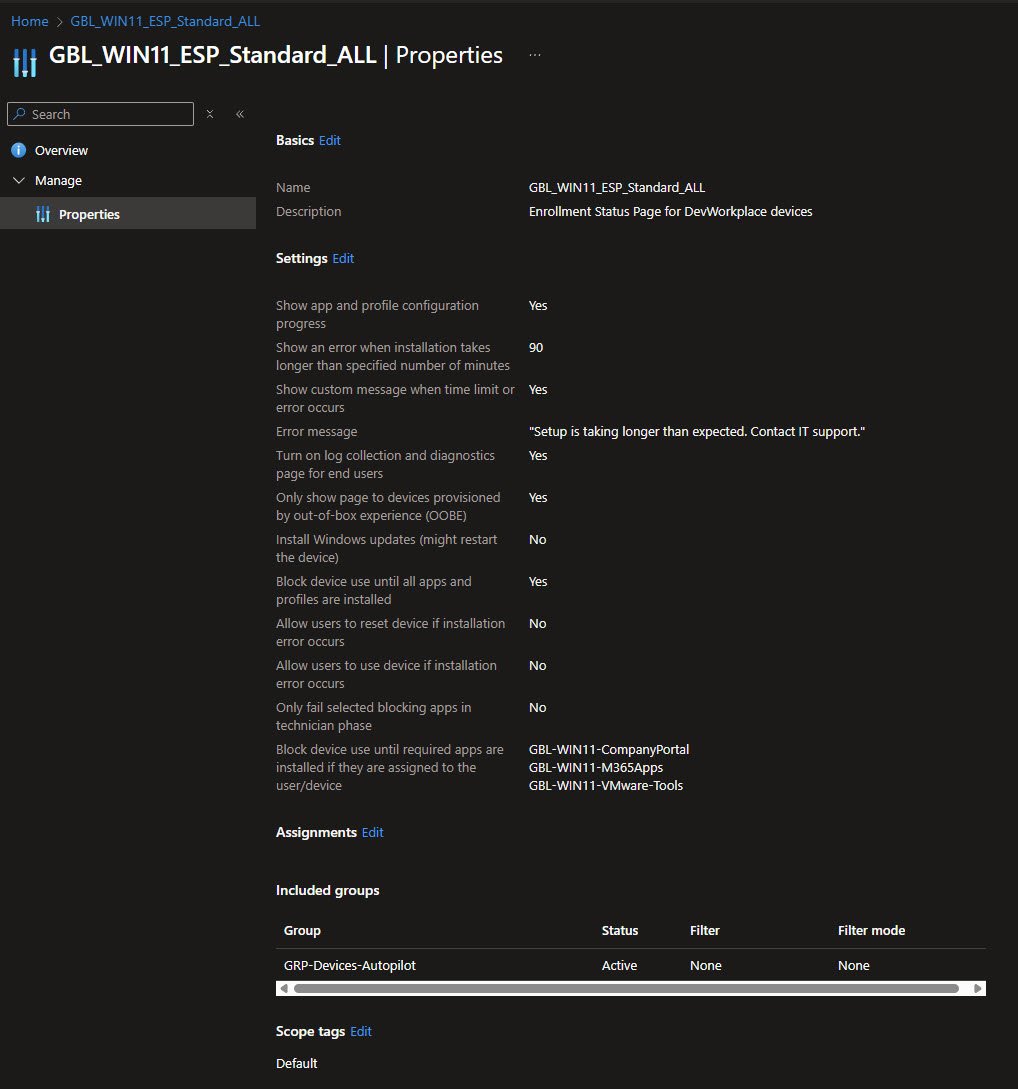
Enrollment Status Page
The GBL_WIN11_ESP_Standard_ALL Enrollment Status Page controls what happens after the Autopilot process starts and before the user is allowed to access the desktop.
The ESP is configured to show app and profile installation progress giving visibility into what is happening during setup. A time limit of 90 minutes is defined after which a clear and user-friendly error message is displayed if installation takes too long. Log collection and diagnostics are enabled which makes troubleshooting much easier when a deployment fails or stalls.
Device use is blocked until all required apps and profiles are installed, this is a deliberate choice to ensure the device reaches a known good state before it is handed over to the user. Users are not allowed to bypass errors or reset the device from the ESP, keeping the process controlled and predictable.
Windows Updates during ESP are disabled in this setup, avoiding extending enrollment time and keeping update management under separate policies after the device is fully provisioned.
A key part of this configuration is the blocking app list, in my environment three apps are required to complete before ESP finishes:
- Company Portal
- Microsoft 365 Apps
- VMware Tools
These apps were selected because they are foundational for usability and management. Company Portal enables user interaction with Intune, Microsoft 365 Apps provides immediate productivity and VMware Tools ensures proper driver support for the virtual machines used in the lab, especially for display and input performance.
The ESP is assigned to the same GRP-Devices-Autopilot group as the deployment profile, ensuring consistent behavior across all Autopilot enrolled devices. Devices are not released to users until the essentials are in place, while still providing visibility and diagnostics when something goes wrong.
Dynamic Group Configuration
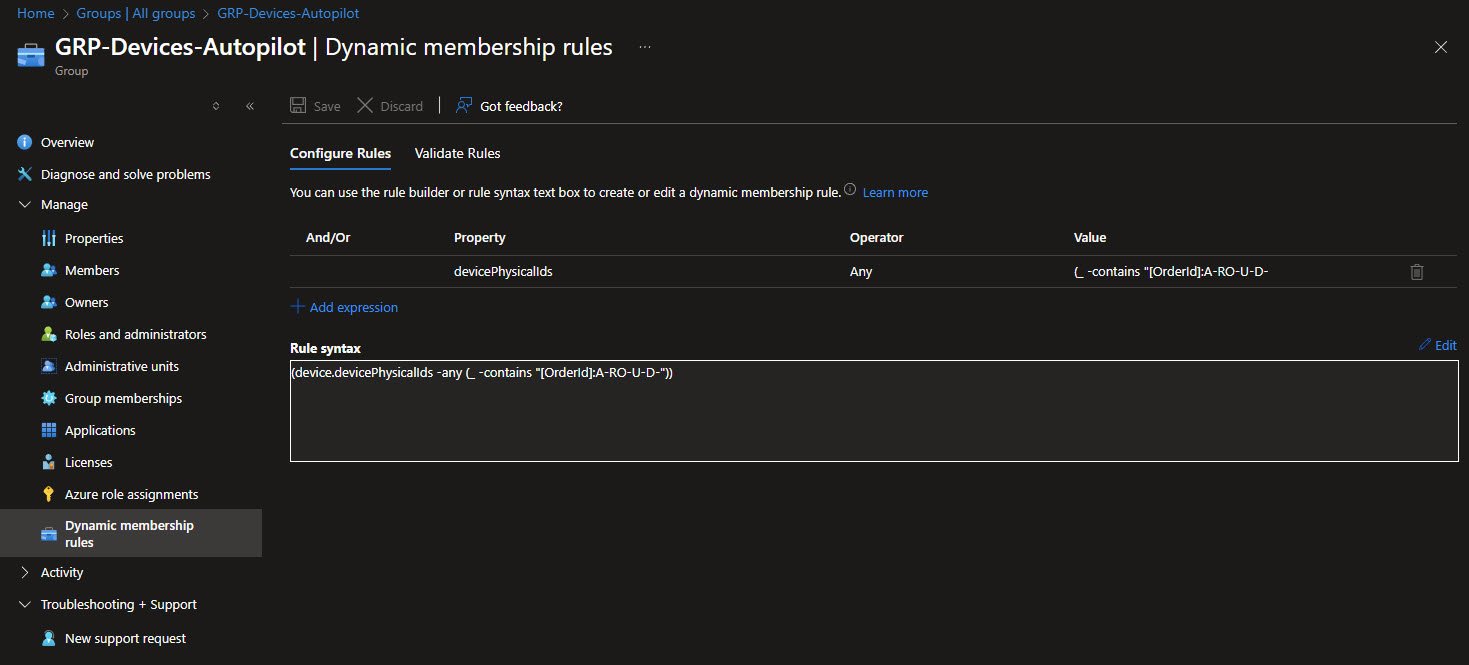
The GRP-Devices-Autopilot group is a dynamic security group used to automatically target devices that belong to this Autopilot deployment flow. Instead of assigning devices manually, membership is calculated based on metadata that is already present on Autopilot registered devices.
This group relies on an Autopilot GroupTag strategy, when a device is registered in Autopilot it is assigned a GroupTag value. That value is stored in Microsoft Entra ID as part of the device physical identifiers exposed through the devicePhysicalIds attribute.
The dynamic membership rule I’m using into my Intune tenant is this:
(device.devicePhysicalIds -any (_ -contains “[OrderId]:A-RO-U-D-”))
Checks whether any of the device physical identifiers contain the specified OrderId prefix. Devices that match the A-RO-U-D- pattern are automatically added to the group as soon as they appear in the tenant.
Using this approach provides a clean separation between different device types, environments, or deployment scenarios. GroupTags can be used to distinguish labs from production, regions, ownership models or enrollment flows without changing group logic later. New devices only need the correct GroupTag during registration and everything else follows automatically.
In my environment the dynamic group acts as the single entry point for Autopilot targeting. The Autopilot deployment profile, Enrollment Status Page, Skip User ESP configuration and related policies are all assigned to this group. This ensures that any device matching the GroupTag receives a consistent and predictable configuration from the moment enrollment begins.
The main advantage of this model is scalability and control. As the environment grows new devices can be onboarded simply by assigning the correct GroupTag with no need to touch group assignments or policy scope again.
Skip User ESP Configuration
The GBL-WIN11-Autopilot-SkipUserESP-(ALL) policy exists to solve a very specific Autopilot annoyance: the User ESP phase often adds time and unpredictability without providing much value once the device side of provisioning is already complete.
In a user driven Autopilot flow ESP normally runs in two stages, the device phase installs device targeted apps and policies followed by the user phase, which waits for user targeted assignments to complete before allowing access to the desktop. In practice this second phase is frequently where delays occur especially when user scoped apps like Company Portal are involved.
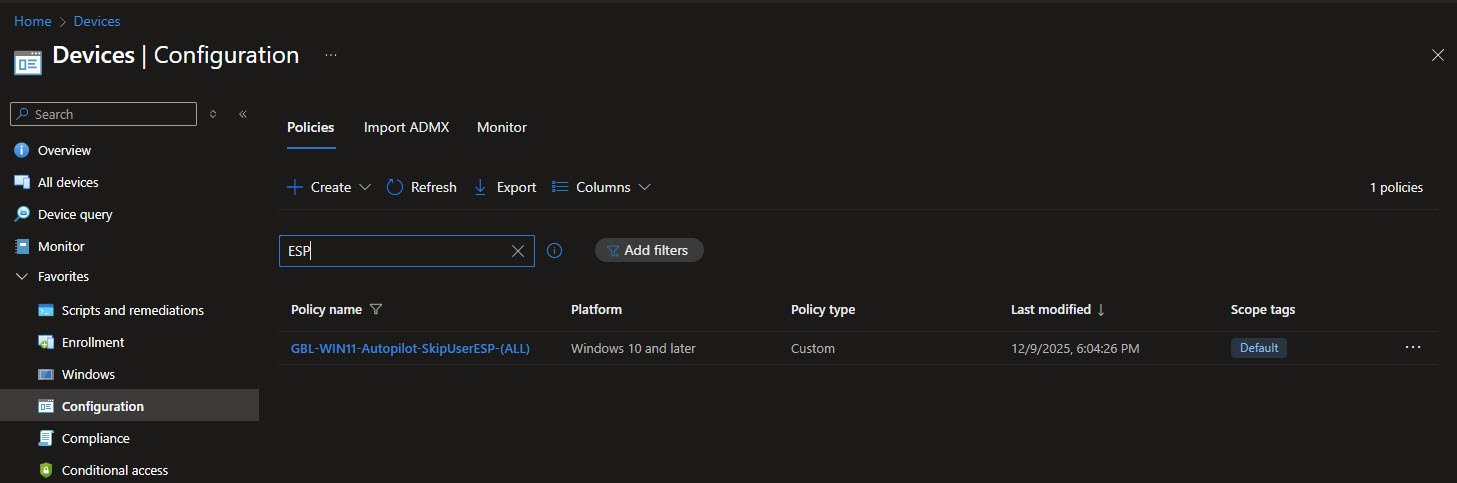
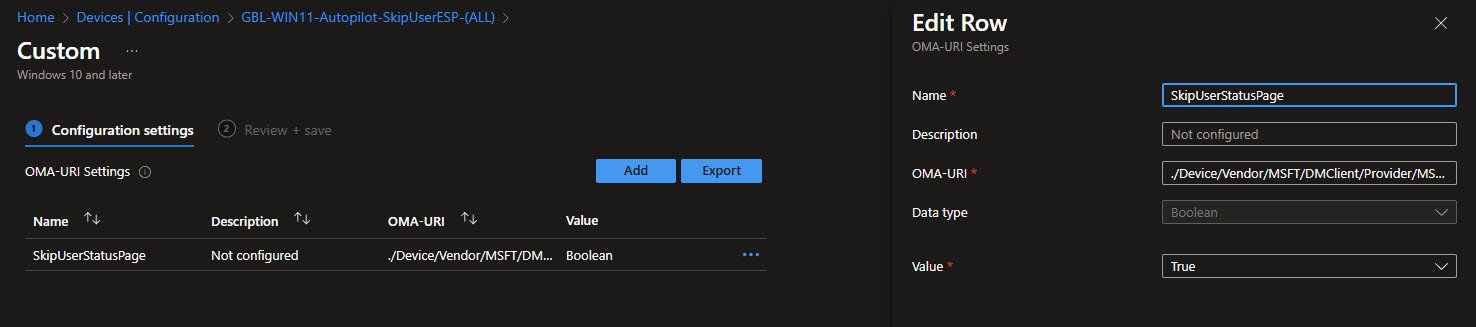
This policy uses a custom OMA-URI setting to explicitly skip the User ESP phase. The configuration sets SkipUserStatusPage to True:
./Device/Vendor/MSFT/DMClient/Provider/MS DM Server/FirstSyncStatus/SkipUserStatusPage
With this setting applied Autopilot completes immediately after the device ESP phase finishes and does not block completion while waiting for user targeted policies during ESP. User scoped apps and policies are not skipped, they continue processing after the user signs in.
This approach works well in environments where device scoped configuration and required applications are already enforced during device ESP. By removing the User ESP blocking behavior, the setup time is reduced while management, compliance and post enrollment processing remain intact.
In my environment the policy is assigned to the same GRP-Devices-Autopilot dynamic group used by the Autopilot profile and ESP configuration. This keeps the enrollment flow consistent and ensures that every device following this Autopilot path benefits from the same optimization, with user-targeted workloads shifting to post-login processing.
Windows Hello for Business Configuration
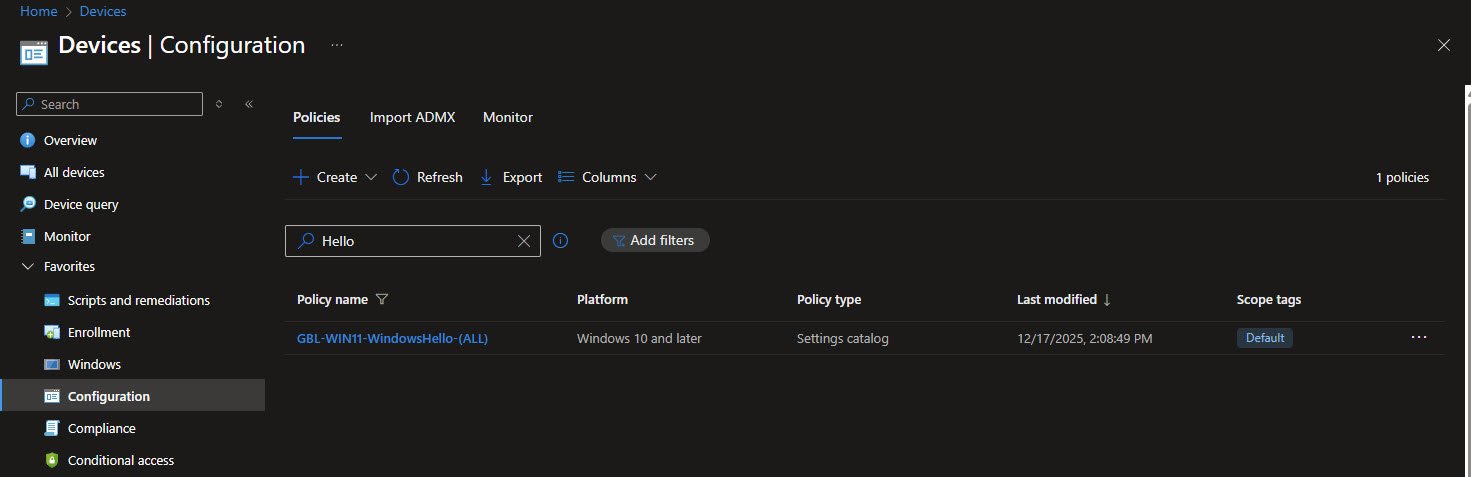
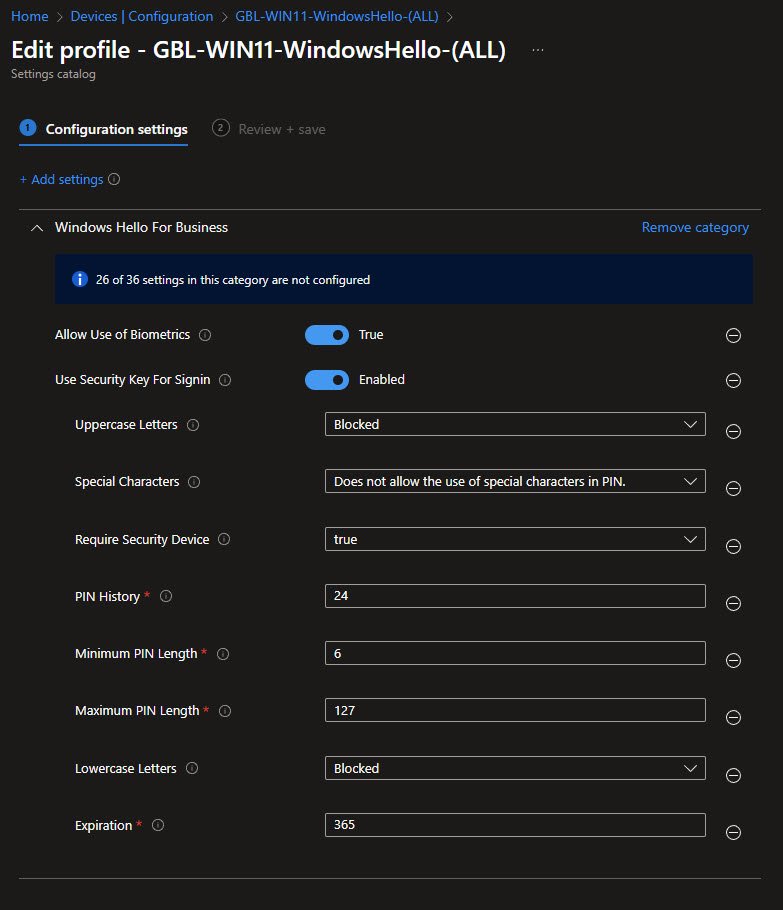
The GBL-WIN11-WindowsHello-(ALL) policy configures Windows Hello for Business using the Settings Catalog. This reflects the current Microsoft recommended approach and makes the policy easier to maintain and extend over time.
Only 10 (out of 36) available settings are configured which keeps the policy focused instead of overly restrictive. Biometrics are enabled and security key sign-in is allowed providing flexibility beyond PIN-only authentication.
The PIN configuration is intentionally strict but reasonable, PINs are numeric-only with uppercase letters, lowercase letters and special characters explicitly blocked. The minimum PIN length is 6 digits with a maximum of 127 and the system remembers the last 24 PINs to prevent reuse.
A security device is required which in this lab translates to the virtual TPM (vTPM) provided by VMware rather than a physical TPM. This still enables Windows Hello for Business to use hardware-backed protection from the guest OS perspective with no external security keys (for example YubiKeys) are used at this stage.
PIN expiration is set to 365 days which is reasonable for a controlled lab environment and helps avoid unnecessary user friction while still exercising lifecycle behavior.
Overall this configuration enforces strong, hardware-backed authentication while remaining practical for day-to-day use in a lab and development environment.
Non-Compliance Actions and Notification
Non-compliance handling is intentionally simple and visible as soon as a device falls out of compliance, it is marked non-compliant immediately. End user notification is delayed by one day, avoiding spamming users for short-lived conditions such as a pending reboot, a Defender definition update or Windows Updates still finishing in the background. If the device remains non-compliant after 24 hours the user receives a clear and actionable email.
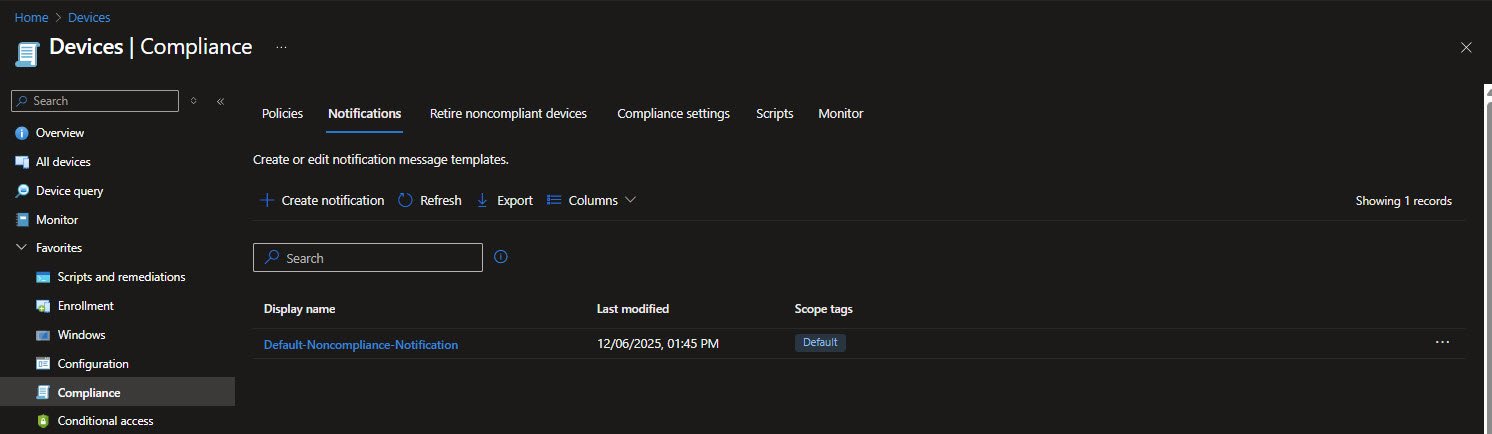
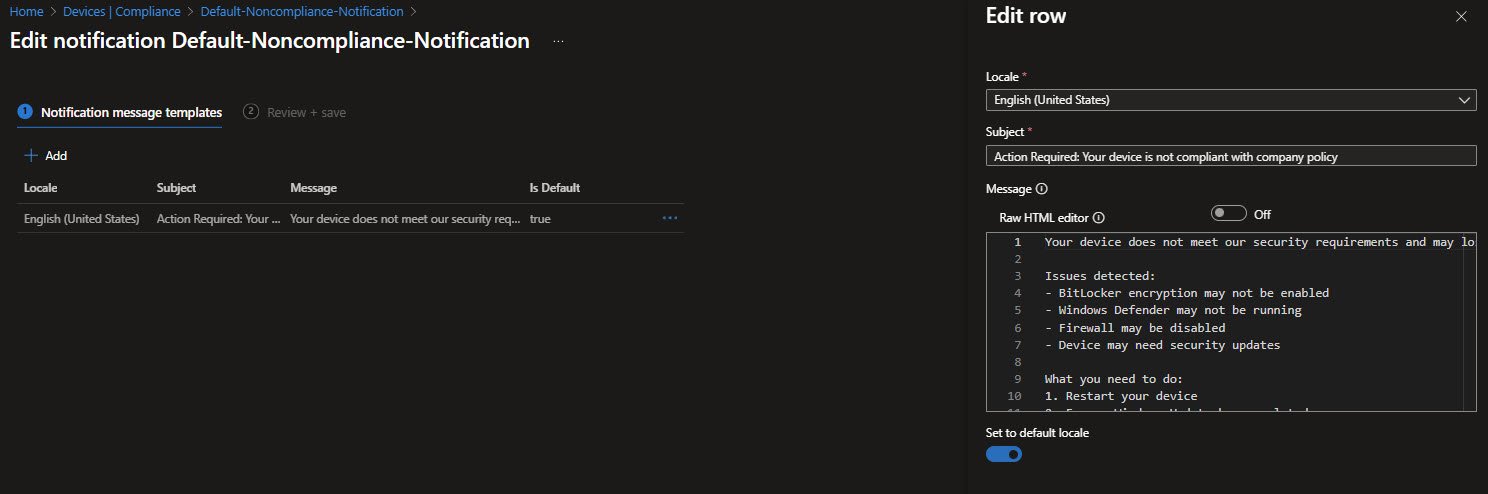
The notification template is explicit about what typically causes non-compliance in my environment: BitLocker not enabled, Defender or Firewall not running or missing security updates. It also gives concrete steps the user can take on their own before escalating to IT, such as restarting the device and completing Windows Update.
The message sets expectations clearly, users are informed that they have seven days to remediate the issue before access to company resources may be restricted. This ties compliance enforcement to a real timeline rather than a silent policy that only administrators see.
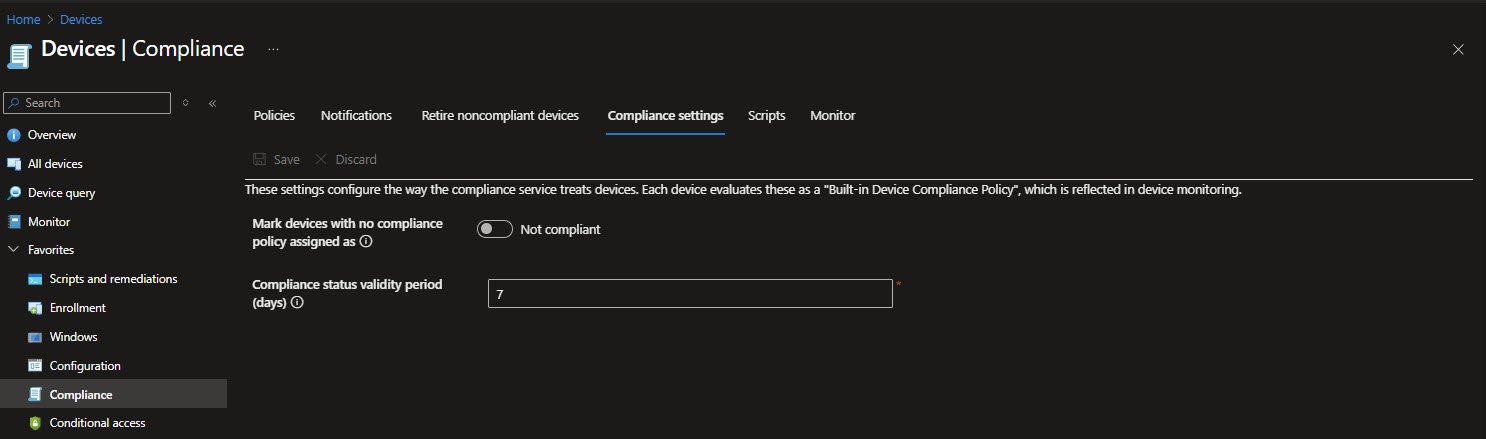
These settings control how long Intune trusts a device’s last known compliance state. The compliance status validity period is set to seven days, meaning devices that stop reporting to Intune remain compliant for up to a week before being marked non-compliant due to stale status. This is independent of the non-compliance actions above which apply immediately once a device actively fails a compliance check.
Compliance Policy Configuration
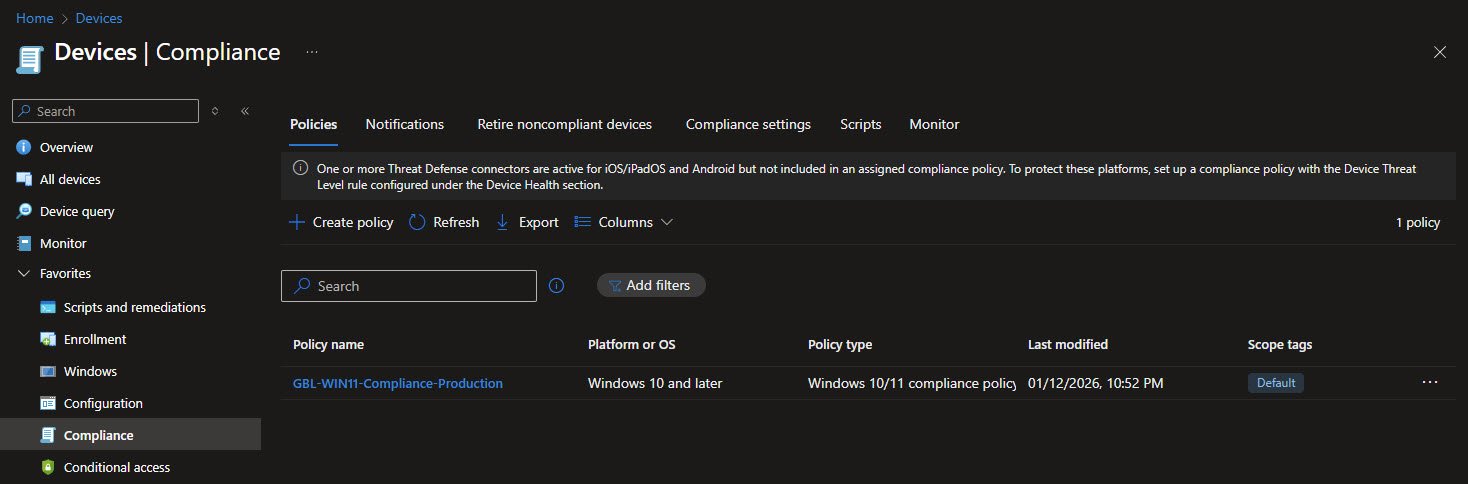
The GBL-WIN11-Compliance-Production policy defines the baseline compliance requirements for Windows 11 devices. It is created as a Windows 10/11 compliance policy and targets Windows devices consistently across the environment.
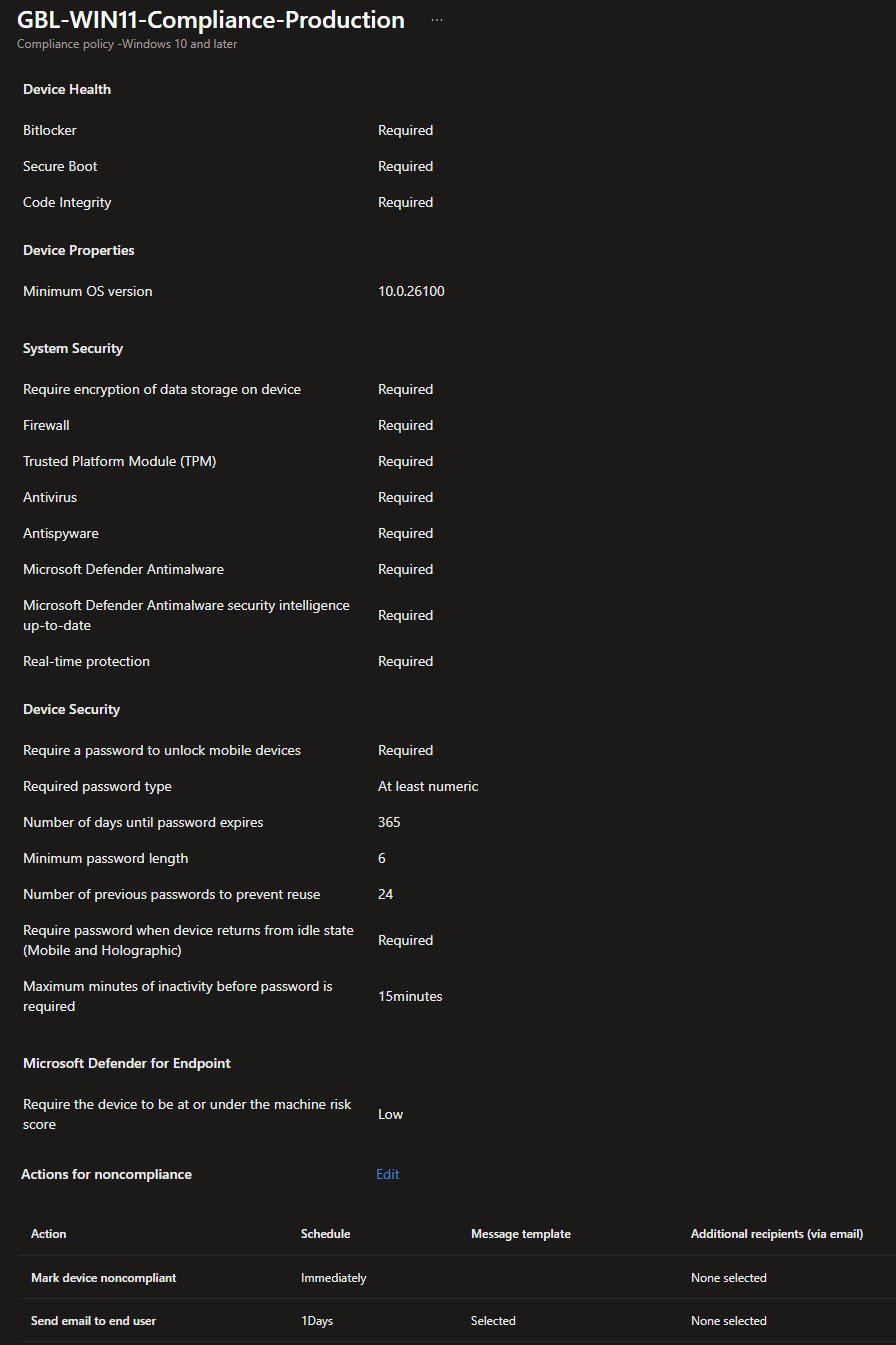
At a high level the policy focuses on device health, platform security and credential management ensuring that only devices meeting a minimum security standard are considered compliant. Overall this compliance policy is intentionally strict enough to exercise real world security controls, while remaining practical for a small VM based lab environment where the goal is to validate Intune behavior, reporting and enforcement rather than to simulate physical endpoint security in full.
From a device health perspective, BitLocker, Secure Boot and Code Integrity are all required. In my environment these controls rely on VMware’s virtual TPM and virtual Secure Boot which are sufficient for testing compliance behavior, reporting, even though they do not provide the same assurance as physical hardware.
The minimum OS version is set to Windows 11 24H2 (10.0.26100) preventing older builds from being marked compliant and keeping the test environment aligned with current Windows 11 baselines.
Under System Security the policy enforces full disk encryption, firewall availability, TPM presence and active antimalware protection. Microsoft Defender Antivirus, antispyware, real-time protection and up-to-date security intelligence are all required. This ensures the device is actively protected rather than simply having security components installed.
The Device Security section defines local credential requirements, a password is required to unlock the device, with a numeric-only minimum length of 6, a 365-day expiration and 24 previous passwords blocked from reuse. The device must prompt for credentials after 15 minutes of inactivity and immediately when returning from idle state. These settings align with the Windows Hello for Business PIN configuration used elsewhere in the environment, keeping authentication behavior consistent.
Finally the policy integrates with Microsoft Defender for Endpoint, requiring the device to be at or below a Low machine risk score to remain compliant.
Devices are marked noncompliant immediately when any of the required conditions are no longer met. This ensures that compliance status reflects the current security posture without delay and can be acted on by Conditional Access policies in near real time.
An email notification is sent to the end user after one day of continued noncompliance. This short delay avoids false positives caused by transient conditions, such as pending restarts or security updates still in progress, while still prompting timely remediation.
What’s next
With tenant readiness confirmed, enrollment controls in place, ESP behavior tuned and a compliance baseline that covers BitLocker, Defender, Secure Boot and credential management, the foundation is set.
The next article moves from configuration to execution, walking through an actual Intune Autopilot deployment and showing how these settings behave during real device provisioning.