M365 Business Premium Part 7: Intune Autopilot Deployment Walkthrough
What is Windows Autopilot?
This walkthrough assumes the tenant foundation is already in place. If you’re starting fresh Part 6 covers the enrollment controls, compliance baseline and ESP configuration that make this deployment easy to follow-up.
Windows Autopilot is Microsoft’s cloud-based provisioning service that simplifies how organizations deploy Windows devices. Instead of manually imaging each endpoint, Autopilot leverages the factory installed Windows image and orchestrates device setup through Microsoft Intune and Microsoft Entra ID.
When a user powers on a new device and connects to the internet, Autopilot takes over the Out-of-Box Experience, the device automatically joins Microsoft Entra ID, enrolls in Intune, receives assigned policies and applications and lands on a fully configured desktop, all without IT ever touching the hardware. OEMs and resellers can also register hardware hashes directly to an organization’s tenant, enabling true ship-to-user deployment scenarios.
This article covers two valid ways to register a device for Windows Autopilot.
The first is the traditional post-install method where the hardware hash is captured from a fully installed Windows desktop, the second is an alternative pre-OOBE approach that captures and uploads the hash earlier in the process.
Both methods work, the difference is where in the deployment lifecycle the registration happens and what trade-offs you’re willing to make.
Credits and References
The method I use in this article didn’t come from nowhere, it’s built on the work of several community members who documented their findings and shared them openly:
Michael Niehaus - Connect the dots: Reverse-engineering an Autopilot hash (August 2022) Took apart the hardware hash structure byte by byte, explaining what’s actually inside that 4000-character Base64 string. Essential reading for understanding why certain capture methods work and others don’t.
Michael Mardahl - Can you create a Autopilot Hash from WinPE? Yes! (January 2023) First showed that WinPE hash capture was possible using OA3Tool from the Windows ADK and documented the PCPKsp.dll requirement for TPM access.
Johannes Bedrech - How to silently create an Autopilot Hardware Hash in WinPE and upload the Hash unattended (March 2024) Demonstrated unattended hash upload using Graph API with app registration, proving that the entire process could be automated without interactive login.
Their collective work gave me the foundation to develop an approach that fits my lab environment, if you’re interested in the deeper technical details or want to build something more advanced, start with their articles too.
Two Versions, One Goal
With the introduction of Windows Autopilot Device Preparation (commonly called Autopilot v2) in mid-2024, there are now two different provisioning architectures available. This environment uses Autopilot v1 and here’s why.
Autopilot v2 brings genuine improvements: better reporting with direct client telemetry, enrollment time grouping that speeds up device registration and intelligent app sequencing that installs non-blocking apps in the background. The architecture is modern and the reporting is noticeably more accurate. Microsoft has recently increased the OOBE app limit from 10 to 25 (January 30, 2026), addressing one of the original deployment constraints.
As of early 2026, several promised features are still not available. Pre-provisioning (White Glove), self-deploying mode, hybrid Azure AD join, OOBE customization and device naming control are still missing, Microsoft’s FAQ says these will be supported “in the future” the same language used at launch.
The original 10-app blocking limit during OOBE was a deliberate design choice. Microsoft’s telemetry showed 90% of deployments use 10 or fewer apps and the limit improved stability. The philosophy made sense: install essential apps during provisioning, deliver everything else once the user reaches the desktop. The new 25 app limit acknowledges that enterprise environments often need more flexibility, though Microsoft still recommends reviewing timeout settings when deploying larger app payloads.
What’s harder to work around is local troubleshooting, in v1 pressing Ctrl+Shift+D during the Enrollment Status Page opens a diagnostics view showing exactly what’s happening: which policies are applying, which apps are installing, where things are stuck but in v2 that doesn’t exist. The community diagnostic scripts don’t work with the new architecture either. Troubleshooting means checking the Intune portal remotely, which isn’t always practical when a technician is standing in front of a stuck device.
The Decision for This Environment
This environment is intentionally scoped as a lab and learning platform. The goal here is speed, repeatability and understanding how Autopilot behaves, not fully unattended factory-scale automation. In large enterprise deployments different trade-offs are often justified due to scale and operational complexity. However for learning scenarios and smaller lab environments like mine, prioritizing simplicity typically leads to faster troubleshooting and an overall smoother deployment experience.
In my Intune tenant I’m using Autopilot v1 with user-driven Microsoft Entra join, device naming templates and an ESP configuration. The requirements here include device naming control, reliable local troubleshooting during pilot testing and the flexibility that comes with a mature, well-documented provisioning method.
The door remains open to revisit v2 once Microsoft delivers the promised features, until then v1 remains the practical choice for production workloads.
Microsoft’s documentation makes Autopilot sound simple: register a hardware hash, assign a profile and ship the device but what they don’t emphasize enough is how that hash gets there in the first place.
Large enterprises have it easy: Dell, HP and Lenovo will pre-register hashes at the factory for a fee (or included in enterprise contracts) then devices arrive in Intune before they leave the warehouse, zero IT effort zero hassle.
The rest of us? We’re left with the “traditional” method: install Windows, complete OOBE, run PowerShell scripts, upload a CSV, wait for sync, then reset the entire device just to trigger Autopilot. For a single laptop that’s 30-45 minutes of work. For a fleet of 50? Well…
Five Ways to Get a Hash Into Intune
| Method | Best For | Trade-off |
|---|---|---|
| OEM Pre-Registration | Enterprises with vendor contracts | Per-device fees, must order through specific channels |
| SCCM Built-in Report | Organizations migrating from ConfigMgr | Devices must already be SCCM-managed |
| Post-Install PowerShell | One-off devices, quick testing | Requires device reset after registration |
| WinPE/Custom ISO | SMBs, consultants, labs, refurbished devices | Unofficial method (but proven at scale) |
| Autopilot Device Preparation (v2) | Future-forward Windows 11 environments | No Hybrid Join, limited features (for now) |
There’s yet another option that sits in the gap between “pay Dell to do it” and “waste an hour per device.”
It’s important to be clear about support boundaries, this approach uses supported Microsoft tools and APIs but combines them in a way that isn’t explicitly documented by Microsoft for Autopilot registration. While not officially endorsed, it has been used reliably by the community at scale for several years.
The practical impact of this is simple: Autopilot is ready before OOBE starts. There’s no need to complete setup, upload a CSV, wait for sync and then reset the device, the deployment happens in a single pass.
Mike Terrill from MDM Tech Space put it best: “We are using this method now for more than 4 years and more than 15,000 devices without any issues.” Microsoft may not officially endorse it, but 15,000 successful deployments speaks for itself.
Who Actually Needs This?
Not everyone! If you’re ordering 500 laptops from Dell with an enterprise agreement, let them handle registration. If you’re running SCCM, the built-in Autopilot report already has your hashes.
But if you’re:
- A consultant deploying across multiple client tenants
- An SMB buying devices from Best Buy or Amazon
- Running a lab environment with VMs that get rebuilt weekly
- Handling refurbished or donated hardware
- Supporting remote offices where shipping devices to HQ isn’t practical
…then the OEM path doesn’t exist for you and the post-install-then-reset dance gets old fast.
How My Approach Differs
This method is simpler built for a lab environment where speed and repeatability matter more than automation at scale.
| Aspect | Community Methods | My Approach |
|---|---|---|
| Environment | Custom WinPE, SCCM Task Sequences, Symantec ITMS | VMware Workstation with standard Windows 11 ISO |
| Hash Capture | OA3Tool in WinPE before OS install | Get-WindowsAutoPilotInfo after OS install |
| Authentication | App Registration with client secret (unattended) | Interactive sign-in with -Online parameter |
| Upload Method | Custom PowerShell scripts calling Graph API | Built-in script handles everything |
| Infrastructure | Requires ADK, custom ISO builds or deployment tools | No extra tools beyond the VM and PowerShell |
| Target Use Case | Enterprise deployment at scale | Lab testing, learning, small environments |
Selecting the Right Level of Complexity
The community approaches highlighted earlier solve real enterprise challenges: zero-touch deployment, deep tooling integration and fully unattended authentication workflows designed for scale.
My environment has different priorities, it’s a controlled lab focused on testing configurations, validating behavior and building operational understanding rather than provisioning hundreds of devices.
In this context simplicity is an advantage, three PowerShell commands and an interactive sign-in are enough to register the device in minutes, allowing the focus to remain on Autopilot behavior instead of deployment infrastructure.
Registering the Device for Autopilot
The Traditional Method
This is the approach I’ve used most of the time: install Windows 11 first, create a local admin account, then capture the hardware hash from the desktop. It’s not the fastest method available but it’s reliable and doesn’t require any additional infrastructure.
After quickly walking through this method, I’ll share a newer approach I’ve been exploring that simplifies the process further, for now here’s the straightforward path.
Open PowerShell as Administrator and run these three commands:
Install-Script -Name Get-WindowsAutoPilotInfo -Force Set-ExecutionPolicy RemoteSigned -Scope CurrentUser -Force Get-WindowsAutoPilotInfo -Online -GroupTag “A-RO-U-D-V”
First-time authentication on a fresh device shows the “Let’s get you signed in” dialog asking you to choose between Microsoft account or Work/school account. On devices where you’ve previously authenticated, WAM remembers your account and shows “Pick an account” instead.
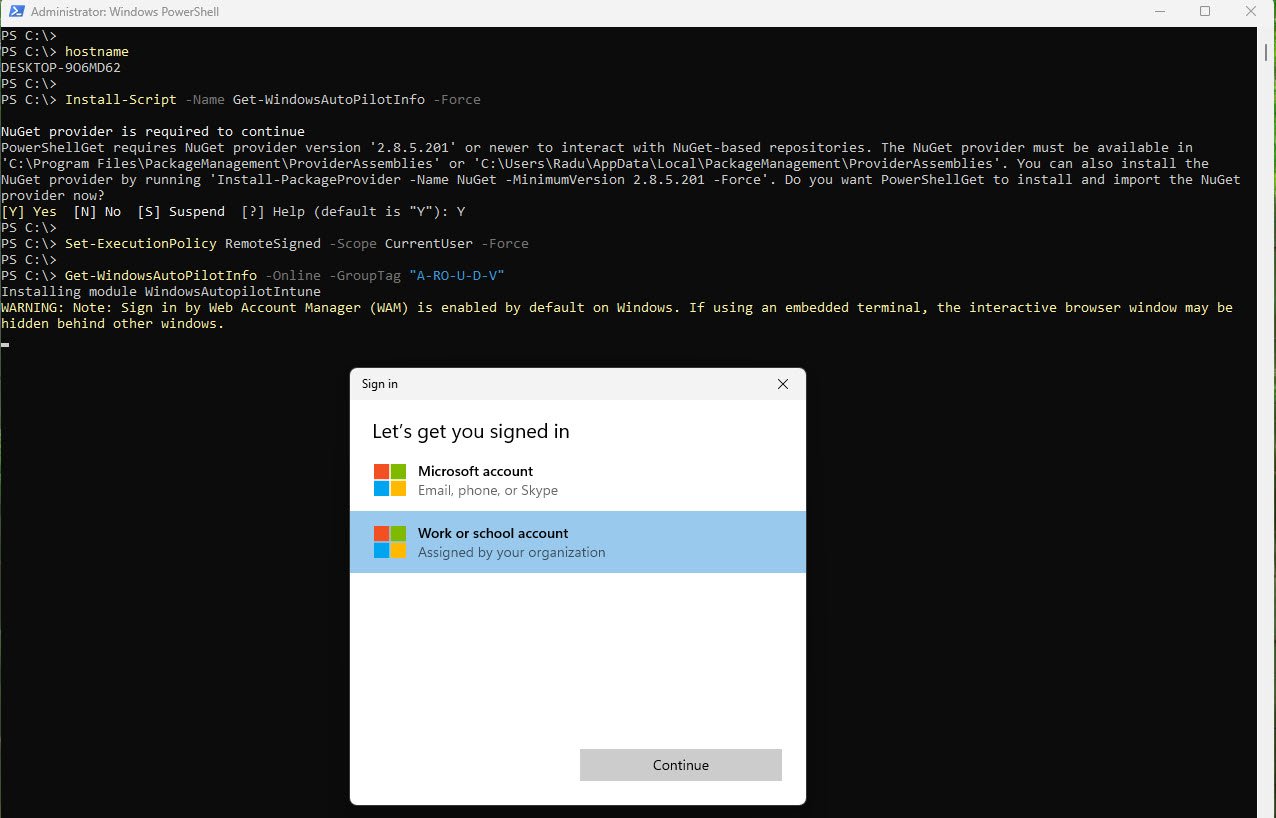
Note: As of December 2025 (Microsoft Graph PowerShell SDK v2.34) the authentication experience changed from browser-based to Windows Account Manager (WAM). You’ll see a native Windows dialog asking to select “Work or school account” instead of a browser popup.
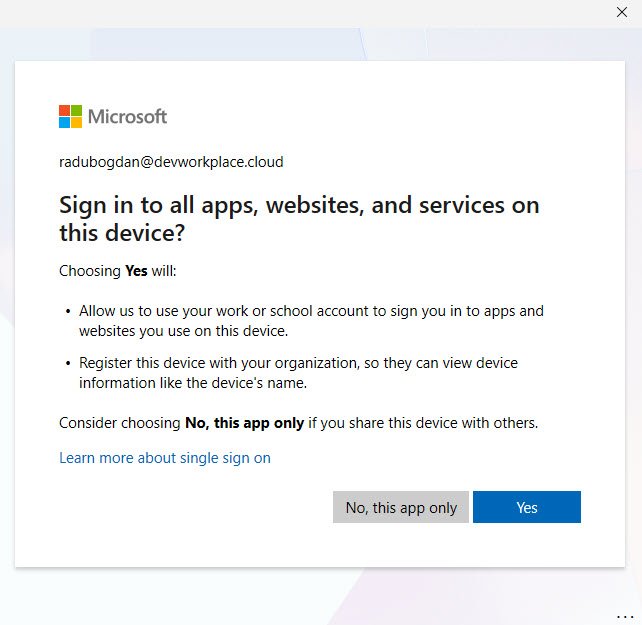
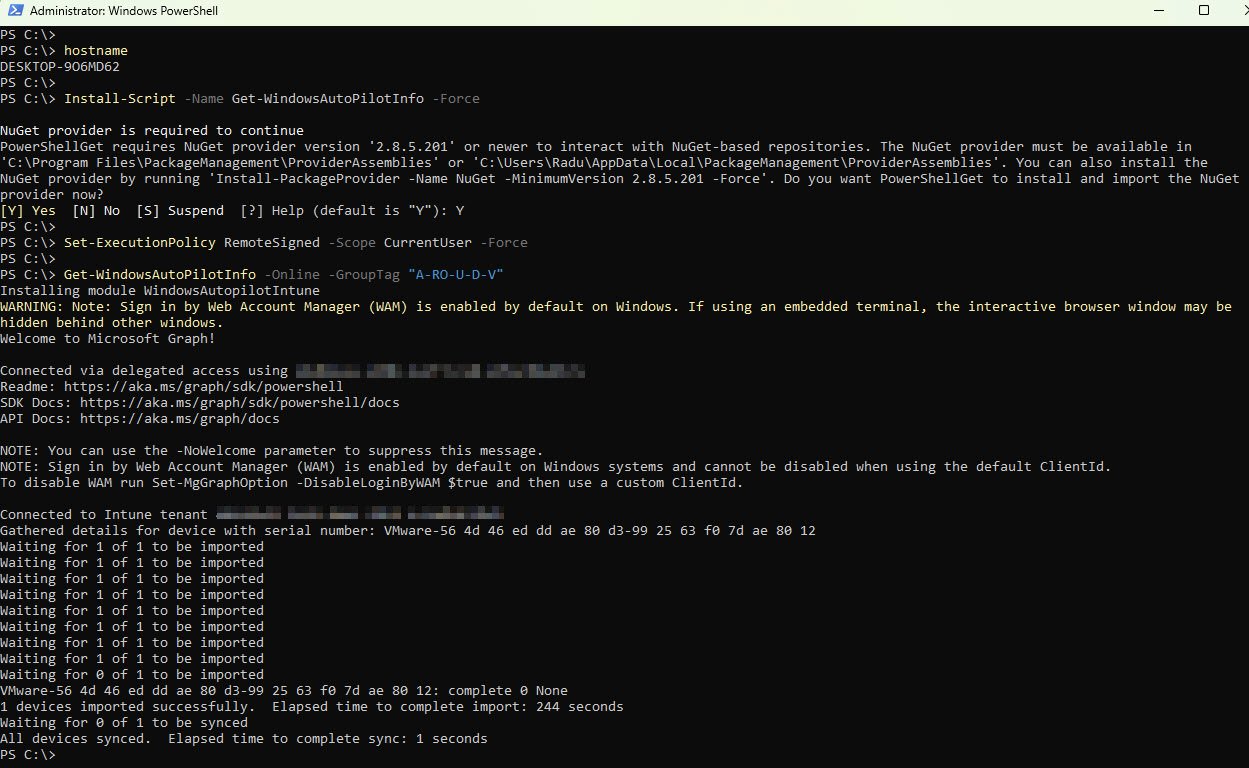
Once authenticated the script connects to Microsoft Graph, gathers the hardware details and uploads the hash to the Intune tenant. The process typically takes 2-4 minutes ending with a confirmation that the device was imported successfully:
The device is now registered in Intune with Autopilot profile assigned:
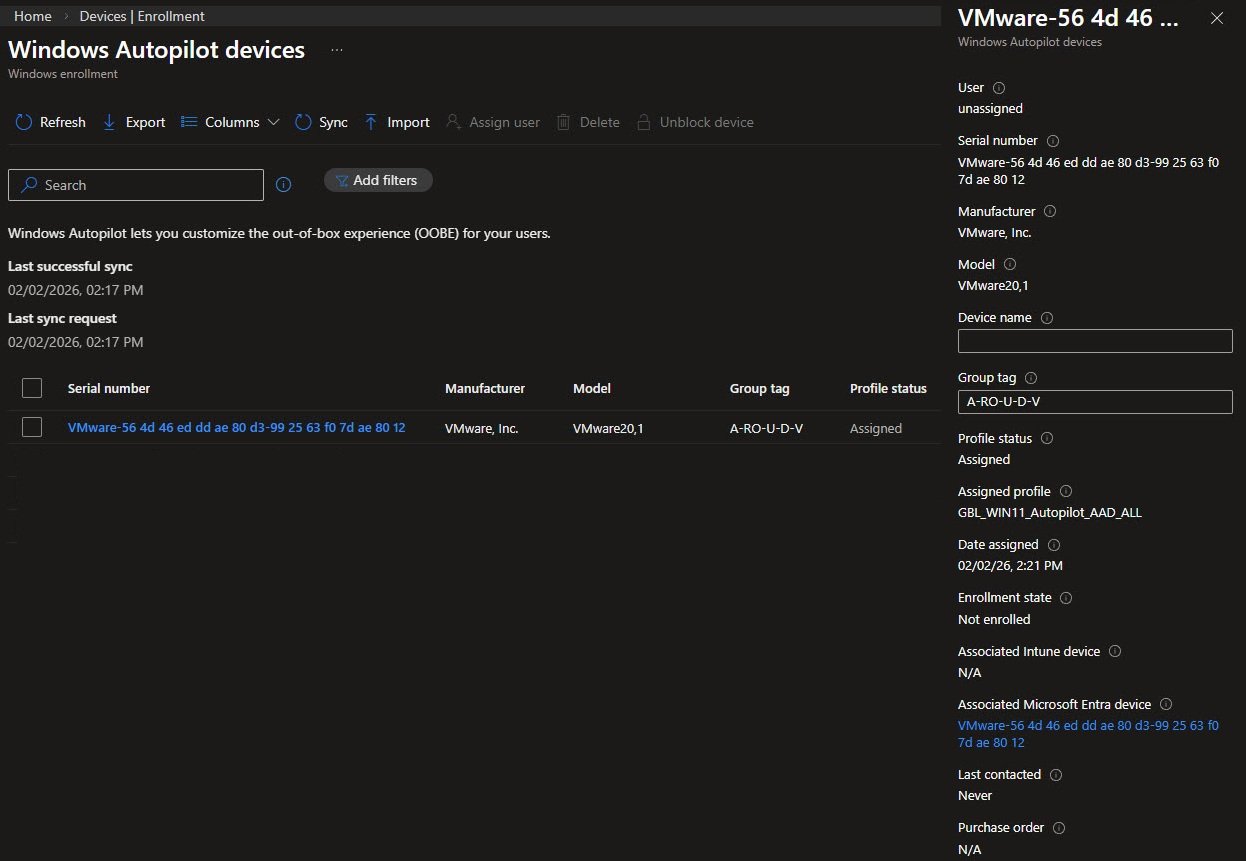
After the import completes reset the device (Reset this PC). On the next boot, Autopilot will recognize the hardware hash and apply the assigned deployment profile.
But you know that road, you know exactly where it ends and I know that is not where you want to be.
The Alternative method
Some guides recommend creating an App Registration with a client secret for unattended uploads, however this stores credentials in plain text, a security risk also flagged by Michael Niehaus in his article so instead I use Device Code Flow which authenticates via my phone each time, requiring no stored secrets.
This is a conscious trade-off, I’m choosing interactive authentication over full automation to avoid embedding long-lived credentials in scripts or media. In a lab environment requiring a human approval step is acceptable and significantly reduces risk.
Device Code Flow allows a script to authenticate to Microsoft Graph without storing any credentials. Instead of embedding a client secret, the script displays a one-time code and pauses until the admin signs in on another trusted device with MFA. A short-lived access token is issued only after approval, leaving no secrets embedded in the ISO or stored on the device.
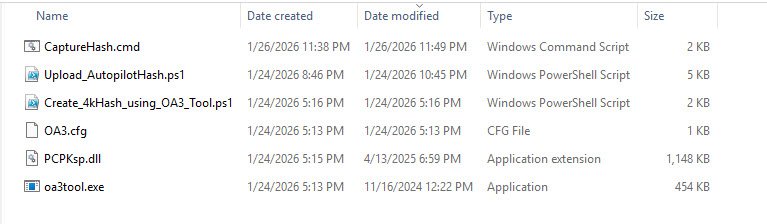
These are the files originally created into my location “C:\AutopilotUSB” that get copied to the ISO:
| File | Size | Purpose |
|---|---|---|
| oa3tool.exe | 454 KB | Microsoft OEM Activation tool (extracts hardware hash) |
| OA3.cfg | 1 KB | Configuration file for oa3tool |
| PCPKsp.dll | 1,148 KB | TPM Key Storage Provider for attestation |
| Create_4kHash_using_OA3_Tool.ps1 | 2 KB | Converts OA3.xml to Autopilot CSV format |
| Upload_AutopilotHash.ps1 | 5 KB | Uploads hash to Intune via Device Code Flow |
| CaptureHash.cmd | 1 KB | Orchestrates the entire capture and upload process |
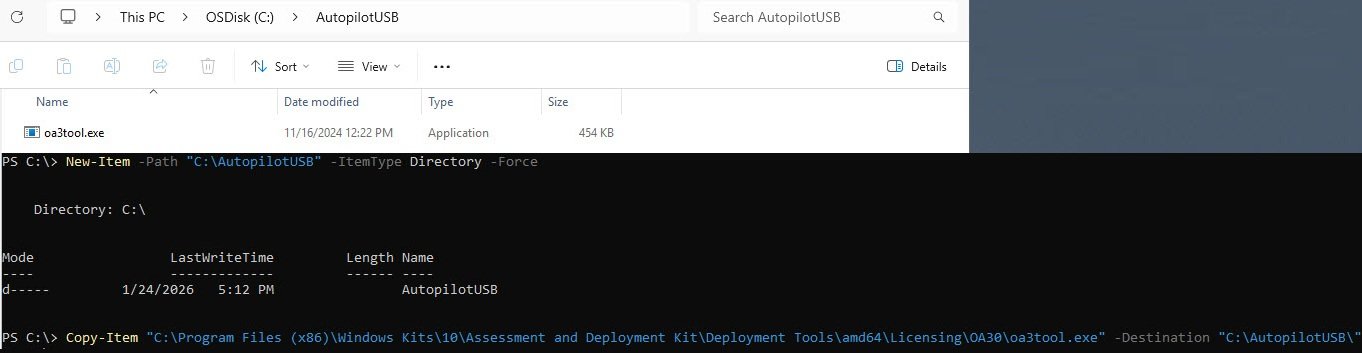
Creating the staging folder:
With these commands I’ve created a staging folder called “C:\AutopilotUSB” to collect all the files needed for the custom ISO, then I’ve copied oa3tool.exe from the Microsoft Windows Assessment and Deployment Kit (ADK) installation, this is Microsoft’s OEM Activation 3.0 tool that extracts hardware identifiers from the device’s SMBIOS and TPM to generate the Autopilot hash:
New-Item -Path "C:\AutopilotUSB" -ItemType Directory -Force

Copy-Item "C:\Program Files (x86)\Windows Kits\10\Assessment and Deployment Kit\Deployment Tools\amd64\Licensing\OA30\oa3tool.exe" -Destination "C:\AutopilotUSB\"
Creating the custom OA3.cfg file
This configuration file tells oa3tool.exe where to write its output. The tool generates two files: OA3.bin (binary format used by OEMs for factory injection) and OA3.xml (XML containing the hardware hash). We only care about the XML file since that’s what our PowerShell script will parse to extract the hash:
<OA3>
   <FileBased>
       <InputKeyXMLFile>".\input.XML"</InputKeyXMLFile>
   </FileBased>
   <OutputData>
       <AssembledBinaryFile>.\OA3.bin</AssembledBinaryFile>
       <ReportedXMLFile>.\OA3.xml</ReportedXMLFile>
   </OutputData>
</OA3>
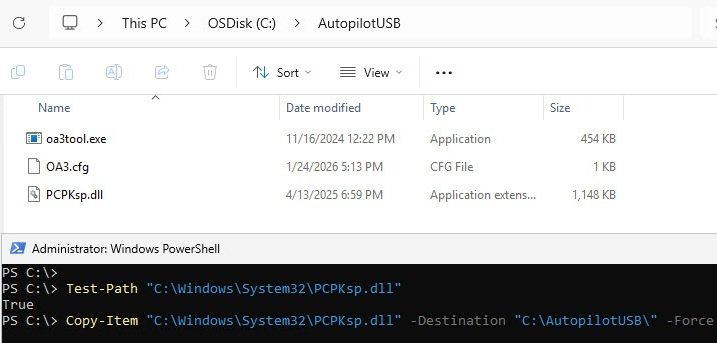
Copying PCPKsp.dll from System32
With these commands I’ve first verified that PCPKsp.dll exists in the System32 folder then copied it to my staging folder. This DLL is the Platform Crypto Provider Key Storage Provider, a dependency that oa3tool.exe needs to communicate with the TPM and extract attestation data. Without this file registered in WinPE the hardware hash generation fails silently.
At this point the staging folder contains three files: oa3tool.exe, OA3.cfg (which I created manually) and PCPKsp.dll. The remaining three files are PowerShell scripts that handle the CSV conversion and upload to Intune.
Test-Path "C:\Windows\System32\PCPKsp.dll"

Copy-Item "C:\Windows\System32\PCPKsp.dll" -Destination "C:\AutopilotUSB\" -Force
Creating the custom PS script “Create_4kHash_using_OA3_Tool.ps1”
This new custom PS script bridges the gap between oa3tool.exe output and what Intune expects. The OA3 tool generates an XML file with the hardware hash buried inside XML nodes. This script extracts the hash and serial number, then formats them into the exact CSV structure that Intune’s Autopilot import API requires: three columns with Device Serial Number, Windows Product ID (left empty) and Hardware Hash. Without this conversion step, you’d be manually copy-pasting Base64 strings.
param(
    [Parameter(Mandatory=$false)]
    [string]$OutputFile = ".\AutopilotHash.csv"
)

$ScriptDir = Split-Path -Parent $MyInvocation.MyCommand.Path

# Check if OA3.xml exists (generated by oa3tool.exe)
$OA3XML = Join-Path $ScriptDir "OA3.xml"

if (-not (Test-Path $OA3XML)) {
    Write-Error "OA3.xml not found. Run oa3tool.exe first!"
    exit 1
}

# Parse the XML
[xml]$xml = Get-Content $OA3XML

# Extract values
$HardwareHash = $xml.Key.HardwareHash
$SerialNumber = $xml.Key.ProductKeyInfo.SmbiosSystemSerialNumber

if ([string]::IsNullOrEmpty($HardwareHash)) {
    Write-Error "Hardware hash not found in OA3.xml"
    exit 1
}

# Create CSV content
$csvContent = @"
Device Serial Number,Windows Product ID,Hardware Hash
$SerialNumber,,$HardwareHash
"@

# Write to file
$csvContent | Out-File -FilePath $OutputFile -Encoding ASCII -Force

Write-Host "SUCCESS: Hash exported to $OutputFile" -ForegroundColor Green
Write-Host "Serial Number: $SerialNumber" -ForegroundColor Cyan
Creating the custom PS script “Upload_AutopilotHash.ps1”
This is where the magic happens, instead of manually uploading the CSV through the Intune portal (Devices -> Enroll devices -> Import), this script uses Microsoft Graph API to register the device directly. It uses device code flow for authentication which is perfect for WinPE where you can’t open a browser.
You can authenticate on your phone or another PC, manually entering the code shown on screen and the script handles the rest: uploading the hash, applying your GroupTag and triggering an Autopilot sync. The device is ready for Autopilot before Windows even finishes installing:
param(
    [Parameter(Mandatory=$false)]
    [string]$CsvFile = "X:\Autopilot\AutopilotHash.csv",

    [Parameter(Mandatory=$false)]
    [string]$GroupTag = "A-RO-U-D-V"
)

# Microsoft Graph PowerShell App ID (public, safe to use)
$ClientID = "14d82eec-204b-4c2f-b7e8-296a70dab67e"

Write-Host ""
Write-Host "==========================================" -ForegroundColor Cyan
Write-Host "  Autopilot Hash Upload - Secure Edition" -ForegroundColor Cyan
Write-Host "==========================================" -ForegroundColor Cyan
Write-Host ""

# Check CSV exists
if (-not (Test-Path $CsvFile)) {
    Write-Error "CSV file not found: $CsvFile"
    exit 1
}

# Read CSV
$csv = Import-Csv $CsvFile
$SerialNumber = $csv.'Device Serial Number'
$HardwareHash = $csv.'Hardware Hash'

Write-Host "Device Serial: $SerialNumber" -ForegroundColor Yellow
Write-Host "Group Tag: $GroupTag" -ForegroundColor Yellow
Write-Host ""

# === DEVICE CODE FLOW ===
Write-Host "[1/4] Requesting device code..." -ForegroundColor Green

$deviceCodeRequest = @{
    client_id = $ClientID
    scope     = "https://graph.microsoft.com/DeviceManagementServiceConfig.ReadWrite.All offline_access"
}

$deviceCodeResponse = Invoke-RestMethod -Method Post `
    -Uri "https://login.microsoftonline.com/organizations/oauth2/v2.0/devicecode" `
    -Body $deviceCodeRequest

# Display code to user
Write-Host ""
Write-Host "==========================================" -ForegroundColor Yellow
Write-Host "  ACTION REQUIRED:" -ForegroundColor Yellow
Write-Host ""
Write-Host "  1. On your phone or PC, open:" -ForegroundColor White
Write-Host "     https://microsoft.com/devicelogin" -ForegroundColor Cyan
Write-Host ""
Write-Host "  2. Enter code: $($deviceCodeResponse.user_code)" -ForegroundColor White -BackgroundColor DarkBlue
Write-Host ""
Write-Host "  3. Sign in and approve" -ForegroundColor White
Write-Host "==========================================" -ForegroundColor Yellow
Write-Host ""
Write-Host "Waiting for authentication..." -ForegroundColor Gray

# Poll for token
$tokenRequest = @{
    grant_type  = "urn:ietf:params:oauth:grant-type:device_code"
    client_id   = $ClientID
    device_code = $deviceCodeResponse.device_code
}

$timeout = [DateTime]::Now.AddSeconds($deviceCodeResponse.expires_in)
$token = $null

while ([DateTime]::Now -lt $timeout -and -not $token) {
    Start-Sleep -Seconds 5
    try {
        $tokenResponse = Invoke-RestMethod -Method Post `
            -Uri "https://login.microsoftonline.com/organizations/oauth2/v2.0/token" `
            -Body $tokenRequest
        $token = $tokenResponse.access_token
    } catch {
        # Still waiting for user to authenticate
    }
}

if (-not $token) {
    Write-Error "Authentication timed out!"
    exit 1
}

Write-Host "[2/4] Authentication successful!" -ForegroundColor Green

# Prepare headers
$headers = @{
    "Authorization" = "Bearer $token"
    "Content-Type"  = "application/json"
}

# Prepare device data
$deviceData = @{
    "@odata.type"        = "#microsoft.graph.importedWindowsAutopilotDeviceIdentity"
    "groupTag"           = $GroupTag
    "serialNumber"       = $SerialNumber
    "hardwareIdentifier" = $HardwareHash
}

$jsonBody = $deviceData | ConvertTo-Json

# Upload to Intune
Write-Host "[3/4] Uploading to Intune..." -ForegroundColor Green

try {
    $uploadResponse = Invoke-RestMethod -Method Post `
        -Uri "https://graph.microsoft.com/v1.0/deviceManagement/importedWindowsAutopilotDeviceIdentities" `
        -Headers $headers -Body $jsonBody
    Write-Host "      Upload successful!" -ForegroundColor Green
} catch {
    Write-Error "Upload failed: $_"
    exit 1
}

# Trigger sync
Write-Host "[4/4] Triggering Autopilot sync..." -ForegroundColor Green
try {
    Invoke-RestMethod -Method Post `
        -Uri "https://graph.microsoft.com/v1.0/deviceManagement/windowsAutopilotSettings/sync" `
        -Headers $headers | Out-Null
    Write-Host "      Sync triggered!" -ForegroundColor Green
} catch {
    Write-Host "      Sync skipped (non-critical)" -ForegroundColor Yellow
}

Write-Host ""
Write-Host "==========================================" -ForegroundColor Cyan
Write-Host "  SUCCESS! Device uploaded to Autopilot" -ForegroundColor Green
Write-Host "  Serial: $SerialNumber" -ForegroundColor White
Write-Host "  GroupTag: $GroupTag" -ForegroundColor White
Write-Host "==========================================" -ForegroundColor Cyan
Write-Host ""
Creating a Custom Windows 11 ISO with Embedded Autopilot Scripts
The standard approach to Autopilot device registration involves booting a fully installed Windows system, running PowerShell scripts to capture the hardware hash, then uploading it to Intune. This works but it means you’re either re-imaging the device afterward or manually running scripts on every new machine.
Instead I’ve wanted something cleaner: capture the hardware hash during Windows Setup, before the OS even touches the disk, then continue straight into installation. The device registers with Autopilot while I’m still at the first setup screen and by the time OOBE loads Intune already knows about it.
To make this work I’ve needed to customize the Windows 11 installer’s boot image (boot.wim). The default boot.wim is intentionally minimal and it doesn’t include PowerShell and network initialization only happens when Setup.exe needs it and there’s no way to run custom scripts. So by injecting the optional WinPE components along with my Autopilot custom PS scripts directly into the boot image, I’ve created a self-contained ISO that handles everything automatically.
The process involves mounting the boot.wim, adding PowerShell support and network drivers, copying the six Autopilot files we prepared earlier, then rebuilding the ISO. The result is a Windows 11 installer that doubles as an Autopilot registration tool, press Shift+F10 at the first screen, run one command, authenticate on your phone and you’re done.
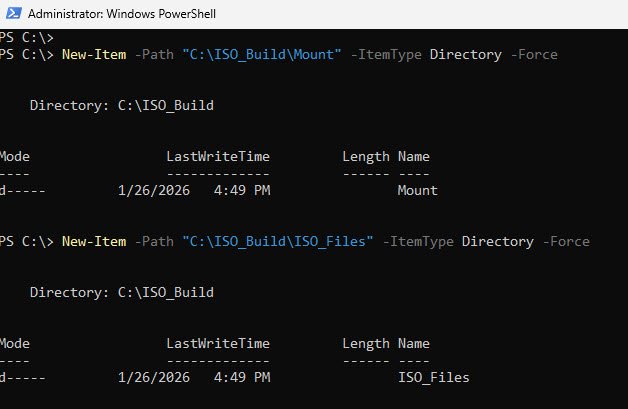
Step 1: Create Working Directories
Two folders keep things organized: Mount is where we’ll temporarily extract the boot image for editing, and ISO_Files holds the complete Windows installation media we’ll modify and repackage.
New-Item -Path "C:\ISO_Build\Mount" -ItemType Directory -Force

New-Item -Path "C:\ISO_Build\ISO_Files" -ItemType Directory -Force
Step 2: Mount and Extract Windows 11 ISO
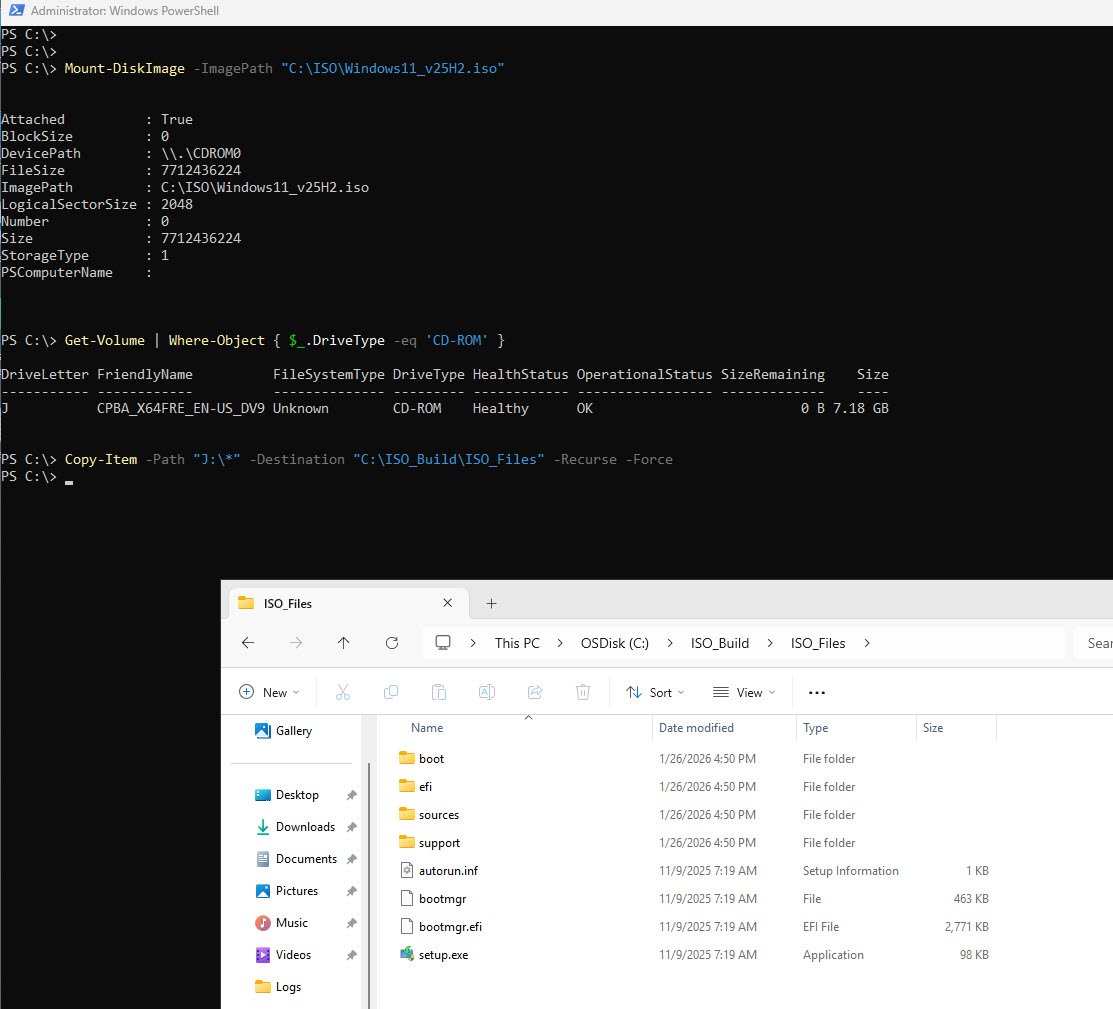
We mount the original Windows 11 ISO as a virtual drive, copy everything to the working directory, then dismount. Working with a copy means we can always start fresh if something goes wrong and the original media stays untouched.
# Mount the Windows 11 ISO
Mount-DiskImage -ImagePath "C:\ISO\Windows11_v25H2.iso"

# Verify the mounted drive letter
Get-Volume | Where-Object { $_.DriveType -eq 'CD-ROM' }

# Copy all ISO contents to working directory (adjust drive letter if needed)
Copy-Item -Path "J:\*" -Destination "C:\ISO_Build\ISO_Files" -Recurse -Force

# Dismount the ISO
Dismount-DiskImage -ImagePath "C:\ISO\Windows11_v25H2.iso"
Step 3: Prepare boot.wim for Editing
The boot.wim file contains Windows Setup (the environment you see during installation). Files extracted from an ISO inherit read-only attributes, so we clear that first.
Index 2 is Windows Setup itself, Index 1 is Windows Recovery Environment which we don’t need to modify.
# Remove read-only attribute from boot.wim
Set-ItemProperty -Path "C:\ISO_Build\ISO_Files\sources\boot.wim" -Name IsReadOnly -Value $false

# Mount boot.wim Index 2 (Windows Setup)
Mount-WindowsImage -ImagePath "C:\ISO_Build\ISO_Files\sources\boot.wim" -Index 2 -Path "C:\ISO_Build\Mount"
Step 4: Add WinPE Optional Components (PowerShell Support)
Here’s where one might get stuck, the default Windows Setup environment doesn’t include PowerShell, it’s intentionally minimal. We need to inject the WinPE optional components from the Windows ADK, and order matters.
PowerShell depends on Scripting which depends on NetFX which depends on WMI. Skip a dependency or install out of order and PowerShell won’t load. Each component also needs its language pack (en-us cab files) or you’ll get cryptic errors:
# Define paths
$OCPath = "C:\Program Files (x86)\Windows Kits\10\Assessment and Deployment Kit\Windows Preinstallation Environment\amd64\WinPE_OCs"
$MountPath = "C:\ISO_Build\Mount"

# Add components in dependency order

#1. WMI
Dism /Add-Package /Image:"$MountPath" /PackagePath:"$OCPath\WinPE-WMI.cab"
Dism /Add-Package /Image:"$MountPath" /PackagePath:"$OCPath\en-us\WinPE-WMI_en-us.cab"

#2. NetFX
Dism /Add-Package /Image:"$MountPath" /PackagePath:"$OCPath\WinPE-NetFX.cab" Dism /Add-Package /Image:"$MountPath" /PackagePath:"$OCPath\en-us\WinPE-NetFX_en-us.cab"

#3. Scripting
Dism /Add-Package /Image:"$MountPath" /PackagePath:"$OCPath\WinPE-Scripting.cab"
Dism /Add-Package /Image:"$MountPath" /PackagePath:"$OCPath\en-us\WinPE-Scripting_en-us.cab"

#4. PowerShell
Dism /Add-Package /Image:"$MountPath" /PackagePath:"$OCPath\WinPE-PowerShell.cab"
Dism /Add-Package /Image:"$MountPath" /PackagePath:"$OCPath\en-us\WinPE-PowerShell_en-us.cab"

#5. StorageWMI
Dism /Add-Package /Image:"$MountPath" /PackagePath:"$OCPath\WinPE-StorageWMI.cab"
Dism /Add-Package /Image:"$MountPath" /PackagePath:"$OCPath\en-us\WinPE-StorageWMI_en-us.cab"
Step 5: Copy Autopilot Scripts to Mounted Image
This places the six files (CaptureHash.cmd, oa3tool.exe, PCPKsp.dll, OA3.cfg and both PowerShell scripts) into the boot image at X:\Autopilot. When Windows Setup launches these files are immediately available without needing external media:
# Create Autopilot folder in mounted image
New-Item -Path "C:\ISO_Build\Mount\Autopilot" -ItemType Directory -Force

# Copy all 6 files from staging folder
Copy-Item -Path "C:\AutopilotUSB\*" -Destination "C:\ISO_Build\Mount\Autopilot\" -Force

# Verify files copied
Get-ChildItem "C:\ISO_Build\Mount\Autopilot"
Step 6: Add VMware Network Drivers (Optional - for VMware VMs)
If you’re testing in VMware Workstation like I am, the default boot.wim doesn’t include vmxnet3 drivers. Without network connectivity the upload script can’t reach Microsoft Graph. Physical hardware or Hyper-V users can skip this step their drivers are already included.
Dism /Add-Driver /Image:"C:\ISO_Build\Mount" /Driver:"C:\Program Files\Common Files\VMware\Drivers\vmxnet3\Win11_24H2" /Recurse
Step 7: Unmount and Save Changes
The -Save parameter commits all our modifications back to boot.wim, without it dismounting would discard everything. This step can take a few minutes depending on how many components were added:
Dismount-WindowsImage -Path "C:\ISO_Build\Mount" -Save
Step 8: Create Bootable ISO
oscdimg.exe from the Windows ADK combines everything into a bootable ISO, the -bootdata parameter is the critical piece it configures both BIOS boot (etfsboot.com) and UEFI boot (efisys.bin) making the ISO work on any system regardless of firmware type. The result is a standard Windows 11 installer with our Autopilot automation baked in:
# Remove old ISO if exists
Remove-Item "C:\ISO\Windows11_Autopilot_25H2.iso" -Force -ErrorAction SilentlyContinue

# Create new bootable ISO using oscdimg
$OscdimgPath = "C:\Program Files (x86)\Windows Kits\10\Assessment and Deployment Kit\Deployment Tools\amd64\Oscdimg\oscdimg.exe"

& $OscdimgPath -m -o -u2 -udfver102 `
	-bootdata:2#p0,e,b"C:\ISO_Build\ISO_Files\boot\etfsboot.com"#pEF,e,b
	"C:\ISO_Build\ISO_Files\efi\microsoft\boot\efisys.bin" `
	"C:\ISO_Build\ISO_Files" `
	"C:\ISO\Windows11_Autopilot_25H2.iso"
Using the Custom ISO: Autopilot Registration in Action
Verifying the Embedded Scripts
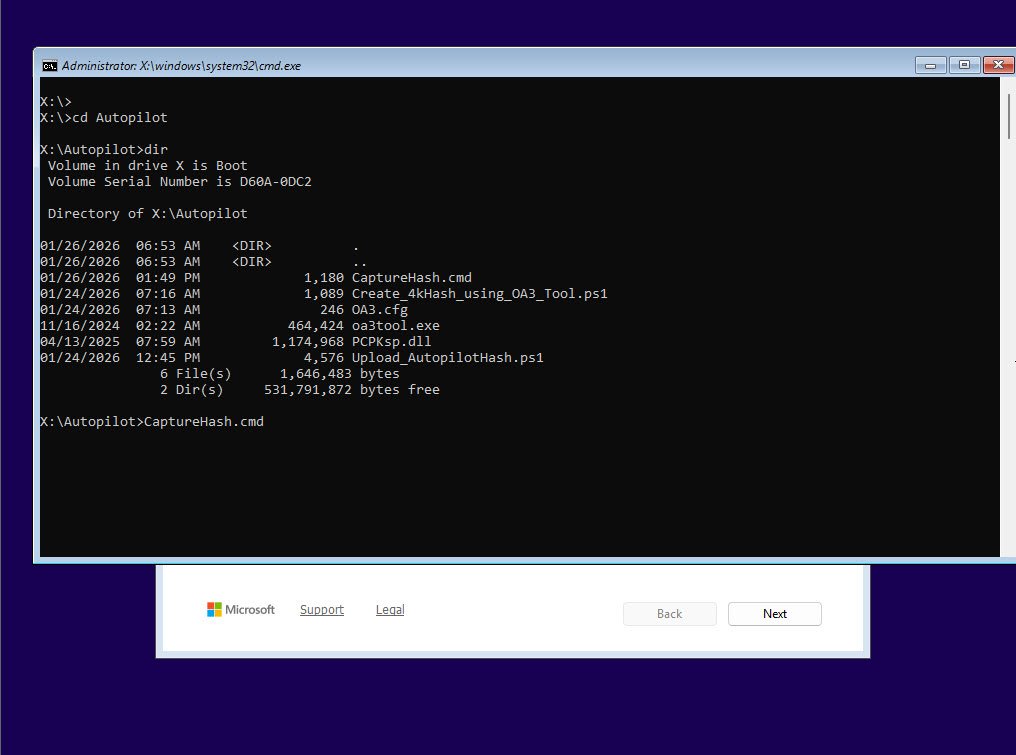
After mounting and booting from the custom ISO and pressing Shift+F10 at the Windows Setup screen, I’ve navigated to the Autopilot folder to verify all six files were successfully embedded in the boot image:
X:\>cd Autopilot
X:\Autopilot>dir
All six files are present and accessible at X:\Autopilot exactly where I’ve placed them while customizing the boot.wim. The X: drive is the WinPE RAM disk that loads from boot.wim during Windows Setup. With everything confirmed just launched the capture script by typing CaptureHash.cmd:
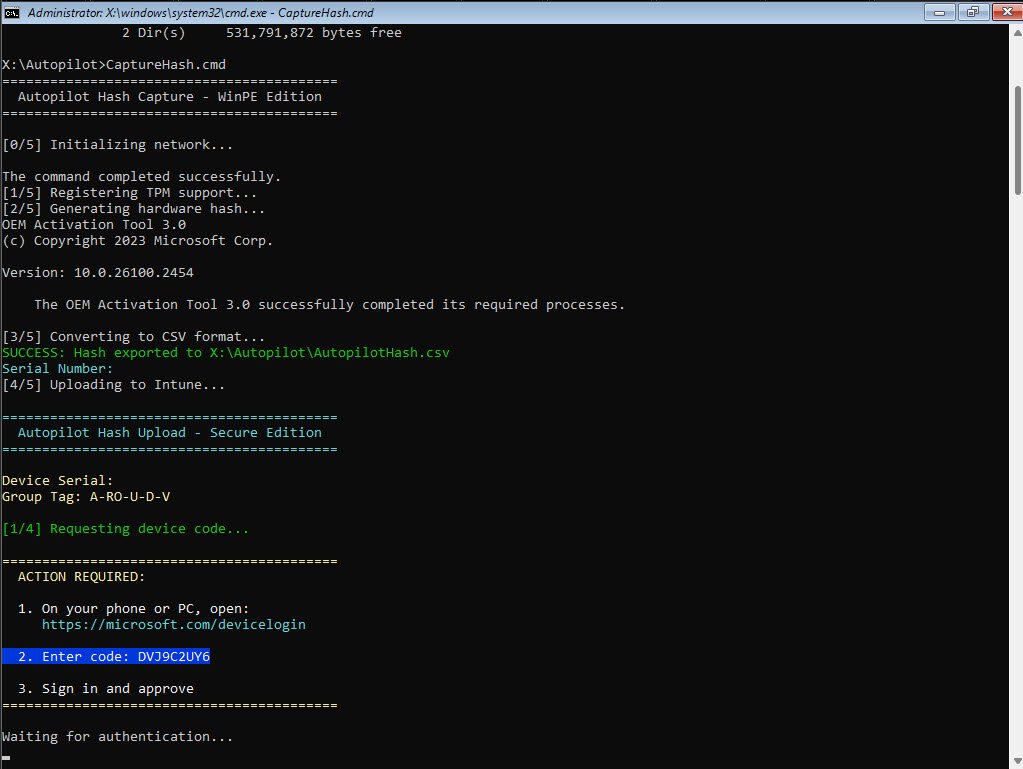
Running CaptureHash.cmd - Hash Generation and Device Code Prompt
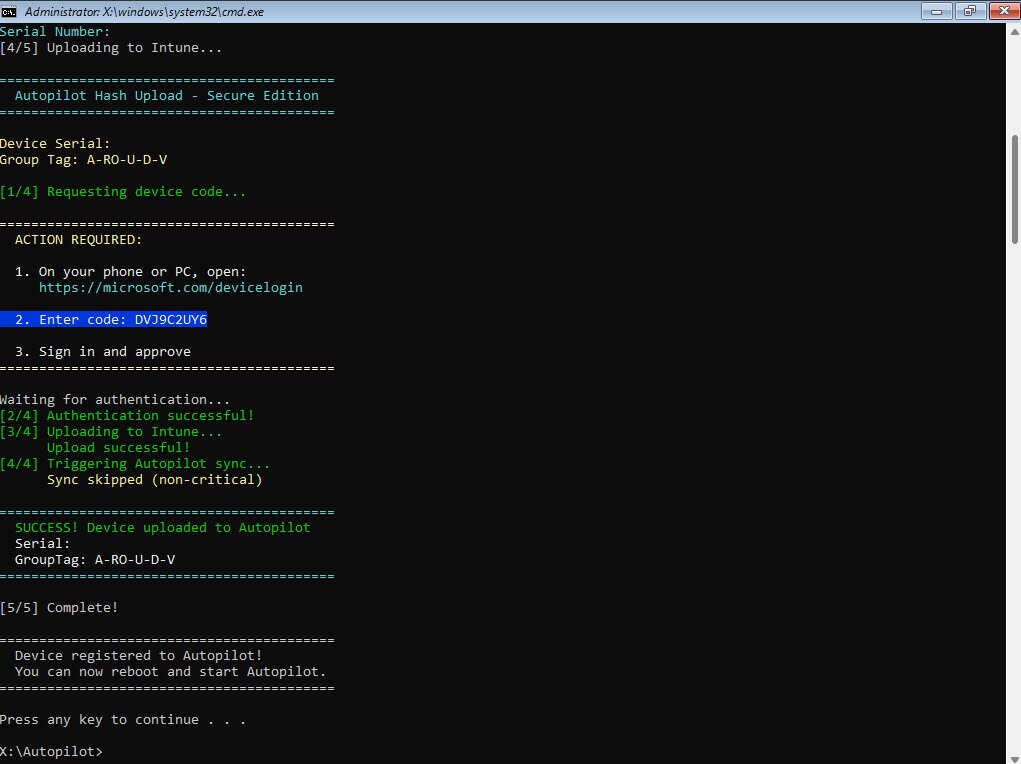
The script now displays a temporary device code DVJ9C2UY6 and waits for me to authenticate. Notice the Device Serial field is empty, this is expected on VMware VMs where OA3Tool reads from SMBIOS Type 1 which contains no serial number. The GroupTag A-RO-U-D-V is automatically applied based on the parameter in CaptureHash.cmd:
Note: This guide covers a single GroupTag scenario so if your organization uses multiple GroupTags for different device configurations, the approach here would need to be extended so that’s outside the scope of this article for now.
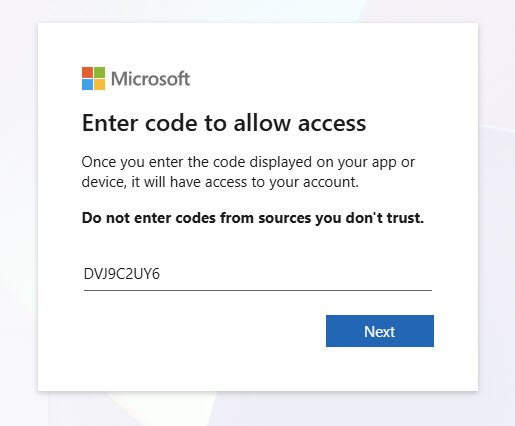
Device Code Entry
From your PC, laptop or phone open the URL https://microsoft.com/devicelogin and manually enter the code DVJ9C2UY6 displayed on the WinPE screen above. Device Code Flow is ideal for this scenario, the device being registered has no browser and can’t complete interactive authentication, but I can authenticate from any other device that can reach Microsoft’s login endpoint:
Account Selection
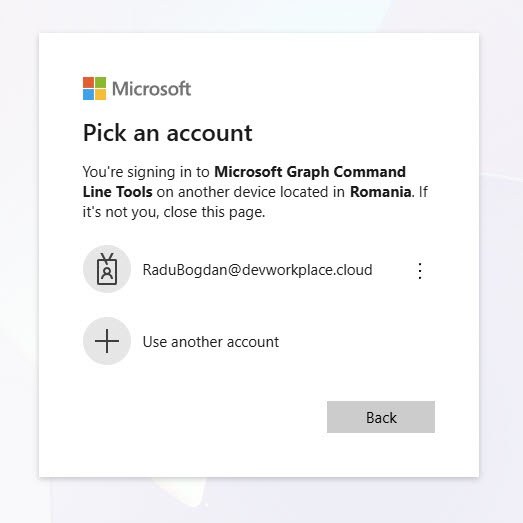
Microsoft prompts me to select which account to use, the dialog confirms I’m signing into Microsoft Graph Command Line Tools, this being the public Microsoft Graph PowerShell application (App ID 14d82eec-204b-4c2f-b7e8-296a70dab67e) that my upload script uses. It also shows the sign-in request is coming from Romania, matching my location:
MFA Challenge
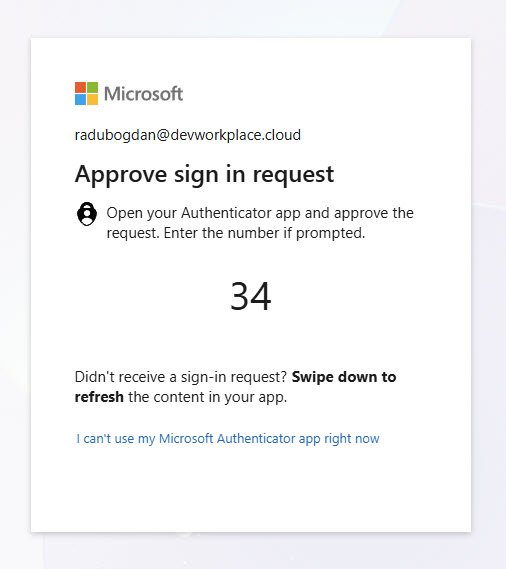
Because my tenant has MFA enforced via Conditional Access, I need to approve the sign-in through Microsoft Authenticator:
Consent Confirmation
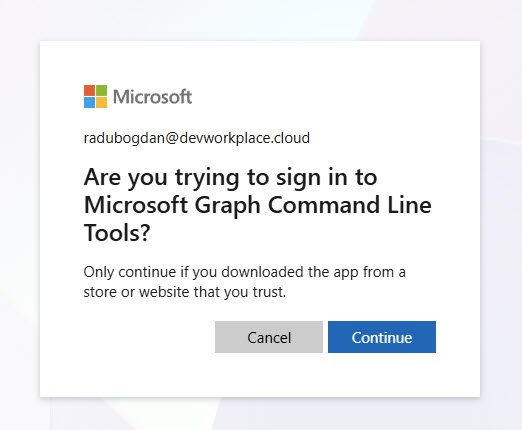
A final confirmation asking whether I trust Microsoft Graph Command Line Tools. This appears because the app is requesting the DeviceManagementServiceConfig.ReadWrite.All permission scope to upload the device hash, clicking Continue grants the token:
Authentication Complete
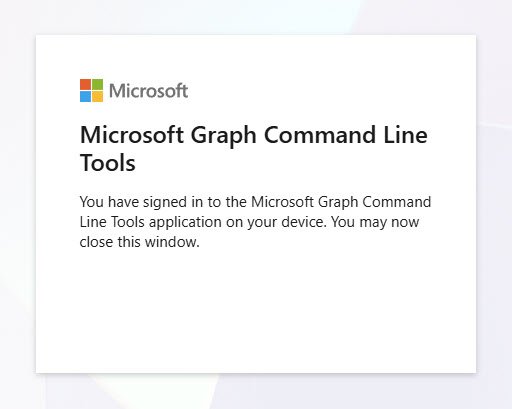
The browser confirms successful sign-in to Microsoft Graph Command Line Tools, I can now close this window since the token has been sent back to the WinPE script which is polling for it:
Success - Device Uploaded to Autopilot
Device uploaded to Autopilot with GroupTag A-RO-U-D-V has applied successfully, the device is now registered in Intune and will receive its Autopilot profile when OOBE starts.
From here, I will simply close the command prompt, click Install now in Windows Setup and proceed with a normal Windows 11 OS installation. When the device reaches OOBE and connects to the internet, Autopilot recognizes it and applies the deployment profile, all without ever having to boot into Windows first.
Device Appears in Microsoft Entra ID
Within minutes of the upload completing the device appears in Entra ID -> Devices -> All devices. The device name is the VMware generated UUID (VMware-56 4d e0 98 bb 81 a2 ca-18 c9 ad fe 29 50 a9 78) since VMware VMs don’t have traditional serial numbers in SMBIOS Type 1.
Key details :
- Join type: Microsoft Entra joined (pending and will complete during OOBE)
- MDM: None (not yet enrolled since the device hasn’t gone through OOBE yet)
- Registered: shows the exact time my script uploaded the hash
The device exists in Entra ID but shows as Enabled: No because it hasn’t completed enrollment yet. This is expected since I’ve only registered the hardware hash, the actual device enrollment happens when Windows OOBE runs and Autopilot takes over:

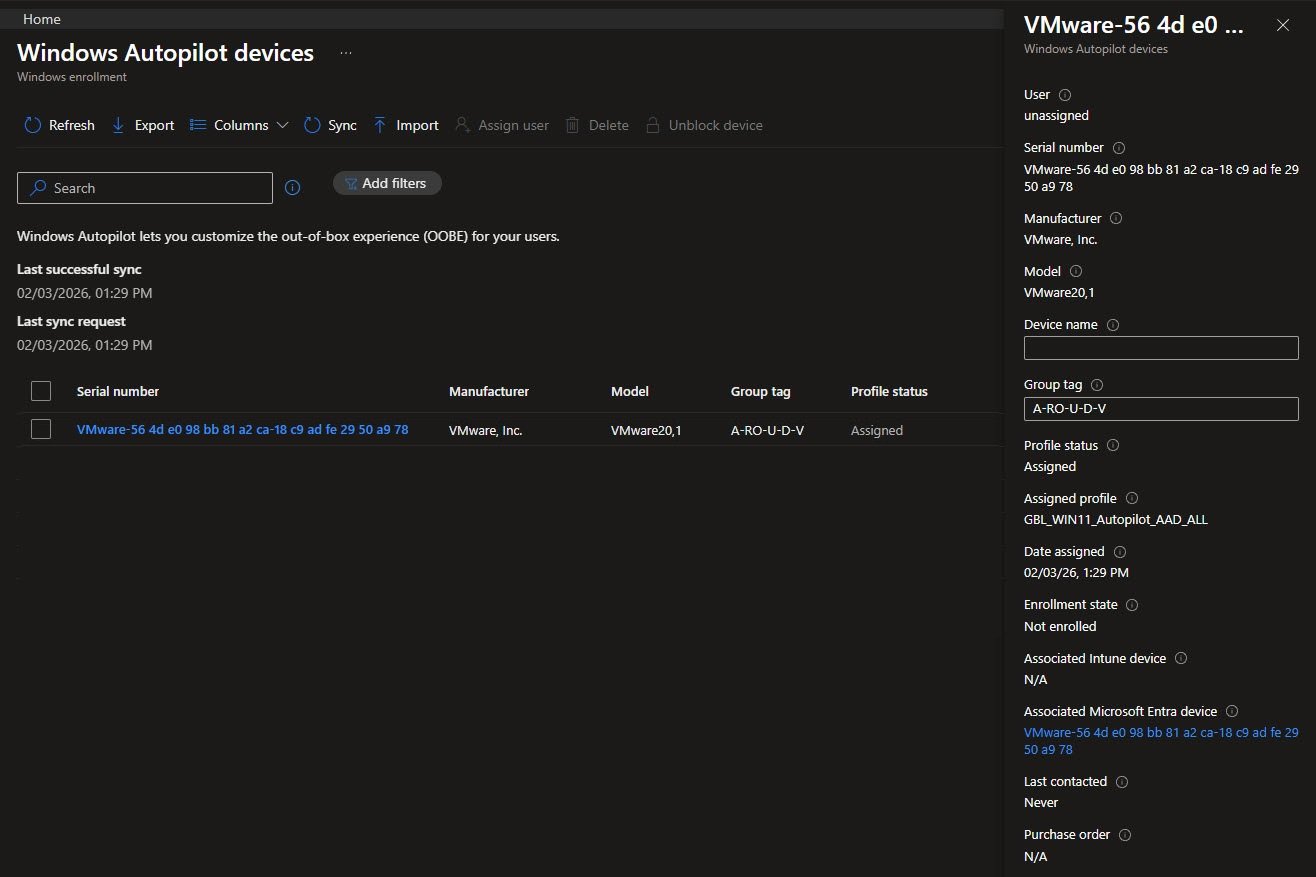
Device Registered in Intune with Autopilot Profile Assigned
The critical confirmation is Profile status: Assigned with the profile GBL_WIN11_Autopilot_AAD_ALL. Intune matched the device to my Autopilot profile based on the GroupTag A-RO-U-D-V and the dynamic device group targeting, the device will enroll and contact Intune when it boots into OOBE and completes the Autopilot flow.
At this point the device is fully staged, when I’ll continue with Windows installation and reach OOBE the new device will automatically receive its Autopilot profile, join Entra ID, enroll in Intune and apply all assigned policies and applications, all because I’ve registered the hash before the OS was even installed:
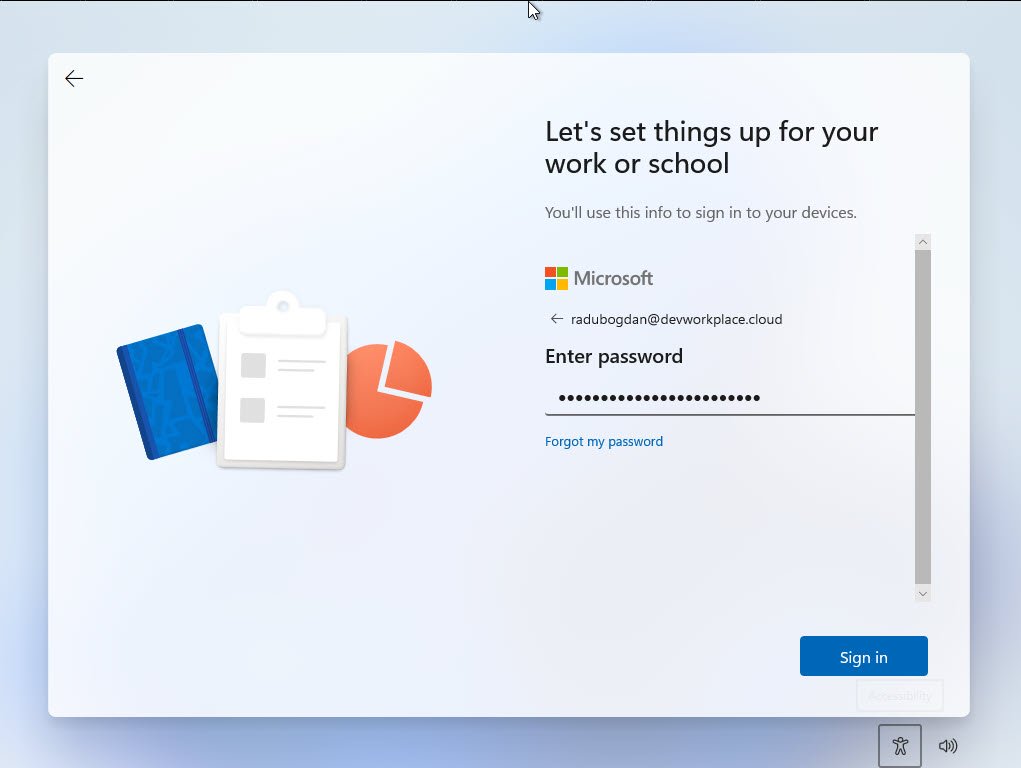
The Autopilot deployment process
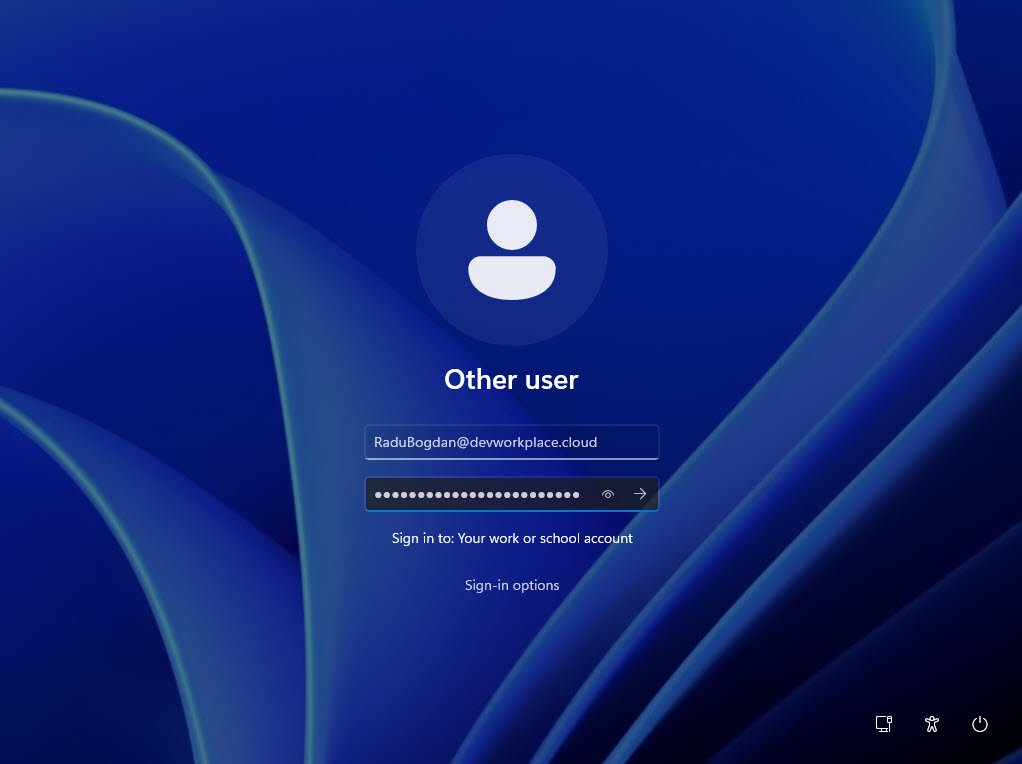
I’ve initiated a fresh Autopilot deployment in my test environment using a newly provisioned VMware Workstation VM. During OOBE I’ve authenticated with my Azure AD work account following the standard user-driven Autopilot process:
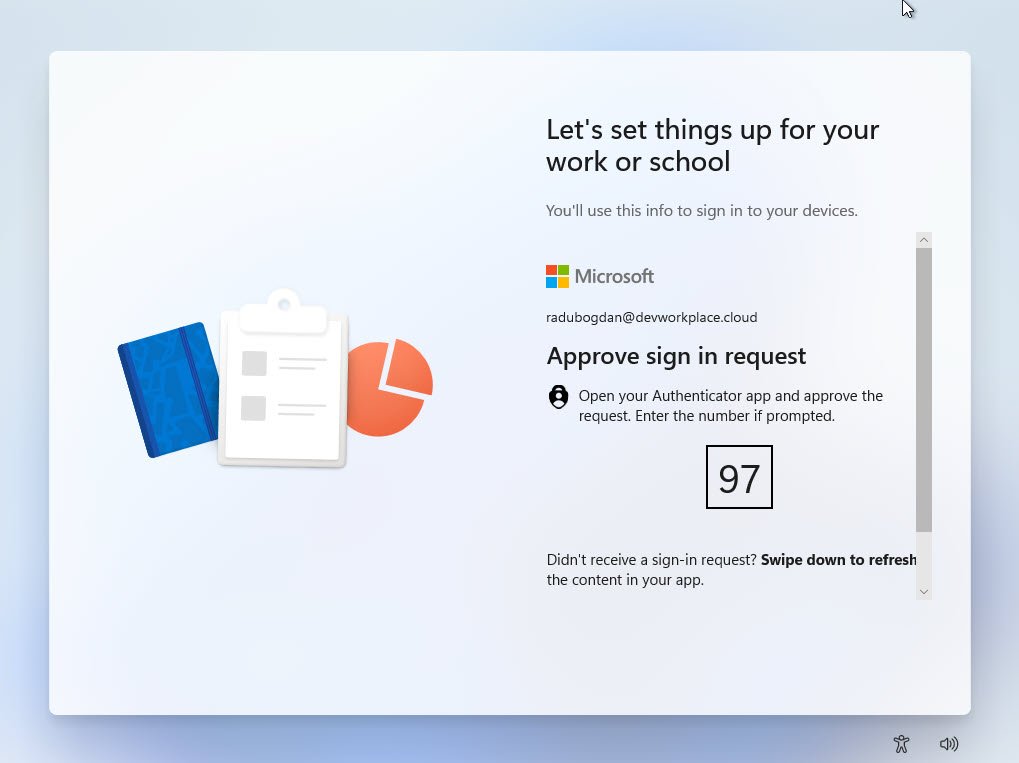
After entering credentials I’ve received a number matching challenge, this confirmed that my Conditional Access policies are functioning as intended and enforcing MFA during device enrollment:
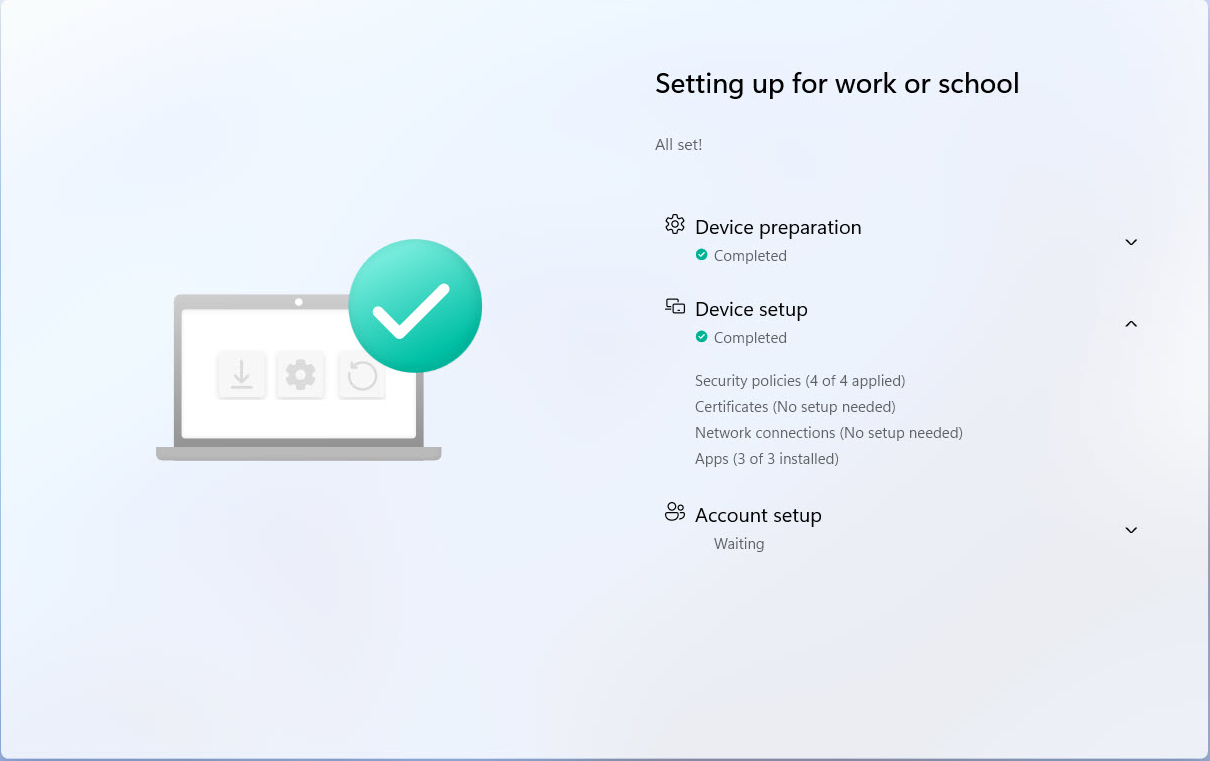
ESP Success
The Enrollment Status Page completed successfully displaying the “All set!” message. At this stage my ESP blocking apps were all installed during the Device Setup phase confirming that the configuration behaved as expected in my tenant:
The device reached the lock screen fully provisioned and ready for sign-in. The presence of the work account sign-in option verified that the device was Azure AD joined and under Intune management.
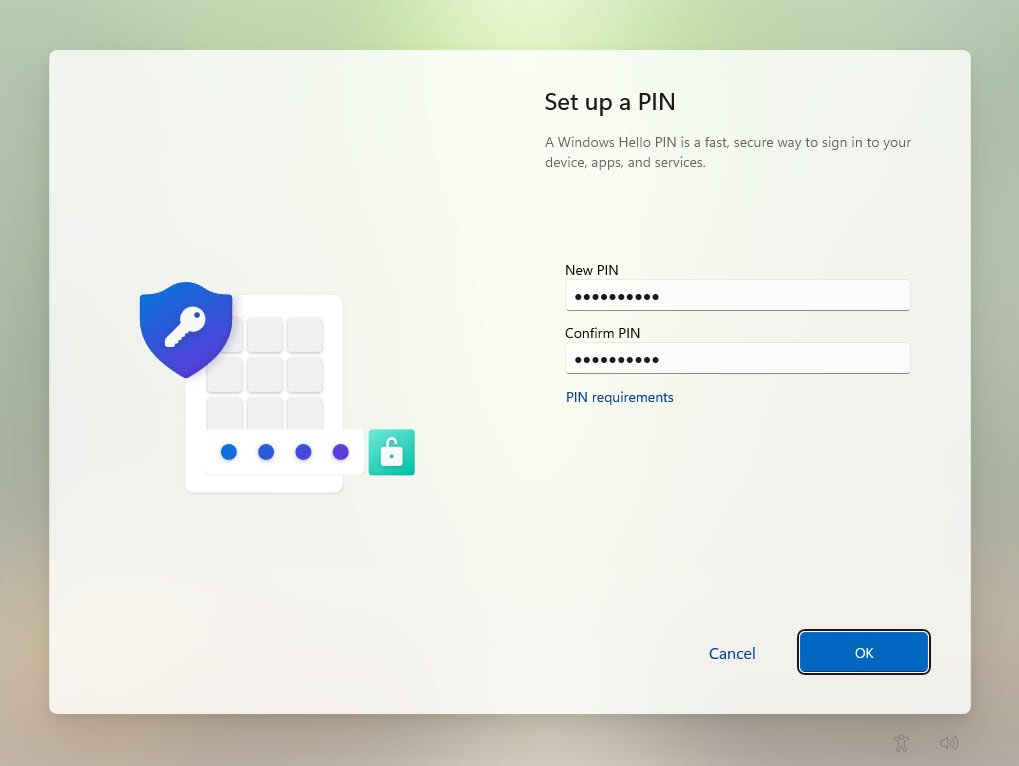
Windows Hello for Business PIN Setup
Immediately after the first sign-in I was prompted to configure a Windows Hello for Business PIN, this prompt was triggered by my Windows Hello policy and enabled passwordless authentication backed by the device vTPM:
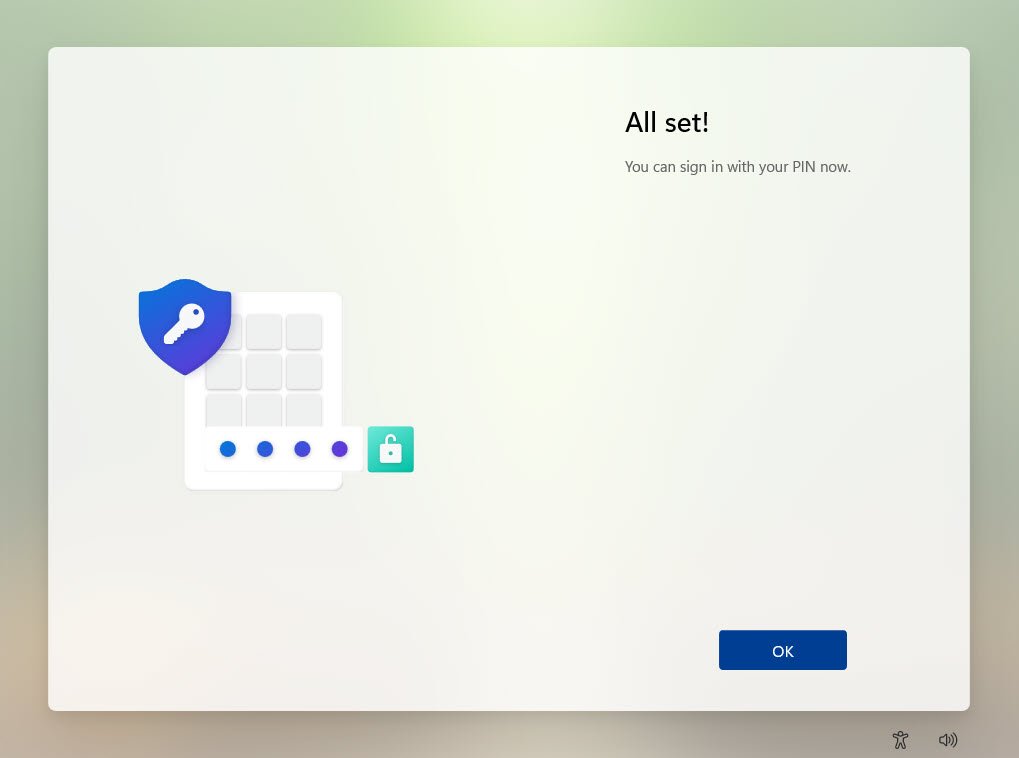
The completion message confirmed successful enrollment meaning the PIN is now cryptographically bound to the device and available for future authentication events:
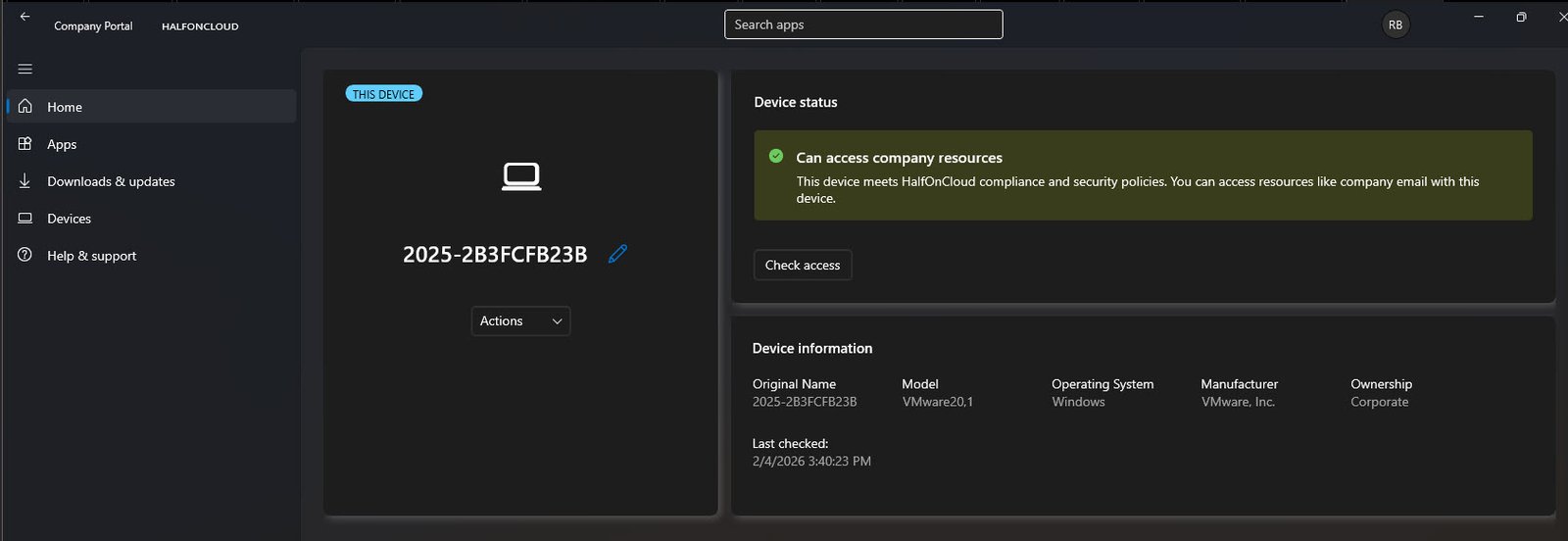
The Company Portal reported the device 2025-2B3FCFB23B with a green “Can access company resources” status, this validated that the device passed all assigned compliance checks and is authorized to access corporate services:
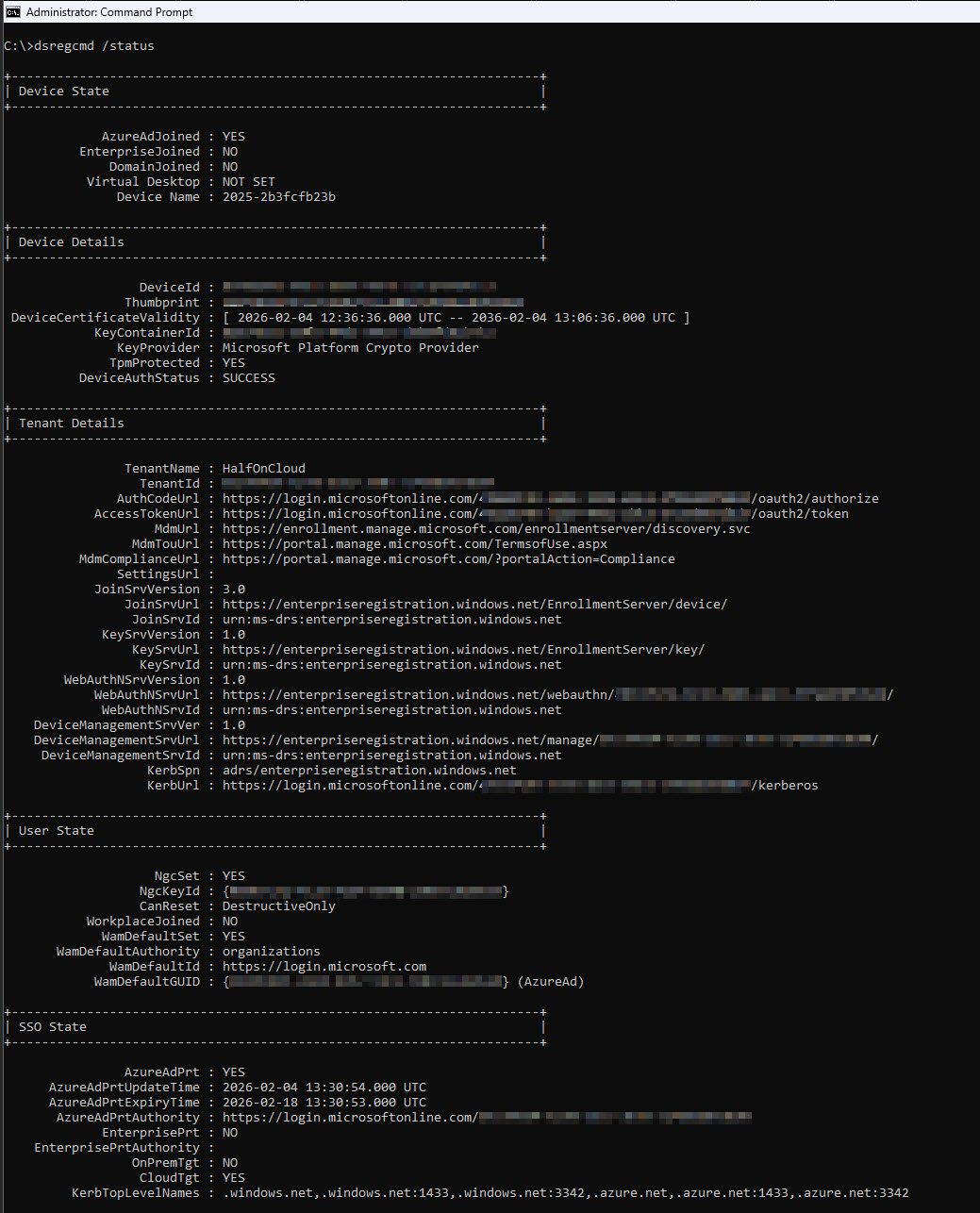
Dsregcmd Diagnostic Data
Every critical indicator in this dsregcmd output shows healthy status, the device is properly joined to Entra ID, protected by TPM, enrolled in Intune, has a valid PRT for SSO and passed all diagnostic checks:
AzureAdJoined: YES - This is the green light you want to see, confirms the device has successfully joined Microsoft Entra ID and is now a trusted member of your cloud environment. The device can authenticate to cloud services, receive policies from Intune and participate in Conditional Access evaluation.
EnterpriseJoined: NO - For a pure cloud deployment this simply means we’re not using an on-premises Device Registration Service with AD FS.
DomainJoined: NO - The device isn’t joined to a traditional on-premises Active Directory domain.
TpmProtected: YES - It means the device’s private key is stored in the hardware Trusted Platform Module not just in software. Even if malware compromises the operating system it cannot extract the device’s identity.
DeviceAuthStatus: SUCCESS - The device just performed a live authentication test against Entra ID and passed, this confirms the device exists, is enabled and can successfully prove its identity to the cloud. If this ever shows FAILED, your device has been disabled or deleted in Entra ID.
DeviceCertificateValidity - The device certificate is valid for 10 years from enrollment, this certificate is the device’s passport to the Microsoft cloud, renewed automatically as long as the device remains healthy.
TenantName: HalfOnCloud - A quick confirmation that my device joined the correct organization.
MdmUrl pointing to enrollment.manage.microsoft.com - This confirms Intune MDM enrollment is configured, the device knows where to check in for policies, apps and compliance requirements.
NgcSet: YES - NGC stands for Next Generation Credential, Microsoft’s internal name for Windows Hello for Business. This confirms the user has successfully enrolled passwordless credentials on this device and can now sign in with a PIN or biometrics instead of typing their password.
WamDefaultSet: YES - The Web Account Manager has a default organizational account configured, enabling seamless single sign-on across Windows and applications.
AzureAdPrt: YES - This is arguably the most important field in the entire output, PRT stands for Primary Refresh Token and it’s the secret sauce behind single sign-on. When this shows YES the device has obtained a long-lived token that proves both the device and user identity, no password prompt, no MFA challenge, just seamless access.
AzureAdPrtUpdateTime and ExpiryTime - The PRT refreshes automatically every four hours during normal device usage. The expiry time (14 days out) gives plenty of buffer as long as the device is used regularly the PRT stays fresh.
CloudTgt: YES - Cloud Kerberos ticket is present, this enables seamless SSO to Azure resources that support Kerberos authentication, extending the SSO experience beyond just browser based access.
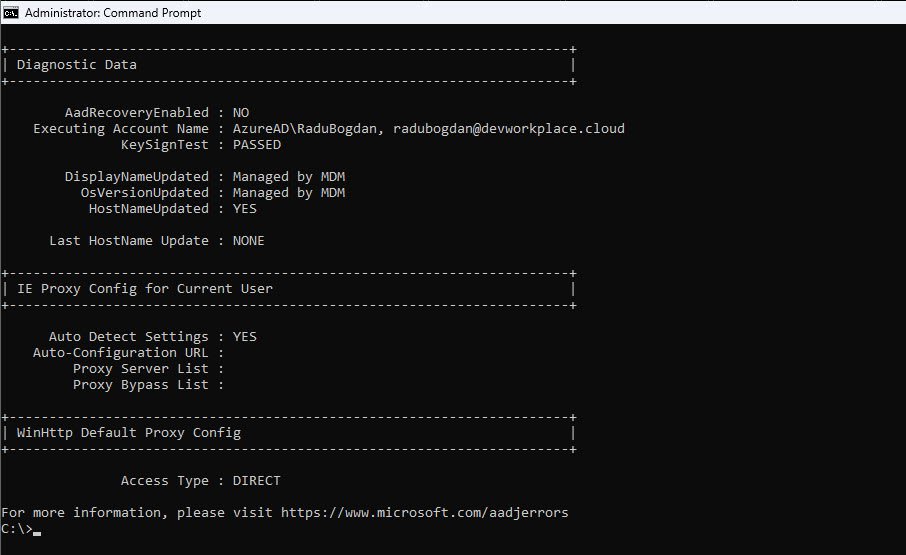
KeySignTest: PASSED - The device just tested its ability to sign tokens using its private key and everything worked. This confirms the device certificate and TPM are functioning correctly, a FAILED result here would indicate serious issues requiring device re-registration.
AadRecoveryEnabled: NO - The device is NOT in recovery mode, ff this ever shows YES the device keys have become unusable and the next sign-in will trigger a recovery flow to re-establish trust with Entra ID.
DisplayNameUpdated: Managed by MDM - Even the device’s display name is controlled by Intune demonstrating full MDM authority over the device configuration.
Access Type: DIRECT - The device connects directly to the internet without any proxy interference. This clean network path ensures reliable communication with Microsoft cloud endpoints, misconfigured proxies are a notorious source of Autopilot and enrollment failures.
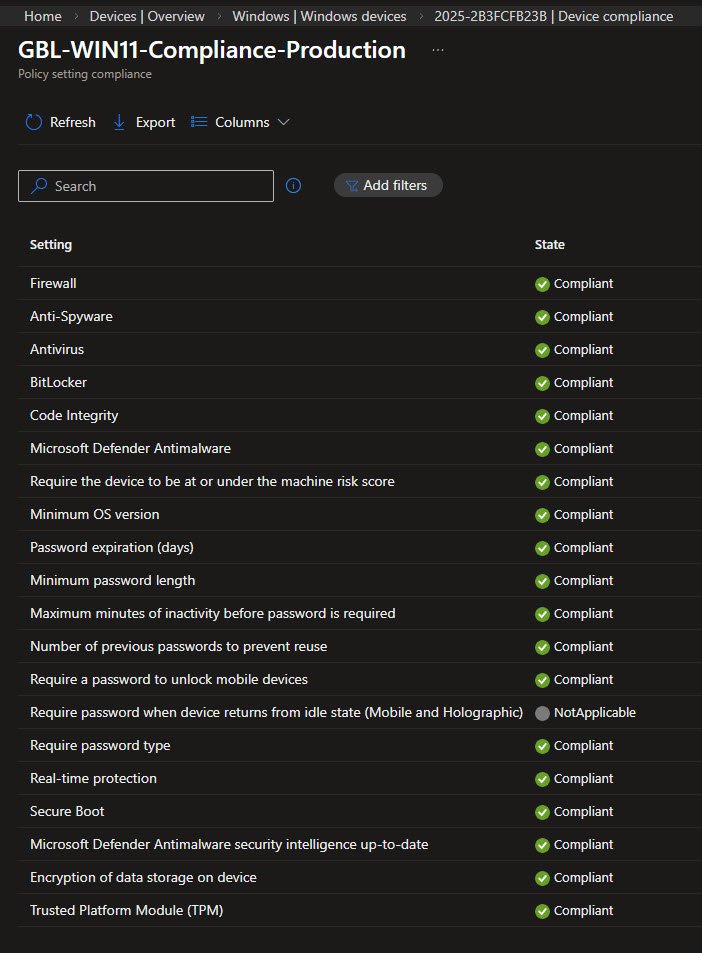
My custom GBL-WIN11-Compliance-Production policy reports the device as fully compliant across all configured controls, validating that encryption, Defender settings, password policies and platform security baselines were applied without conflict:
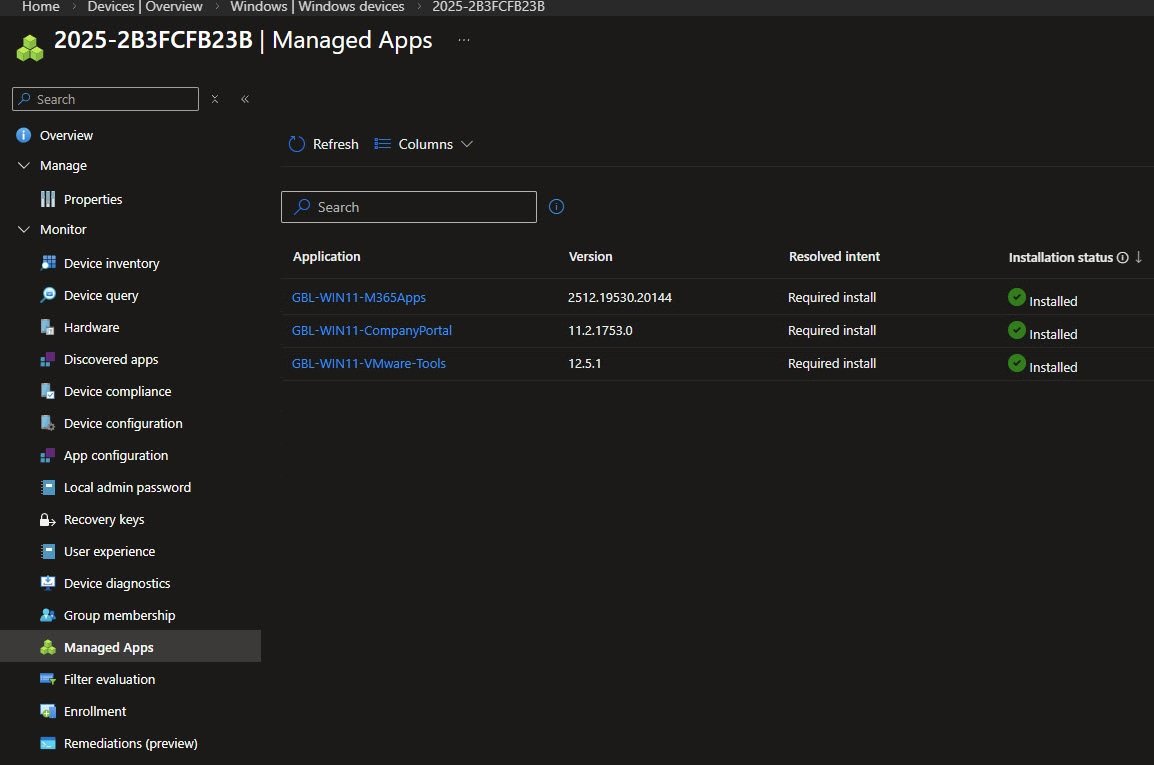
From the Intune portal all required applications show Required install with an Installed status, confirming that application targeting and deployment executed successfully during provisioning:
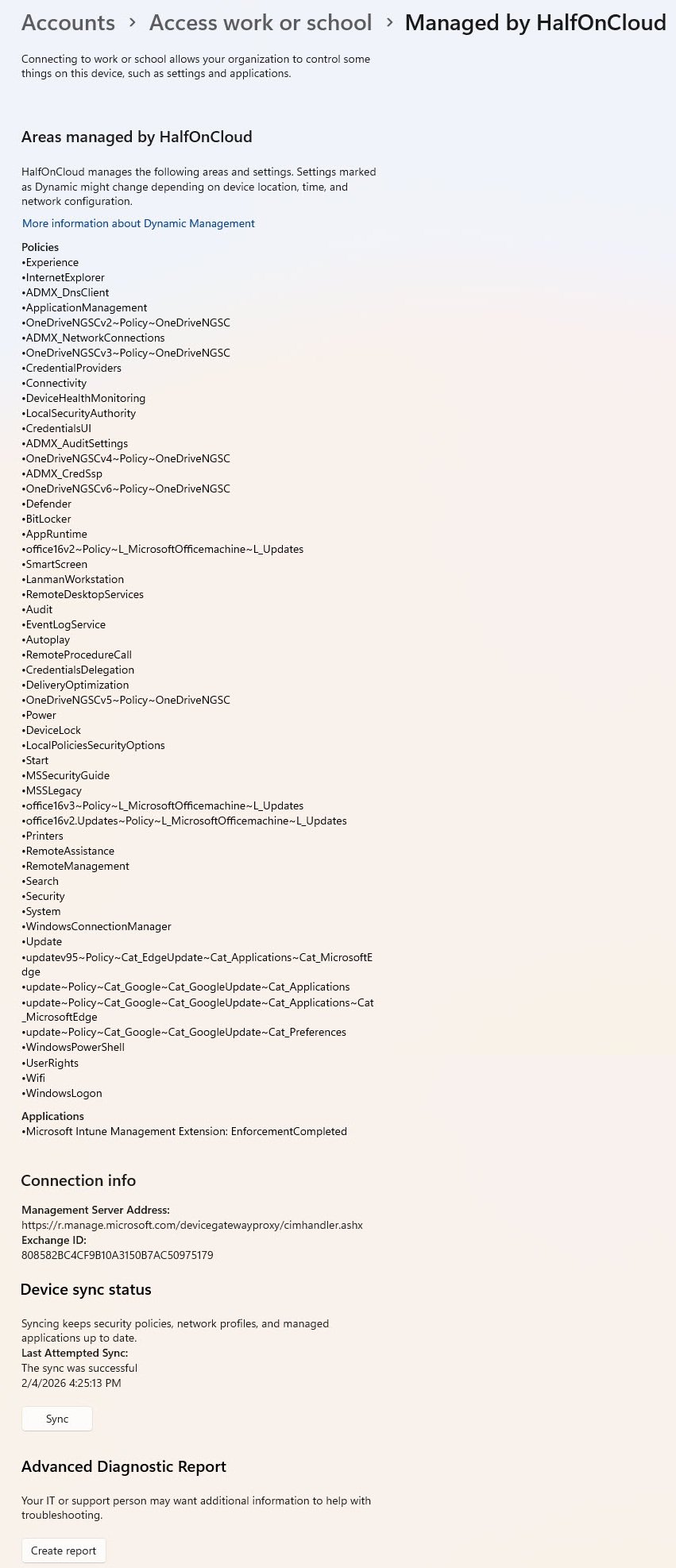
Finally the Access work or school settings page shows multiple management areas controlled by my tenant with device sync reporting as successful, a good hint that the MDM channel is healthy and policy refresh is operational:
Troubleshooting: The Mysterious Sync Error
The Conditional Access “Terms of Use” Gotchas
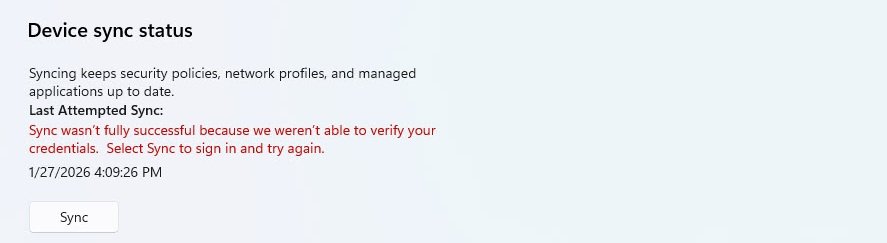
After what seemed like a successful Autopilot deployment I’ve noticed an issues in the device settings, the Sync status showing a red error message: “Sync wasn’t fully successful because we weren’t able to verify your credentials.”
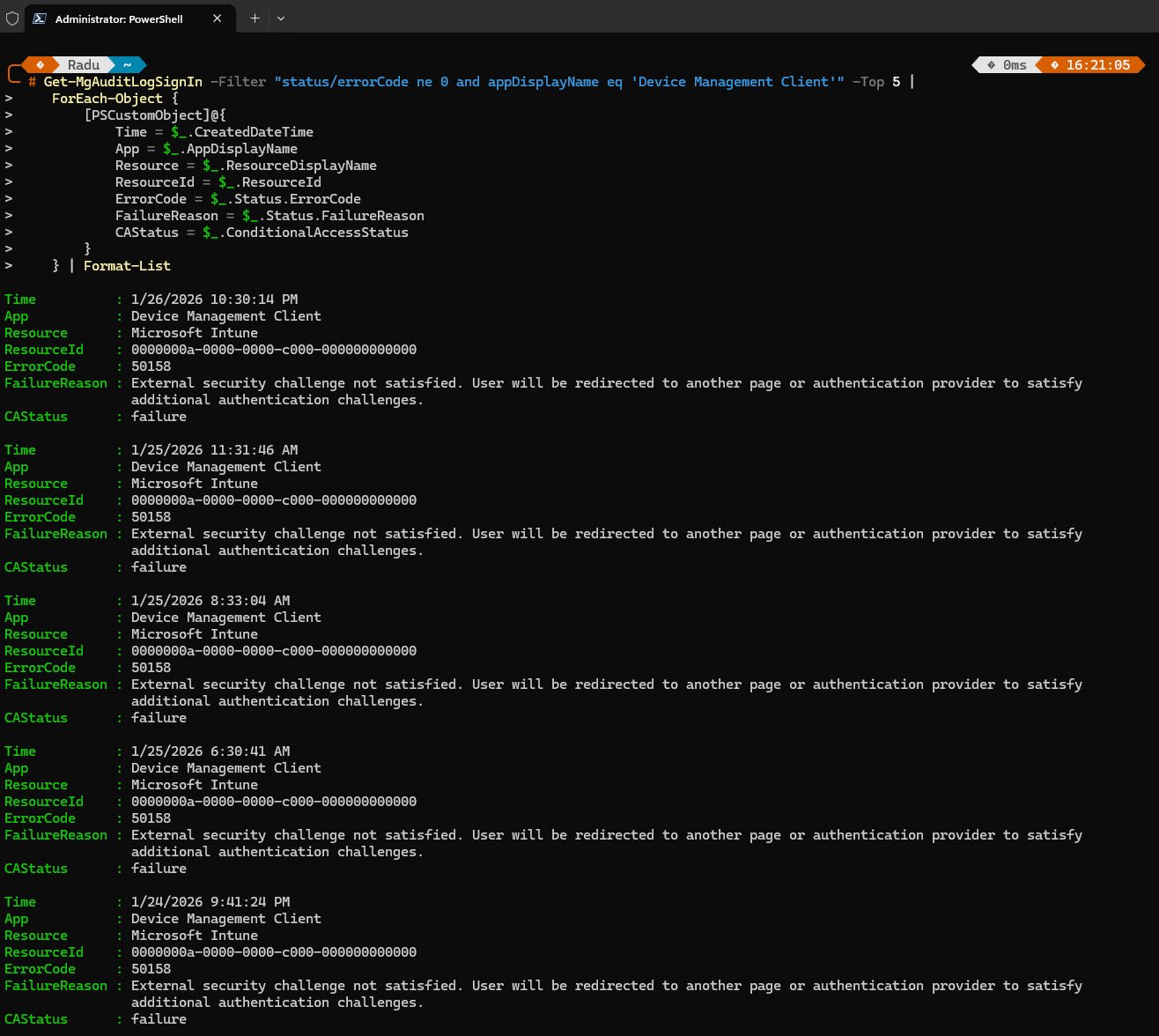
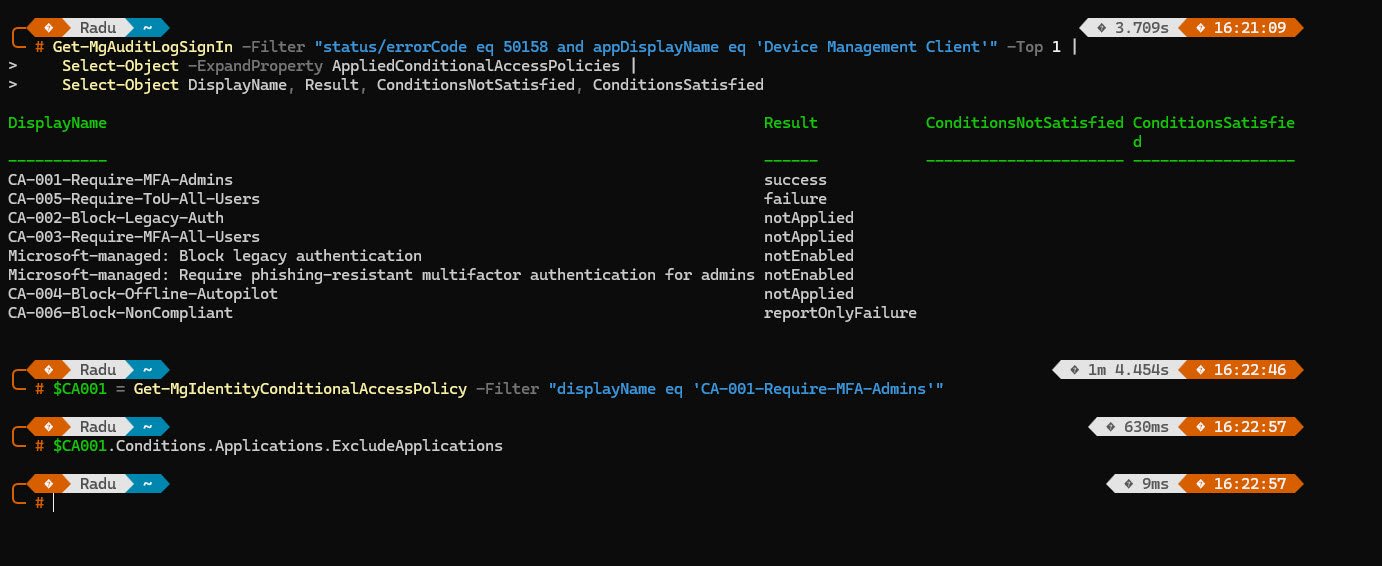
At first glance this made no sense the device was Azure AD joined, the user was authenticated and everything else appeared to be working. To understand what was happening I’ve queried the Azure AD sign-in logs using Microsoft Graph PowerShell finding repeated failures with error code “50158: External security challenge not satisfied”
Every single failure came from the “Device Management Client” application trying to authenticate to “Microsoft Intune”, the error message said the user would be redirected to satisfy additional authentication challenges but here’s the catch: the Device Management Client is a background service which cannot be redirected, cannot click buttons and cannot accept terms. Something in my Conditional Access configuration was demanding an interactive response from a non-interactive process:
Note: For readers who want deeper context around my Conditional Access design I’ve covered the full policy architecture in Part 5. That article explains the rationale, targeting strategy and security strategy implemented, which directly influences how Autopilot authentication behaves as well.
The aha moment came when I’ve expanded the sign-in log to show which Conditional Access policies were evaluated and there it was: CA-005-Require-ToU-All-Users with a result of failure.
Initially I’ve suspected CA-003 (MFA for all users) might be the problem since MFA also requires user interaction, but the logs told a different story CA-003 showed “notApplied” because MFA can be satisfied through existing token claims. The MFA requirement was already fulfilled by the user’s authenticated session.
But Terms of Use? Well that’s a different beast entirely, ToU requires someone to physically click “Accept” on a legal document, no token, claim or background process can do that for you.
The Fix: Excluding Intune Service Principals
The fix was quite simple once I’ve understood the problem, I needed to exclude the Intune service principals from the Terms of Use policy, specifically these two:
- Microsoft Intune (0000000a-0000-0000-c000-000000000000) - The core Intune service that handles device management operations.
- Microsoft Intune Enrollment (d4ebce55-015a-49b5-a083-c84d1797ae8c) - The service principal that handles device registration and enrollment. This is the critical one that was being blocked!
But wait there’s more ! Apparently in newer Microsoft 365 tenants the “Microsoft Intune Enrollment” service principal simply doesn’t exist so you can’t exclude something from a Conditional Access policy if it doesn’t exist in your tenant’s Enterprise Applications, therefore I’ve used the following PowerShell script to create it manually:
Note: If you’re setting up a new tenant and plan to use Conditional Access policies that target “All cloud apps,” run this script first, it only takes 30 seconds and prevents hours of troubleshooting mysterious device sync failures later.
Connect-MgGraph -Scopes 'Application.ReadWrite.All'

$AppId = 'd4ebce55-015a-49b5-a083-c84d1797ae8c'
$ExistingSP = Get-MgServicePrincipal -Filter "appId eq '$AppId'" -ErrorAction SilentlyContinue

if ($ExistingSP) {
    Write-Host "Microsoft Intune Enrollment already exists (ObjectId: $($ExistingSP.Id))" -ForegroundColor Green
} else {
    $NewSP = New-MgServicePrincipal -AppId $AppId
    Write-Host "Microsoft Intune Enrollment created (ObjectId: $($NewSP.Id))" -ForegroundColor Green
}
The output confirms successful creation for “Microsoft Intune Enrollment”:

With this new service principal now existing in the tenant, I could finally select it into the Conditional Access policy exclusions. Without this step the exclusion list simply won’t show “Microsoft Intune Enrollment” as an option and my ToU or MFA policies would have continue blocking device sync silently:
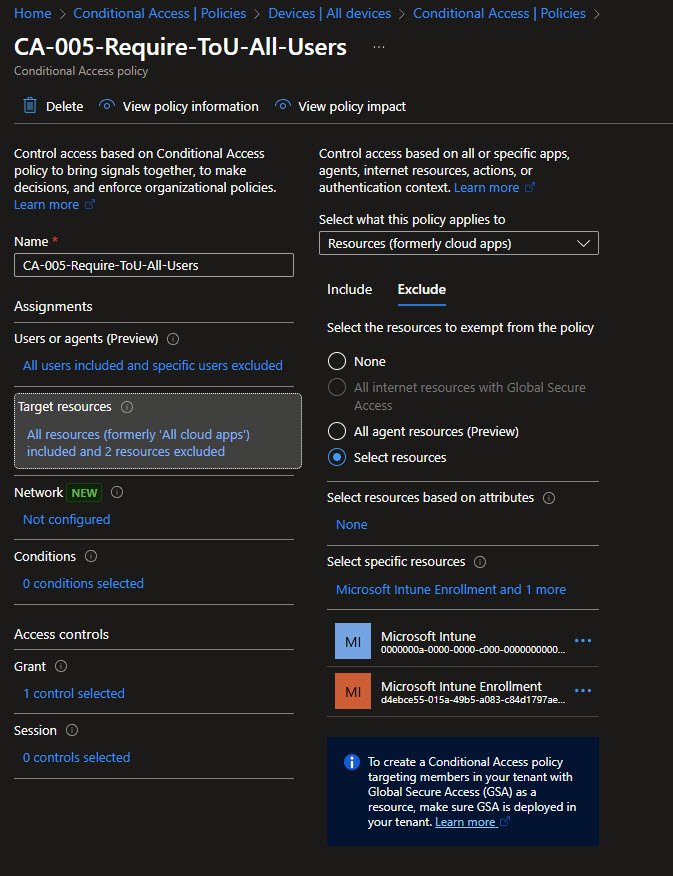
After adding these exclusions to CA-005 the device sync started working immediately, the background service could now communicate with Intune without being challenged to accept a Terms of Use document it could never click.
Final Notes
I’ve implemented the Terms of Use policy following security best practices and MS-102 guidance. It seemed like a straightforward way to ensure users acknowledge company policies before accessing resources but what the documentation didn’t mention and what I had to discover through hours of troubleshooting was that this seemingly innocent policy would silently break device management.
This is exactly why testing Conditional Access policies in Report-Only mode before enforcement is so critical and why understanding the difference between interactive and non-interactive authentication flows can save you from sync failures that have nothing to do with sync at all.
What’s next
The next article answers those questions with real troubleshooting scenarios, diagnostic commands and the lessons learned from getting Autopilot to actually work in production.