Microsoft Intune Declarative Device Management (DDM) Guide
Table of Contents
Background and Intent
Declarative Device Management (DDM) represents a fundamental architectural shift in how Microsoft Intune manages devices. This article brings those pieces together, it combines verified information with hands-on testing performed on a Windows 11 25H2 virtual machine, along with practical PowerShell checks you can use to validate DDM behavior on real devices.
The focus is on Windows (MMP-C / WinDC), while also highlighting where the Windows implementation differs from other platforms.
Short Summary
If you only need the essentials:
Traditional management (OMA-DM)
Intune continuously pushes settings to the device on a schedule, the device applies them, waits and receives the same instructions again at the next sync.
Declarative management (DDM)
Intune declares the desired end state once, the device understands that state, monitors itself and corrects any drift automatically.
What you need to do
Nothing, the transition is handled by Microsoft and is transparent to administrators.
Understanding the Current State: OMA-DM
Before understanding DDM, we need to understand what it replaces.
What is OMA-DM?
OMA-DM (Open Mobile Alliance Device Management) is a protocol originally designed for mobile phones that Microsoft adopted for Windows 10/11 management. It uses SyncML (XML-based) for communication between the Intune service (DM Server) and the device (DM Client).
The OMA-DM Command Set
| Command | Function |
|---|---|
| Get | Retrieve value from a node in the Management Tree |
| Add | Create new node or configuration |
| Replace | Modify existing value |
| Delete | Remove node or configuration |
| Exec | Execute predefined function on device |
| Copy | Replicate subtree structure |
OMA-DM Workflow Model
Server queries state, sends commands and verifies result, this loop repeats constantly for every policy. The traditional model follows a repetitive cycle every 8 hours.
Problems with OMA-DM
- Chatty network traffic, every policy requires full GET-SET-GET cycle
- Slow policy application, hundreds of policies = hundreds of cycles
- Settings can drift between check-ins
- No offline enforcement capability
- If one step fails the chain breaks
How DDM Changes This
DDM (Declarative Device Management) works on a fundamentally different model:
The Declarative Model
Instead of repeatedly telling the device what to do, DDM tells the device once what it should look like, the device then maintains that state autonomously.
| Aspect | OMA-DM | DDM/MMP-C |
|---|---|---|
| Protocol Type | Imperative, transactional | Declarative, state-based |
| Communication Model | Push-Pull | Pull-only |
| Communication Medium | SyncML (XML) | MOF document |
| Trigger | Server-initiated (WNS) or 8h client | 4h client-initiated |
| State Awareness | Stateless | State-aware, maintains desired state |
| Remediation | Manual (new command needed) | Automatic (self-healing) |
| Offline Enforcement | No | Yes |
Self-Healing: The Killer Feature
With DDM, if a user or malware changes a setting, WinDC service detects drift (within seconds), auto-corrects from local cached desired state, works even when device is offline and no cloud check-in required.
Windows DDM Architecture
Key Components
MMP-C (Microsoft Management Platform - Cloud) A new management plane designed for speed, reliability, and scale. It adds a parallel channel optimized for declarative workloads alongside traditional OMA-DM.
WinDC (Windows Declared Configuration) The Windows service that receives, processes and enforces declarative configurations.
Service Name: dcsvc (Declared Configuration Service)
WinDC Client Stack Components
| Component | Role |
|---|---|
| WinDC Agent | Entry point for MMP-C payloads, pulls desired state and parses MOF documents |
| PolicyManager | Central orchestrator evaluates current vs desired state and determines changes |
| CSPs | Apply settings when invoked by PolicyManager |
| State Repository | Stores current + desired state locally enables drift detection |
| Reporting Engine | Sends compliance/status data back to Intune |
Dual Enrollment Architecture
Windows 11 devices maintain two parallel enrollments:
| Enrollment Type | ProviderID | Channel | Purpose |
|---|---|---|---|
| Type 6 | MS DM Server | OMA-DM | Legacy policies, broad CSP coverage |
| Type 26 | Microsoft Device Management | MMP-C/WinDC | Declarative workloads |
Note: This dual enrollment is automatic for all Intune-enrolled Windows devices.
Verifying DDM on Windows Devices
The following commands have been tested and verified on a Windows 11 Enterprise 25H2 (Build 26200.7462):
1. MDM Services
Check the three key services involved in MDM/DDM:
Get-Service -Name "dmwappushservice", "DmEnrollmentSvc", "dcsvc" -ErrorAction SilentlyContinue |
    Select-Object Name, DisplayName, Status, StartType | Format-Table -AutoSize
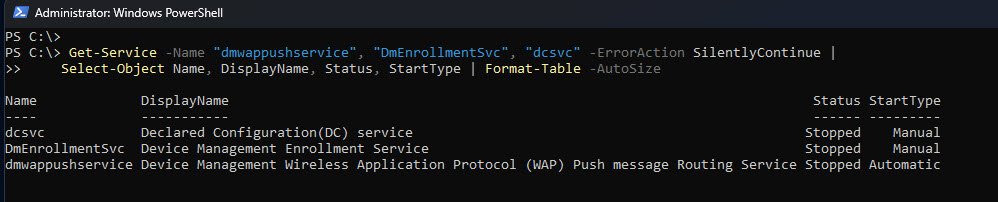
Another quick health check is to look at the core services used by MDM and Declared Configuration.
There are three services that matter:
- dmwappushservice should be running and set to Automatic, it handles push notifications that trigger device syncs.
- DmEnrollmentSvc is only used during enrollment, on an already enrolled device it is normally Stopped and set to Manual.
- dcsvc is the Declared Configuration service, it runs only when DDM work is needed, so Stopped with Manual start is expected most of the time.
Note: Seeing the last two services stopped does not indicate a problem, this is normal behavior on a healthy enrolled device.
2. Enrollment Information
View all enrollments with provider information:
Get-ItemProperty "HKLM:\SOFTWARE\Microsoft\Enrollments\*" -ErrorAction SilentlyContinue |
    Where-Object { $_.ProviderID } |
    Select-Object PSChildName, ProviderID, EnrollmentType, UPN | Format-Table -AutoSize
Key Enrollment Types to Look For:
| EnrollmentType | ProviderID | Purpose |
|---|---|---|
| 6 | MS DM Server | Traditional Intune MDM (OMA-DM) |
| 26 | Microsoft Device Management | DDM enrollment (MMP-C) |
| 12 | WMI_Bridge_SCCM_Server | SCCM co-management (if present) |
| 30 | Deploy Authority | Autopilot/provisioning |
| 31 | Cloud Authority | Azure AD/cloud trust |
| 28 | Local Authority | Local device authority |
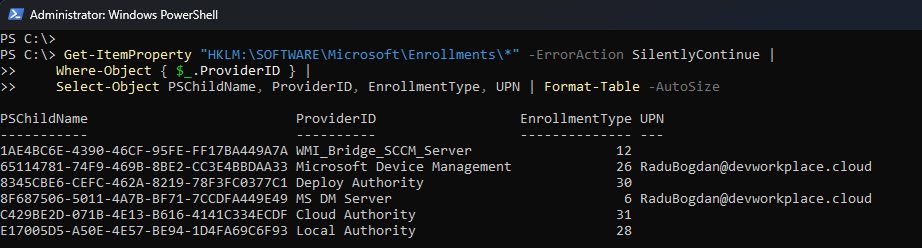
You can also confirm DDM support by reviewing the device’s enrollment records. This shows how the device is managed and which management channels are active.
On a properly enrolled Intune device you should see multiple enrollment entries, the important ones are:
- Enrollment type 6 represents classic Intune MDM using OMA-DM.
- Enrollment type 26 represents modern DDM enrollment used by Declared Configuration.
Seeing both entries together is expected and indicates that the device supports both management models. Other enrollment types may appear depending on Autopilot, co-management or local authority and their presence is normal.
Note: If type 26 is missing, Declared Configuration is not active on that device even if other MDM components appear healthy.
3. DeclaredConfiguration CSP Registration
Verify the DDM CSP is registered:
Get-ChildItem "HKLM:\SOFTWARE\Microsoft\Provisioning\CSPs" -Recurse -ErrorAction SilentlyContinue |
    Where-Object { $_.Name -like "*DeclaredConfiguration*" } |
    Get-ItemProperty | Select-Object PSPath, csp_version

DeclaredConfiguration is a modern MDM CSP that isn’t always visible in the registry. Even if HKLM:\SOFTWARE\Microsoft\Provisioning\CSPs shows nothing, the CSP can still be fully supported and functional.
The paths like .\Device\Vendor\MSFT\DeclaredConfiguration and .\User\Vendor\MSFT\DeclaredConfiguration are logical CSP URIs, not guaranteed registry keys. On newer Windows builds many CSPs are exposed dynamically by the MDM engine and never written to disk.
Note: Registry presence is not a reliable way to validate DeclaredConfiguration support, the only real proof is successful policy processing on a supported Windows build.
4. DDM Scheduled Tasks
Check the DDM scheduled tasks and their run history:
Get-ScheduledTask | Where-Object { $_.TaskName -like "*Declared*" } |
    ForEach-Object {
        $task = $_
        $info = $_ | Get-ScheduledTaskInfo
        [PSCustomObject]@{
            TaskName = $task.TaskName
            State = $task.State
            LastRunTime = $info.LastRunTime
            NextRunTime = $info.NextRunTime
            LastResult = '0x{0:X}' -f $info.LastTaskResult
        }
    } | Format-Table -AutoSize
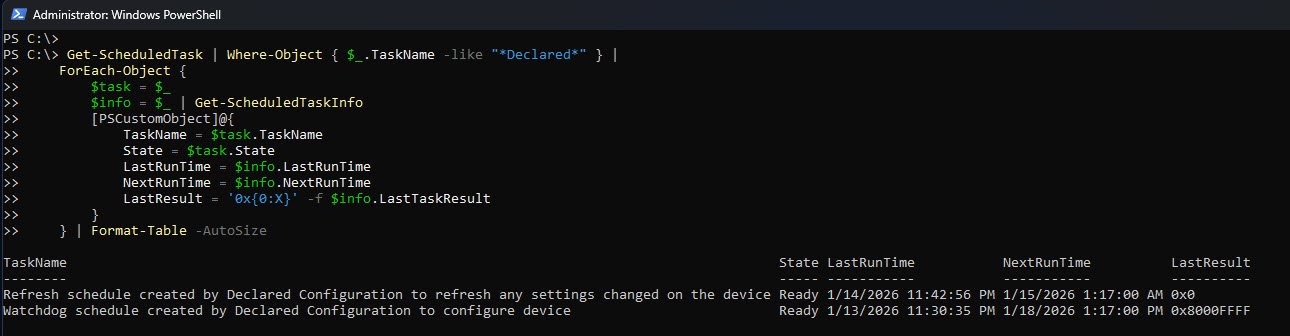
You can also validate DeclaredConfiguration by checking its scheduled tasks and their run history. These tasks are created by the DDM engine and are responsible for enforcing and re-applying settings over time.
Normally you should see two tasks, both tasks should exist and be in a Ready state:
- A refresh task that periodically checks for configuration drift and re-applies settings.
- A watchdog task that enforces configuration less frequently and ensures long-term compliance.
When reviewing run results:
- 0x0 means the task ran successfully.
- 0x8000FFFF usually means the DDM engine is present but not actively receiving policies yet, which is common before any DeclaredConfiguration payload is assigned.
What DDM Currently Handles
As of January 2026 DDM is used for some specific workloads:
| Feature | Delivery Method |
|---|---|
| Endpoint Privilege Management (EPM) | DDM/MMP-C |
| Advanced Device Inventory | DDM/MMP-C |
| MDA Attach V2 | DDM/MMP-C |
| Most configuration policies | OMA-DM (migrating gradually) |
| Win32 apps | IME (unchanged) |
| Scripts | IME (unchanged) |
What DDM (MMP-C) Currently Handles
- Endpoint Privilege Management (EPM) is delivered through the modern channel (MMP-C/WinDC), not traditional OMA-DM SyncML delivery. EPM uses the declarative pipeline for policy enforcement.
- Advanced Device Inventory (Properties Catalog) leverages MMP-C with richer telemetry delivered via the declarative document model.
- MDA Attach V2 (Device Management Attach) does not have broad authoritative documentation explicitly tying it to “only DDM”. There is no clear Microsoft doc stating MDA Attach V2 only runs over MMP-C at this time.
- Most configuration policies today are still delivered via OMA-DM and Policy CSPs, Microsoft is gradually expanding declarative management coverage.
- Win32 app deployment and PowerShell script execution (IME) remain outside DDM/MMP-C, they use the Intune Management Extension.
Note: Microsoft is gradually migrating more policy types to DDM, the transition is automatic and transparent to administrators.
Channel Distribution on Windows
Current approximate distribution of Intune management channels:
| Channel | Percentage | Examples |
|---|---|---|
| OMA-DM | ~80% | Most configuration policies, compliance |
| Intune Management Extension (IME) | ~15% | Win32 apps, PowerShell scripts, remediations |
| DDM (MMP-C/WinDC) | ~5% | EPM, Device Inventory |
Note: These are not official telemetry figures from Microsoft, the precise percentage split (~80/15/5) is not documented by Microsoft and should be presented as an informed industry estimate rather than a firm metric!
General reality:
- OMA-DM remains dominant for most traditional configuration policies in production today.
- MMP-C/Declared Configuration is progressively rolling out and handling an increasing set of workloads (starting with EPM and advanced inventory).
- IME continues to be the delivery path for Win32 apps and script-based tasks.