OneDrive SilentAccountConfig: How a Conditional Access Policy Silently Blocks the WAM Broker
Table of Contents
TL;DR
Turns out a Terms of Use Conditional Access policy scoped to All apps will quietly take down every Microsoft app on a fresh Autopilot device. No errors or warnings, just everything broken at once. Here is how I found it and fixed it.
If you followed the previous OneDrive troubleshooting article on this blog, you already know that a certain policy “CA-005” was investigated and cleared, the sign-in logs showed zero OneDrive authentication attempts, proving that the problem was entirely local and Conditional Access was not an issue. That same policy was also addressed into a previous article here where it silently broke Intune device sync by demanding interactive Terms of Use acceptance from a background service that could never click a button.
This time the failure is different and far more disruptive. On a freshly enrolled Autopilot device, CA-005 doesn’t just break one background service, it creates a complete Windows Authentication Manager broker authentication deadlock that silently takes down every Microsoft app on the device at once which makes it challenging.
Note: For full context CA-005 was created as a learning exercise in a single-user lab tenant where it serves no real security purpose. I already knew what data Intune collects because I wrote the privacy notice myself but what started as a technical curiosity turned into one of the most rewarding troubleshooting experiences in this entire series, sometimes the best lessons come from policies you never actually needed.
The Problem
OneDrive is supposed to sign in automatically on Autopilot enrolled devices with no prompts and no user interaction, just a blue cloud icon appearing quietly in the tray after first login. The feature responsible for this is called SilentAccountConfig and when it works you never worry about it again. When it breaks though, it breaks silently with no user-visible error, no Intune alert and no obvious starting point.
This particular failure mode is hard to find in Microsoft’s documentation and easy to misdiagnose. The policy is correctly deployed, the PRT is valid, every prerequisite is satisfied, yet on a freshly enrolled Autopilot device OneDrive still refuses to sign in automatically.
What’s even more intriguing here is the fact that it’s not just OneDrive but every app on the device that authenticates silently through the WAM and shares the same token pipeline so when CA-005 blocks that pipeline, nothing gets through.
Environment
- Microsoft 365 Business Premium tenant (devworkplace.cloud)
- Windows 11 devices enrolled via Windows Autopilot (user-driven, AAD join)
- OneDrive SilentAccountConfig enabled via Intune Settings Catalog
- KFMSilentOptIn configured for Known Folder Move
- Five active Conditional Access policies: CA-001 (MFA for admins), CA-002 (block legacy auth), CA-003 (MFA for all users), CA-004 (block offline Autopilot) and CA-005 (Terms of Use for all users)
- Testing device called LPT001RO (VMware VM, fresh Autopilot enrollment)
Symptoms
After a successful Autopilot deployment on a brand new device, OneDrive shows the “Not sign In” prompt instead of signing in automatically. The Intune policy is deployed and the registry keys are present but OneDrive never completes the silent configuration.
Step 1: Verify Policy Delivery
When OneDrive shows “Not signed in” the tendency is to immediately start checking authentication, Conditional Access or token health but before touching any of that, first confirm the Intune policy actually reached the device and the registry values are correct since there’s no point investigating why silent config is not triggering if the trigger itself was never delivered.
SilentAccountConfig lives under the machine-side policy key (HKLM), meaning it applies to the device regardless of which user is signed in. KFMSilentOptIn sits alongside it and should contain your Tenant GUID, the value that tells OneDrive which organization’s account to silently configure. If either of these is missing or incorrect, silent config never even attempts to run.
Check OneDrive registry keys:
Get-ItemProperty 'HKLM:\SOFTWARE\Policies\Microsoft\OneDrive' | Select-Object SilentAccountConfig, KFMSilentOptIn | Format-List
Output from LPT001RO:

Policy is deployed, SilentAccountConfig is 1 (enabled) and KFMSilentOptIn contains the correct Tenant GUID. Both values match exactly what was configured in the Intune Settings Catalog profile. This eliminates basic misconfiguration as the cause and shifts the focus to what happens after the policy lands.
Check OneDrive state flags:
Get-ItemProperty 'HKCU:\Software\Microsoft\OneDrive' | Select-Object SilentBusinessConfigCompleted, ClientEverSignedIn, SilentBusinessConfigByDefaultRamp, SilentBusinessConfigError
Output:

SilentBusinessConfigCompleted is empty, meaning silent config has never completed.
SilentBusinessConfigByDefaultRamp is 0, meaning that this flag is not controlled by any local Intune policy. Its value of 0 on a fresh device does not indicate a misconfiguration, it is set externally and will be updated as part of the normal OneDrive authentication flow once silent config completes successfully.
Step 2: Verify Azure AD PRT
OneDrive silent config relies on the Primary Refresh Token (PRT) to authenticate silently via the WAM broker. Before assuming the authentication stack is healthy, verify both that the PRT exists and that it has been refreshing normally since enrollment.
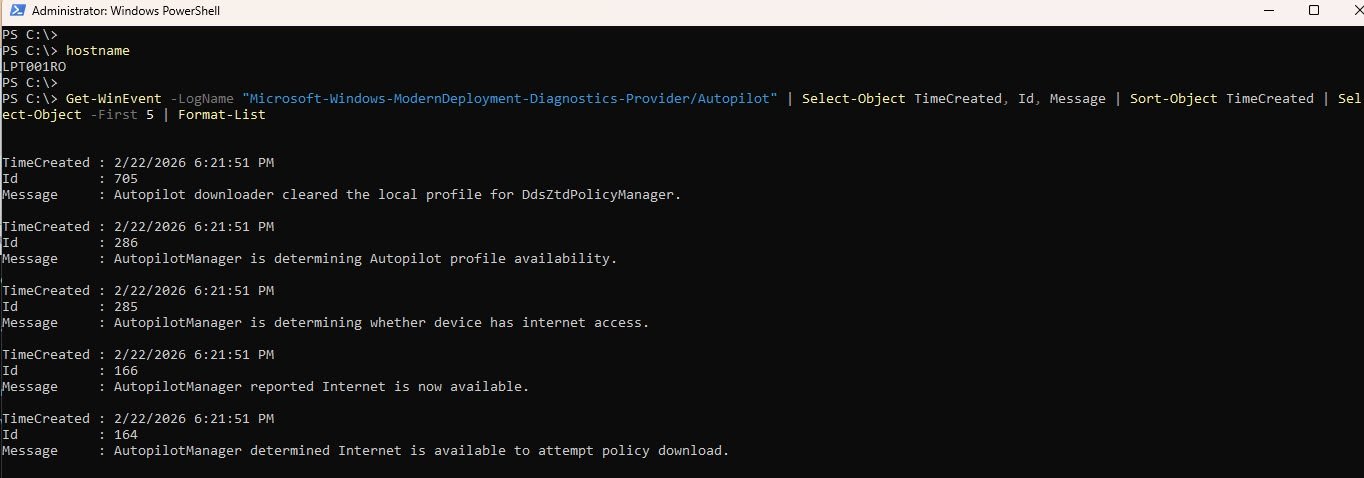
First, establish when Autopilot enrollment actually started on this device:
Get-WinEvent -LogName "Microsoft-Windows-ModernDeployment-Diagnostics-Provider/Autopilot" | Select-Object TimeCreated, Id, Message | Sort-Object TimeCreated | Select-Object -First 5 | Format-List
Then check the current PRT status:
dsregcmd /status | Select-String "AzureAdJoined|AzureAdPrt|PrtUpdate|PrtExpiry"
Output from LPT001RO:
AzureAdJoined        : YES
AzureAdPrt           : YES
AzureAdPrtUpdateTime : 2026-02-23 05:42:37.000 UTC
AzureAdPrtExpiryTime : 2026-03-09 08:23:31.000 UTC
AzureAdPrtAuthority  : https://login.microsoftonline.com/
The Autopilot event log confirms enrollment began on 2/22/2026 at 6:21:51 PM. The PRT update time shows 2026-02-23 05:42:37 UTC, meaning the PRT went approximately 12 hours after enrollment without a single refresh. On a healthy device Windows refreshes the PRT continuously in the background as the user interacts with Azure AD resources. The fact that it has not refreshed since the enrollment session itself suggests something is quietly blocking silent token acquisition.
This is important because OneDrive silent config does not just check whether a PRT exists, it attempts to silently exchange that PRT for an access token via the WAM broker. If that exchange fails at runtime due to a Conditional Access requirement or any interactive prompt, the silent flow aborts without surfacing any visible error to the user.
This is the first warning sign and it shifts the focus away from OneDrive settings or policy misconfiguration toward Conditional Access and the WAM authentication layer.
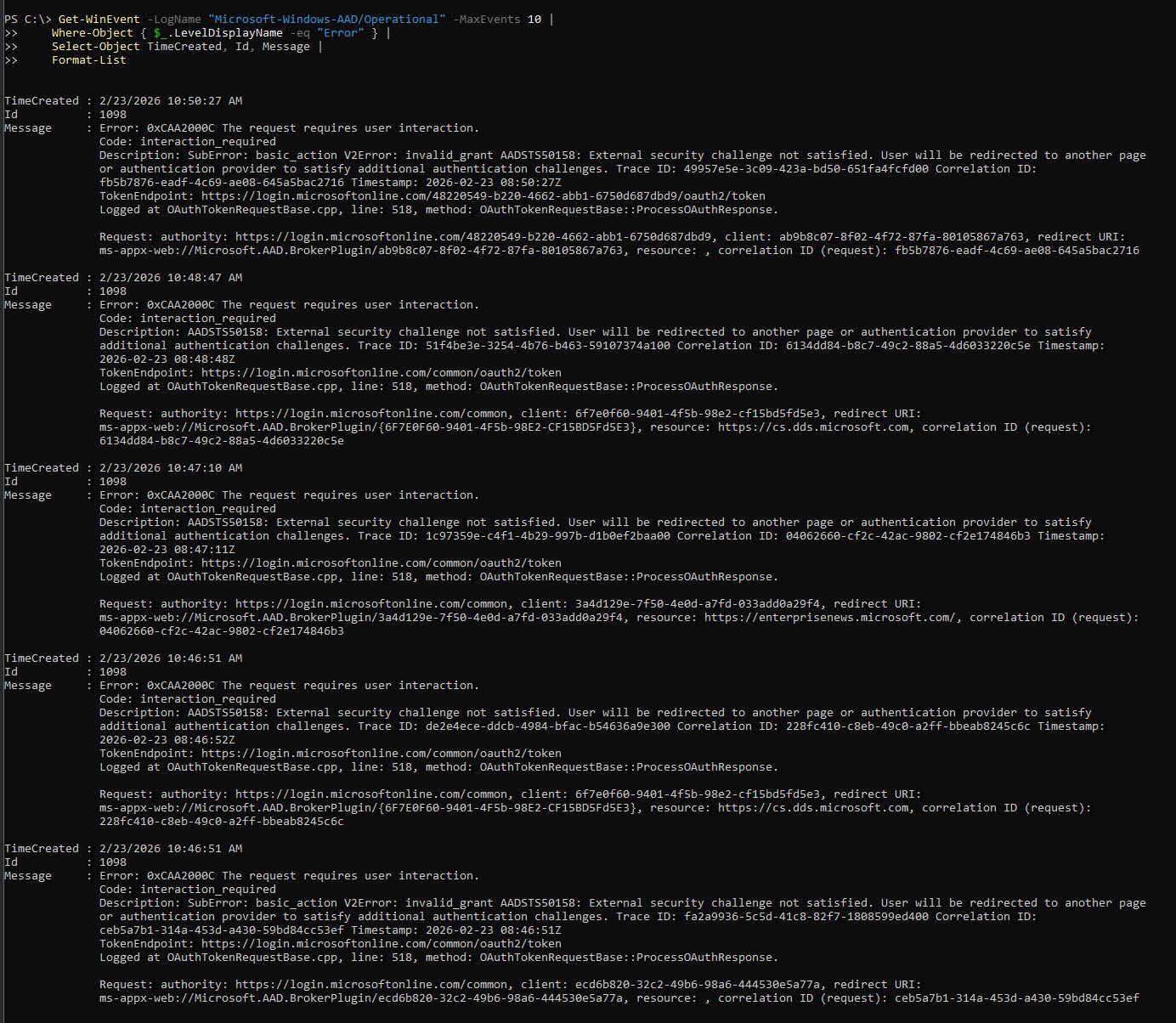
Step 3: Analyze AAD Authentication Event Log
The frozen PRT from Step 2 points to something actively blocking token acquisition at the WAM layer. The AAD Operational event log is the next place to look because it records every authentication attempt and failure at the broker level, giving you the exact error code rather than a symptom.
Get-WinEvent -LogName "Microsoft-Windows-AAD/Operational" -MaxEvents 30 | Where-Object { $_.LevelDisplayName -eq "Error" -or $_.LevelDisplayName -eq "Warning" } | Select-Object TimeCreated, Id, Message | Format-List
Key error found (repeated for every app on the device):
TimeCreated : 2/23/2026 10:29:50 AM
Id          : 1098
Message     : Error: 0xCAA2000C The request requires user interaction.
              Code: interaction_required
              Description: AADSTS50158: External security challenge not satisfied.
              User will be redirected to another page or authentication provider
              to satisfy additional authentication challenges.
              TokenEndpoint: https://login.microsoftonline.com/common/oauth2/token
Critical Finding: AADSTS50158
This error is not appearing only for OneDrive but for every single app on the device too like Outlook, Intune Management Extension, Windows Store and all Windows platform components. That pattern immediately rules out an app specific misconfiguration and points directly at the shared authentication layer underneath them all.
This particular error code AADSTS50158 means that an external security challenge imposed by a Conditional Access grant control has not been satisfied. Azure AD (EntraID) is willing to issue a token but only after the user completes an interactive step first. The WAM broker has no mechanism to do that because It cannot open a browser, it cannot display a prompt and it cannot satisfy any grant control that requires human interaction. So every silent token request fails with the same error repeatedly with nothing visible to the user.
Step 3b: Cross-Validate from OneDrive Logs
The AAD event log confirmed AADSTS50158 at the Windows platform level, now confirm the same error from OneDrive’s own diagnostic logs which eliminates OneDrive version issues or gradual feature rollout restrictions as contributing factors.
List OneDrive Business1 logs:
Get-ChildItem "$env:LOCALAPPDATA\Microsoft\OneDrive\logs\Business1" | Sort-Object LastWriteTime -Descending | Select-Object -First 10 Name, LastWriteTime, Length
Output:
Name                                                      LastWriteTime         Length
----                                                      -------------         ------
SyncEngine-2026-02-23.0815.4496.2.aodl                    2/23/2026 10:15:36 AM  28480
PM-Install-PerMachine_2026-02-23_081026_11292-8040.loggz  2/23/2026 10:15:48 AM   3979
SyncEngine-2026-02-23.0815.10756.2.odlgz                  2/23/2026 10:15:48 AM  10385
Before decompressing anything it helps to understand what these files actually are, since OneDrive writes its diagnostic logs in three formats:
- The .aodl files are plain text and human readable, you can open them directly.
- The .odlgz files are OneDrive’s internal sync engine logs stored in a proprietary binary format with obfuscated strings which require specialist tools to parse properly.
- The .loggz files are different, they are straightforward gzip compressed text logs from the OneDrive installer and update components and these are the ones you can decompress and read directly using native PowerShell with no third-party tools required.
Note: Microsoft’s official troubleshooting documentation makes little to no reference on these files and it provides minimal clarification that the odlgz and loggz formats are compressed and must be decompressed before their contents can be reviewed. The decompression itself is straightforward using native PowerShell, with no third-party tools required.
Based on my research so far, best I could find is this little article here: Reading OneDrive Logs
With this in mind here is how to extract any useful information from both the .aodl and .loggz files.
Read the uncompressed .aodl file:
Get-Content "$env:LOCALAPPDATA\Microsoft\OneDrive\logs\Business1\SyncEngine-2026-02-23.0815.4496.2.aodl" | Select-String -Pattern "silent|Silent|ramp|Ramp|config|Config|error|Error|fail|Fail" | Select-Object -Last 50
The .aodl file is always present and requires no decompression so start there but keep in mind it is a semi-binary format, partially readable but mixed with binary noise, so the output will not be clean structured text. What you are looking for into the output are these specific two strings: SilentAccountConfiguration and SignInSilentlyAsync so if you see these means that OneDrive was actively attempting the silent business config flow.
Look further down for DRX_E_AUTH_ONEAUTH_UI_REQUIRED and if this string appears too, it means that the silent flow failed because something demanded interactive input that the background process could not provide.
Key strings from the .aodl output:
StatusInternal::InteractionRequired
server_error_code: 50158
server_sub_code: basic_action
(Code:1200) The credential is invalid (basic_action)
DRX_E_AUTH_ONEAUTH_UI_REQUIRED
The authentication layer is stuck waiting for a UI interaction that will never come because there is no UI to display it. This is not a connectivity, a policy delivery or not even an OneDrive version issue but a hard block at the identity layer, something is requiring interactive sign-in on a background process that runs in session zero.
Step 4: Identify the Blocking CA Policy
List all enabled Conditional Access policies to identify any possible candidates.
Connect-MgGraph -Scopes "Policy.Read.All" -NoWelcome

Get-MgIdentityConditionalAccessPolicy | Where-Object { $_.State -eq "enabled" } | Select-Object DisplayName, Id | Format-Table -AutoSize
Output:
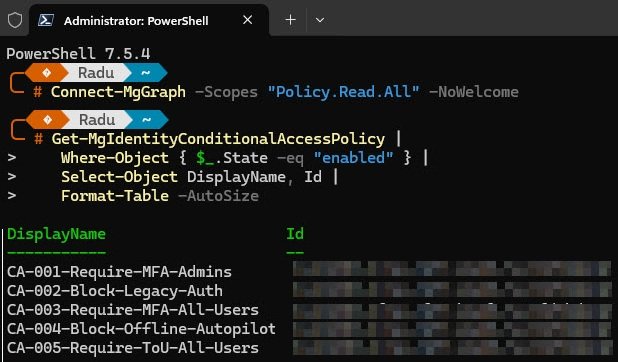
Four of the five policies can be evaluated silently by the WAM broker, MFA is satisfied by the existing PRT claim, legacy auth blocking is irrelevant to modern authentication and the Autopilot policy is post-enrollment.
CA-005 is the exception, “Terms of Use” has no silent fulfillment path since it requires a human to click Accept in a browser and the WAM broker has no mechanism to do this. Every token request it makes returns AADSTS50158 and so does every PRT refresh attempt, which is why the PRT UpdateTime has been frozen since initial enrollment.
Inspect CA-005 configuration:
Now that CA-005 is the prime suspect, inspect its exact configuration to understand the full scope of what it covers and what it demands.
$ca005 = Get-MgIdentityConditionalAccessPolicy -ConditionalAccessPolicyId "<your-policy-id>"
$ca005.Conditions.Applications | ConvertTo-Json -Depth 5
$ca005.Conditions.Users | ConvertTo-Json -Depth 5
$ca005.GrantControls | ConvertTo-Json -Depth 5
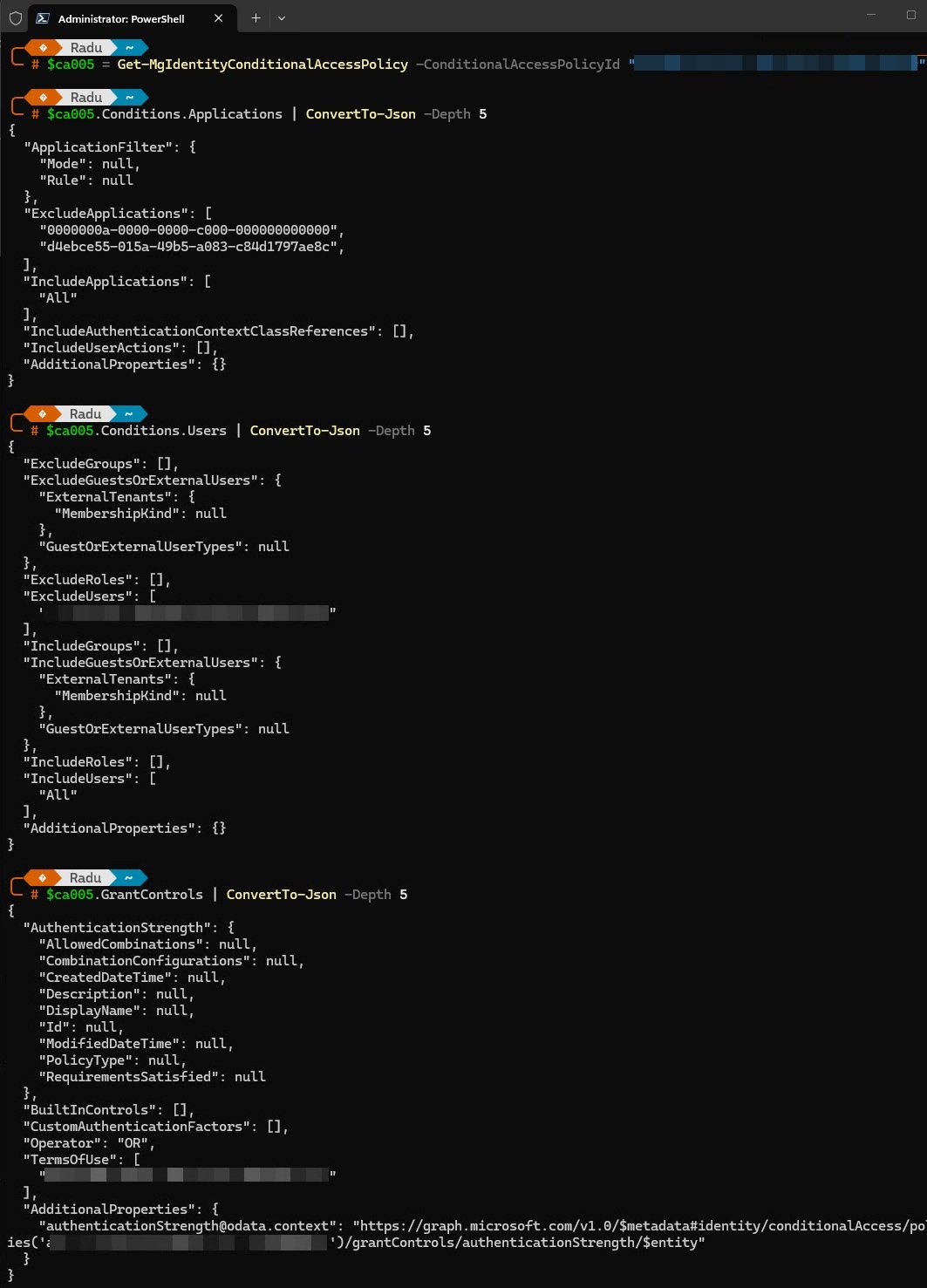
So what exactly can we see in this screenshot:
Every app in the tenant is in scope, one of the excluded GUIDs is the Microsoft Intune service principal that was already there, the other is the Intune Enrollment service principal added into a previous article here specifically to stop the ToU policy from blocking device sync.
Output: Applications:
{
    "IncludeApplications": [ "All" ],
    "ExcludeApplications": [
        "0000000a-0000-0000-c000-000000000000",
        "d4ebce55-015a-49b5-a083-c84d1797ae8c"
    ]
}
A single Terms of Use requirement with no fallback since there is exactly one way to satisfy this policy and it requires a human clicking Accept in a browser window:
Output: Grant Controls:
Note: The ToU policy ID is redacted for security reasons.
{
  "Operator": "OR",
  "TermsOfUse": [ "<redacted>" ]
}
Step 5: Verify Terms of Use Acceptance
A quick note worth mentioning: in a single-user tenant like mine, the Terms of Use prompt only appears once. The moment the user clicks Accept, Azure AD (EntraID) records that acceptance permanently against the user account. Every subsequent device enrolled under the same user account skips the prompt entirely because the acceptance is already on record.
This is why the acceptance date here shows December 29, 2025, the very first time this policy was enforced and why I never saw the prompt again on any device enrolled after that date.
What makes this troubleshooting session so confusing is that the acceptance record clearly exists and is valid, yet on my device is still being blocked. Having accepted the ToU once does not mean the claim automatically exists in the token cache on every new device, that gap between what Entra ID knows and what the WAM broker can actually present during a silent token request is the entire root cause of this failure.
Run the following to get the ToU agreement, user ID and check the acceptance record:
Connect-MgGraph -Scopes "Agreement.Read.All","AgreementAcceptance.Read.All" -NoWelcome

Get-MgAgreement | Select-Object Id, DisplayName

$userId = (Get-MgUser | Where-Object { $_.DisplayName -like "*Radu*" }).Id

Get-MgUserAgreementAcceptance -UserId $userId | Format-List
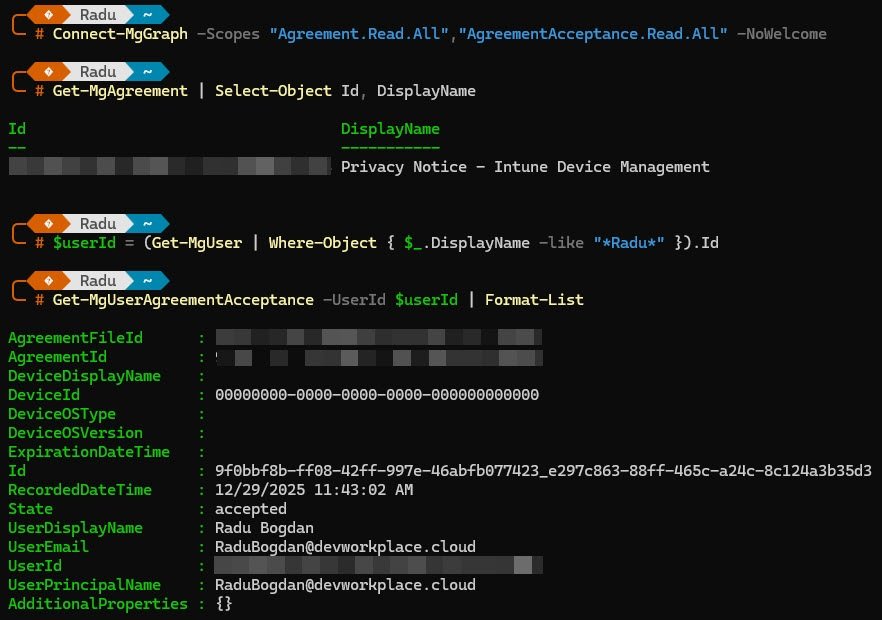
Output:
AgreementId      : 9f0bbf8b-ff08-42ff-997e-46abfb077423
State            : accepted
RecordedDateTime : 12/29/2025 11:43:02 AM
UserDisplayName  : Radu Bogdan
DeviceId         : 00000000-0000-0000-0000-000000000000
DeviceDisplayName:
The user accepted the ToU on December 29, 2025, however notice DeviceId is all zeros, the acceptance is not tied to a specific device. Despite this valid acceptance record in AAD, the WAM broker still returns AADSTS50158 on every token request.
Check if ToU is per-device:
Get-MgAgreement -AgreementId "9f0bbf8b-ff08-42ff-997e-46abfb077423" | Select-Object IsPerDeviceAcceptanceRequired, IsViewingBeforeAcceptanceRequired | Format-List
Output:
IsPerDeviceAcceptanceRequired     : False
IsViewingBeforeAcceptanceRequired : False
The ToU is not configured as “per-device” and users are not required to view it before accepting. The acceptance record is valid and should be enough to satisfy the policy but the WAM broker has no way to present that acceptance as a claim during a silent token request on a fresh device. Entra ID keeps asking for interactive confirmation and WAM keeps getting blocked.
Step 6: Understanding the PRT Deadlock
At this point the troubleshooting reveals a fundamental chicken-and-egg problem:
1. The device has a PRT from Autopilot enrollment (05:42 UTC). 2. Every WAM token request returns AADSTS50158, CA policy requires ToU claim. 3. The PRT cannot refresh because the refresh request itself also returns AADSTS50158. 4. Without a fresh PRT containing the ToU claim, no app can authenticate silently.
Confirm deadlock by checking AAD event log after reboot:
Get-WinEvent -LogName "Microsoft-Windows-AAD/Operational" -MaxEvents 10 | Where-Object { $_.LevelDisplayName -eq "Error" } | Select-Object TimeCreated, Id, Message | Format-List
The result is exactly what the earlier AAD event log already showed: AADSTS50158 errors flooding immediately after every sign-in across every app simultaneously. The PRT UpdateTime remains frozen at 05:42 regardless of reboots or sign-out/sign-in cycles.
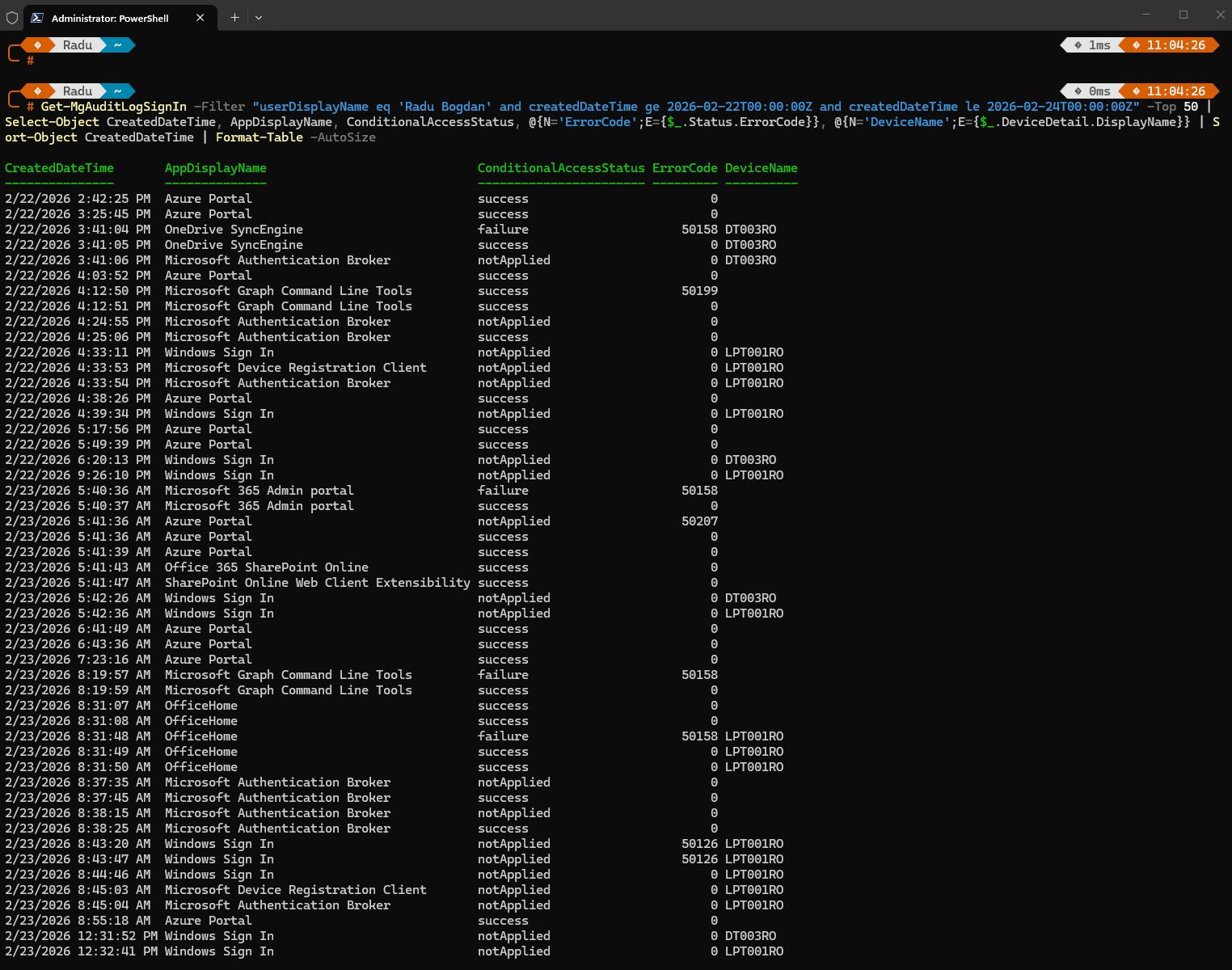
Get-MgAuditLogSignIn -Filter "userDisplayName eq 'Radu Bogdan' and createdDateTime ge 2026-02-22T00:00:00Z and createdDateTime le 2026-02-24T00:00:00Z" -Top 50 | Select-Object CreatedDateTime, AppDisplayName, ConditionalAccessStatus, @{N='ErrorCode';E={$_.Status.ErrorCode}}, @{N='DeviceName';E={$_.DeviceDetail.DisplayName}} | Sort-Object CreatedDateTime | Format-Table -AutoSize
The sign-in audit log confirms the timeline for my device which was first enrolled on February 22nd and the deadlock was present from the very first sign-in.
Note: The 50158 failures visible here are not isolated to one device or one app, they are a tenant-wide pattern triggered by CA-005 on every fresh authentication attempt.
Step 7: Breaking the Deadlock
To break the deadlock, temporarily disable CA-005 to allow a clean PRT acquisition, then apply a permanent fix.
7a. Temporarily Disable CA-005
Command (run from admin workstation):
Note: Replace the placeholder with your CA-005 policy ID
Update-MgIdentityConditionalAccessPolicy -ConditionalAccessPolicyId "<your-policy-id>" -State "disabled"

7b. Force a Fresh PRT by Signing Out and Back In
With CA-005 disabled, signed off from the device and signed back in, thus triggered a fresh PRT acquisition without CA evaluation blocking it.
Verify PRT updated after sign-in:
dsregcmd /status | Select-String "AzureAdPrtUpdateTime"
Output: PRT now fresh:
AzureAdPrtUpdateTime : 2026-02-23 08:44:45.000 UTC
The output block shows the PRT updated at 08:44:45 which matches my device Windows Sign In entry at 8:44:46 AM in the audit log screenshot.
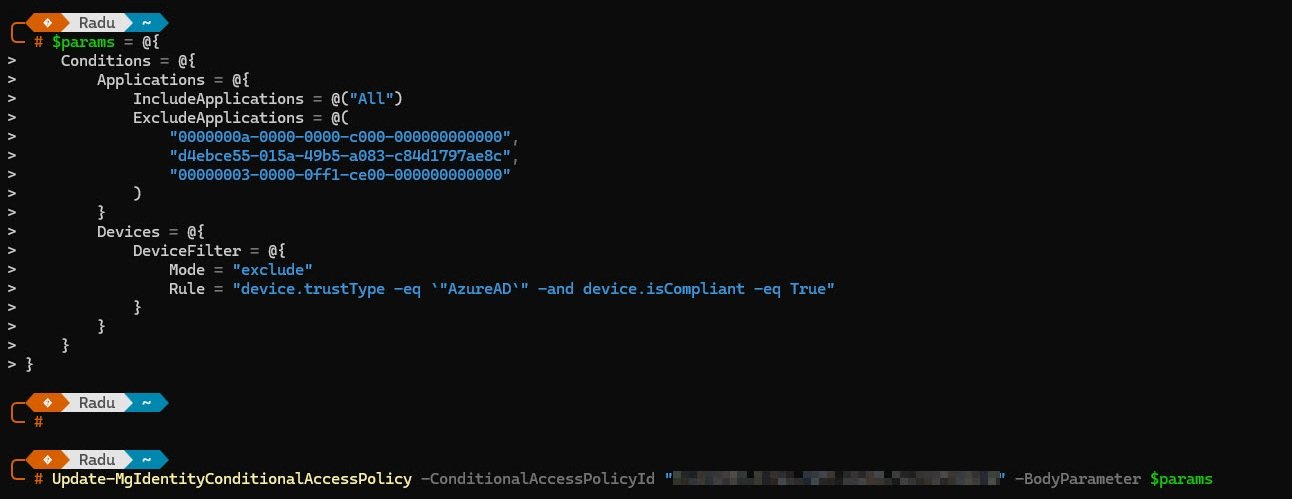
Step 8: Permanent Fix: Device Filter on CA-005
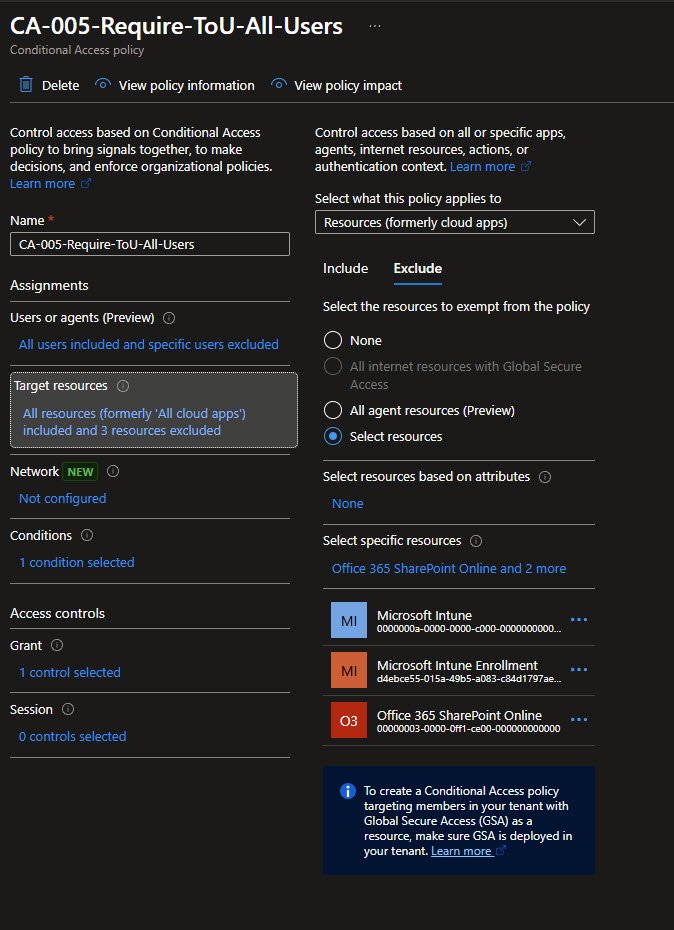
One additional exclusion compared to the original CA-005 configuration is 00000003-0000-0ff1-ce00-000000000000 for the Office 365 SharePoint Online service principal. Adding it to the exclusions stops CA-005 from intercepting that traffic entirely, the device filter handles the broader authentication deadlock across all apps on compliant devices and the SharePoint Online exclusion handles OneDrive specifically as an additional safety net.
Apply device filter exclusion and re-enable CA-005:
$params = @{
    State = "enabled"
    Conditions = @{
        Applications = @{
            IncludeApplications = @("All")
            ExcludeApplications = @(
                "0000000a-0000-0000-c000-000000000000",  # Microsoft Intune
                "d4ebce55-015a-49b5-a083-c84d1797ae8c",  # Microsoft Intune Enrollment
                "00000003-0000-0ff1-ce00-000000000000"   # Office 365 SharePoint Online
            )
        }
        Devices = @{
            DeviceFilter = @{
                Mode = "exclude"
                Rule = "device.trustType -eq `"AzureAD`" -and device.isCompliant -eq True"
            }
        }
    }
}
Update-MgIdentityConditionalAccessPolicy `
    -ConditionalAccessPolicyId "a7b4ed92-d67b-406d-8111-2d1355f3685c" `
    -BodyParameter $params
Step 9: Verify the Fix
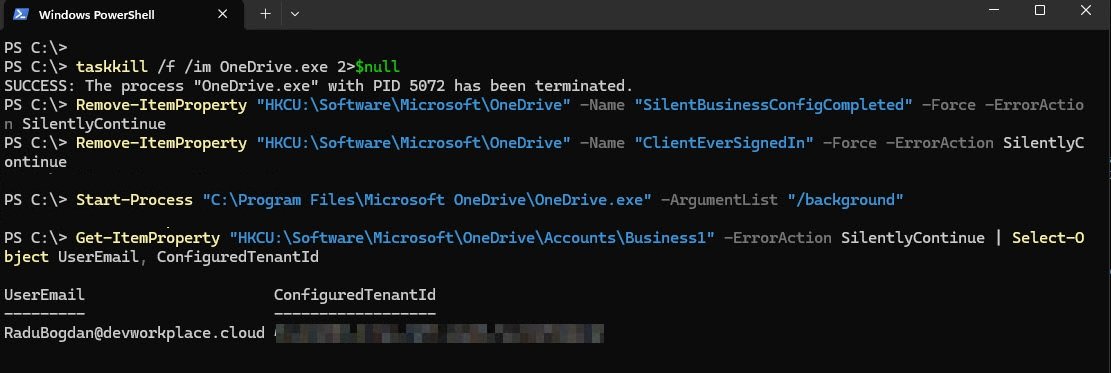
With CA-005 re-enabled and the device filter active, the final test is to simulate a fresh OneDrive silent config attempt on the device. The following commands sequence kills OneDrive, clears the registry flags that would tell it silent config already ran, then restarts it in background mode and checks whether it signed in successfully.
Commands:
Note: 2>$null suppress “not found” error if OneDrive isn’t running
taskkill /f /im OneDrive.exe 2>$null

Remove-ItemProperty "HKCU:\Software\Microsoft\OneDrive" -Name "SilentBusinessConfigCompleted" -Force -ErrorAction SilentlyContinue

Remove-ItemProperty "HKCU:\Software\Microsoft\OneDrive" -Name "ClientEverSignedIn" -Force -ErrorAction SilentlyContinue

Start-Sleep -Seconds 3

Start-Process "C:\Program Files\Microsoft OneDrive\OneDrive.exe" -ArgumentList "/background"

Start-Sleep -Seconds 20

Get-ItemProperty "HKCU:\Software\Microsoft\OneDrive\Accounts\Business1" -ErrorAction SilentlyContinue | Select-Object UserEmail, ConfiguredTenantId
Output: OneDrive signed in silently:
UserEmail is now populated and ConfiguredTenantId is present, meaning OneDrive completed the silent business config flow successfully with CA-005 fully enabled and the deadlock is resolved.
Confirm no more AADSTS50158 errors:
Compliant AAD-joined devices are excluded from the ToU grant control via device filter, allowing WAM broker to acquire tokens silently. Optionally you can run the following command again to verify if the AADSTS50158 errors had now disappear:
Get-WinEvent -LogName "Microsoft-Windows-AAD/Operational" -MaxEvents 10 | Where-Object { $_.LevelDisplayName -eq "Error" -and $_.TimeCreated -gt (Get-Date).AddMinutes(-5) } | Select-Object TimeCreated, Id, Message | Format-List
Root Cause Summary
CA-005 (Terms of Use, All apps, All users) blocks WAM broker token requests on fresh Autopilot devices because:
1. Fresh Autopilot device receives PRT during OOBE enrollment. 2. User reaches desktop without performing interactive browser authentication. 3. ToU claim is never added to the token cache via interactive acceptance. 4. Every subsequent WAM token request returns AADSTS50158 and ToU is not satisfied. 5. PRT refresh also returns AADSTS50158 and PRT cannot update. 6. Complete authentication deadlock: all apps fail silently including OneDrive.
The user’s ToU acceptance record exists in AAD (accepted December 29, 2025) but the claim is not propagated to the WAM broker because it was never satisfied in a token-issuing interactive flow on this specific device.
Final CA-005 Configuration
After applying the fix CA-005 remains enabled and still enforces Terms of Use for all users on all applications, with now three targeted exclusions: Microsoft Intune, Microsoft Intune Enrollment and Office 365 SharePoint Online.
A device filter excludes compliant AAD-joined devices from the policy entirely, meaning Autopilot-enrolled Intune-managed devices are never subjected to the ToU requirement.
The grant control remains the “Privacy Notice - Intune Device Management Terms of Use document”, the net effect is that ToU is still enforced for unmanaged and personal devices as well as browser sessions, while compliant managed devices authenticate silently without hitting the WAM deadlock.
So under these circumstances the case is closed, for now.