OneDrive SilentAccountConfig: When There Are No Sign-In Logs and Where to Look Next
Table of Contents
When Silent Config Refuses to Stay Silent
The SilentAccountConfig policy is delivered and set to 1 confirmed through the registry. The Primary Refresh Token is valid with an expiry date weeks away. Single Sign-On works perfectly when tested manually through the OneDrive setup wizard, signing in without ever asking for a password. The device is Entra ID joined, Intune-managed and every single prerequisite on Microsoft’s checklist is satisfied, yet OneDrive sits in the system tray showing “Not signed in” and no amount of restarting, registry clearing or policy checking changes anything.
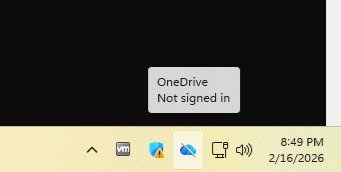
This article documents a real troubleshooting session on a Windows 11 device which had been paused in VMware for several days and after resuming, OneDrive refused to silently auto configure the business account.
What follows is a methodical investigation that rules out Conditional Access policies, MFA challenges, stale registry flags, token expiry and network connectivity one by one, before arriving at a root cause that was hiding in plain sight inside Microsoft’s own documentation the entire time.
Most troubleshooting guides for OneDrive silent config will tell you to clear the SilentBusinessConfigCompleted registry key, kill and restart OneDrive.exe, verify your Conditional Access exclusions and maybe set EnableADAL to 1 for good measure. Exhaustively I’ve tried every one of those steps during my debugging session and none of them resolved the issue. The actual solution turned out to be a single sentence buried in Microsoft’s “Verify SilentAccountConfig” procedure that honestly sounds more like a test instruction than a fix.
To trace this problem from the first symptom all the way down to the root cause, I’ve used only PowerShell, the Entra admin center sign-in logs and built-in Windows diagnostic tools without any third-party log parsers or community scripts to download.
The environment
The test device is a Windows 11 25H2 VM running under VMware Workstation Pro, Entra ID joined and managed through Intune M365 Business Premium tenant with a custom domain.
Note: Single account lab environment built for learning and certification study.
The OneDrive configuration is deployed through an Intune Settings Catalog profile called GBL-WIN11-OneDrive-SyncConfig-ALL, the key settings include SilentAccountConfig enabled, Known Folder Move with silent opt-in and notification, AllowTenantList enforced with the tenant ID, personal sync disabled and sync health reporting turned on.
Note: Some of the info from the following screenshots have been redacted due to security concerns.
These are the settings from my OneDrive Configuration Profile:
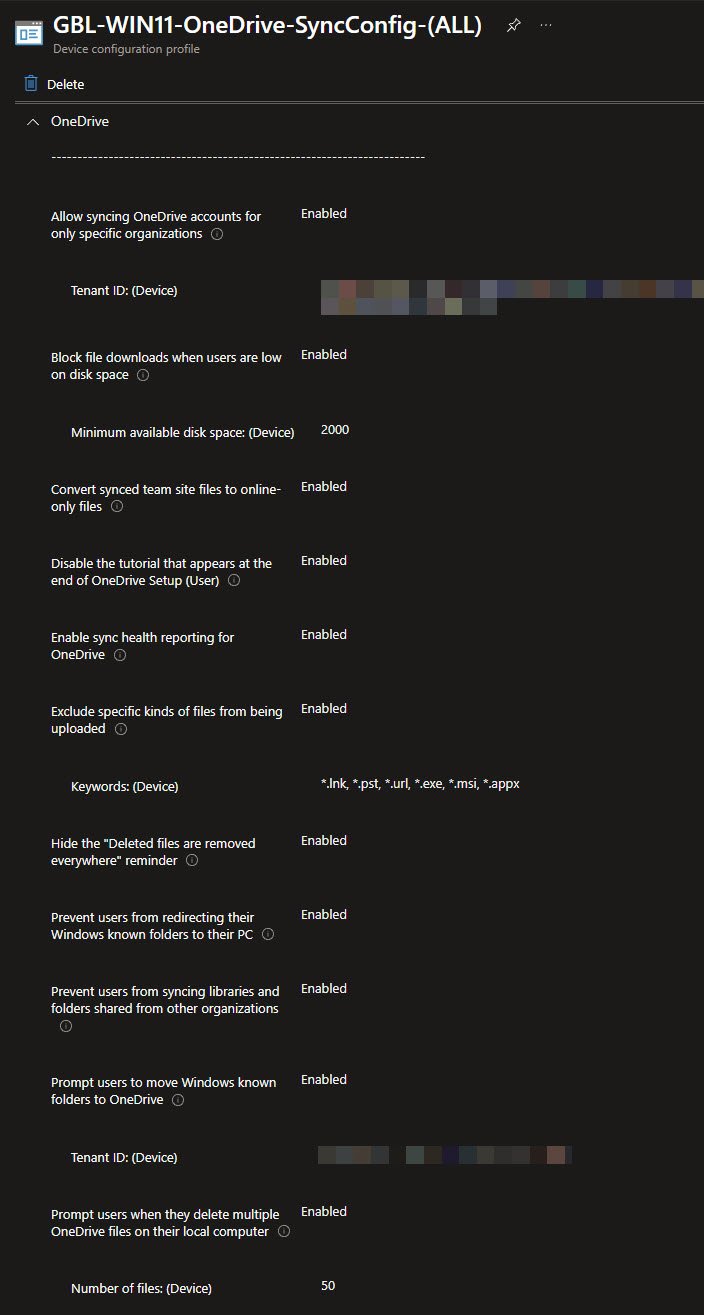
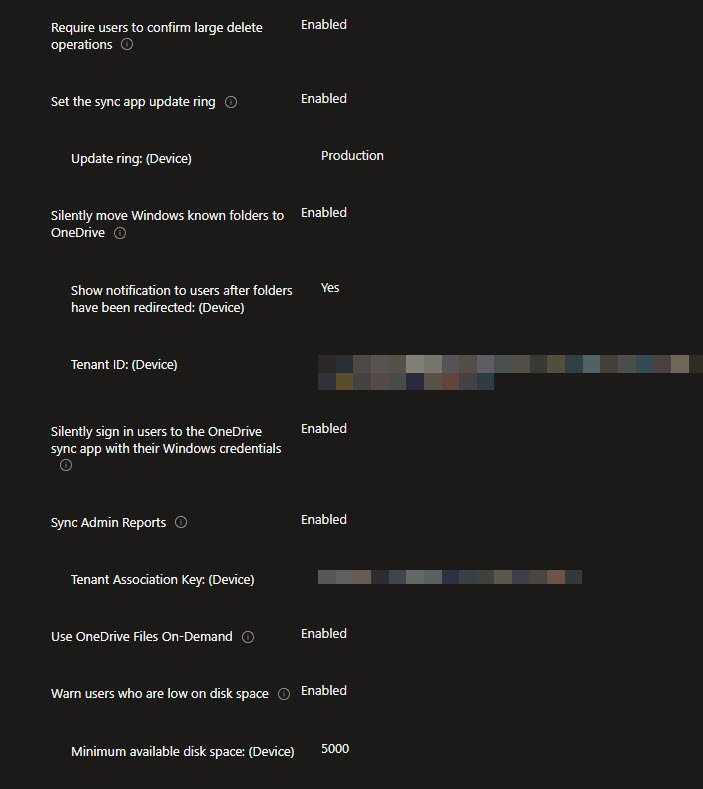
Conditional Access policies active on this tenant include CA-001 requiring MFA for all administrator roles with no Named Location exemption, CA-003 requiring MFA for all users but with a Named Location exemption covering the lab’s home IP address and CA-005 enforcing Terms of Use for all users with the Intune service principals excluded to prevent background sync failures.
Note: This Conditional Access detail matters because it’s the first thing most administrators suspect when silent config breaks and this article will demonstrate exactly how to determine whether CA is actually involved or whether you’re chasing a ghost.
The investigation
OneDrive is running in the system tray and whole hovering the mouse over it it shows “Not signed in”. The device has been Entra ID joined for weeks, Intune policies are applying successfully, Microsoft 365 apps like Outlook and Teams authenticate without any issues, only OneDrive refuses to pick up the user’s credentials and silently configure the business account.
The first instinct in this situation is to quickly start debugging things: kill OneDrive, clear registry keys, force a policy sync, maybe even re-enroll the device, but before doing any of that it’s worth stepping back for a minute asking a more precise question: Is OneDrive failing to authenticate or is OneDrive never attempting to authenticate in the first place?
Diagnostic Chain
Step 1: Confirm OneDrive Is NOT Signed In
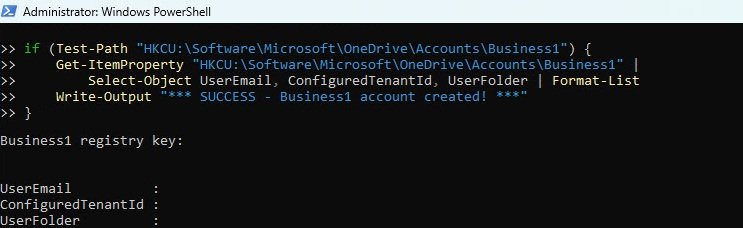
The first thing to verify is whether OneDrive actually has a business account configured. The Business1 registry key under HKCU:\Software\Microsoft\OneDrive\Accounts holds the signed-in account details. If OneDrive successfully completed silent config, this key will contain the user’s email, tenant ID and the local OneDrive folder path. If it’s empty or missing entirely well… OneDrive never signed in.
In my case all three properties came back empty, the Business1 key existed but was completely empty. This is actually worse than the key not existing at all because it means OneDrive started the account creation process but never completed it. A missing key means OneDrive never even tried and an empty key means it tried and silently gave up.
Get-ItemProperty "HKCU:\Software\Microsoft\OneDrive\Accounts\Business1" -ErrorAction SilentlyContinue | Select-Object UserEmail, ConfiguredTenantId, UserFolder
Step 2: Verify SilentAccountConfig Policy Is Delivered
Before blaming the authentication stack first confirm that the Intune policy actually arrived on the device. The SilentAccountConfig value lives under HKLM:\SOFTWARE\Policies\Microsoft\OneDrive and must be set to 1 as a DWORD. While you’re there check that FilesOnDemandEnabled and KFMSilentOptIn are also present since these are typically deployed together in the same Settings Catalog profile.
Get-ItemProperty "HKLM:\SOFTWARE\Policies\Microsoft\OneDrive" | Select-Object SilentAccountConfig, FilesOnDemandEnabled, KFMSilentOptIn

If SilentAccountConfig shows 1, the policy is delivered but there’s a subtle gotcha worth checking the value type, it must be a DWORD not a QWORD. Usually this is also a known issue in environments migrating from Microsoft SCCM/MECM where registry values sometimes get written with the wrong type. OneDrive reads the type, not just the value and silently ignores a QWORD even if it contains 1.
The expected output is DWord so if you see a QWord instead, your policy delivery mechanism is writing the wrong registry type and OneDrive will never pick it up, a problem that’s invisible unless you specifically check for it.
In my environment both the value and the type were correct so policy delivery was not the problem.
(Get-Item "HKLM:\SOFTWARE\Policies\Microsoft\OneDrive").GetValueKind("SilentAccountConfig")

Step 3: Verify PRT Is Valid (Auth Stack Healthy)
Silent config relies on the Primary Refresh Token to authenticate without user interaction. The PRT is obtained during Windows sign-in and stored by the Web Account Manager (WAM) / Token Broker layer. If the PRT is missing, expired or invalid, OneDrive has no credentials to work with and silent config will fail without any visible error.
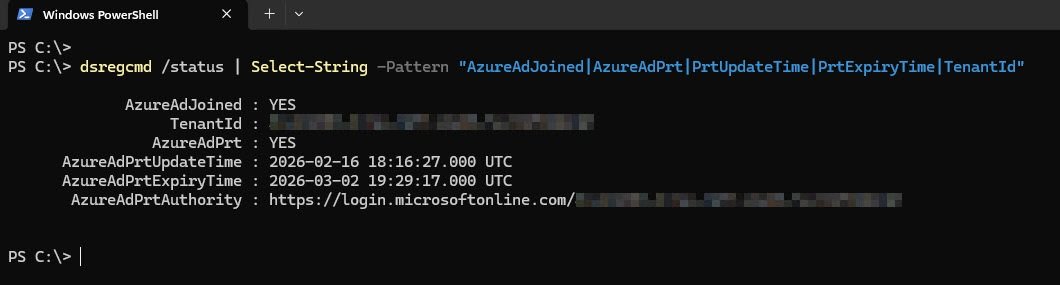
What you’re looking for is AzureAdJoined: YES confirming the device is Entra ID joined and AzureAdPrt: YES confirming a valid PRT exists. The PrtExpiryTime should show a date in the future but if it’s in the past the token is stale and that’s likely your problem. The TenantId should match your tenant.
In my case all values were healthy, the device was joined, the PRT was valid with an expiry date weeks away and the tenant ID matched. The authentication stack was not the problem either which meant something else was preventing OneDrive from even attempting to use these perfectly valid credentials.
dsregcmd /status | Select-String -Pattern "AzureAdJoined|AzureAdPrt|PrtUpdateTime|PrtExpiryTime|TenantId"
Step 4: Check Entra Sign-In Logs (The Key Diagnostic)
This is the step most troubleshooting guides skip and it’s the one that changes everything. Instead of guessing whether Conditional Access is blocking OneDrive or whether MFA is interfering with silent auth, you can look at the actual evidence in Entra’s sign-in logs and know within seconds.
So back to the question above: is OneDrive failing to authenticate or is OneDrive never attempting to authenticate in the first place?
The answer determines your entire troubleshooting path:
- If OneDrive is trying and failing you have a server-side problem: Conditional Access, MFA challenges, token issues.
- If OneDrive is not trying at all, you have a local problem: something on the device is preventing the authentication flow from even starting.
I recommend running the following PS script separately from a management workstation (not the affected device) since it queries your tenant’s audit logs through Microsoft Graph:
Connect-MgGraph -Scopes "AuditLog.Read.All" -NoWelcome
$today = (Get-Date).ToString("yyyy-MM-dd")
$failures = Get-MgAuditLogSignIn -Filter "userPrincipalName eq 'radubogdan@devworkplace.cloud' and createdDateTime ge ${today}T00:00:00Z and status/errorCode ne 0" -Top 20
$failures | Select-Object CreatedDateTime, AppDisplayName,
    @{N='ErrorCode';E={$_.Status.ErrorCode}},
    @{N='Reason';E={$_.Status.FailureReason}},
    @{N='CAPolicies';E={
        ($_.ConditionalAccessPolicies | Where-Object {$_.Result -ne 'notApplied'} |
         ForEach-Object { "$($_.DisplayName): $($_.Result)" }) -join '; '
    }} |
    Format-Table -AutoSize -Wrap
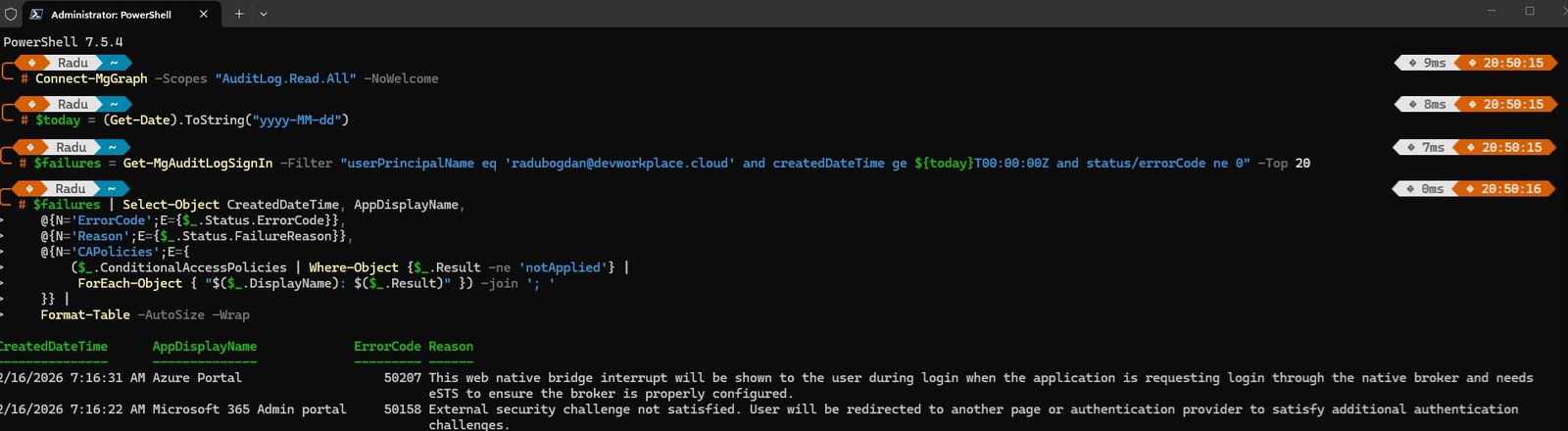
The results showed sign-in failures from other Microsoft services with error codes 50207 and 50158 but the column that mattered most was AppDisplayName. I’ve scrolled through every entry looking for anything related to OneDrive, Microsoft OneDrive, OneDrive SyncEngine, SharePoint Online and found absolutely zero entries, OneDrive had not made a single authentication attempt all day.
This was an important point of the entire investigation since every troubleshooting instinct says to check Conditional Access policies, verify MFA exclusions, review token configurations but none of that matters if OneDrive is not even reaching the front door. The sign-in logs proved the problem was entirely local, something on the device was preventing OneDrive from initiating the authentication flow and no amount of tweaking server-side policies would fix a client-side trigger that never fired.
Note: Before chasing Conditional Access as the culprit, always check your Entra sign-in logs first. If you see zero OneDrive authentication attempts then CA is irrelevant since OneDrive isn’t even reaching the point where CA would evaluate hence the problem is local.
Step 5: Verify SSO Works Manually (Microsoft’s Own Test)
At this point we know the policy is delivered, the PRT is valid and OneDrive is not even attempting to authenticate. The next question is whether Single Sign-On actually works on this device because if SSO is broken, that would explain why silent config gives up without trying.
Microsoft’s own documentation includes a manual verification procedure exactly for this scenario so the trick is to launch OneDrive without the /background argument that the scheduled task normally uses. When OneDrive starts without /background, it shows the setup wizard instead of running silently in the tray and this lets you observe whether SSO kicks in or whether the user gets a password prompt.
First kill any running OneDrive instance:
taskkill /f /im OneDrive.exe
Then launch it fresh without the background flag:
Start-Process "C:\Program Files\Microsoft OneDrive\OneDrive.exe"
When the “Set up OneDrive” wizard appears, type your UPN and click Sign in, then watch carefully because this is the moment that tells you everything, if the spinner appears briefly and then jumps straight to the “Your OneDrive folder” screen without ever asking for a password then the SSO is working, the PRT did its job, WAM brokered the token silently and OneDrive authenticated without user interaction.
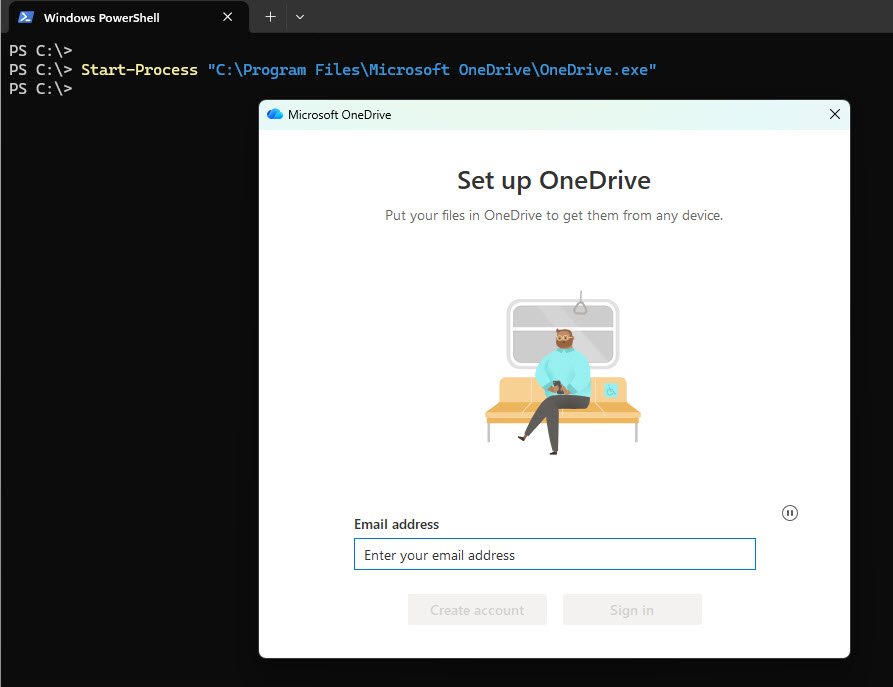
That’s exactly what happened in my case, no password prompt and no MFA challenge, just a seamless sign-in straight through to folder selection.

This result is both reassuring and concerning in the same time, reassuring because it proves the entire authentication stack is healthy Entra ID join, PRT, WAM, SSO all working perfectly and concerning because it raises the obvious question: if SSO works flawlessly when OneDrive is launched manually then why doesn’t silent config trigger it automatically?
The answer as it turns out, was sitting in Microsoft’s documentation the entire time.
Step 6: The Actual Fix - Sign Out and Sign In to Windows
After five steps of systematic elimination policy confirmed, PRT valid, sign-in logs empty, SSO working manually, the answer was hiding in plain sight inside Microsoft’s own “Verify SilentAccountConfig” documentation:
Microsoft Silently configure user accounts
“Set the Silent Config policy registry entry… Sign out of Windows (Ctrl+Alt+Delete → Sign out). Sign in to Windows. Shortly you should see a blue cloud icon in the notification area.”
Silent config does not trigger when OneDrive.exe starts or when you kill and restart OneDrive or on a reboot but it triggers during the Windows logon sequence specifically when OneDrive is launched as part of the user session startup and the fresh logon token is available for WAM to broker.
This is why every admin’s first instinct fails, when OneDrive shows “Not signed in” the natural reaction is to kill the process and restart it, clear some registry keys, force a policy sync or maybe even re-enroll the device. None of that works here because the authentication hook is tied to the Windows logon token acquisition, not to the OneDrive process lifecycle. You can restart OneDrive a hundred times and it will never re-trigger silent config because the logon event already happened hours or days ago.
In my case the VM had been paused for several days and then resumed, the Windows session was technically still active, the logon tokens were stale but the session had never been recycled. OneDrive’s silent config had no new logon event to hook into so it simply sat there doing nothing.
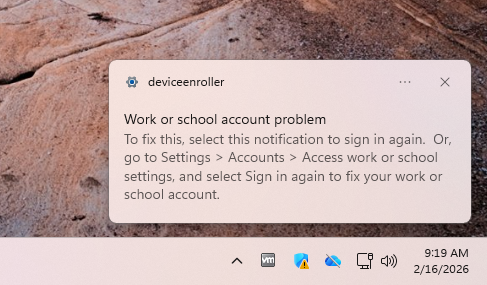
Before signing out clear any stale state that might prevent silent config from running on the next logon:
taskkill /f /im OneDrive.exe 2>$null
Remove-ItemProperty "HKCU:\Software\Microsoft\OneDrive" -Name "SilentBusinessConfigCompleted" -Force -ErrorAction SilentlyContinue
Remove-ItemProperty "HKCU:\Software\Microsoft\OneDrive" -Name "ClientEverSignedIn" -Force -ErrorAction SilentlyContinue
Remove-ItemProperty "HKCU:\Software\Microsoft\OneDrive" -Name "PersonalUnlinkedTimeStamp" -Force -ErrorAction SilentlyContinue
Remove-ItemProperty "HKCU:\Software\Microsoft\OneDrive" -Name "OneAuthUnrecoverableTimestamp" -Force -ErrorAction SilentlyContinue
Then press Ctrl+Alt+Delete -> Sign out (not restart or reboot ), sign back in and wait two to three minutes. OneDrive will launch as part of the fresh logon sequence, detect the SilentAccountConfig = 1 policy, grab the PRT from the new logon token and silently configure the business account without any user interaction.
Step 7: Verify Success
After signing back into Windows you don’t need to open OneDrive manually, if silent config worked you’ll see the blue cloud icon quietly appear in the notification area and you can verify the state from the registry, the same way we confirmed the broken state at the start of this investigation.
The Business1 key that was completely empty when we started should now be fully populated:
Get-ItemProperty "HKCU:\Software\Microsoft\OneDrive\Accounts\Business1" | Select-Object UserEmail, ConfiguredTenantId, UserFolder | Format-List
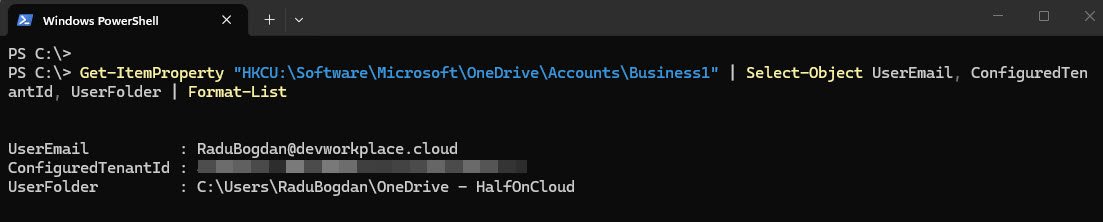
And the four registry values we cleared before signing out should now show a clean and successful configuration:
Get-ItemProperty "HKCU:\Software\Microsoft\OneDrive" | Select-Object SilentBusinessConfigCompleted, ClientEverSignedIn, PersonalUnlinkedTimeStamp, OneAuthUnrecoverableTimestamp

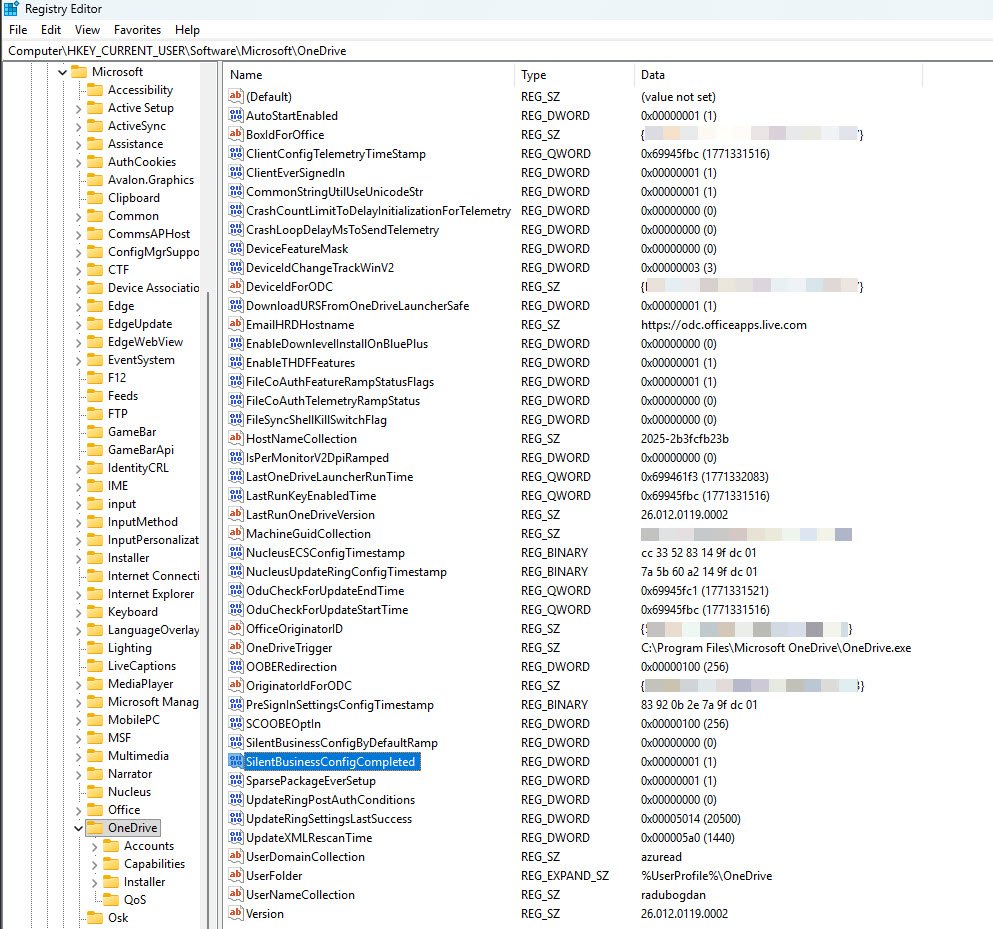
Registry
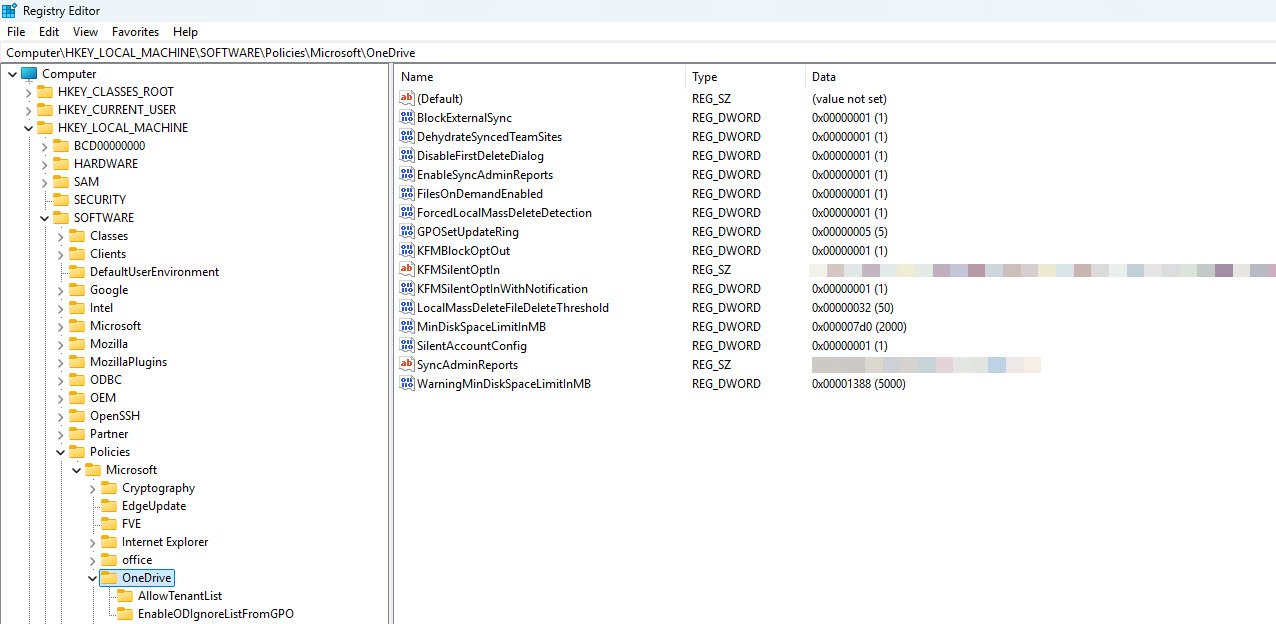
After signing out and back into Windows, a quick look at HKCU:\Software\Microsoft\OneDrive confirms the fix. SilentBusinessConfigCompleted is now set to 1 meaning the silent configuration flow ran successfully during the Windows logon sequence, not when OneDrive.exe was restarted or during a policy sync, but precisely at logon which is the only moment it was ever going to work. ClientEverSignedIn is also 1 and the internal telemetry timestamps show OneDrive actively running in the background.
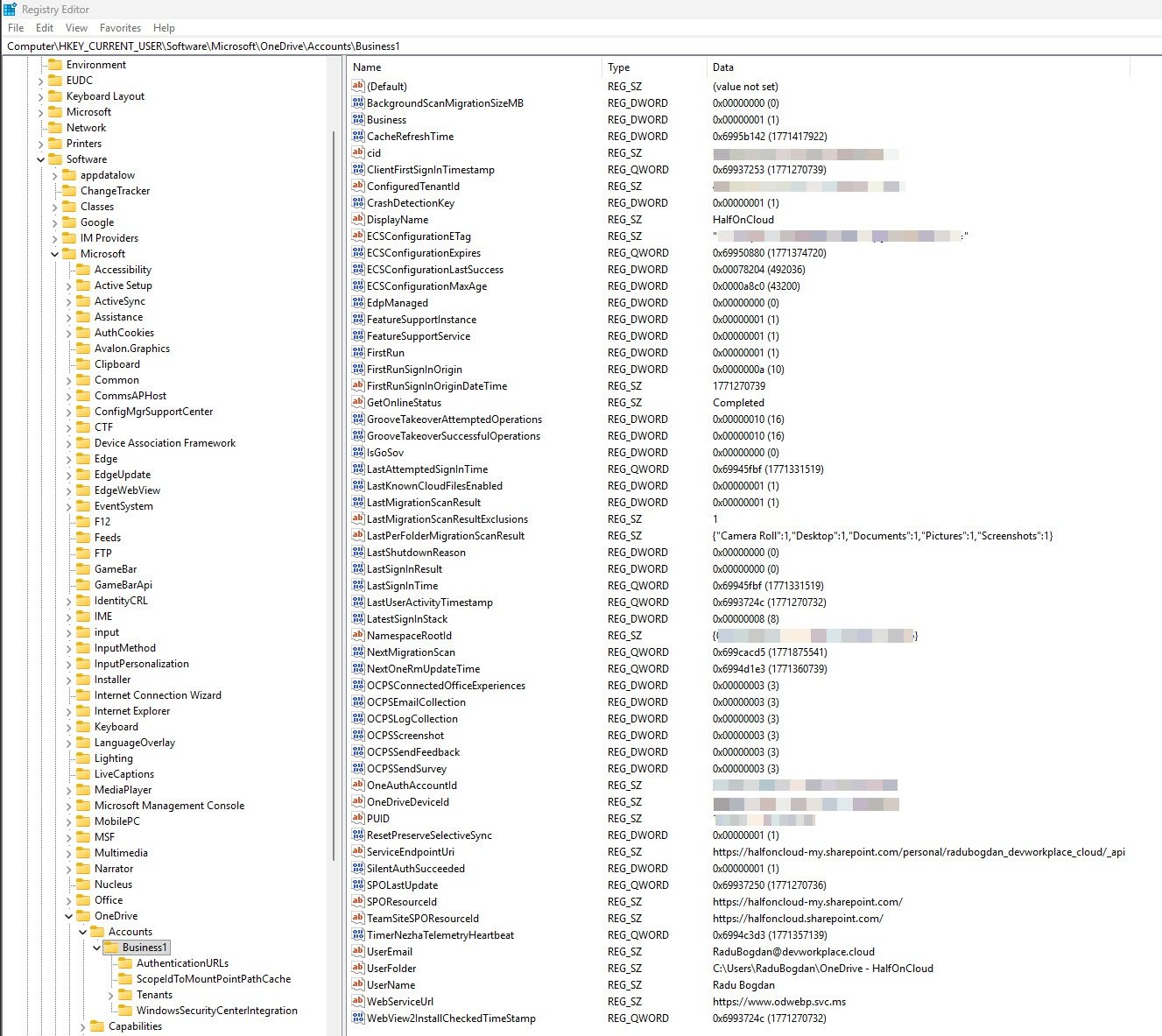
Moving one level deeper into HKCU:\Software\Microsoft\OneDrive\Accounts\Business1, the key that was completely empty at the start of this investigation is now fully populated. UserEmail shows the correct UPN, UserFolder points to “OneDrive - HalfOnCloud” and SilentAuthSucceeded confirms authentication completed without any user interaction. LastPerFolderMigrationScanResult shows that Known Folder Move silently redirected Desktop, Documents, Pictures, Screenshots and Camera Roll, exactly what the KFMSilentOptIn policy was configured to do, working quietly in the background alongside silent config.
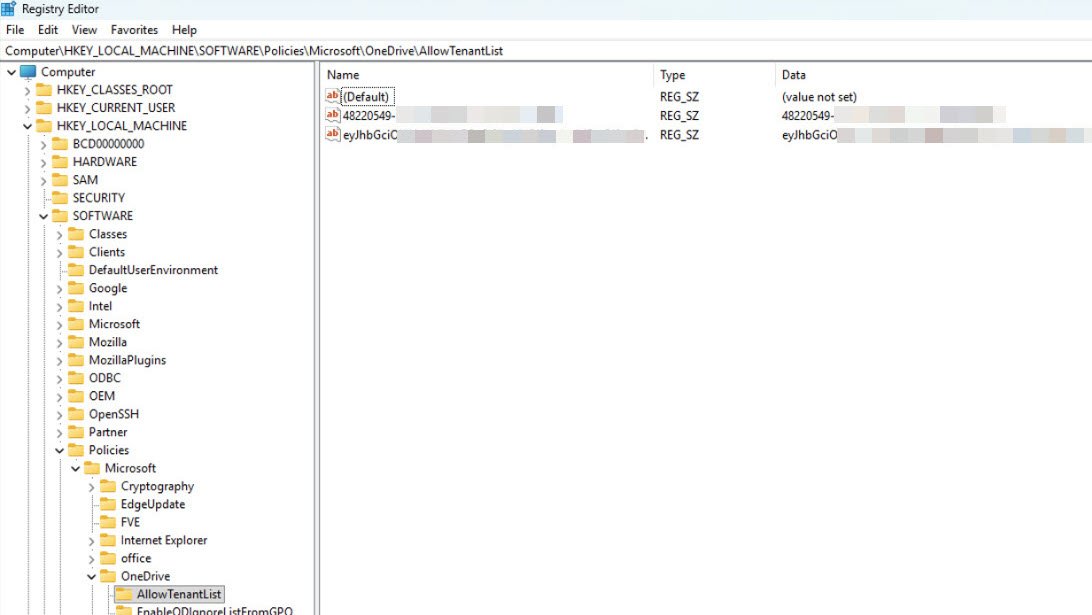
On the device policy side expanding HKLM:\SOFTWARE\Policies\Microsoft\OneDrive\AllowTenantList confirms it’s structured correctly as a registry key containing the tenant ID as a named string value inside it, not as a flat string directly on the OneDrive key. Intune’s Settings Catalog has historically created the wrong structure here which causes OneDrive error 0x8004deea (which I’ll briefly address near the end of this article).
Finally HKLM:\SOFTWARE\Policies\Microsoft\OneDrive shows the full picture of every device-side policy delivered through Intune. The critical value is SilentAccountConfig set to 1 as REG_DWORD, the instruction that tells OneDrive to silently configure the business account using the signed-in Windows user’s credentials.
Where to Look When Things Still Don’t Add Up
SyncDiagnostics.log
OneDrive doesn’t have a dedicated Event Viewer channel, the closest thing to a real-time health indicator is a plain text log file sitting quietly in the user’s AppData folder: “C:\Users<username>\AppData\Local\Microsoft\OneDrive\logs\Business1\SyncDiagnostics.log”
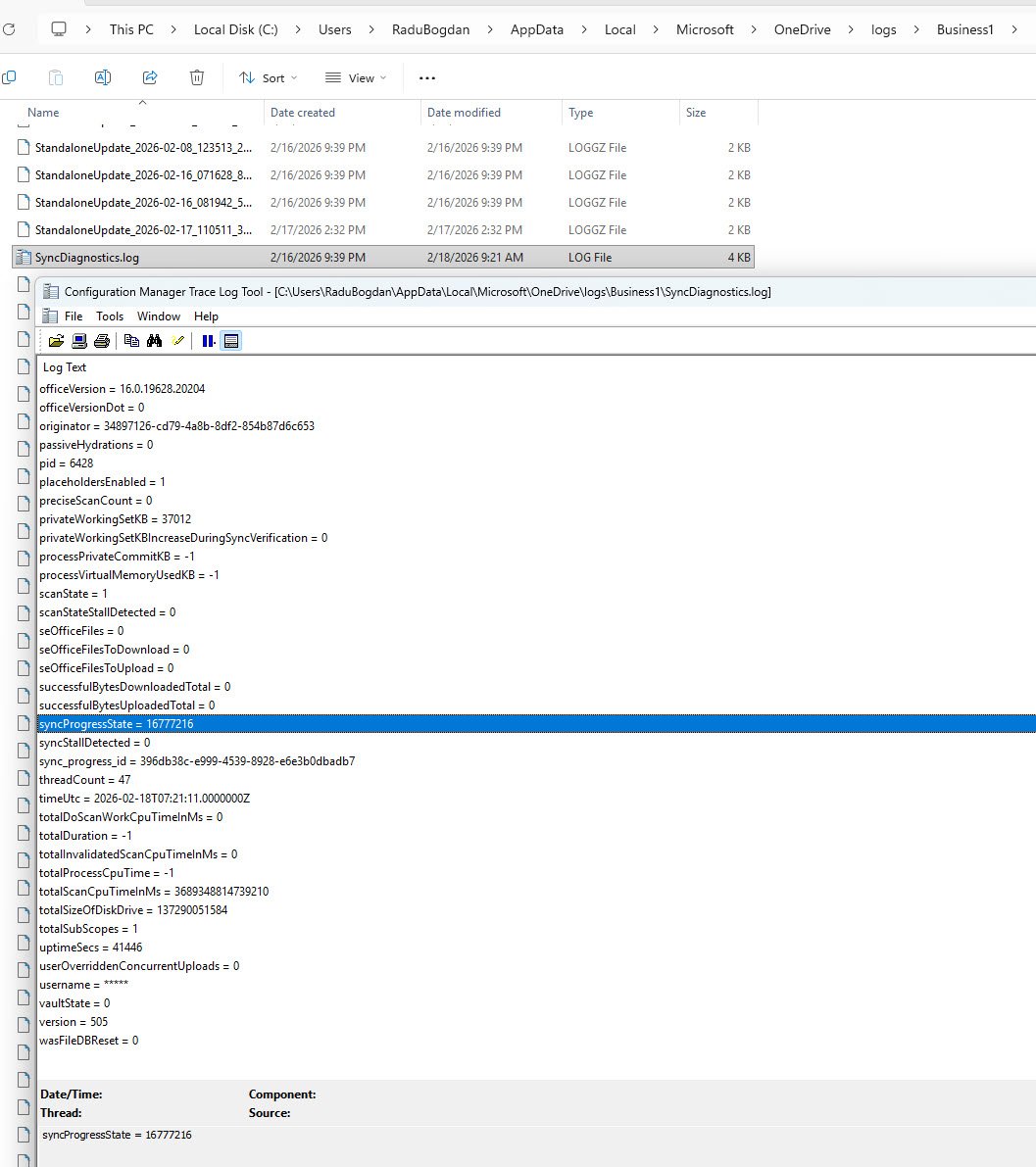
The value to look for is “SyncProgressState”, seems that Microsoft never documented what the codes mean but Rudy Ooms reverse-engineered them in one of his articles:
| Value | Meaning |
|---|---|
| 0 or 16777216 | Healthy or up to date |
| 65536 | Paused |
| 8194 | Not syncing |
| 1854 | Sync problems |
After the sign-out/sign-in fix in this article, on my test device SyncProgressState returned 16777216 (healthy).
Note: You may also notice a Business2 folder alongside Business1, unless a second work account is actively configured under HKCU:\Software\Microsoft\OneDrive\Accounts\Business2, it’s just an orphaned log folder from a previous session so just ignore it.
Event Viewer
For OneDrive policy delivery, the only log worth opening is: “Applications and Services Logs > Microsoft > Windows > DeviceManagement-Enterprise-Diagnostics-Provider > Admin”
Event ID 814 is what you’re looking for, one entry per OneDrive policy setting applied by Intune. If SilentAccountConfig, KFMSilentOptIn and FilesOnDemandEnabled each have a corresponding 814 entry with the correct values then the policy delivery is not the problem.
You may occasionally see Events 873 and 866 on freshly enrolled devices, these indicate the OneDrive ADMX template being ingested for the first time but on an established device they won’t appear, which is normal.
If you suspect an authentication failure rather than a policy problem, you can also check: “Applications and Services Logs > Microsoft > Windows > AAD > Operational”
Look specifically for Event ID 1098 referencing the OneDrive sync client app ID, if you see 1098 entries for other app IDs like Bing, Search or Windows shell components just ignore them entirely, they’re just background noise in this case. In most silent config failures, both logs will be clean because the problem isn’t policy delivery or authentication, it’s simply that no logon event occurred.
Sidebar: The AllowTenantList Registry Structure Gotcha
While inspecting the HKLM policies, it’s worth mentioning about the AllowTenantList entry in the left tree which appears as a folder icon (subkey) and not a flat string value sitting on the OneDrive key itself.
Note: This is a separate issue from the silent config problem documented in this article. You can have a perfectly structured AllowTenantList and still hit “Not signed in” if silent config never triggered and you can have a broken AllowTenantList on a device where silent config ran successfully but sync gets blocked.
The Intune Settings Catalog policy “Allow syncing OneDrive accounts for only specific organizations” has been known to create a wrong registry structure. Instead of creating AllowTenantList as a subkey with the tenant ID inside it, Intune writes it as a flat REG_SZ string value directly on the OneDrive key. The result is that OneDrive sees the allow-list is enforced, looks inside the subkey for tenant IDs, finds nothing because it’s a string and not a folder and concludes that every tenant is blocked. This is where the user sees error 0x8004deea with the message “Your IT department doesn’t allow you to sync files from this location.”
I’ve encounter this exact issue in my own tenant a few months ago and decided to create a Proactive Remediation script with a detection script that checks the structure and a remediation script that fixes it, scheduled daily, running daily on all my devices for over two months. Recently I’ve disabled it to test whether Microsoft has since fixed it (the bug?) in newer Intune builds. Ok so if the subkey survives multiple policy sync cycles without reverting to a flat string then the remediation is no longer needed.
If you’re seeing 0x8004deea in your environment, check the registry structure first, does AllowTenantList exist as a flat string (wrong) or exist as a subkey with tenant ID inside (correct):
Get-ItemProperty "HKLM:\SOFTWARE\Policies\Microsoft\OneDrive" -Name "AllowTenantList" -ErrorAction SilentlyContinue

Test-Path "HKLM:\SOFTWARE\Policies\Microsoft\OneDrive\AllowTenantList"
Get-ChildItem "HKLM:\SOFTWARE\Policies\Microsoft\OneDrive\AllowTenantList"
If you find the flat string then the fix is straightforward, remove the incorrect flat string and create the correct subkey structure:
$tenantID = "your-tenant-id-here"

Remove-ItemProperty -Path "HKLM:\SOFTWARE\Policies\Microsoft\OneDrive" -Name "AllowTenantList" -ErrorAction SilentlyContinue

New-Item -Path "HKLM:\SOFTWARE\Policies\Microsoft\OneDrive\AllowTenantList" -Force | Out-Null
New-ItemProperty -Path "HKLM:\SOFTWARE\Policies\Microsoft\OneDrive\AllowTenantList" -Name $tenantID -Value $tenantID -PropertyType String -Force | Out-Null
So yes there you have it two different symptoms, two different root causes and two different fixes.
Known Folder Move has its own quirks too, but that is a story for another article.
References
Practical365: Intune policies for OneDrive deployment - Ru Campbell’s policy walkthrough
Lost in Monitoring Onedrive- Rudy Ooms OneDrive advanced troubleshooting
Peter van der Woude: Configuring OneDrive sync app basics - comprehensive Intune OneDrive configuration guide.
Microsoft: Silently configure user accounts - the key “Sign out / Sign in” instruction is in the “Verify SilentAccountConfig” section
Kapil Arya (Microsoft MVP): Your IT department doesn’t allow you to sync files from this location - most widely referenced walkthrough of the AllowTenantList subkey fix
Microsoft Q&A: OneDrive can’t sync error 0x8004deea - community thread confirming the AllowTenantList subkey structure requirement