Pinning a Custom URL to the Windows Taskbar via Intune
Table of Contents
A Question From the Community
Recently I’ve came across someone in the LinkedIn MEM community asking for a solution regarding a website URL that needed to be pinned to the Windows taskbar through Microsoft Intune with a custom icon, so clicking on it would simply open a browser page (Edge) automatically loading a specific URL. They had already tried the obvious approach by deploying the shortcut as a Win32 app and reference it in a Taskbar Layout XML policy but without too much success.
In this article I’ll share one possible solution along with the reasoning behind each step, so you can also follow the logic and build on it in your own environment.
Why This Seems Harder Than It Looks
What someone would usually try first is to deploy a .url file or a .lnk shortcut as a Win32 app, then reference it in a Taskbar Layout XML policy which is a clean and simple method but the problem is a fundamental Windows constraint: Win32 apps in Intune run as SYSTEM while taskbar pinning is a per-user operation.
When your Win32 app runs as SYSTEM and drops files on disk, that part works great but when Windows processes the Taskbar Layout XML policy, it needs the shortcut to already exist and it needs to apply the pin in the user’s context. If the shortcut isn’t there or if the policy fires before the user logs on for the first time after enrollment, the entry is silently ignored without any clues or errors.
So the solution has two distinct parts that must deploy in the right order:
- A Win32 app that places the shortcut (.lnk) and icon (.ico) on disk, preferably into a system accessible location.
- A Taskbar Layout XML policy that references that .lnk path and pins it to the taskbar.
How This Works
Before looking at the script itself, it’s worth understanding the architecture behind this solution because there are actually two components working together so one cannot work without the other:
Component 1: The Win32 App
This is a simple PowerShell script deployed as a Win32 app via Intune, running as SYSTEM. It’s only job is placing two files on disk:
- HalfOnCloud.lnk - the shortcut pointing to Edge browser opening a URL (in my case my very own blog halfoncloud.com)
- HalfOnCloud.ico - the custom icon
Both land in the location C:\ProgramData\HalfOnCloud which is a system-wide location accessible regardless of which user logs in.
Note: The Win32 app writes to C:\ProgramData because SYSTEM has no user profile and the XML policy reads from there because the path must be valid for every user on the device.
Component 2: The XML Layout Policy
This is an existing Intune Settings Catalog policy that defines the taskbar layout. It references the .lnk file path created by the Win32 app and pins it to the taskbar at the user’s logon.
The dependency
The Win32 app must be installed before the user logs in otherwise the XML policy applies at logon but the .lnk doesn’t exist yet and the pin silently fails. On Autopilot deployments this timing depends on your ESP configuration, if the app is added to the ESP blocking apps list, Intune guarantees it installs before the user ever reaches the desktop, making the pin available from the very first logon. If it is not in the ESP blocking list then the app installs post enrollment once the device receives and processes its assigned applications, in that case the pin appears on the next logon after that sync completes.
Component 1: The Win32 App
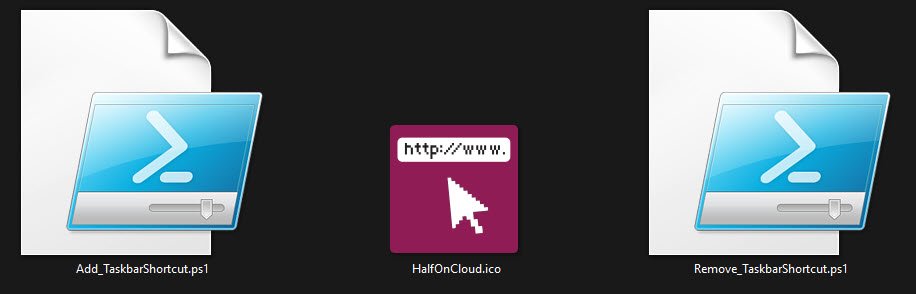
The package contains three files, two PowerShell scripts and the custom icon, all three are part of a “Source” folder from which the application was created initially.
Add_TaskbarShortcut.ps1 is the install script which runs as SYSTEM via Intune and is responsible for placing the two files, the XML Layout policy depends on the .lnk shortcut and the .ico icon into C:\ProgramData\HalfOnCloud. It also creates the detection marker file so Intune knows the app installed successfully.
Remove_TaskbarShortcut.ps1 is the uninstall script which cleans up everything the install script created and removes everything from the custom “HalfOnCloud” folder. After uninstall the XML Layout policy will still reference the .lnk path but since the file no longer exists the pin simply won’t appear at the next logon.
HalfOnCloud.ico is the custom icon that gets copied to disk during installation and referenced by both the .lnk shortcut and the XML Layout policy.
Note: The icon must be a genuine .ico format file not a renamed .png or .jpg, otherwise Windows will fail silently if the format is wrong, displaying either a blank icon or nothing at all on the taskbar.
Add_TaskbarShortcut.ps1 script contents:
New-Item -Path "C:\ProgramData\HalfOnCloud" -ItemType Directory -Force | Out-Null

$LogPath = "C:\ProgramData\Microsoft\IntuneManagementExtension\Logs\HalfOnCloud-TaskbarPin-Install.log"
Start-Transcript -Path $LogPath -Force

Copy-Item ".\HalfOnCloud.ico" -Destination "C:\ProgramData\HalfOnCloud\HalfOnCloud.ico" -Force

$Shell = New-Object -ComObject "WScript.Shell"
$Shortcut = $Shell.CreateShortcut("C:\ProgramData\HalfOnCloud\HalfOnCloud.lnk")
$Shortcut.TargetPath   = "C:\Program Files (x86)\Microsoft\Edge\Application\msedge.exe"
$Shortcut.Arguments    = "https://www.halfoncloud.com"
$Shortcut.Description  = "HalfOnCloud"
$Shortcut.IconLocation = "C:\ProgramData\HalfOnCloud\HalfOnCloud.ico"
$Shortcut.Save()

New-Item -Path "C:\ProgramData\HalfOnCloud" -Name "Installed_v1.0.txt" -ItemType File -Force

Stop-Transcript
Remove_TaskbarShortcut.ps1 script contents:
$LogPath = "C:\ProgramData\Microsoft\IntuneManagementExtension\Logs\HalfOnCloud-TaskbarPin-Uninstall.log"
Start-Transcript -Path $LogPath -Force

Remove-Item -Path "C:\ProgramData\HalfOnCloud\HalfOnCloud.lnk" -Force -ErrorAction SilentlyContinue
Remove-Item -Path "C:\ProgramData\HalfOnCloud\HalfOnCloud.ico" -Force -ErrorAction SilentlyContinue
Remove-Item -Path "C:\ProgramData\HalfOnCloud\Installed_v1.0.txt" -Force -ErrorAction SilentlyContinue

Stop-Transcript
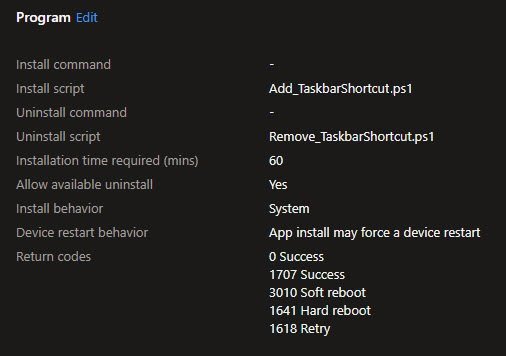
The new app In Intune, in my case named “GBL-WIN11-HalfOnCloudTaskbarPin”, is configured using the newer PowerShell script method (cleaner modern way rather than the traditional install command approach), both Install script and Uninstall script referencing the two PowerShell files directly:
Detection Rule
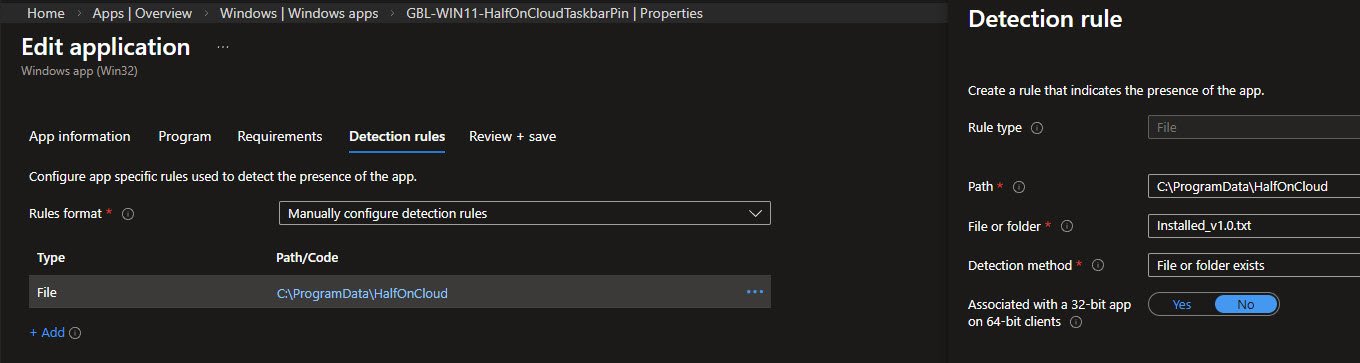
I’ve choose to keep the Detection Rule quite simple here using a plain file check with no custom script required.
Intune looks for the presence of the file Installed_v1.0.txt inside C:\ProgramData\HalfOnCloud, if the file exists the app is considered installed and if it doesn’t exist Intune will attempt to install it. This file is created as the very last step of Add_TaskbarShortcut.ps1 meaning it only appears after every other operation has completed successfully, making it a reliable indicator of a clean install.
Rule type: File Path: C:\ProgramData\HalfOnCloud File or folder: Installed_v1.0.txt Detection method: File or folder exists Associated with a 32-bit app: No
Component 2: The Taskbar Layout XML Policy
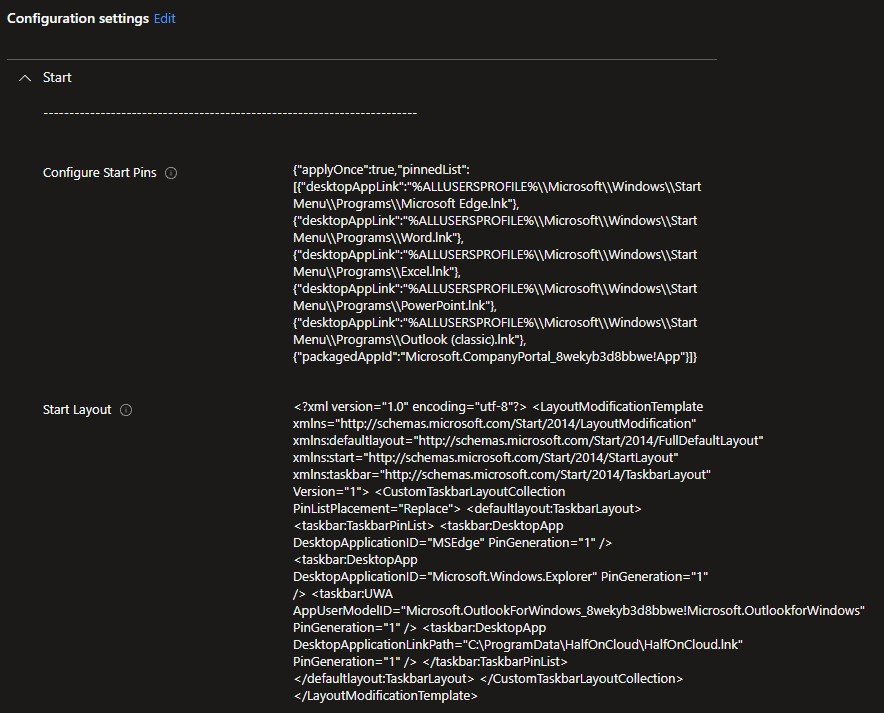
This is the second and equally important half of the solution, the configuration profile “GBL-WIN11-StartMenu-Taskbar-Layout-(PRD)” already existed in my tenant managing the taskbar layout so all I had to do was to add one extra line referencing the .lnk file that the Win32 app places on disk.
The XML defines four pins in this order: Edge, File Explorer, Outlook and HalfOnCloud.
The PinListPlacement=“Replace” attribute means this list completely replaces whatever was previously pinned and nothing carries over from the default Windows taskbar. The PinGeneration=“1” attribute on each entry allows users to unpin items if they choose to, without the policy forcing them back on the next sync cycle.
TaskbarLayout.xml contents:
<?xml version="1.0" encoding="utf-8"?> <LayoutModificationTemplate xmlns="http://schemas.microsoft.com/Start/2014/LayoutModification" xmlns:defaultlayout="http://schemas.microsoft.com/Start/2014/FullDefaultLayout" xmlns:start="http://schemas.microsoft.com/Start/2014/StartLayout" xmlns:taskbar="http://schemas.microsoft.com/Start/2014/TaskbarLayout" Version="1"> <CustomTaskbarLayoutCollection PinListPlacement="Replace"> <defaultlayout:TaskbarLayout> <taskbar:TaskbarPinList> <taskbar:DesktopApp DesktopApplicationID="MSEdge" PinGeneration="1" /> <taskbar:DesktopApp DesktopApplicationID="Microsoft.Windows.Explorer" PinGeneration="1" /> <taskbar:UWA AppUserModelID="Microsoft.OutlookForWindows_8wekyb3d8bbwe!Microsoft.OutlookforWindows" PinGeneration="1" /> <taskbar:DesktopApp DesktopApplicationLinkPath="C:\ProgramData\HalfOnCloud\HalfOnCloud.lnk" PinGeneration="1" /> </taskbar:TaskbarPinList> </defaultlayout:TaskbarLayout> </CustomTaskbarLayoutCollection> </LayoutModificationTemplate>
The JSON Layout
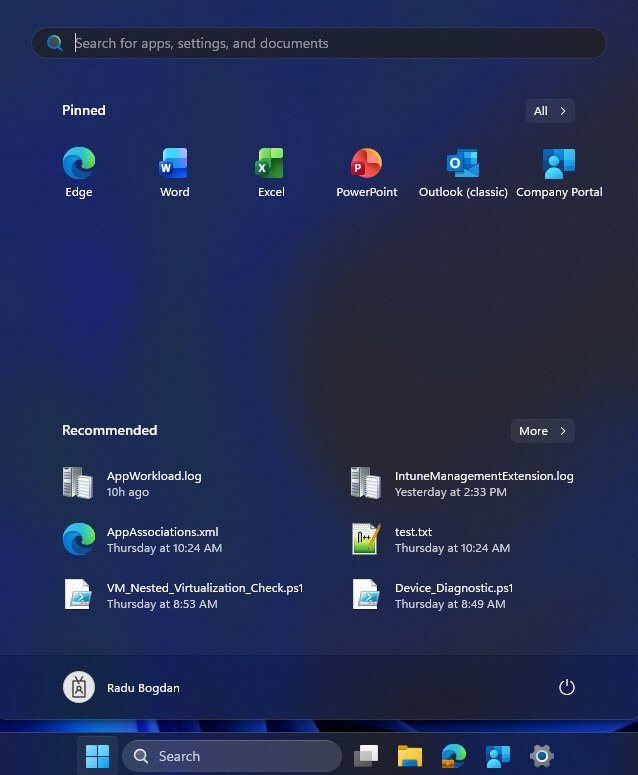
The StartMenuLayout.json handles the Start Menu pins separately from the taskbar, these are two completely independent configurations despite existing in the same policy. The “applyOnce”: true property is important because it means the layout is stamped once at first logon and then the user is free to reorganize their Start Menu however they like without the policy overwriting their changes on every sync.
The pinned list covers the core productivity apps: Edge, Word, Excel, PowerPoint, Outlook classic and Company Portal, giving every user a consistent starting point from day one without locking them into it permanently.
StartMenuLayout.json contents:
{
  "applyOnce":true,
  "pinnedList":[
    {"desktopAppLink":"%ALLUSERSPROFILE%\\Microsoft\\Windows\\Start Menu\\Programs\\Microsoft Edge.lnk"},
    {"desktopAppLink":"%ALLUSERSPROFILE%\\Microsoft\\Windows\\Start Menu\\Programs\\Word.lnk"},
    {"desktopAppLink":"%ALLUSERSPROFILE%\\Microsoft\\Windows\\Start Menu\\Programs\\Excel.lnk"},
    {"desktopAppLink":"%ALLUSERSPROFILE%\\Microsoft\\Windows\\Start Menu\\Programs\\PowerPoint.lnk"},
    {"desktopAppLink":"%ALLUSERSPROFILE%\\Microsoft\\Windows\\Start Menu\\Programs\\Outlook (classic).lnk"},
    {"packagedAppId":"Microsoft.CompanyPortal_8wekyb3d8bbwe!App"}
  ]
}
Why Formatting Matters More Than You Think
Both the TaskbarLayout.xml and StartMenuLayout.json files look intuitive enough but I’ve noticed that even a single formatting mistake could cause silent failures with no visible errors in the Intune portal or no warnings on the device itself, the policy simple doesn’t apply.
When you paste the TaskbarLayout.xml content into the Intune Settings Catalog field, it must be entered as a single continuous line with no line breaks. This is not very obvious and Microsoft doesn’t directly warn you about it anywhere in the portal so if you paste it formatted with proper indentation as you would normally write XML, the policy will appear as successfully applied in Intune but nothing happens on the device and the taskbar simply won’t reflect any changes.
The JSON StartMenuLayout.json cannot have extra spaces or formatting either and has the same sensitivity, during my own testing I encountered error code 65000 directly caused by formatting spaces left in the JSON value. Again Intune gave me no meaningful error message pointing to the formatting as the cause, so I had to trial and error.
With most Intune policies any failure will show up clearly in the device’s policy report, but with these taskbar and Start Menu layout configurations the failure mode is a bit subtle, the policy reports as successfully delivered but the layout simply doesn’t apply. This makes it easy to assume the policy is working when in fact it isn’t, especially on a device that has been through multiple test cycles where old cached state may still be visible.
Successful Installation
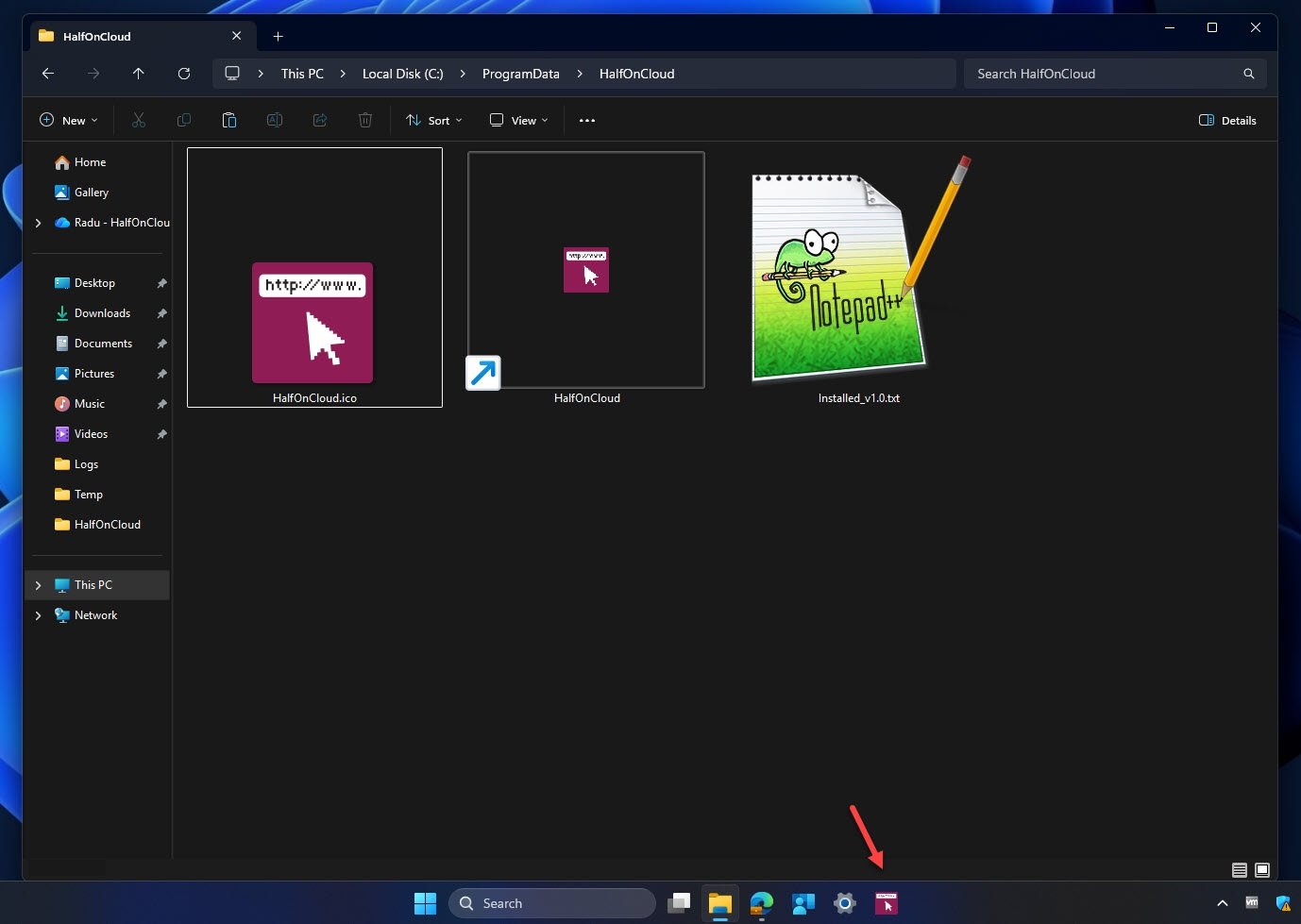
This following image confirms everything worked as expected after the app installed successfully, the “C:\ProgramData\HalfOnCloud” folder was created by the install script containing three files:
- HalfOnCloud.ico: the custom icon copied from the package during installation
- HalfOnCloud.lnk: the shortcut pointing to Edge opening the URL halfoncloud.com (the small arrow overlay confirming it’s a proper Windows shortcut file)
- Installed_v1.0.txt: the detection marker file that tells Intune the app is installed
Notice the HalfOnCloud icon is also pinned on the taskbar exactly where it should be, a definitive proof that both components did their job, the script delivered the files and the XML policy handled the pin.
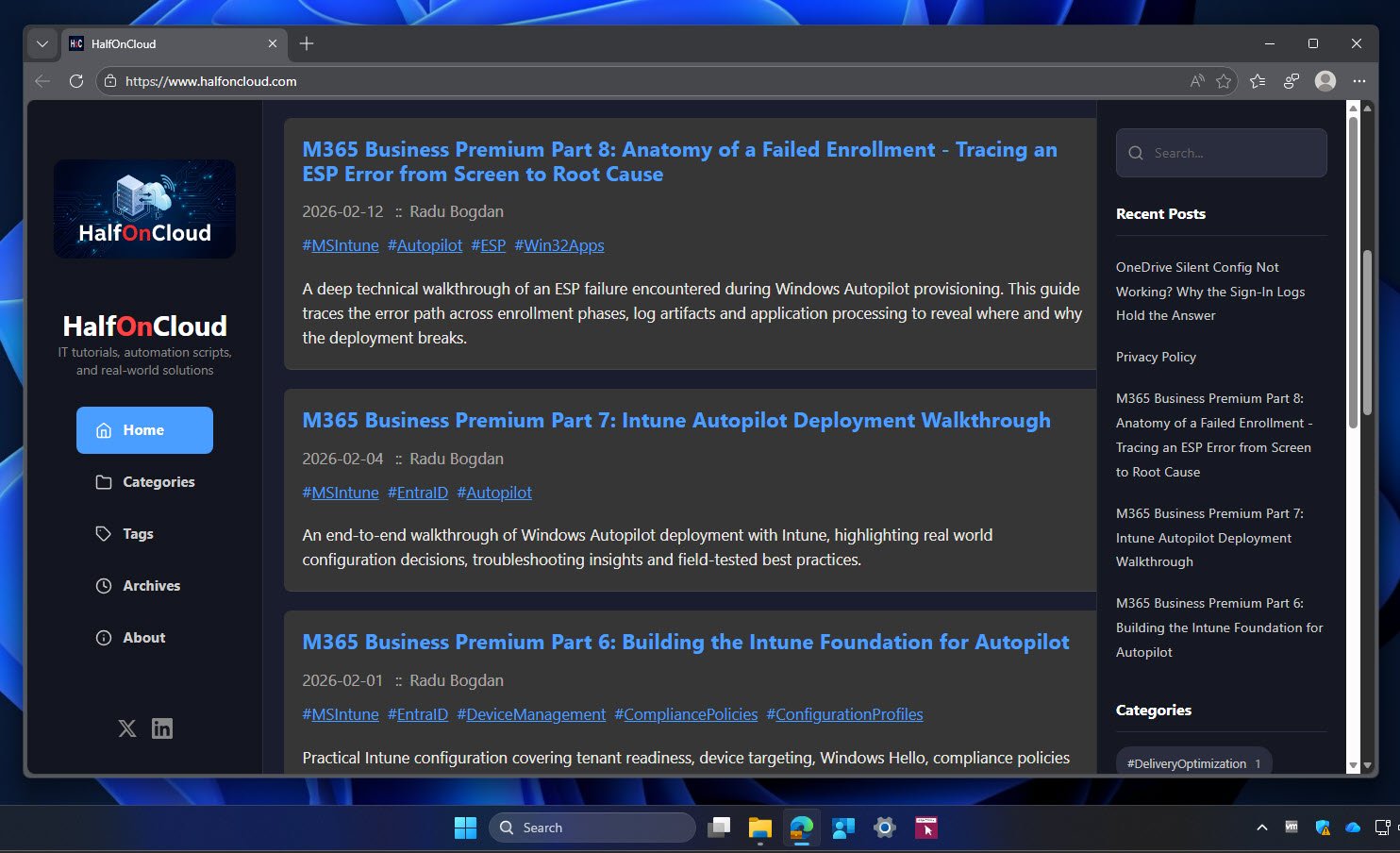
Clicking the pinned icon on the taskbar opens Edge and navigates directly to the URL, exactly as defined in the Arguments line of the install script:
$Shortcut.Arguments = "https://www.halfoncloud.com"
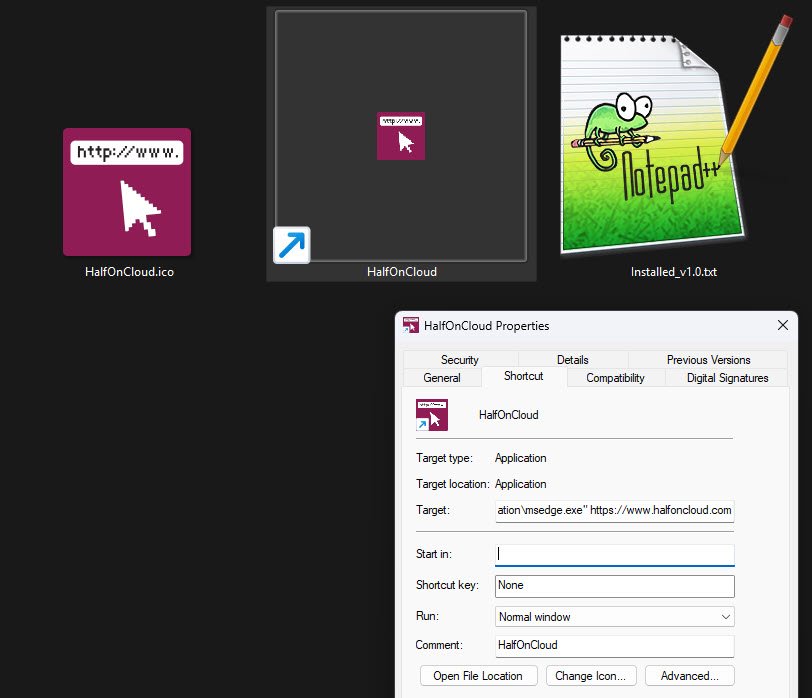
Optionally, you can check the Target field in the shortcut properties which confirms exactly what the install script was instructed to do:
“C:\Program Files (x86)\Microsoft\Edge\Application\msedge.exe” https://www.halfoncloud.com
Msedge.exe is the target executable and Edge browser is the launcher, the URL is passed as the argument telling Edge which URL to open. Windows combines TargetPath and Arguments from the script into this single Target field automatically.
Note: Totally optionally of course but you can also make use of the –app= flag here, which can open the URL in Edge PWA mode as a stripped-down window with no address bar.
Policy Deployment Confirmed
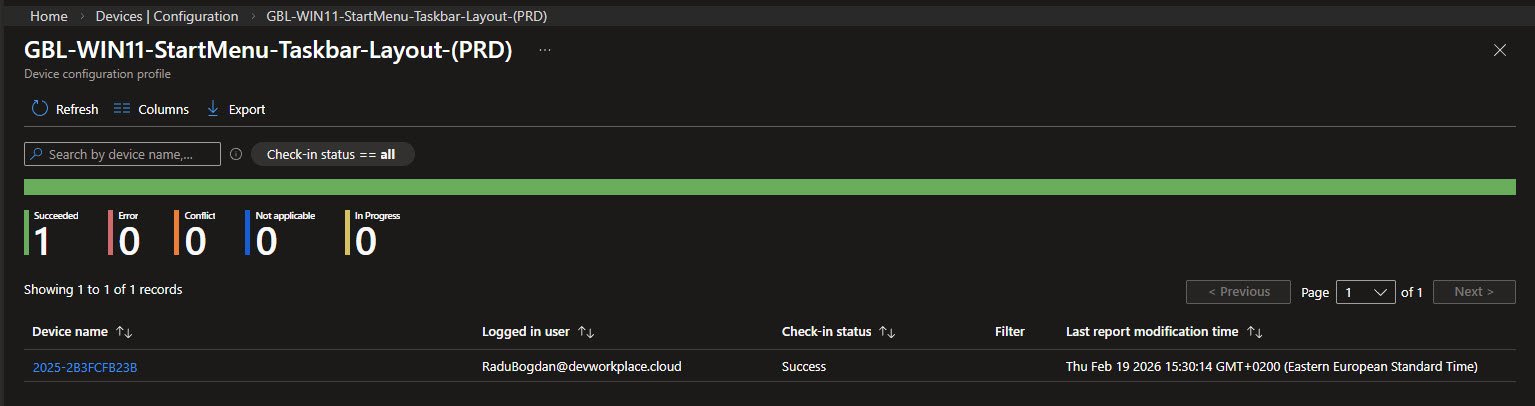
This is the final piece of the puzzle, the Intune device configuration profile “GBL-WIN11-StartMenu-Taskbar-Layout-(PRD)” reporting Succeeded on my device with no errors or conflicts. Getting a clean success here means both the TaskbarLayout.xml and the StartMenuLayout.json have been properly formatted and applied.
Lessons Learned
This solution looks quite straightforward but getting here involved more testing than I’d like to admit. Here’s what I discovered along the way that is either not completely addressed into the official documentation or its hidden within multiple online resources.
The scheduled task rabbit hole
My initial approach was to handle everything inside the Win32 app deploy the files and pin the shortcut programmatically without relying on any separate policy. This led me down the scheduled task path: register a task that fires at logon, copies the .lnk into the user’s personal taskbar folder, then self-deletes.
Unfortunately this method doesn’t work on Windows 11 (v25H2), the file lands in the correct folder indeed and the task reports as run successfully but nothing appears on the taskbar. I’ve then manually restarted Explorer as an additional troubleshooting step hoping it would force a refresh but it didn’t make any difference either. Based on my extended research seems that Microsoft silently removed the support for this method somewhere around Windows 10 21H2 version, the taskbar now maintains its own internal database and simply ignores files dropped into that folder programmatically.
If you are curios here is the PS code that runs successfully but ultimately does nothing on Windows 11 but maybe worth keeping in mind if you ever come across similar solutions online:
$destination = "$env:APPDATA\Microsoft\Internet Explorer\Quick Launch\User Pinned\TaskBar"
Copy-Item "C:\ProgramData\HalfOnCloud\HalfOnCloud.lnk" -Destination "$destination\HalfOnCloud.lnk" -Force
Unregister-ScheduledTask -TaskName "PinHalfOnCloudToTaskbar" -Confirm:$false
Note: Microsoft never officially announced the removal of this method it simply stopped working, and there is no documentation acknowledging this change, which is exactly why it keeps appearing as a suggested solution online even though it no longer works on Windows 11.
The InvokeVerb(“TaskbarPin”) dead end
While troubleshooting the above I also came across the Shell COM object approach that appears frequently in various community articles. This confirmed it runs without errors but does absolutely nothing on Windows 11 so I didn’t bother really testing it, most likely another method which Microsoft quietly dismissed along the way.
And here is the Shell COM object approach you’ll find suggested online, which looks interesting but again achieves absolutely nothing on Windows 11:
$shell = New-Object -ComObject Shell.Application
$folder = $shell.Namespace("C:\ProgramData\HalfOnCloud")
$item = $folder.ParseName("HalfOnCloud.lnk")
$item.InvokeVerb("TaskbarPin")
The real fix
The actual solution turned out to be simpler, leveraging the existing XML Layout policy “GBL-WIN11-StartMenu-Taskbar-Layout-(PRD)” which I’ve already had it configured into my Intune tenant, so once I added the .lnk path to the XML, the taskbar pin worked correctly at logon so no need for any scheduled task, unnecessary shell manipulation or any use of COM objects.
Also worth being totally transparent here, the policy applies at logon and not immediately, so a sign out and sign back in is required after the app installs for the taskbar pin to appear for the first time.
Test environment gotchas
After multiple installs, uninstalls and reinstalls cycles on the same device, reproducing consistent behavior had become unreliable, the taskbar database accumulates cached sessions and doesn’t always behave predictably on a heavily tested device. If you’re testing this solution your cleanest result will always come from a fresh Autopilot enrollment and not a device that’s been through multiple rounds of testing.
If you’ve tackled this differently or found a cleaner approach, I’d be curious to hear about it so feel free to reach out on LinkedIn.
Thank you.