PowerShell script installer for Win32 apps Guide
Table of Contents
The New Way
I’ve been packaging Win32 apps for Intune for years using the classic approach: wrap everything into an .intunewin file, include the PowerShell install script and call it from the command line. It works but it has a cost, any small change in the script means a full repackage, re-upload and another round of content processing.
Recently Microsoft recently introduced a quiet but significant change: PowerShell Script as a native installer type for Win32 apps.
With this model, the script is no longer embedded inside the encrypted payload, it lives as editable metadata in Intune similar to detection rules. That means no more rebuilding packages just to fix a typo or add a switch like /norestart.
This article walks through a real deployment of 7-Zip 25.01.msi using this new approach. It covers the working folder structure, the packaging process, the Intune configuration and the logs that confirm correct execution.
Source Folder Structure
Before packaging, the MSI installer lives in a dedicated Source folder, each application gets its own directory under my project, with separate Source and Output subfolders:
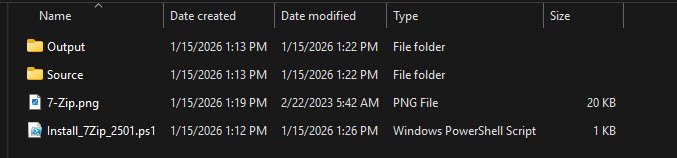
Source:

Output:

IntuneWinAppUtil Execution
The Microsoft Win32 Content Prep Tool (IntuneWinAppUtil.exe) handles the packaging process, running it from command line shows the complete workflow: source folder validation, file type detection, encryption, SHA256 hash computation and final package generation:
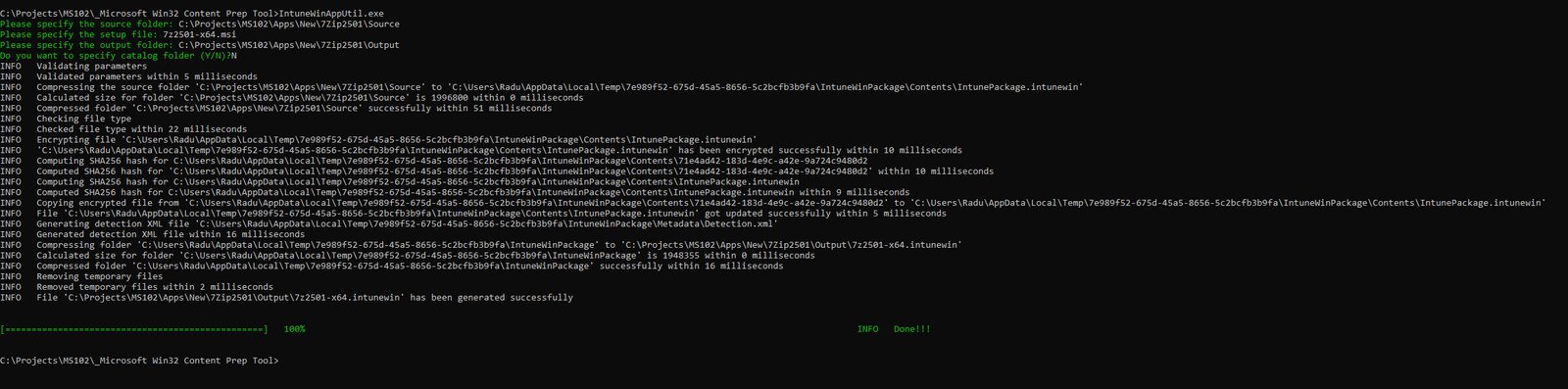
Here is the PS script “Install_7Zip_2501.ps1” that I’m using for this example:
# Variables:
$PackageName = "7-Zip-25.01-x64"
$LogPath = "$env:ProgramData\Microsoft\IntuneManagementExtension\Logs"
$MsiFile = "$PSScriptRoot\7z2501-x64.msi"

# Create a custom log for troubleshooting:
Start-Transcript -Path "$LogPath\$PackageName-install.log" -Force -Append

try {
    Write-Host "Starting installation of $PackageName"
    Write-Host "MSI Path: $MsiFile"
    Write-Host "Timestamp: $(Get-Date -Format 'yyyy-MM-dd HH:mm:ss')"

    # Verify if the MSI file exists:
    if (!(Test-Path $MsiFile)) {
        Write-Host "ERROR: MSI file not found!"
        Stop-Transcript
        exit 1
    }

    # App installation:
    $arguments = "/i `"$MsiFile`" /qn /norestart"
    Write-Host "Running: msiexec.exe $arguments"

    $process = Start-Process -FilePath "msiexec.exe" -ArgumentList $arguments -Wait -PassThru

    Write-Host "Exit code: $($process.ExitCode)"
    Stop-Transcript
    exit $process.ExitCode
}
catch {
    Write-Host "ERROR: $($_.Exception.Message)"
    Stop-Transcript
    exit 1
}
App Information Overview
When creating a new app, selecting Windows app (Win32) from the dropdown enables the full Win32 app deployment workflow. From the Intune portal, select “Create” and from the App type choose “Windows app (Win32)”.
Add the newly created “7z2501-x64.intunewin” into the “Select app package file”:
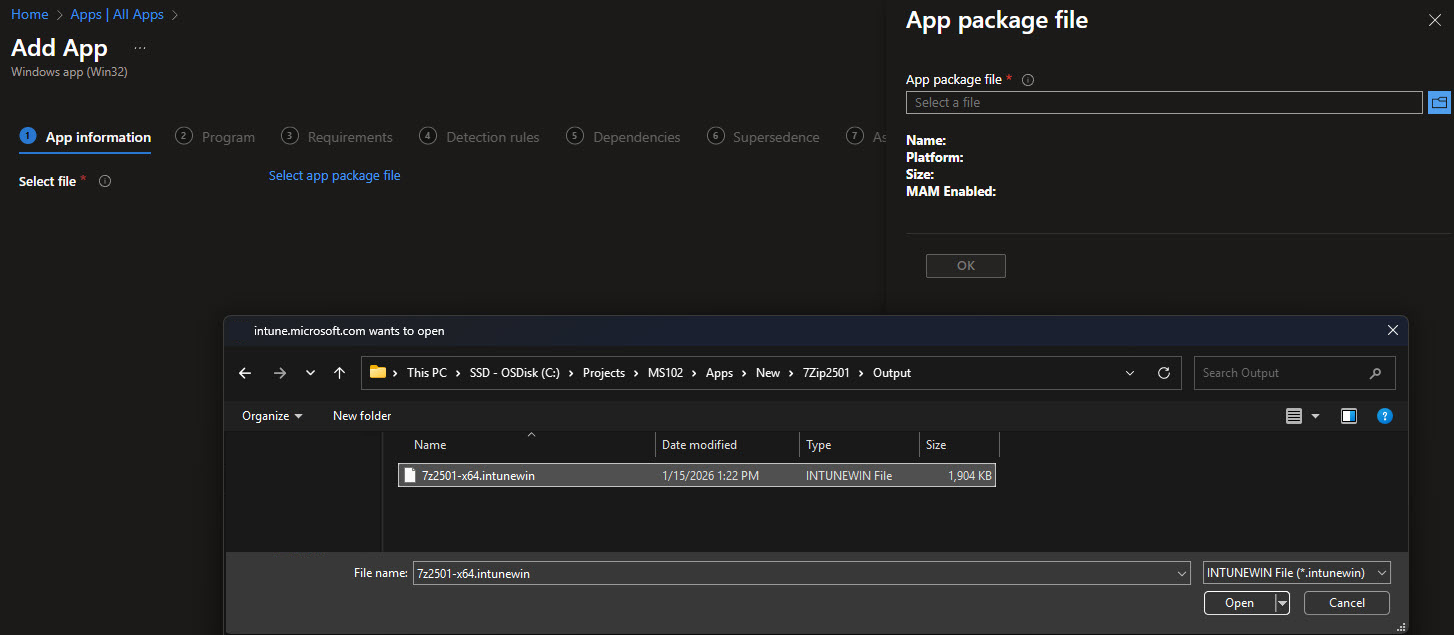
Once the intunewim is added continue with the new application customizations.
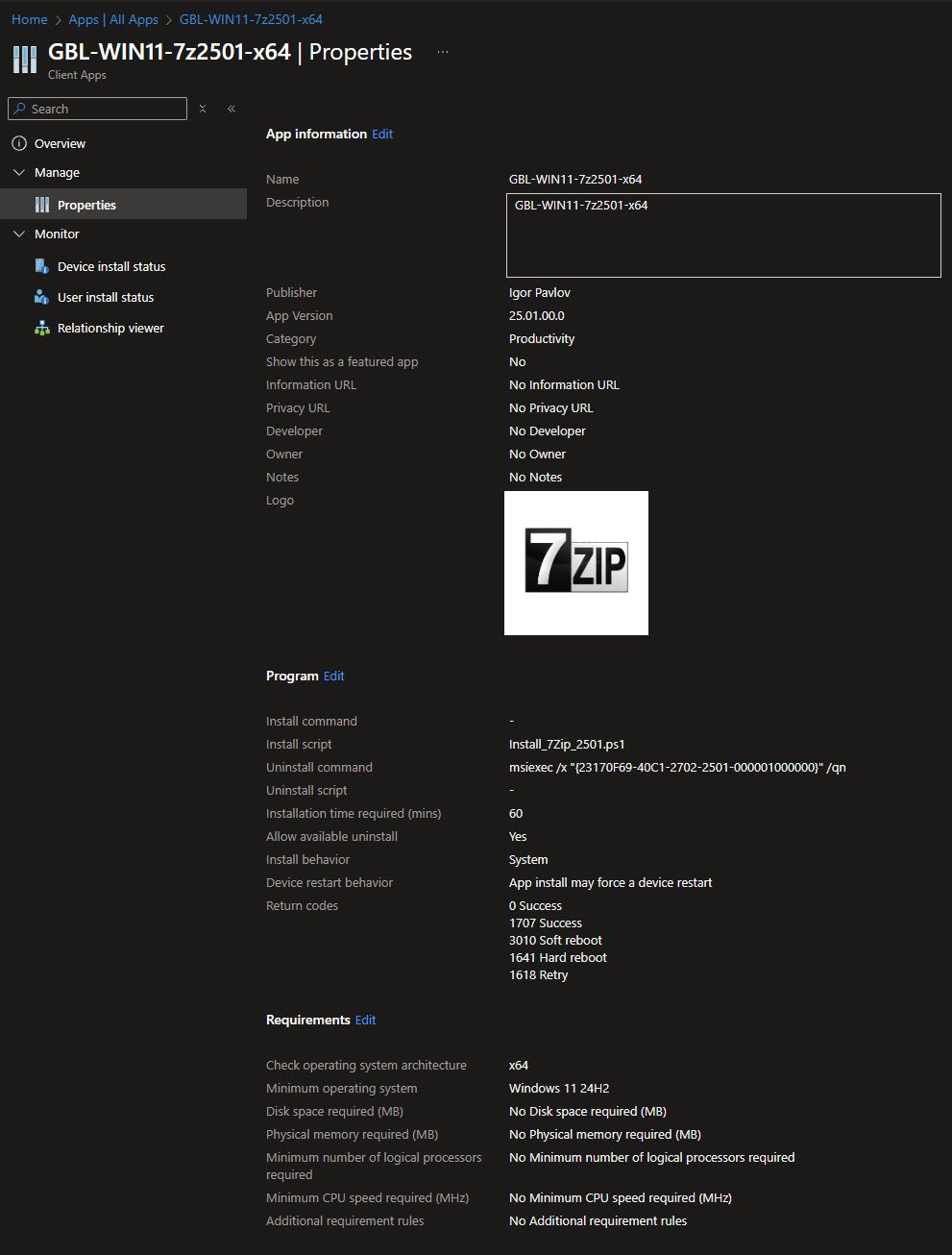
The app name GBL-WIN11-7z2501-x64 follows my own standard pattern, specifying the App name, Description, Publisher, App version and of course the app logo:
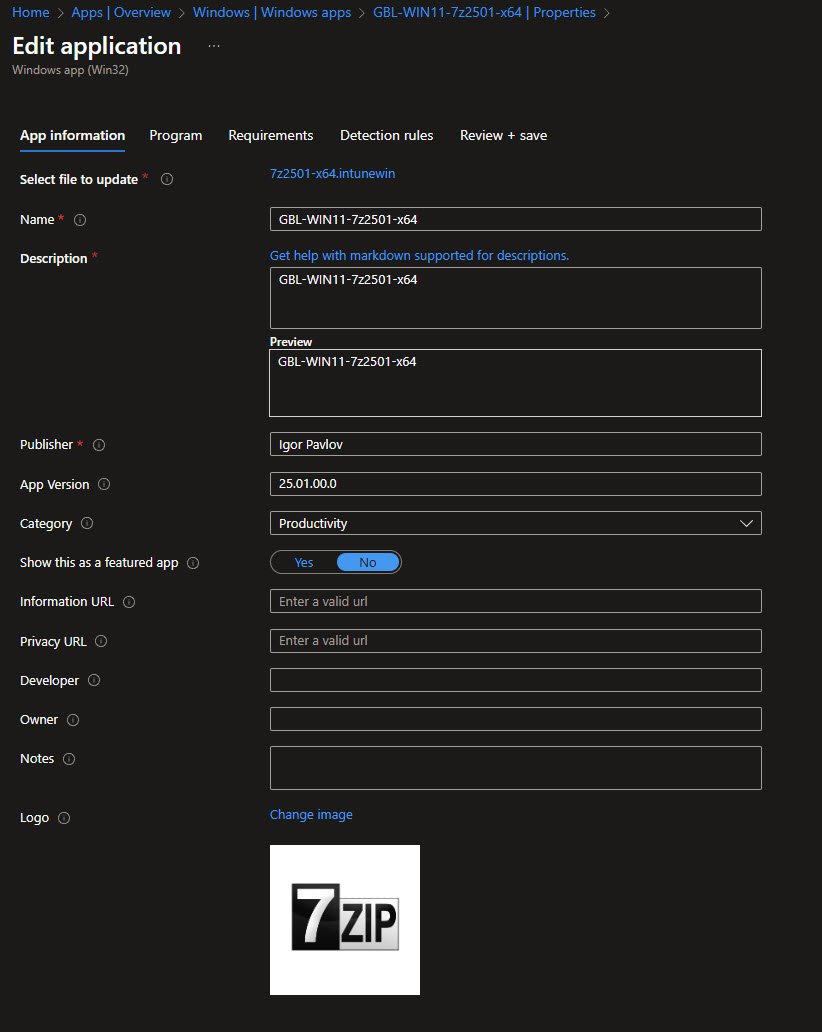
Program Tab Configuration
The Program tab is where the new PowerShell installation approach shines! Setting Installer type to PowerShell script and selecting the Install_7Zip_2501.ps1 script enables full control over the installation process.
Note: As can be seen I’m not using the Install command type anymore with the classic "
%SystemRoot%\sysnative\WindowsPowerShell\v1.0\powershell.exe -executionpolicy bypass -command .\Install_7Zip_2501.ps1" instead I’m taking advantage of the new PowerShell script install type, by directly using my separate stand alone PS script:
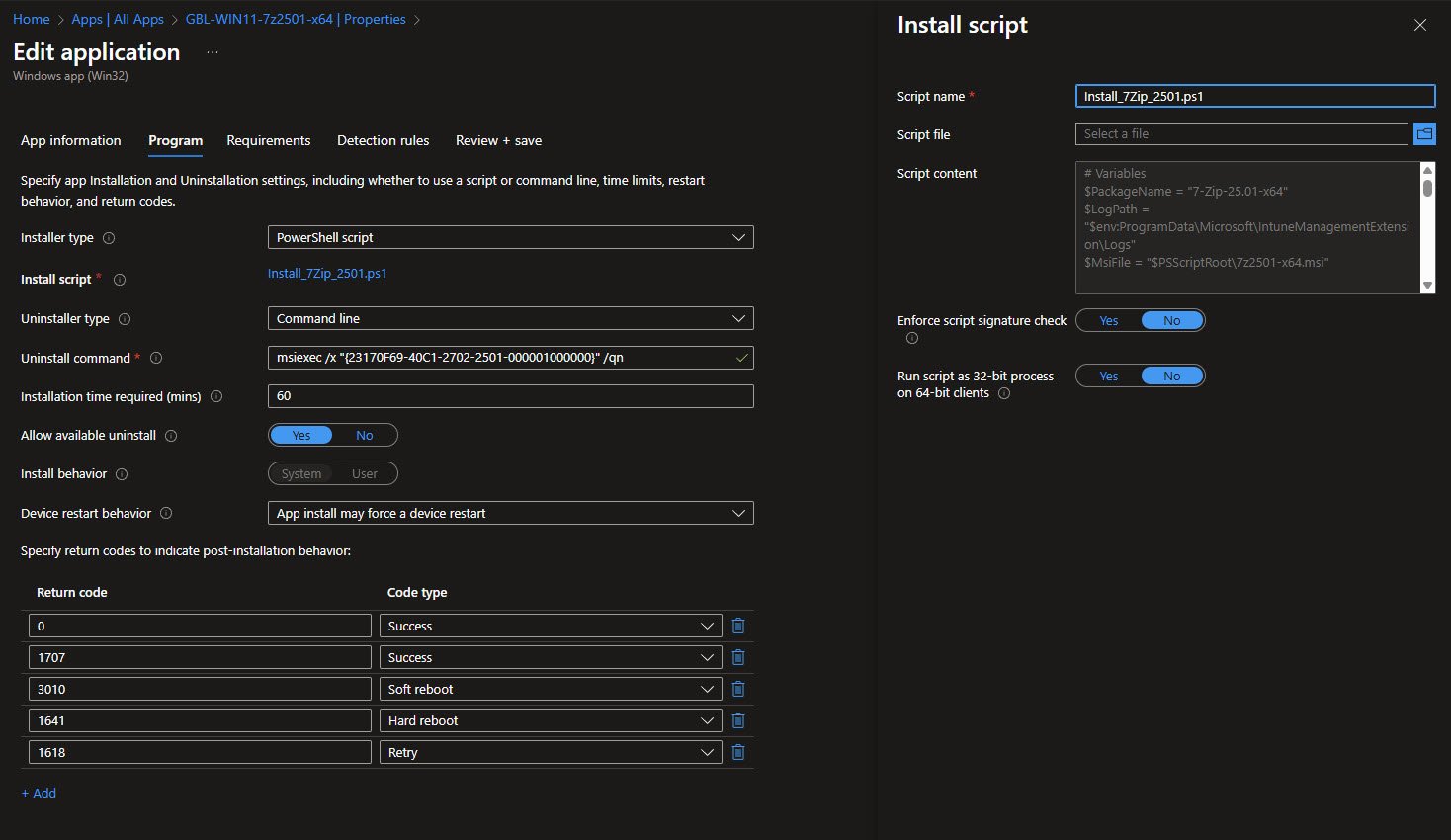
Important settings: Enforce script signature check: No allows unsigned scripts (acceptable for internal/testing environments) and Run script as 32-bit process: No ensures 64-bit PowerShell execution.
The uninstall command uses the MSI product GUID with /x switch for clean removal. Notice the return codes section - 0 and 1707 indicate success, while 3010 and 1641 handle reboot scenarios.
Requirements Configuration
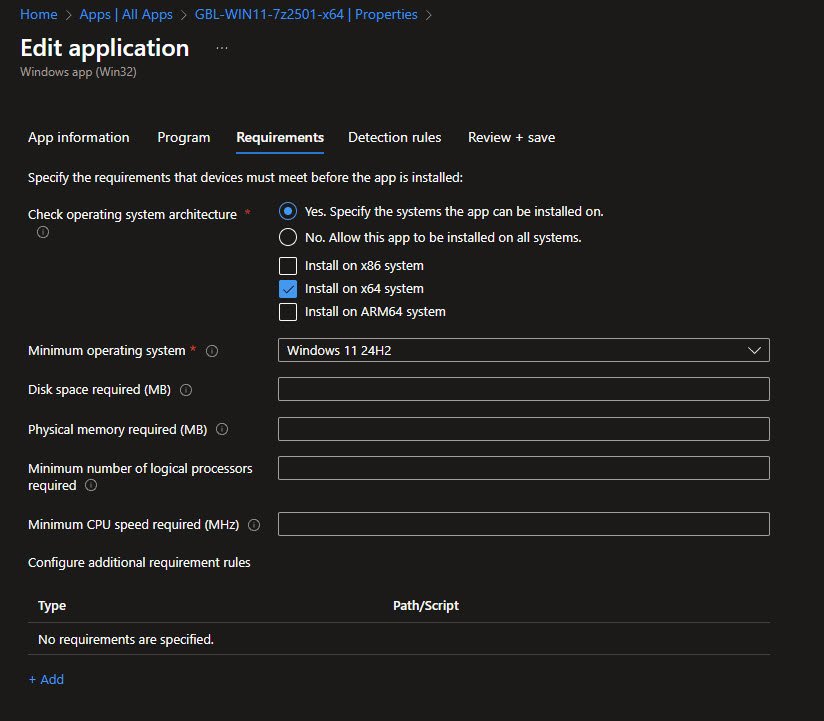
The Requirements tab defines where the app can install, I’m specifically choosing only “Install on x64 system” with a Minimum operating system of “Windows 11 v24H2”.
For a lightweight utility like 7-Zip, leaving disk space and memory requirements blank is fine, the MSI installer handles prerequisite checks internally but more complex applications may require custom requirement scripts:
Detection Rules
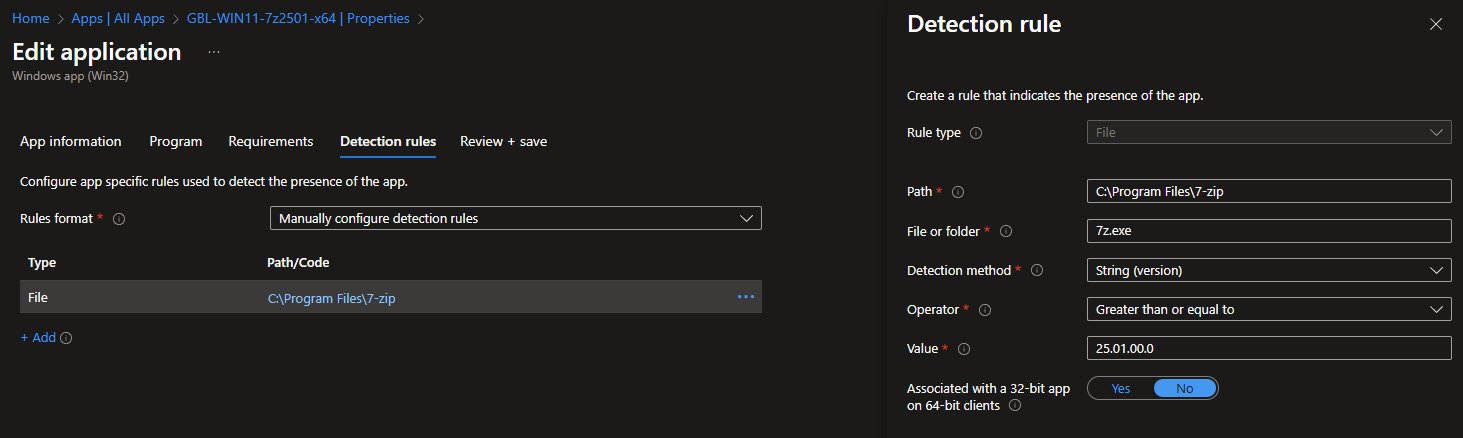
Detection rules tell Intune how to verify successful installation. Using File detection with path C:\Program Files\7-zip and file 7z.exe is reliable for 7-Zip. The String (version) method with operator Greater than or equal to and value 25.01.00.0 ensures the detection passes only when the correct version is installed.
This version-based detection is superior to simple file existence checks, it prevents false positives from older installations and enables proper upgrade detection for future versions.
Final step is to assign the application to a group, in this case I specifically add it as an “Available” type, since I want to manually install it from the “Company Portal”:

After finishing creating the application and reviewing it once again, you’ll notice something interesting, the Install command shows a - (dash) and the Install script shows: Install_7Zip_2501.ps1 but if you edit the app again it will show the correct Installer type: PowerShell script .
I believe this behavior confirms the script is metadata not being part of the command line.
Company Portal Verification
Open the Company Portal select the app from the list and Install it.
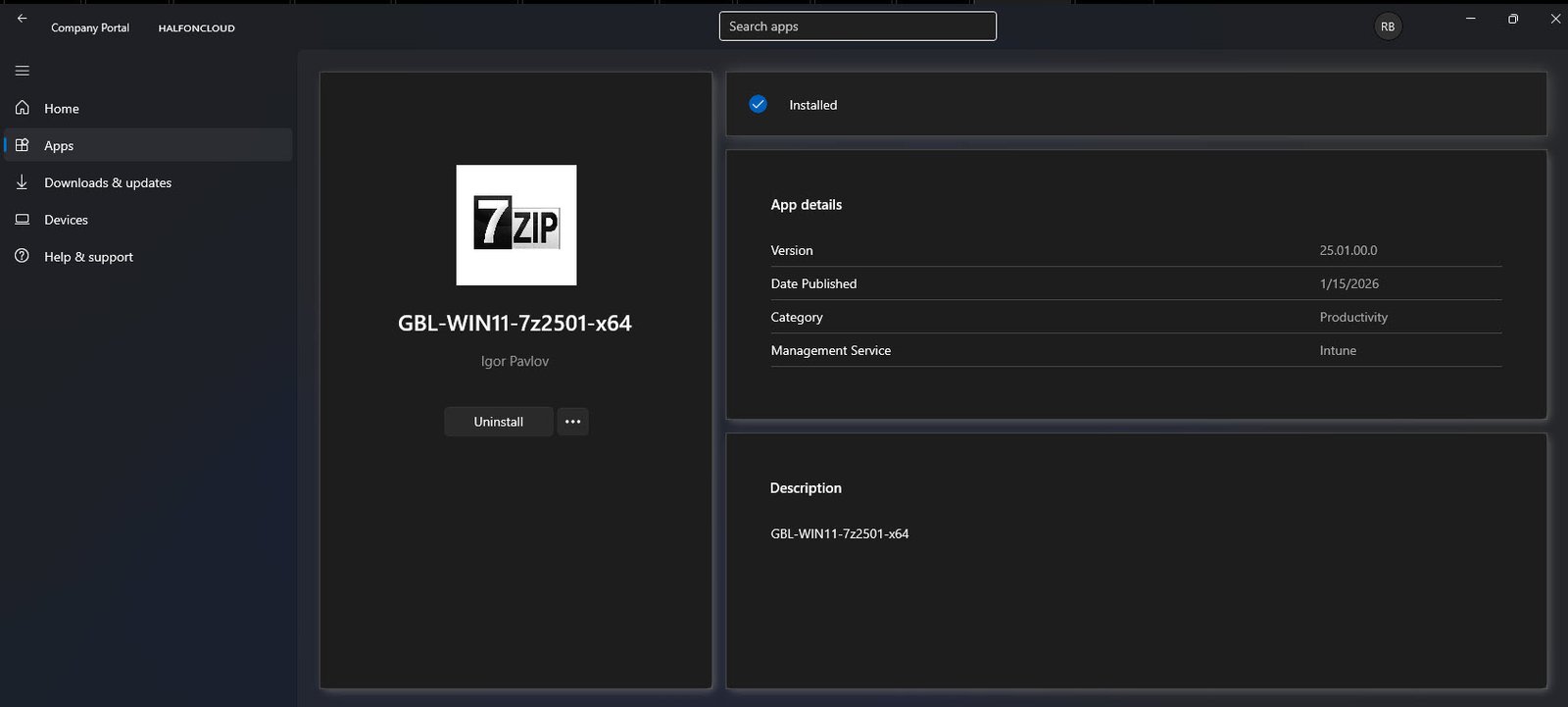
The end-user view in Company Portal confirms successful deployment. As expected the app appears with my custom logo, naming convention and all the other information. The blue checkmark with Installed status indicates the detection rule passed successfully.
Device Install Status
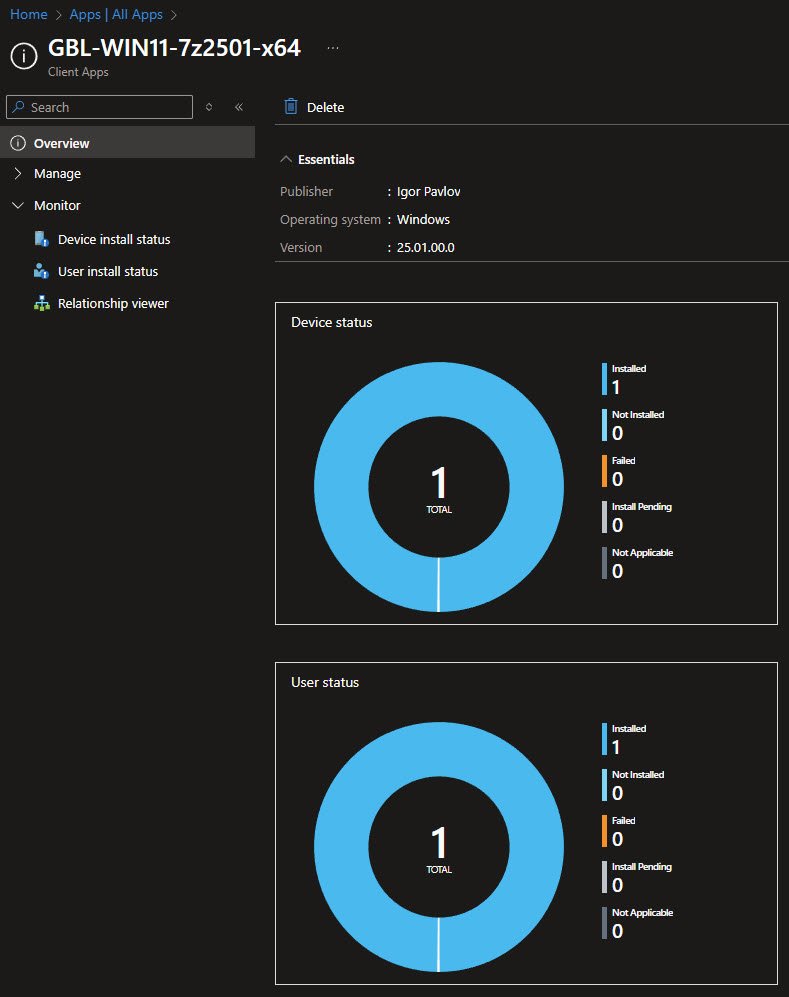
The App Overview dashboard provides a consolidated view of deployment health, the donut charts show Device status and User status with 1 Installed perfect success rate for my initial deployment:
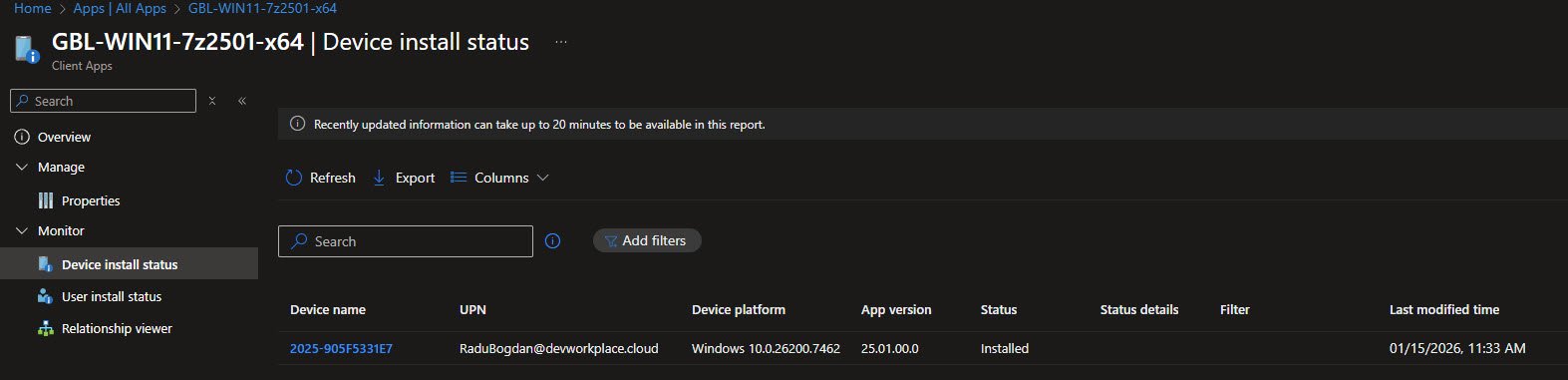
The Device install status view in Intune provides per-device deployment tracking, the status shows Installed for my test device, with the detected app version 25.01.00.0 matching the detection rule configuration:
Installation Troubleshooting
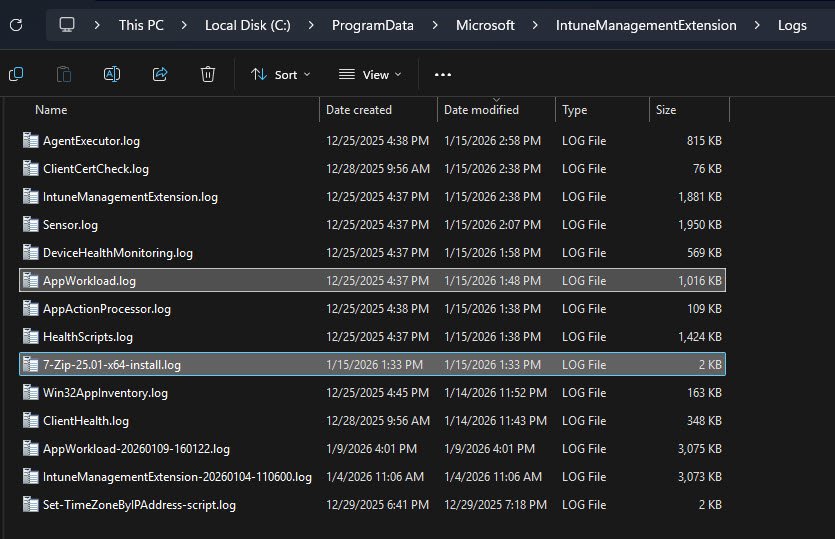
The Intune Management Extension log folder at: C:\ProgramData\Microsoft\IntuneManagementExtension\Logs
is the primary location for advanced Intune app troubleshooting.
This folder contains all IME-related logs, in my case the file 7-Zip-25.01-x64-install.log is a custom transcript created by the PowerShell script using Start-Transcript.
For advanced application troubleshooting, two logs are especially important:
AppWorkload.logwhich shows how Intune processes the app deployment.- The custom install log
7-Zip-25.01-x64-install.logwhich captures exactly what the installation script executed and returned.
Understanding and correlating these logs is essential when diagnosing Win32 app deployment issues in Intune.
7-Zip-25.01-x64-install.log
Reviewing 7-Zip-25.01-x64-install.log will reveal the following two entries:
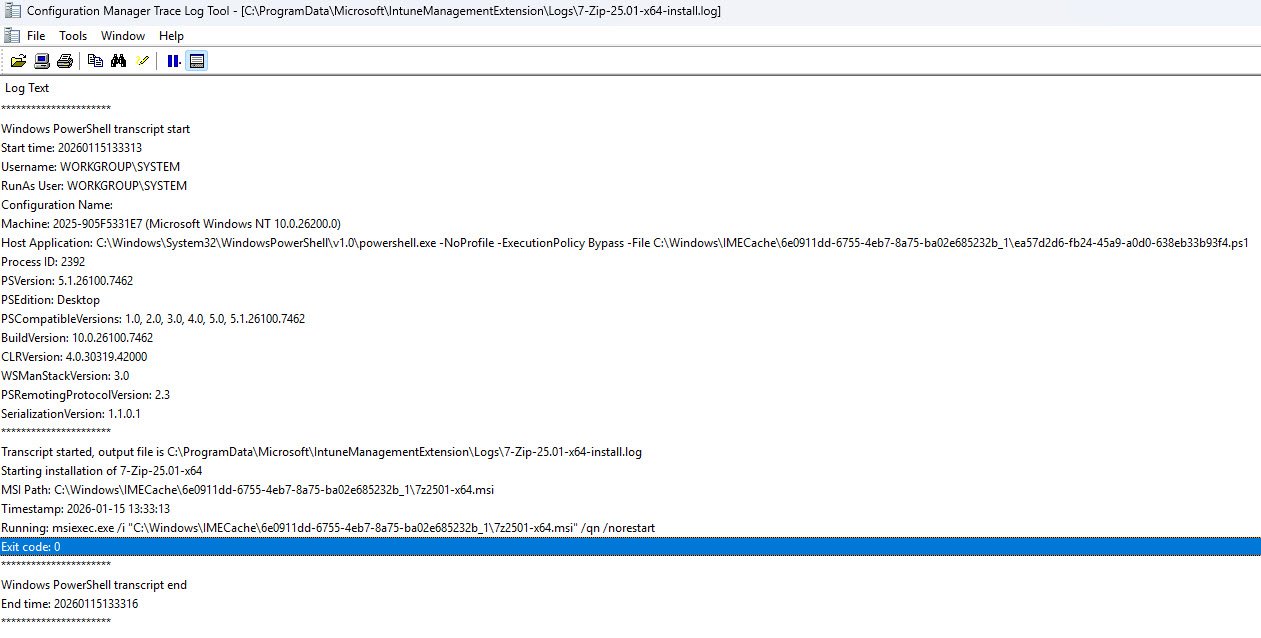
Host Application: C:\Windows\System32\WindowsPowerShell\v1.0\powershell.exe -NoProfile -ExecutionPolicy Bypass -File C:\Windows\IMECache\6e0911dd-6755-4eb7-8a75-ba02e685232b_1\ea57d2d6-fb24-45a9-a0d0-638eb33b93f4.ps1
Although the script is named Install_7Zip_2501.ps1 in Intune because the Intune Management Extension executes it under a GUID-based name:
[Win32App] lpExitCode 0
Which is the final confirmation that the installation completed successfully, an exit code of 0 means the installer returned success and Intune accepted the result. Combined with the custom transcript log this is the definitive confirmation that the Win32 app deployment ran as expected.
Important: The IME renames the script internally, this is why searching the logs for the keyword Install_7Zip_2501.ps1 returns nothing, since the IME only tracks the GUID-based filename.
AppWorkload.log
The following entries from AppWorkload.log show the complete execution flow for my Win32 app using a PowerShell script installer:
1. Policy Received
Intune confirms that a Win32 app assignment was received for the user and session, this is the moment the device becomes aware that work needs to be done:
[Win32App] Got 1 Win32App(s) for user e297c863-88ff-465c-a24c-8c124a3b35d3 in session 1
2. App Details & Script Reference
Intune loads the full app definition: detection rules, install and uninstall commands, requirements, return codes and the associated PowerShell script.
At this stage you can already see the script referenced by its internal GUID and not by the friendly name shown in the Intune portal:
Get policies = [{“Id”:“6e0911dd-6755-4eb7-8a75-ba02e685232b”,“Name”:“GBL-WIN11-7z2501-x64”,“Version”:1,“Intent”:1,“TargetType”:1,“AppApplicabilityStateDueToAssginmentFilters”:null,“AssignmentFilterIds”:null,“DetectionRule”:"[{"DetectionType":2,"DetectionText":"{\"Path\":\"C:\\\\Program Files\\\\7-zip\",\"FileOrFolderName\":\"7z.exe\",\"Check32BitOn64System\":false,\"DetectionType\":4,\"Operator\":5,\"DetectionValue\":\"25.01.00.0\"}"}]",“InstallCommandLine”:“msiexec /i "7z2501-x64.msi" /qn”,“UninstallCommandLine”:“msiexec /x "{23170F69-40C1-2702-2501-000001000000}" /qn”,“RequirementRules”:"{"RequiredOSArchitecture":32,"MinimumFreeDiskSpaceInMB":null,"MinimumWindows10BuildNumer":"10.0.26100","MinimumMemoryInMB":null,"MinimumNumberOfProcessors":null,"MinimumCpuSpeed":null,"RunAs32Bit":false}",“ExtendedRequirementRules”:"[]",“InstallEx”:"{"RunAs":1,"RequiresLogon":true,"InstallProgramVisibility":3,"MaxRetries":3,"RetryIntervalInMinutes":5,"MaxRunTimeInMinutes":60,"DeviceRestartBehavior":1}",“ReturnCodes”:"[{"ReturnCode":0,"Type":1},{"ReturnCode":1707,"Type":1},{"ReturnCode":3010,"Type":2},{"ReturnCode":1641,"Type":3},{"ReturnCode":1618,"Type":4}]",“AvailableAppEnforcement”:1,“SetUpFilePath”:“7z2501-x64.msi”,“ToastState”:0,“Targeted”:1,“FlatDependencies”:null,“MetadataVersion”:4,“RelationVersion”:0,“RebootEx”:{“GracePeriod”:-1,“Countdown”:-1,“Snooze”:-1},“InstallBehavior”:0,“StartDeadlineEx”:{“TimeFormat”:"",“StartTime”:"/Date(-62135596800000)/",“Deadline”:"/Date(-62135596800000)/"},“RemoveUserData”:false,“DOPriority”:1,“newFlatDependencies”:true,“AssignmentFilterIdToEvalStateMap”:null,“ContentCacheDuration”:null,“ESPConfiguration”:null,“ReevaluationInterval”:480,“SupportState”:null,“InstallContext”:1,“InstallerData”:null,“AvailableAppRequestType”:0,“ContentMode”:1,“Scripts”:"[{"Id":"ea57d2d6-fb24-45a9-a0d0-638eb33b93f4","Type":1,"Data":null,"EnforceSignatureCheck":false}]"}]
3. Status: Installing
The device reports back its enforcement status error code of 0 which indicates a clean execution path with no failures reported by the installer:
[StatusService] Returning status to user with id: e297c863-88ff-465c-a24c-8c124a3b35d3 for V3-managed app with id: 6e0911dd-6755-4eb7-8a75-ba02e685232b and install context: System. Applicability: Applicable, Status: Installed, ErrorCode: 0
4. Script Downloaded
The Intune Management Extension downloads the PowerShell script from Microsoft’s CDN. This confirms the script is treated as separate content, not embedded inside the app payload:
[Win32App] ExternalCDN mode, content raw URL is https://swdsw02-mscdn.manage.microsoft.com/85ae9e0a-4b2b-4097-918d-3108be0d0efd/1ed98657-e1ec-4e51-a6f4-d2aa6f2b8ef6/ea57d2d6-fb24-45a9-a0d0-638eb33b93f4.ps1.gz.bin
5. Script Decrypted & Extracted
The downloaded script is decrypted and written to the IME cache under a GUID-based filename, this is the file that will actually be executed:
[Win32App] Decompressed: to C:\Windows\IMECache\6e0911dd-6755-4eb7-8a75-ba02e685232b_1/ea57d2d6-fb24-45a9-a0d0-638eb33b93f4.ps1
6. Script Executed
Finally, the IME launches PowerShell and executes the script from the cache location using a controlled command line with execution policy bypassed:
[Win32App] Installer script command line: “C:\Windows\System32\WindowsPowerShell\v1.0\powershell.exe” -NoProfile -ExecutionPolicy Bypass -File “C:\Windows\IMECache\6e0911dd-6755-4eb7-8a75-ba02e685232b_1\ea57d2d6-fb24-45a9-a0d0-638eb33b93f4.ps1”
Final Validation via Registry State
As a last troubleshooting step you can validate the app state directly from the registry too.
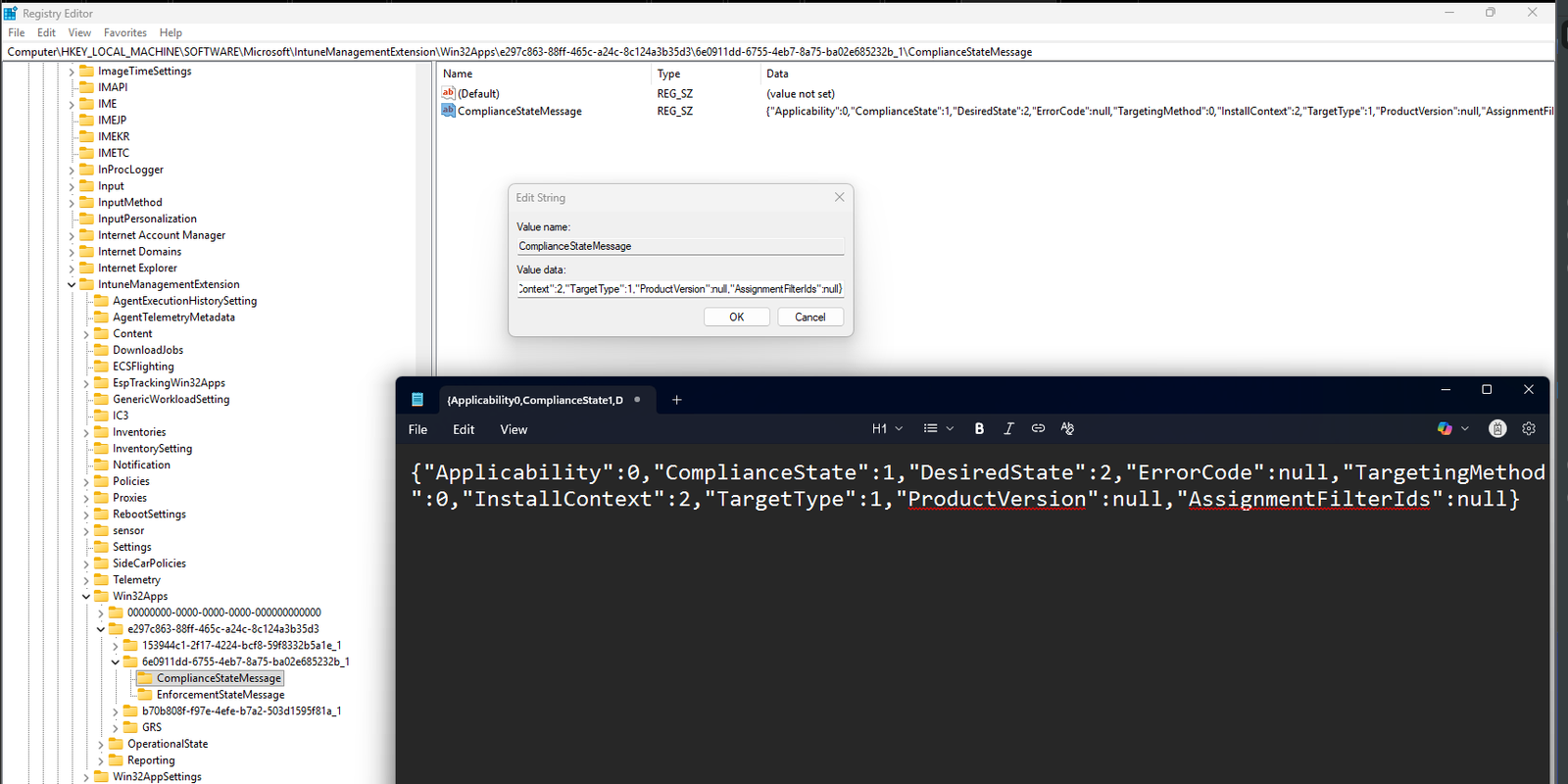
Intune stores per-user and per-app enforcement results under the Intune Management Extension hive:
Computer\HKEY_LOCAL_MACHINE\SOFTWARE\Microsoft\IntuneManagementExtension\Win32Apps\e297c863-88ff-465c-a24c-8c124a3b35d3\6e0911dd-6755-4eb7-8a75-ba02e685232b_1\ComplianceStateMessage
The ComplianceStateMessage value contains a JSON object that summarizes how Intune evaluated the deployment:
ComplianceStateMessage: {“Applicability”:0,“ComplianceState”:1,“DesiredState”:2,“ErrorCode”:null,“TargetingMethod”:0,“InstallContext”:2,“TargetType”:1,“ProductVersion”:null,“AssignmentFilterIds”:null}
In my case:
- Applicability
0means the app was applicable to the device. - ComplianceState
1means the app is compliant. - DesiredState
2means the app is expected to be present. - ErrorCode being null confirms no errors were reported.
This combination confirms a successful required deployment that is installed and compliant.
Understanding the State Values
App deployment Type (Intent):
| Values | Description |
|---|---|
| 1 | Available |
| 3 | Required |
| 4 | Uninstall |
Compliance State:
| Values | Description |
|---|---|
| 0 | Unknown |
| 1 | Compliant |
| 2 | Not compliant |
| 3 | Conflict (Not applicable for app deployment) |
| 4 | Error |
Desired State:
| Values | Description |
|---|---|
| 0 | None |
| 1 | NotPresent |
| 2 | Present |
| 3 | Unknown |
| 4 | Available |