M365 Apps Deployment with PowerShell Installer & Delivery Optimization Gotchas
Table of Contents
Building on the Foundation
In my previous article, PowerShell script installer for Win32 apps Guide I’ve demonstrated Microsoft’s new native PowerShell installer type for Win32 apps using a simple 7-Zip MSI deployment. That approach removed the need to repackage applications just to adjust install logic, a meaningful improvement to the Win32 app workflow in Intune.
However, 7-Zip is a small self-contained installer, the real test comes when applying this same approach to a much more complex scenario: an application that downloads several gigabytes of content from a CDN during installation.
This article takes the PowerShell installer model to the next level with Microsoft 365 Apps, an evergreen deployment that pulls the latest Monthly Enterprise Channel build directly from Microsoft’s CDN. Along the way I’ve discovered that my existing Delivery Optimization (DO) policy was also actively interfering with the install, silently throttling download speed and turning what should have been a ~15–20 minute deployment into a multi-hour experience.
What This Article Covers
This deployment combines several moving parts: the Office Deployment Tool with a CDN-based configuration, a couple PowerShell scripts for install & uninstall as well as a separate custom detection logic with detailed logging and critically the Delivery Optimization settings that can make or break large app deployments during either regular installations (or Autopilot deployments).
I’ll walk through the complete package structure, Intune configuration and real-world troubleshooting using IME logs and PowerShell transcripts. The before/after comparison clearly shows how much bandwidth my original DO policy was leaving unused and why this matters for both regular deployments and Autopilot scenarios.
M365 Apps Package Root Folder Structure
The root folder of the new M365 Apps Win32 package contains five items:
- Two folders:
- Source (original installation files)
- Output (for the generated .intunewin file)
- Three PowerShell scripts:
- Install-M365Apps.ps1
- Uninstall-M365Apps.ps1
- M365AppsWin32DetectionScript.ps1
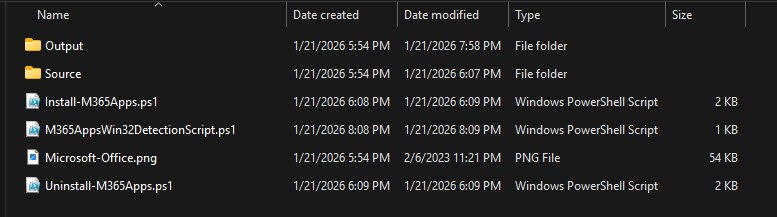
M365 Apps Source Folder Contents
The Source folder contains only three files totaling approximately ~7 MB:
- M365Apps.xml - Office Deployment Tool configuration
- remove.xml - uninstallation configuration
- setup.exe - Office Deployment Tool executable
Office Deployment Tool
Version: 16.0.19628.20046
Date published: 2026-01-15
Source: https://www.microsoft.com/en-us/download/details.aspx?id=49117

What each files contains:
M365Apps.xml
<Configuration>
  <Add OfficeClientEdition="64" Channel="Current">
    <Product ID="O365BusinessRetail">
	  <Language ID="en-us" />
      <ExcludeApp ID="Groove" />
      <ExcludeApp ID="Lync" />
      <ExcludeApp ID="Bing" />
    </Product>
  </Add>
  <Property Name="SharedComputerLicensing" Value="0" />
  <Property Name="FORCEAPPSHUTDOWN" Value="TRUE" />
  <Property Name="DeviceBasedLicensing" Value="0" />
  <Property Name="SCLCacheOverride" Value="0" />
  <Updates Enabled="TRUE" />
  <AppSettings>
    <User Key="software\microsoft\office\16.0\excel\options" Name="defaultformat" Value="51" Type="REG_DWORD" App="excel16" Id="L_SaveExcelfilesas" />
    <User Key="software\microsoft\office\16.0\powerpoint\options" Name="defaultformat" Value="27" Type="REG_DWORD" App="ppt16" Id="L_SavePowerPointfilesas" />
    <User Key="software\microsoft\office\16.0\word\options" Name="defaultformat" Value="" Type="REG_SZ" App="word16" Id="L_SaveWordfilesas" />
    <Setup Name="Company" Value="HalfOnCloud" />
  </AppSettings>
  <Display Level="None" AcceptEULA="TRUE" />
  <Logging Level="Standard" Path="%WinDir%\Logs\Software\M365AppsProPlus\" />
</Configuration>
remove.xml
<Configuration>
  <Display Level="None" AcceptEULA="True"/>
  <Property Name="FORCEAPPSHUTDOWN" Value="True"/>
  <Remove>
    <Product ID="O365BusinessRetail">
      <Language ID="en-us"/>
    </Product>
  </Remove>
</Configuration>
Install-M365Apps.ps1
# Variables
$PackageName = "M365Apps-Current"
$LogPath = "$env:ProgramData\Microsoft\IntuneManagementExtension\Logs"
$SetupFile = "$PSScriptRoot\setup.exe"
$ConfigFile = "$PSScriptRoot\M365Apps.xml"

# Start logging
Start-Transcript -Path "$LogPath\$PackageName-install.log" -Force -Append

try {
    Write-Host "Starting installation of $PackageName"
    Write-Host "Setup Path: $SetupFile"
    Write-Host "Config Path: $ConfigFile"
    Write-Host "Timestamp: $(Get-Date -Format 'yyyy-MM-dd HH:mm:ss')"

    # Verify files exist
    if (!(Test-Path $SetupFile)) {
        Write-Host "ERROR: setup.exe not found!"
        Stop-Transcript
        exit 1
    }

    if (!(Test-Path $ConfigFile)) {
        Write-Host "ERROR: M365Apps.xml not found!"
        Stop-Transcript
        exit 1
    }

    # Install
    $arguments = "/configure `"$ConfigFile`""
    Write-Host "Running: $SetupFile $arguments"

    $process = Start-Process -FilePath $SetupFile -ArgumentList $arguments -Wait -PassThru

    Write-Host "Exit code: $($process.ExitCode)"
    Stop-Transcript
    exit $process.ExitCode
}
catch {
    Write-Host "ERROR: $($_.Exception.Message)"
    Stop-Transcript
    exit 1
}
Uninstall-M365Apps.ps1
# Variables
$PackageName = "M365Apps-Current"
$LogPath = "$env:ProgramData\Microsoft\IntuneManagementExtension\Logs"
$SetupFile = "$PSScriptRoot\setup.exe"
$RemoveFile = "$PSScriptRoot\remove.xml"

# Start logging
Start-Transcript -Path "$LogPath\$PackageName-uninstall.log" -Force -Append

try {
    Write-Host "Starting uninstallation of $PackageName"
    Write-Host "Setup Path: $SetupFile"
    Write-Host "Remove Config Path: $RemoveFile"
    Write-Host "Timestamp: $(Get-Date -Format 'yyyy-MM-dd HH:mm:ss')"

    # Verify files exist
    if (!(Test-Path $SetupFile)) {
        Write-Host "ERROR: setup.exe not found!"
        Stop-Transcript
        exit 1
    }

    if (!(Test-Path $RemoveFile)) {
        Write-Host "ERROR: remove.xml not found!"
        Stop-Transcript
        exit 1
    }

    # Uninstall
    $arguments = "/configure `"$RemoveFile`""
    Write-Host "Running: $SetupFile $arguments"

    $process = Start-Process -FilePath $SetupFile -ArgumentList $arguments -Wait -PassThru

    Write-Host "Exit code: $($process.ExitCode)"
    Stop-Transcript
    exit $process.ExitCode
}
catch {
    Write-Host "ERROR: $($_.Exception.Message)"
    Stop-Transcript
    exit 1
}
M365AppsWin32DetectionScript.ps1
# Detection Script for M365 Apps
$LogPath = "$env:ProgramData\Microsoft\IntuneManagementExtension\Logs"
$LogFile = "$LogPath\M365Apps-Detection.log"

# Start logging
"$(Get-Date -Format 'yyyy-MM-dd HH:mm:ss') - Starting M365 Apps detection" | Out-File -FilePath $LogFile -Force

# Check for Microsoft 365 Apps in uninstall registry
$M365Apps = Get-ChildItem -Path "HKLM:\SOFTWARE\Microsoft\Windows\CurrentVersion\Uninstall" |
    Get-ItemProperty |
    Where-Object { $_.DisplayName -match "Microsoft 365" }

if ($M365Apps) {
    "$(Get-Date -Format 'yyyy-MM-dd HH:mm:ss') - Detected: $($M365Apps.DisplayName)" | Out-File -FilePath $LogFile -Append
    Write-Output "Microsoft 365 Apps Detected"
    exit 0
} else {
    "$(Get-Date -Format 'yyyy-MM-dd HH:mm:ss') - Microsoft 365 Apps not detected" | Out-File -FilePath $LogFile -Append
    exit 1
}
M365 Apps Win32 Application Program Settings
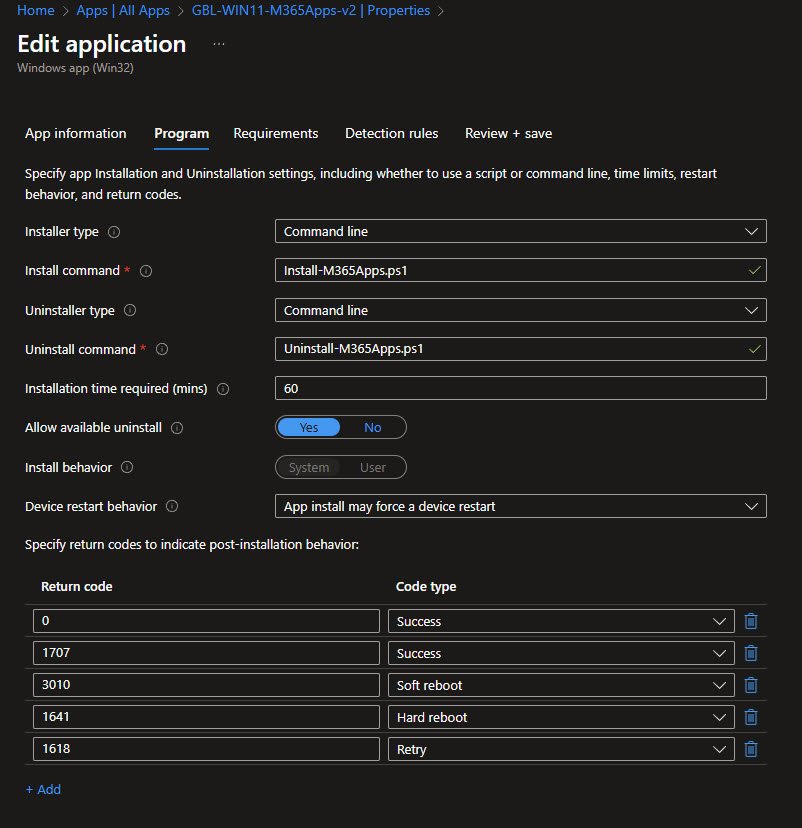
The new Intune Win32 application called “GBL-WIN11-M365Apps-v2” is using an install command which calls the PS script: Install-M365Apps.ps1 and the uninstall command calls the other PS script: Uninstall-M365Apps.ps1. Installation time is set to 60 minutes to accommodate the CDN download and the app runs in System context:
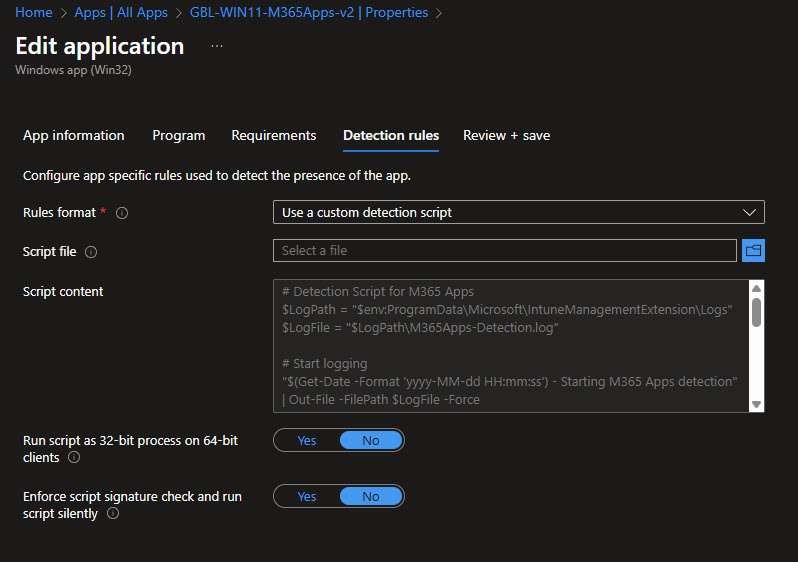
M365 Apps Custom Detection Script Configuration
For the Detection rules I’m using my custom PowerShell script that logs directly to: “C:\ProgramData\Microsoft\IntuneManagementExtension\Logs\M365Apps-Detection.log”.
Using a custom detection script instead of a basic file or registry check provides clear detection logic, troubleshooting visibility and confirmation that Office is fully installed and usable:
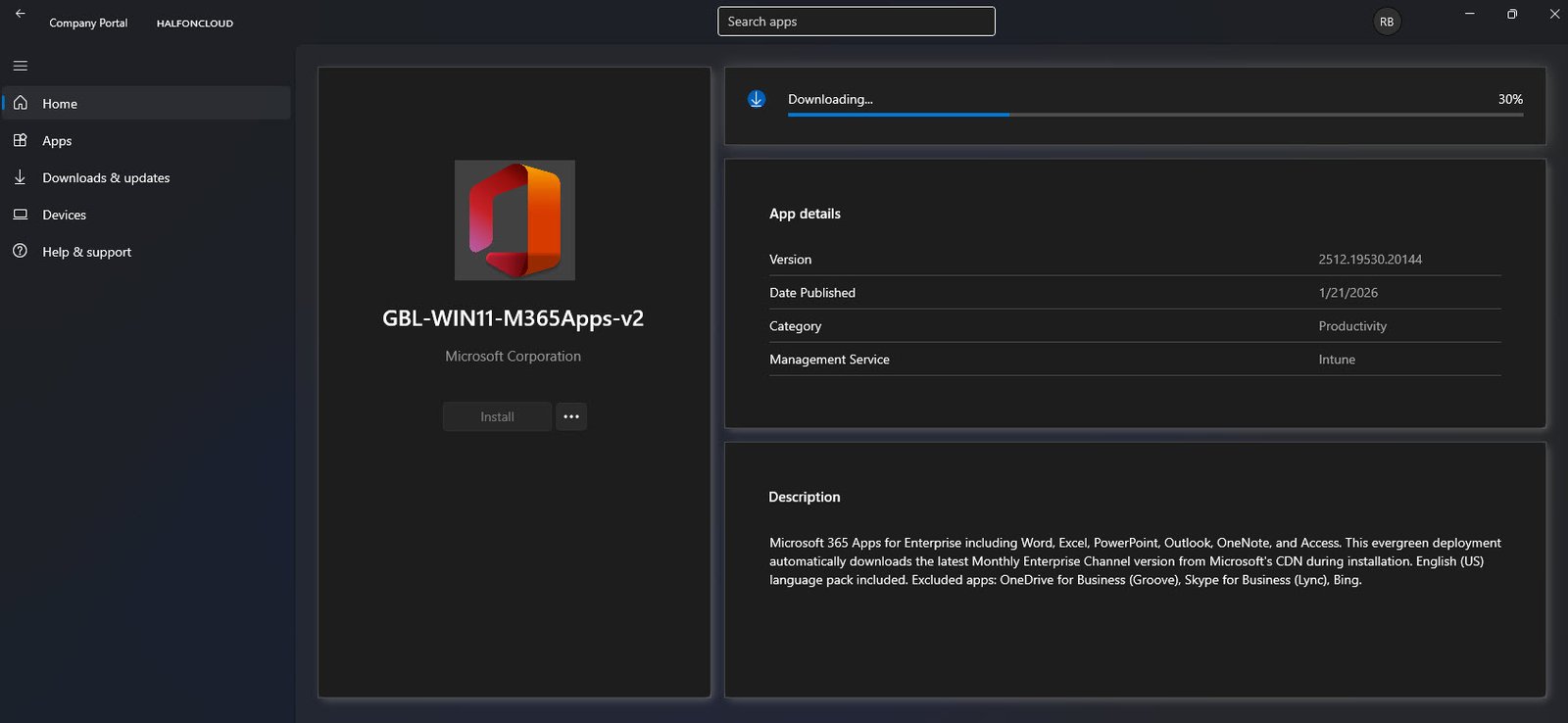
Company Portal Downloading M365 Apps
The Company Portal displays the deployment progress of GBL-WIN11-M365Apps-v2:
IntuneManagementExtension AppWorkload Log Analysis
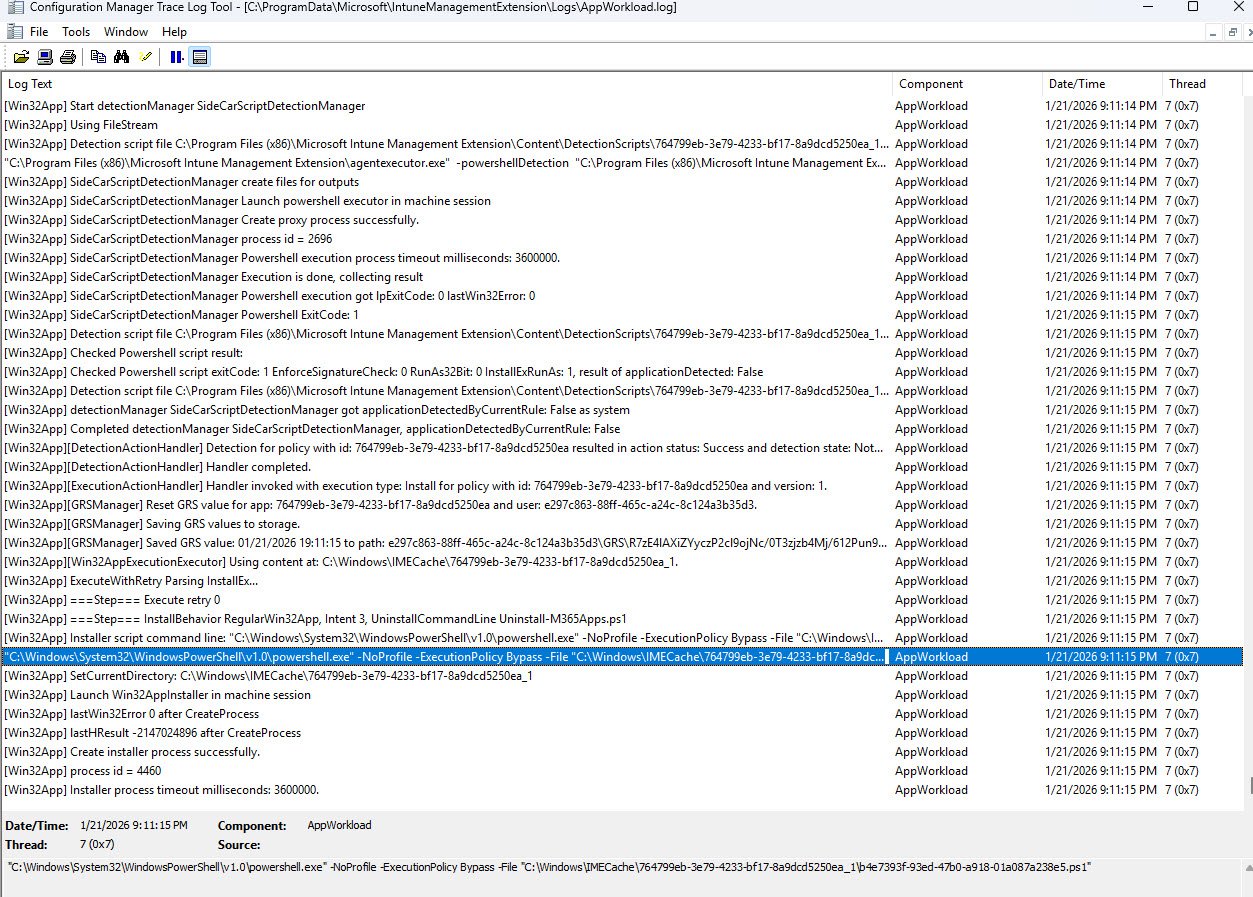
The log “AppWorkload.log” shows the detection script returning applicationDetected: False, followed by the execution handler launching the install. The highlighted line confirms the PowerShell installer is executed from the IMECache folder, which is expected behavior for Win32 apps:
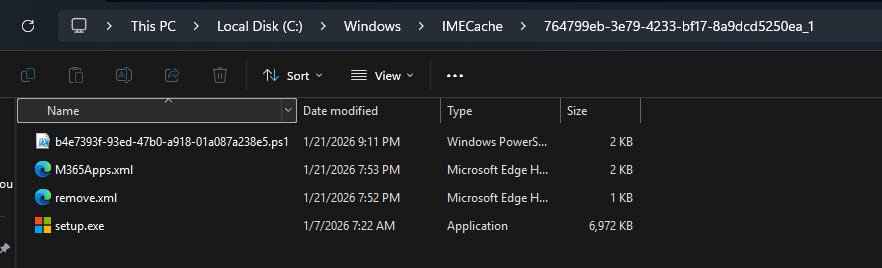
IMECache Folder with Extracted Win32 App Contents
The “C:\Windows\IMECache” folder shows the extracted contents of the M365 Apps Win32 package with the unique app GUID folder name. The contents include the install script (renamed with a GUID prefix) along with the other three files addressed above: M365Apps.xml, remove.xml and setup.exe.
Note: This is where Intune temporarily extracts Win32 app packages before execution and examining this location is valuable for troubleshooting deployment issues.
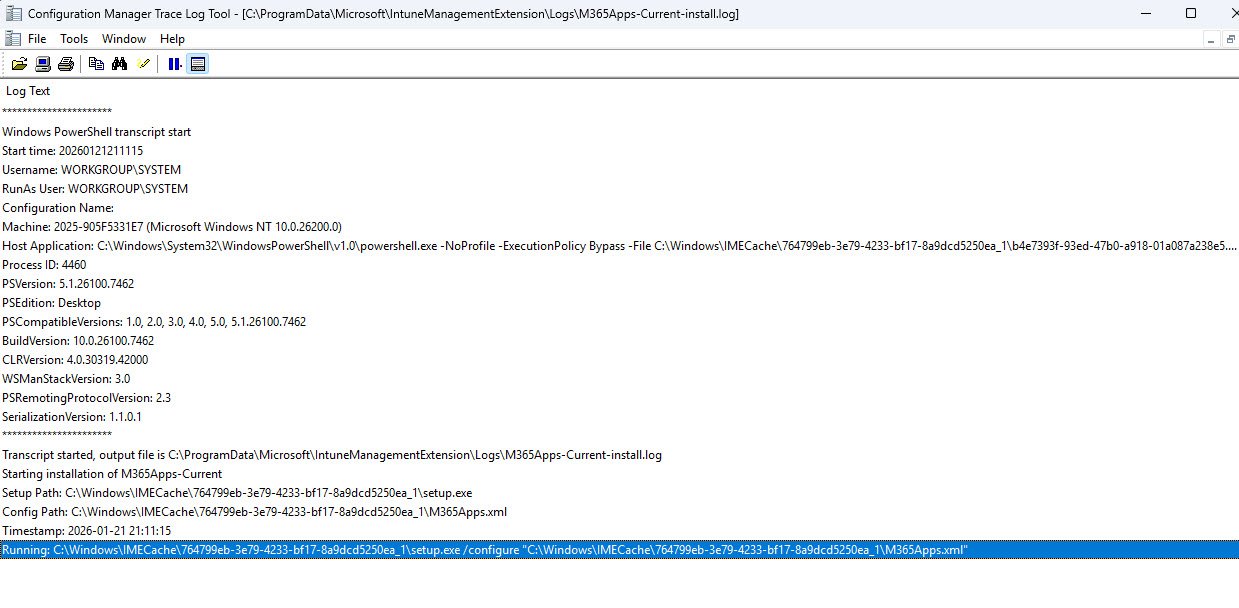
M365 Apps Installation Transcript Log
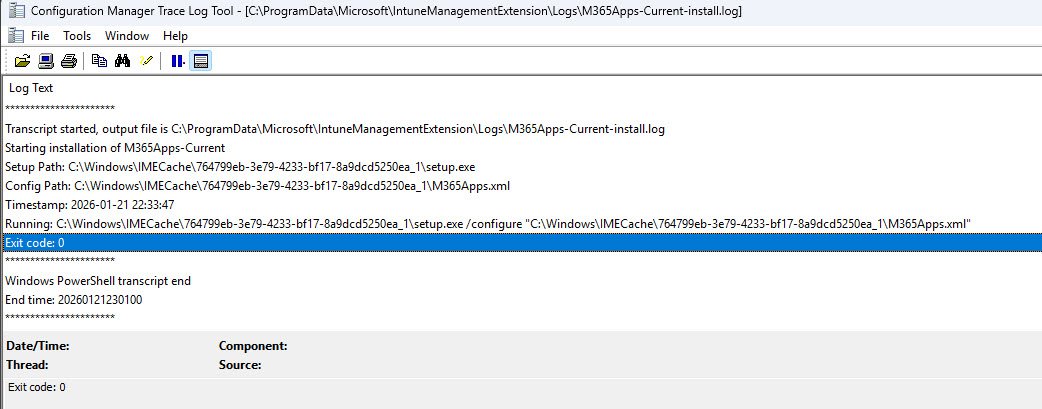
The output for the custom log “M365Apps-Current-install.log“is capturing the installation process, the highlighted line showing the setup.exe command being executed: setup.exe /configure “M365Apps.xml”.
Note: This transcript logging provides valuable troubleshooting information for deployment issues.
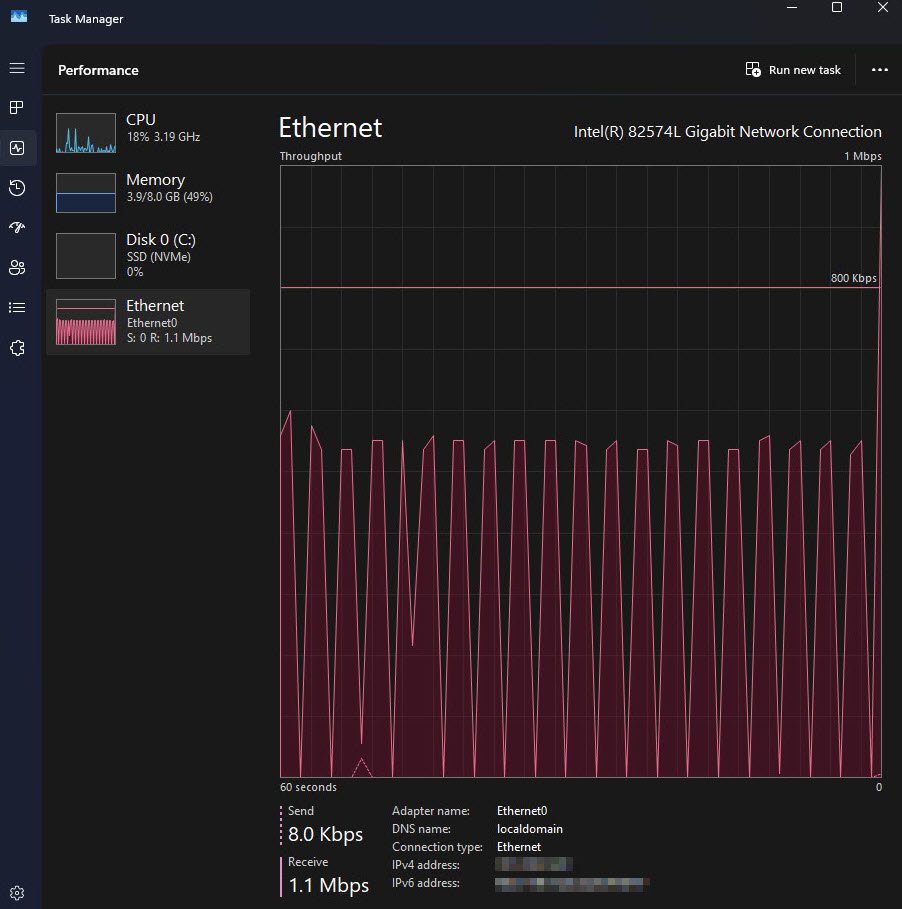
Task Manager Showing Throttled Network Speed
At this point, Task Manager revealed the real issue. Despite a Gigabit network adapter, network throughput was capped at approximately 1.1 Mbps showing constant throttling spikes. At this speed downloading ~4 GB of Office content would take 25–38 hours which is obviously unacceptable for production or Autopilot deployments.
(Optional) Monitoring Office Installation Progress
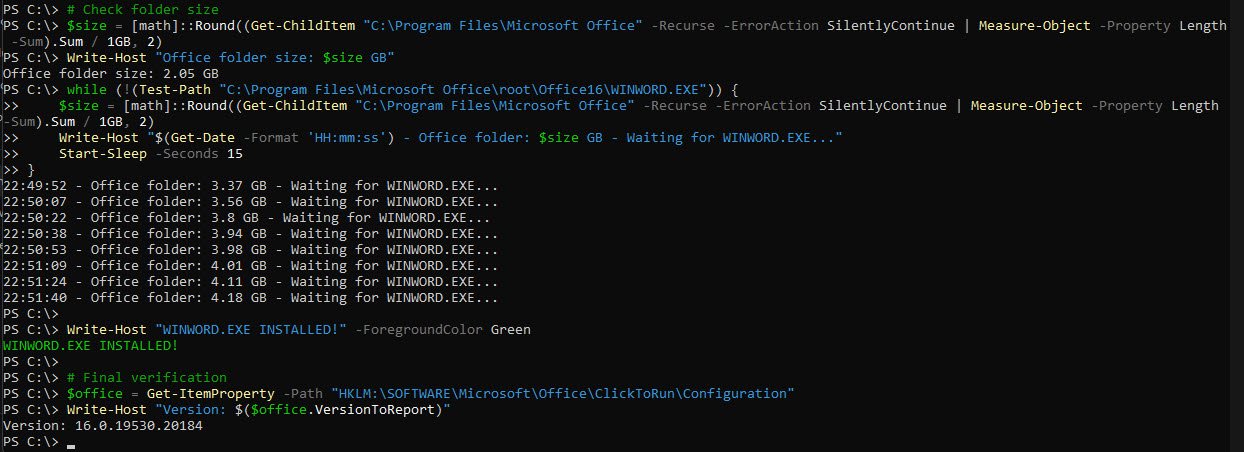
After adjusting the Delivery Optimization settings, I’ve used the following monitoring PS script which showed Office folder growth from 2.05 GB to 4.18 GB in under 2 minutes, followed by confirmation that WINWORD.EXE was installed.
This clearly demonstrated that the bottleneck was not the installer or CDN but the local DO configuration:
Estimated download impact M365 Office folders size ~4,200 MB (4.2 GB)
Before DO optimization:
~1.1 Mbps (≈ 8 MB/min) → ~8.5 hours (theoretical minimum)After DO optimization:
~27 Mbps (≈ 200 MB/min) → ~21 minutes
while (!(Test-Path "C:\Program Files\Microsoft Office\root\Office16\WINWORD.EXE")) {
    $size = [math]::Round((Get-ChildItem "C:\Program Files\Microsoft Office" -Recurse -ErrorAction SilentlyContinue | Measure-Object -Property Length -Sum).Sum / 1GB, 2)
    Write-Host "$(Get-Date -Format 'HH:mm:ss') - Office folder: $size GB - Waiting for WINWORD.EXE..."
    Start-Sleep -Seconds 15
}

Write-Host "WINWORD.EXE INSTALLED!" -ForegroundColor Green

# Final verification
$office = Get-ItemProperty -Path "HKLM:\SOFTWARE\Microsoft\Office\ClickToRun\Configuration"
Write-Host "Version: $($office.VersionToReport)"
This dramatic improvement from the previous 1.1 Mbps throttled speed demonstrates the impact of proper DO configuration.
Original Delivery Optimization Policy Settings
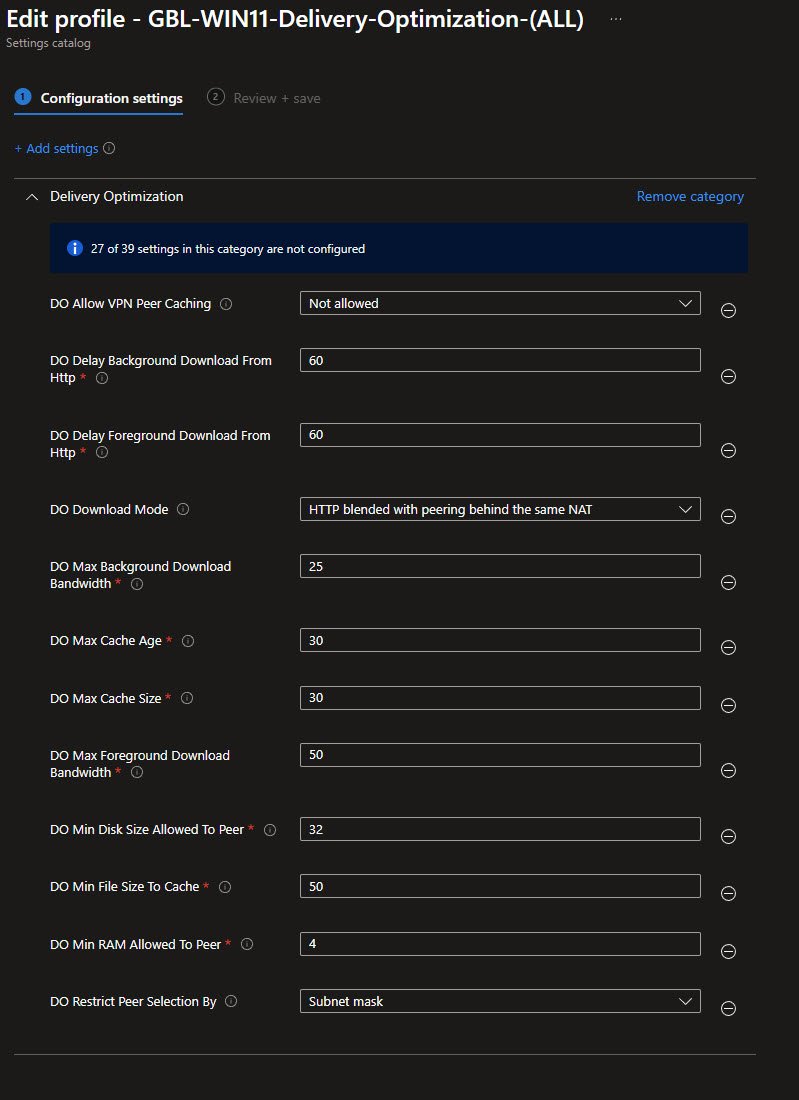
The original policy GBL-WIN11-Delivery-Optimization-(ALL) revealed the issues:
- Max Background Bandwidth: 25%
- Max Foreground Bandwidth: 50%
- Combined with HTTP delay settings
In a single-device environment with no peers these limits only reduced performance and provided no P2P benefit. More importantly these settings also apply during Autopilot and ESP, meaning they directly affect foreground installs like Microsoft 365 Apps.
While reviewing different perspectives on Delivery Optimization behavior, two voices stood out as particularly aligned and practical: Johan Arwidmark (2Pint Software), approaching the topic from bandwidth optimization and peer-to-peer efficiency and Rudy Ooms (Patch My PC), drawing conclusions from real-world Autopilot failure analysis, each arriving at similar recommendations from very different angles.
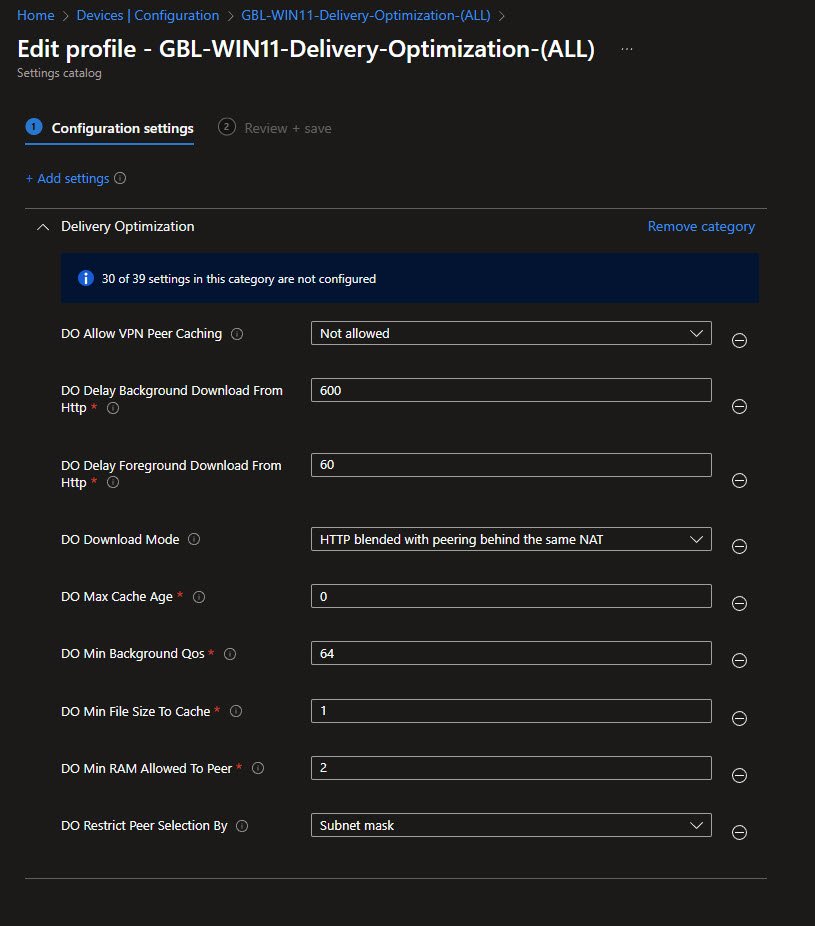
Despite different perspectives I’ve noticed that both converge on the same practical values:
- Foreground delay: 60 seconds
- Background delay: 600 seconds
The difference isn’t the numbers but how they were validated, Johan optimizes for scale while Rudy identified these values by troubleshooting what breaks Autopilot and ESP when foreground apps wait too long for peers that don’t exist.
Microsoft official documentation remains the baseline but it does not always surface the full behavioral impact of these settings especially during Autopilot, Community testing and failure analysis often fill that gap.
The key lesson is to avoid copying settings blindly, Delivery Optimization must be addressed on a per-tenant basis, aligned with network design, operational constraints and agreed with the relevant networking and endpoint stakeholders.
Here are the adjusted settings that resolved the issue in my environment:
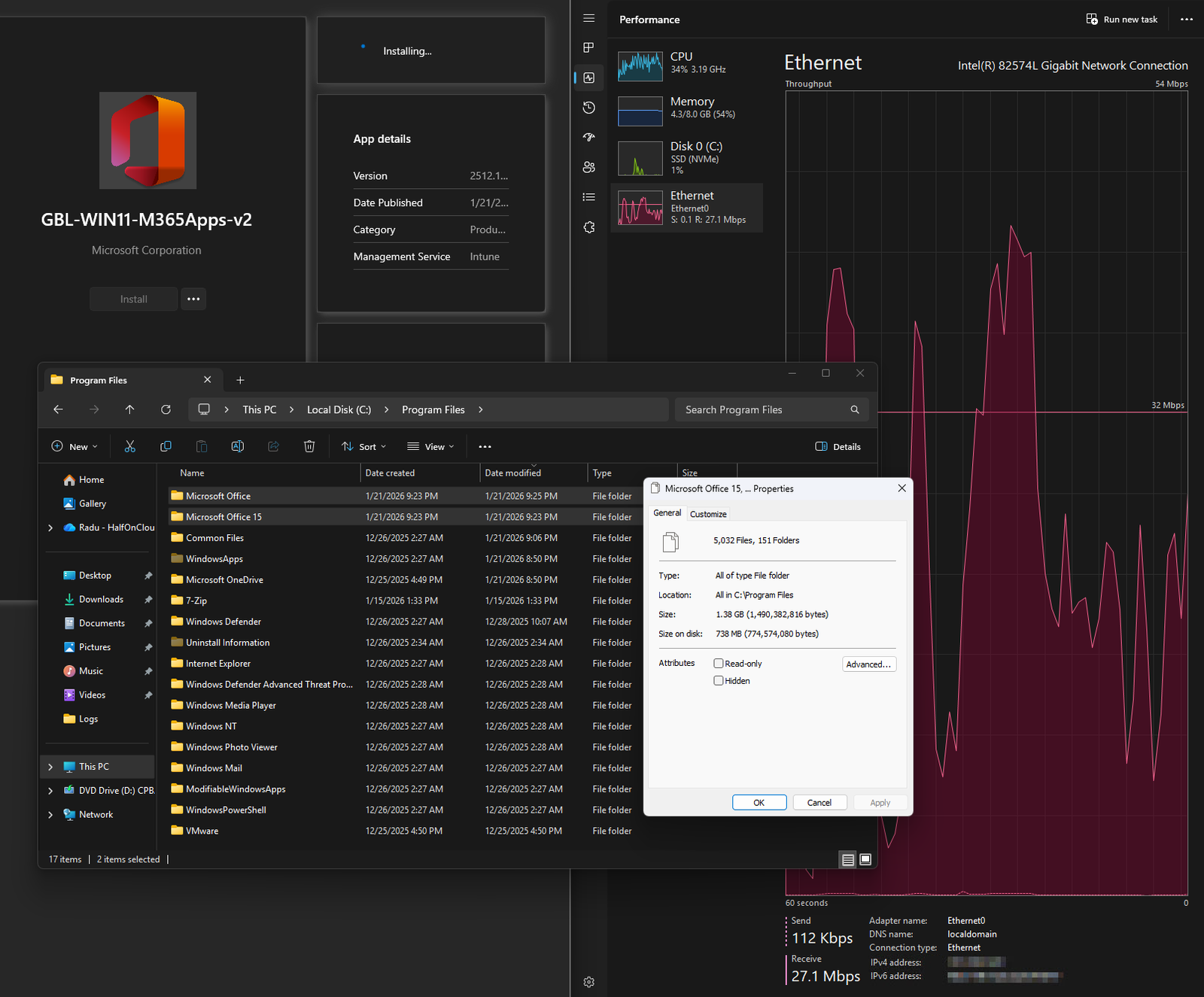
The contrast with the previous throttled state is dramatic, Task Manager now shows an improved speed of 27.1 Mbps with peaks reaching 54 Mbps, roughly 25 times faster than the original restrictive configuration. With Delivery Optimization no longer artificially constraining bandwidth, an installation that previously risked turning into a 25+ hour now completes in minutes:
M365 Apps Installation Transcript Completed Successfully
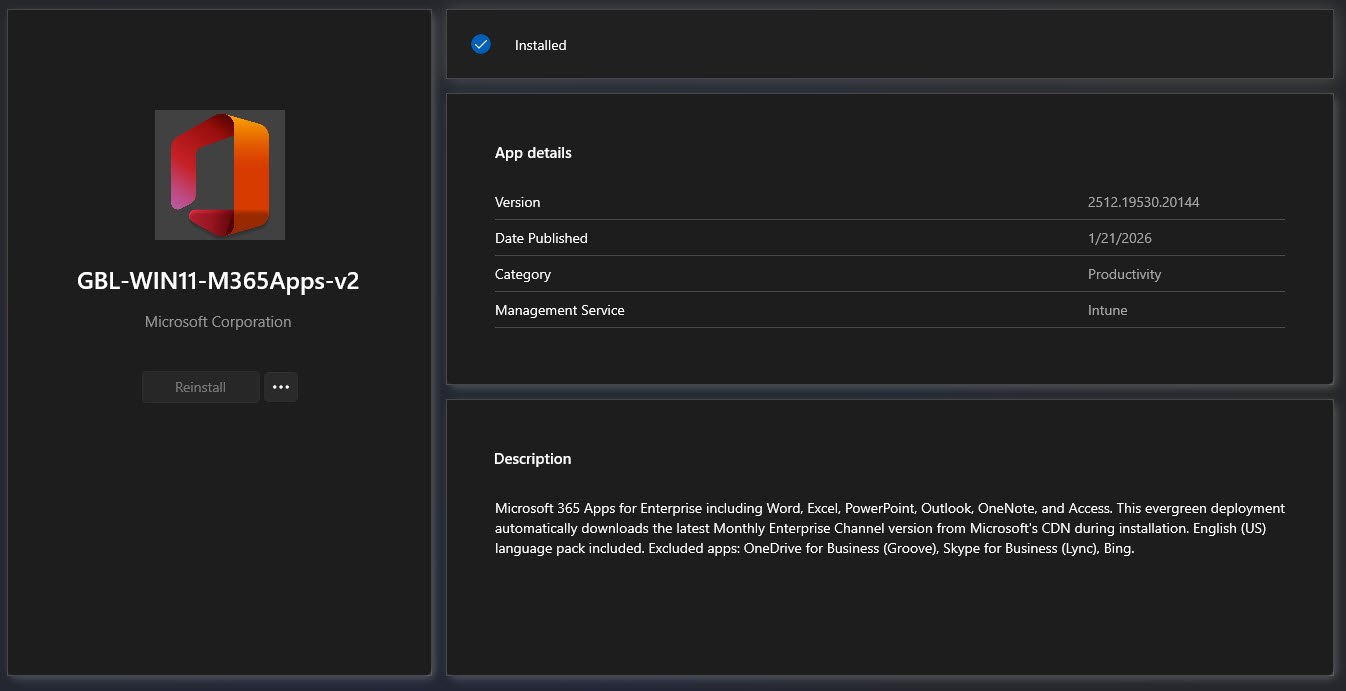
Finally the installation log confirms Exit code: 0 and Company Portal confirming the app has been deployment successfully, the entire Win32 app deployment workflow functioned correctly from CDN download through installation to detection:
Registry Verification of M365 Apps Installation Configuration
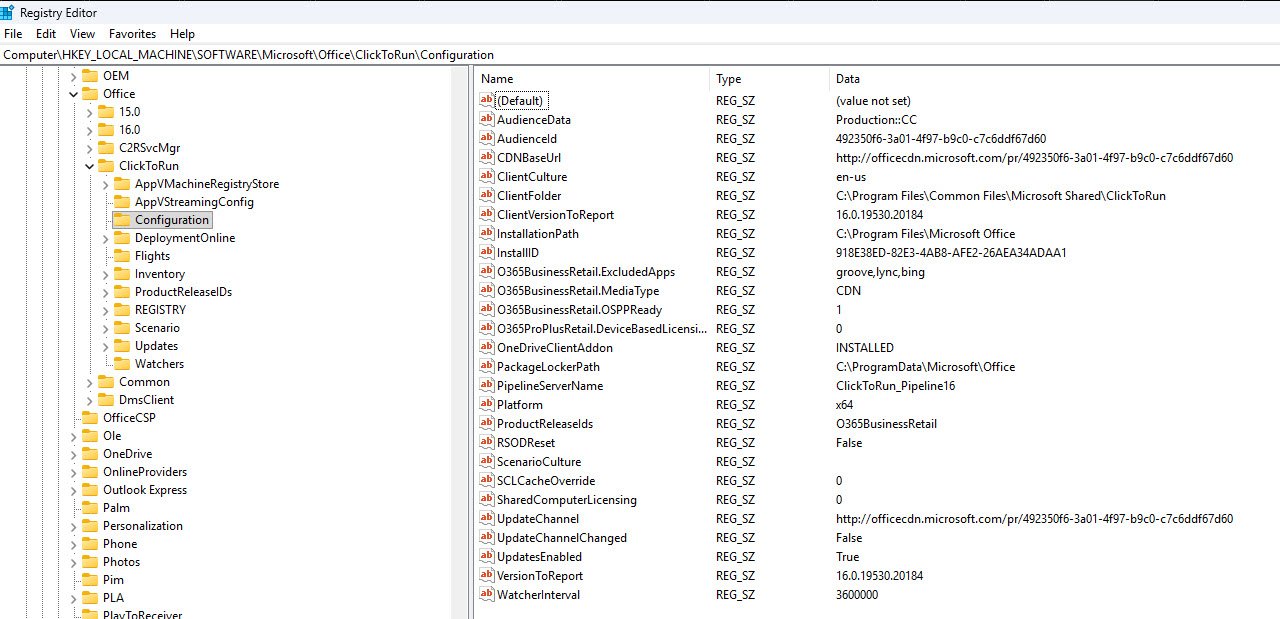
In the following registry key you can find information about the Microsoft 365 Apps installation including the Click-to-Run configuration:
HKEY_LOCAL_MACHINE\SOFTWARE\Microsoft\Office\ClickToRun\Configuration
This registry location is authoritative for validating how M365 Apps were installed and whether the deployment matches the Office Deployment Tool (ODT) XML configuration used during installation.
The ProductReleaseIds value shows O365BusinessRetail, confirming the expected product SKU.
The O365BusinessRetail.ExcludedApps value lists groove, lync and bing, validating that the XML exclusions for OneDrive for Business, Skype for Business, and Bing were correctly applied during installation.
The O365BusinessRetail.MediaType value is set to CDN, confirming this was an evergreen deployment sourcing content directly from Microsoft’s CDN rather than from local or offline media. The VersionToReport value (16.0.19530.20184) confirms the specific Monthly Enterprise Channel build that was installed at the time.
It’s worth noting that while the registry shows UpdatesEnabled set to True, the update behavior is not controlled here alone. In my environment update configuration is enforced by a separate Intune policy (GBL-WIN11-M365AppsUpdates-Current-(DEV)) which sets the update channel, enables automatic updates with zero deferral and prevents users from disabling updates:
Windows Settings Delivery Optimization
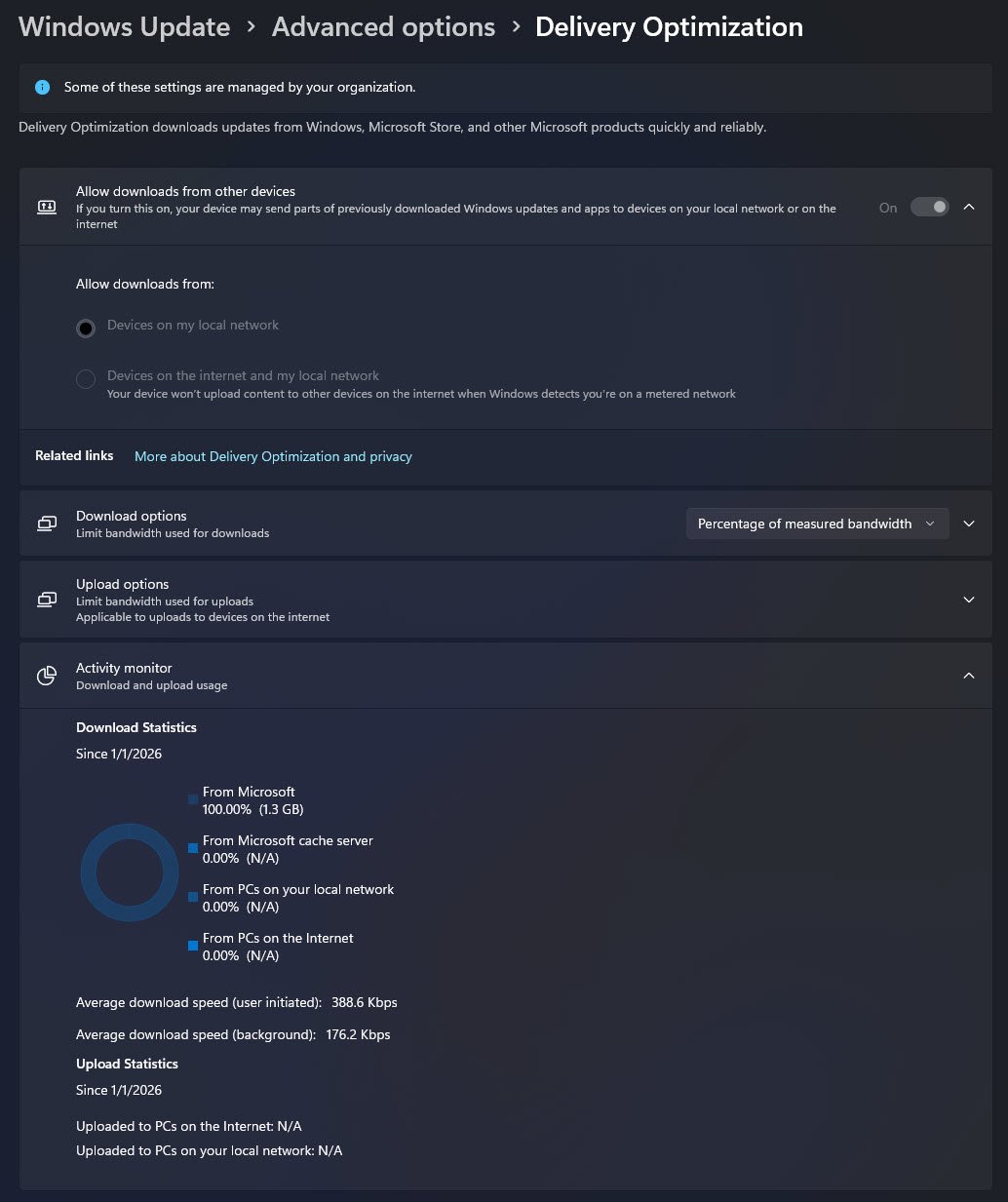
The Windows Settings page under Windows Update > Advanced options > Delivery Optimization confirms that the Delivery Optimization policy is applied at the OS level.
The Activity Monitor shows:
- From Microsoft: 100% (1.3 GB)
- From PCs on your local network: 0%
This behavior is expected and correct in a single-device lab environment with no eligible peers available, Delivery Optimization falls back entirely to CDN downloads even though peer-to-peer is enabled and ready to be used when peers exist.
Note: This screen validates source selection behavior not the bandwidth efficiency.
PowerShell Delivery Optimization Status Verification
The PowerShell command Get-DeliveryOptimizationPerfSnap provides a runtime snapshot of Delivery Optimization behavior and effective settings:
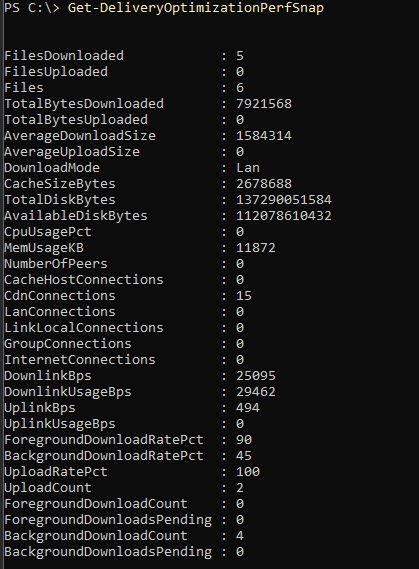
Key values confirm correct operation:
DownloadMode: Lan
Indicates that peer-to-peer is enabled and scoped to the local network, even though peers are not currently available.NumberOfPeers: 0
Confirms the expected single-device lab scenario.ForegroundDownloadRatePct: 90
BackgroundDownloadRatePct: 45
These values are particularly important since they demonstrate that Windows is dynamically calculating bandwidth usage rather than being constrained by static, policy-enforced percentage limits. This behavior only becomes possible after removing explicit foreground and background bandwidth caps from the Intune Delivery Optimization policy.
Final takeaway
Delivery Optimization works best when it is allowed to adapt.
Hard limits should be the exception, not the default and settings must be evaluated per tenant, aligned with both official Microsoft guidance and real-world community experience.