Setting Adobe Acrobat Reader as the Default PDF Viewer via Intune
Table of Contents
Overview
Getting Adobe Acrobat Reader to stay as the default PDF handler in a managed environment involves more moving parts than most guides suggest. Edge reclaims the association after every update, Adobe asks users at first launch whether they want to take ownership and the policy that sets the default only reasserts itself at the next sign-in, which means PDFs can briefly open in the wrong application until the user logs out and back in.
The part that often goes unnoticed is that Windows has a built-in driver called UCPD.sys that actively prevents scripts and policies from changing file associations. If you have already deployed the DefaultAssociationsConfiguration CSP and PDFs are still opening in Edge, that driver is most likely the reason. Each of the 6 parts below addresses a specific piece of the problem.
Part 1 covers deploying Adobe Acrobat Reader as a Win32 app using an MST transform and a PowerShell install script. Nothing else in this solution works until Adobe is on the device.
Part 2 sets Adobe as the default PDF handler using the DefaultAssociationsConfiguration CSP via Settings Catalog. This is where most guides stop and where most deployments quietly break.
Part 3 suppresses the Edge PDF takeover prompt, preventing Edge from nudging users back after every update.
Part 4 locks handler switching at the application level using an imported Adobe ADMX, so users cannot change the default from within Adobe itself.
Part 5 suppresses Adobe’s own ownership popup using a Proactive Remediation running in user context, targeting the HKCU registry keys that control the three nag dialogs.
Part 6 disables UCPD.sys the kernel driver that silently blocks the CSP on any device where Edge has already written UserChoice. Without this, Parts 2 through 4 may apply correctly and still do nothing.
Part 1 - Deploy Adobe Acrobat Reader
Download the Enterprise MSI
Download the enterprise MSI from Adobe’s distribution page. The consumer web installer is a stub that downloads the real package at runtime and does not work in silent deployments.
https://get.adobe.com/uk/reader/enterprise
Once downloaded, extract the EXE to get the MSI and the supporting files. The Customization Wizard needs direct access to the MSI and cannot work with the EXE directly.
.\AcroRdrDC2500121223_en_US.exe -sfx_o"C:\Staging\AdobeReader" -sfx_ne
Customise with the Adobe Customization Wizard
The Adobe Customization Wizard writes your enterprise configuration into a transform file (.mst) without modifying the original MSI. This is the correct and only Adobe-supported method.
Key settings to configure:
- Installation Options: Accept EULA enabled, Suppress reboot enabled.
- Make Reader the default PDF viewer: set to No. Part 2 handles this via CSP so it reasserts at every sign-in.
- Shortcuts: remove the desktop shortcut.
- Online Services: disable Adobe Document Cloud, auto-updates, upsell and all third-party connectors.
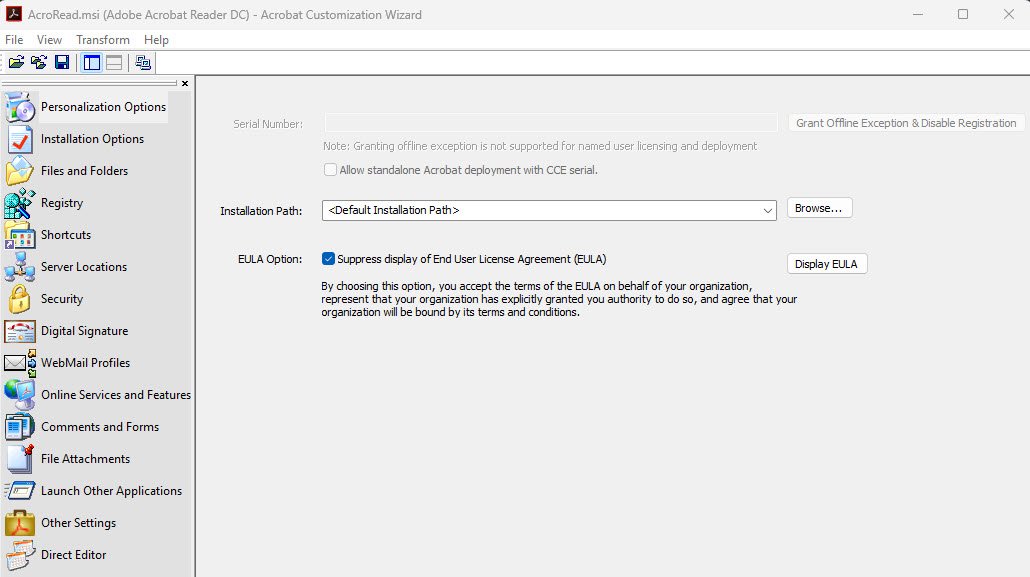
Under Personalization Options, the serial number field is greyed out by default for named-user deployments, no action needed there. Check the box to suppress the EULA dialog.
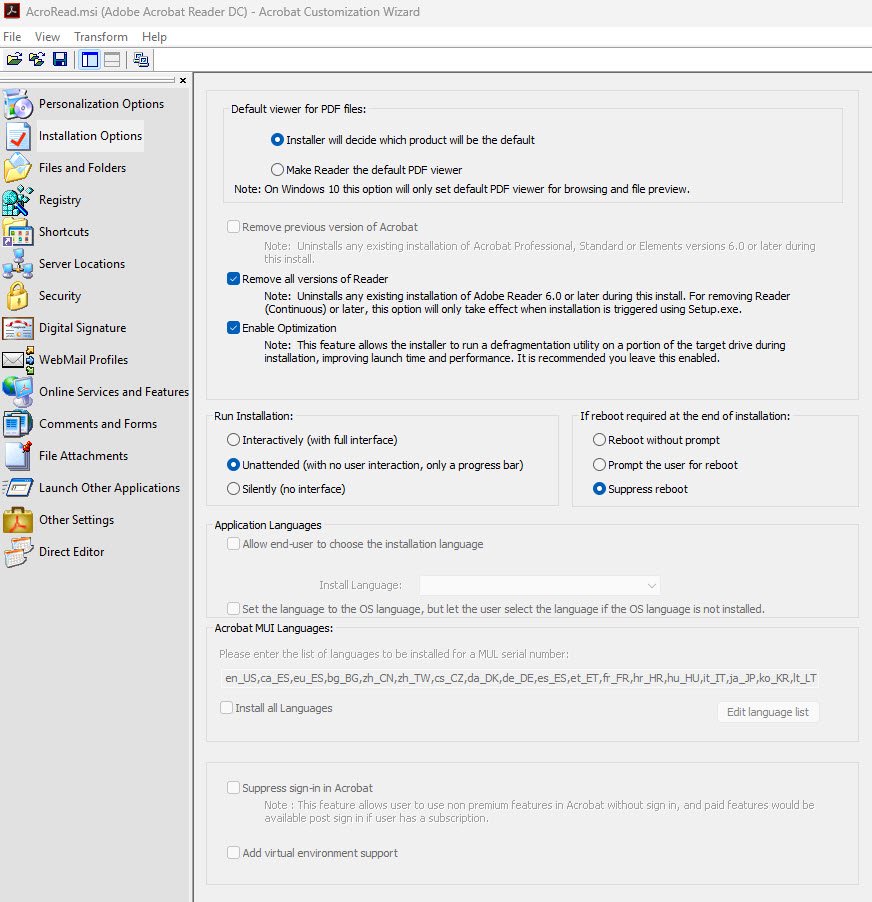
Under Installation Options, set Run Installation to Unattended and set the reboot option to Suppress reboot. This ensures the installation runs silently with no user interaction.
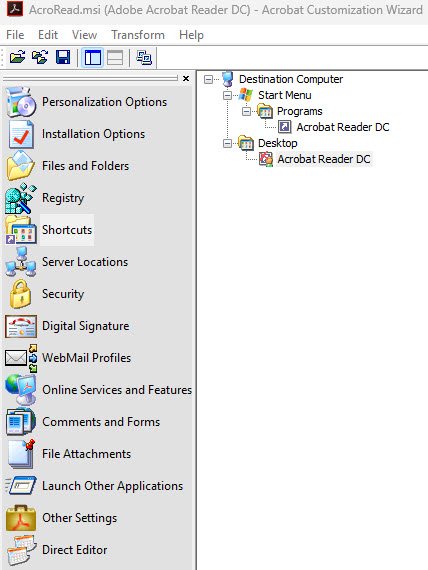
Under Shortcuts, right-click the Desktop shortcut and select Remove, leaving only the Start Menu shortcut.
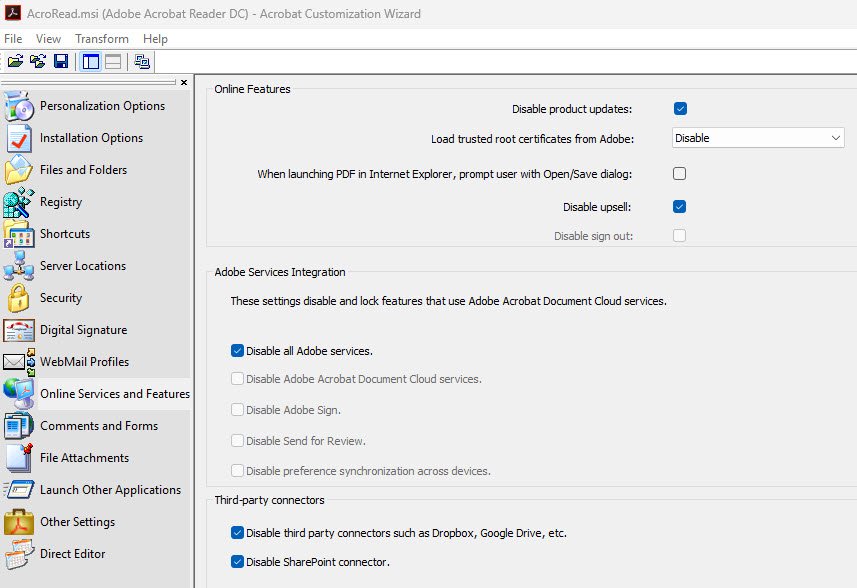
Under Online Services, disable product updates, disable all Adobe services integration and disable all third-party connectors including Dropbox and SharePoint.
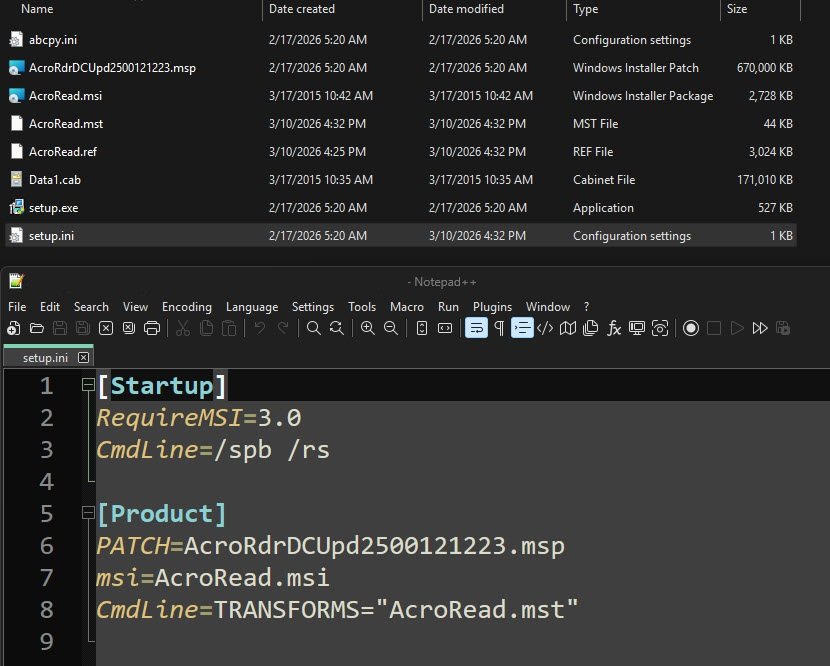
After configuring, go to Transform > Generate Transform and save as “AcroRead.mst”, the resulting setup.ini should look like this:
Note: MST files are version-bound, when updating to a new Adobe Reader version, regenerate the MST from the new MSI. There is no supported in-place update path for transforms.
Package and deploy via Intune
Package the source folder with IntuneWinAppUtil.exe and make sure that the MST must be inside the source folder since it is referenced at install time.
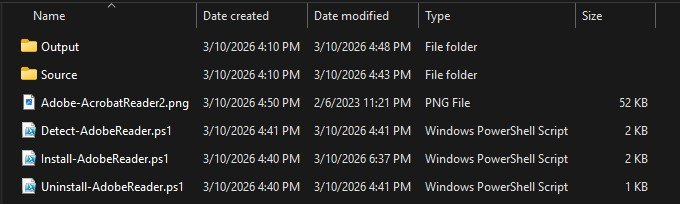
Install-AdobeReader.ps1 script contents:
When Intune deploys a Win32 app, it extracts the contents of the .intunewin package directly into a flat folder at runtime. There is no Source subfolder on the endpoint, this means setup.exe is available at $PSScriptRoot\setup.exe and that is exactly how the install script references it below.
$LogFile = "$env:ProgramData\Microsoft\IntuneManagementExtension\Logs\Install-AdobeReader.log"

Start-Transcript -Path $LogFile -Append

$SetupExe = Join-Path $PSScriptRoot "setup.exe"

Write-Output "Starting Adobe Acrobat Reader DC installation..."
Write-Output "Script location : $PSScriptRoot"
Write-Output "Setup.exe path  : $SetupExe"

if (-not (Test-Path $SetupExe)) {
    Write-Output "ERROR: setup.exe not found at $SetupExe"
    Stop-Transcript
    exit 1
}

$Process = Start-Process -FilePath $SetupExe -Wait -PassThru -NoNewWindow

Write-Output "Installation finished. Exit code: $($Process.ExitCode)"

Stop-Transcript

exit $Process.ExitCode
Uninstall-AdobeReader.ps1 script contents:
$LogFile = "$env:ProgramData\Microsoft\IntuneManagementExtension\Logs\Uninstall-AdobeReader.log"

Start-Transcript -Path $LogFile -Append

Write-Output "Starting Adobe Acrobat Reader DC uninstallation..."

$ProductCode = "{AC76BA86-7AD7-1033-7B44-AC0F074E4100}"

$Process = Start-Process -FilePath "msiexec.exe" `
    -ArgumentList "/x `"$ProductCode`" /quiet /norestart" `
    -Wait -PassThru -NoNewWindow

Write-Output "Uninstallation finished. Exit code: $($Process.ExitCode)"

Stop-Transcript

exit $Process.ExitCode
Detect-AdobeReader.ps1 script contents:
The detection script checks the uninstall registry key and compares the installed version against a minimum version threshold. If the installed version meets or exceeds the minimum, Intune considers the app detected. Update $MinimumVersion when you intentionally deploy a newer Adobe release, no other changes are needed since the product code stays the same across all Reader DC versions.
$LogFile = "$env:ProgramData\Microsoft\IntuneManagementExtension\Logs\Detect-AdobeReader.log"

$RegistryPath = "HKLM:\SOFTWARE\WOW6432Node\Microsoft\Windows\CurrentVersion\Uninstall\{AC76BA86-7AD7-1033-7B44-AC0F074E4100}"

# Minimum version to consider the app detected
# Update this value when you intentionally deploy a newer version
$MinimumVersion = "25.001.21223"

$RegEntry = Get-ItemProperty -Path $RegistryPath -ErrorAction SilentlyContinue

if ($RegEntry) {
    $InstalledVersion = $RegEntry.DisplayVersion
    "$(Get-Date -Format 'yyyy-MM-dd HH:mm:ss') - Found: Adobe Acrobat Reader DC $InstalledVersion" | Out-File -FilePath $LogFile -Force

    if ([version]$InstalledVersion -ge [version]$MinimumVersion) {
        "$(Get-Date -Format 'yyyy-MM-dd HH:mm:ss') - Version $InstalledVersion meets minimum requirement ($MinimumVersion). Detected." | Out-File -FilePath $LogFile -Append
        Write-Output "Adobe Acrobat Reader DC $InstalledVersion detected."
        exit 0
    } else {
        "$(Get-Date -Format 'yyyy-MM-dd HH:mm:ss') - Version $InstalledVersion is below minimum requirement ($MinimumVersion). Not detected." | Out-File -FilePath $LogFile -Append
        exit 1
    }
} else {
    "$(Get-Date -Format 'yyyy-MM-dd HH:mm:ss') - Registry key not found. Adobe Acrobat Reader DC not detected." | Out-File -FilePath $LogFile -Force
    exit 1
}
Part 2 - Set Adobe as Default via DefaultAssociationsConfiguration CSP
This is the step you will find in most guides on default app management via Intune and it is correct but incomplete on its own. On any device where Edge has already been used to open a PDF, a kernel-level driver called UCPD.sys is actively blocking the write that this policy needs to make and that is exactly what Part 6 addresses. If you skip Part 6, this policy will apply without errors but will not have any effects on most enrolled devices.
Export default associations from a reference machine
Before running the export, open Windows Settings on the reference machine, search for “.pdf” under Default apps, select Adobe Acrobat Reader and choose Always. The only reason for this export is to see exactly how Windows records the PDF association internally, specifically the ProgId value that you will need for the XML in the next step. If you run the export before setting Adobe as the default, the “.pdf” entry will show MSEdgePDF as the ProgId as shown in the screenshot below and the policy will enforce the wrong handler.
Dism /Online /Export-DefaultAppAssociations:"C:\Temp\AppAssoc.xml"
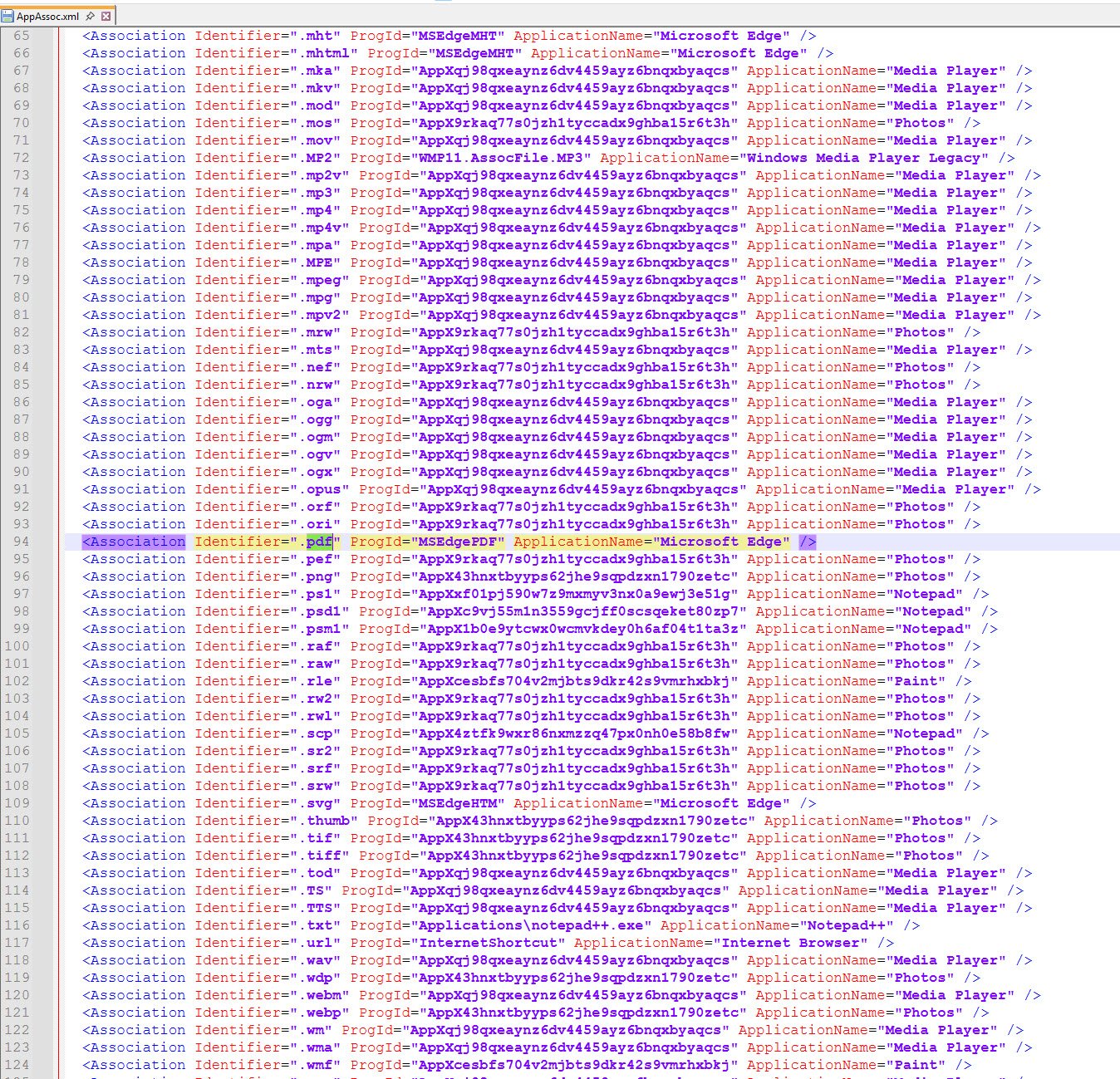
Once Adobe is set as the default, run the export and open the resulting XML. The only thing you need from it is the “.pdf” line, specifically the ProgId value that Adobe registered on this machine. That confirmed value is what goes into the trimmed XML below, which is what actually gets deployed to Intune.
<?xml version="1.0" encoding="UTF-8"?>
<DefaultAssociations>
  <Association Identifier=".pdf" ProgId="AcroExch.Document.DC" ApplicationName="Adobe Acrobat Reader" />
</DefaultAssociations>

Note: Do not use Suggested=“true” in the XML. Without it, the association re-applies at every sign-in. With Suggested=“true”, it applies only once and the user can override it permanently.
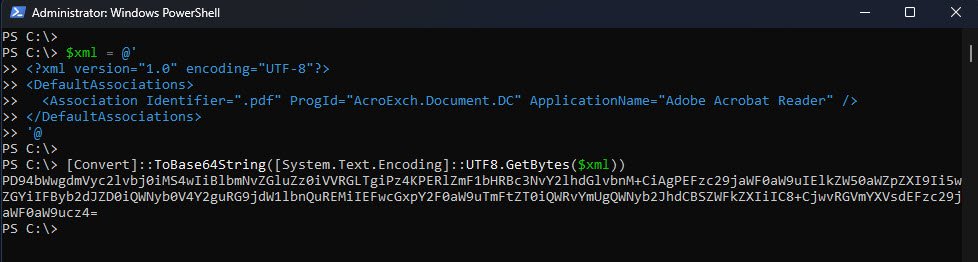
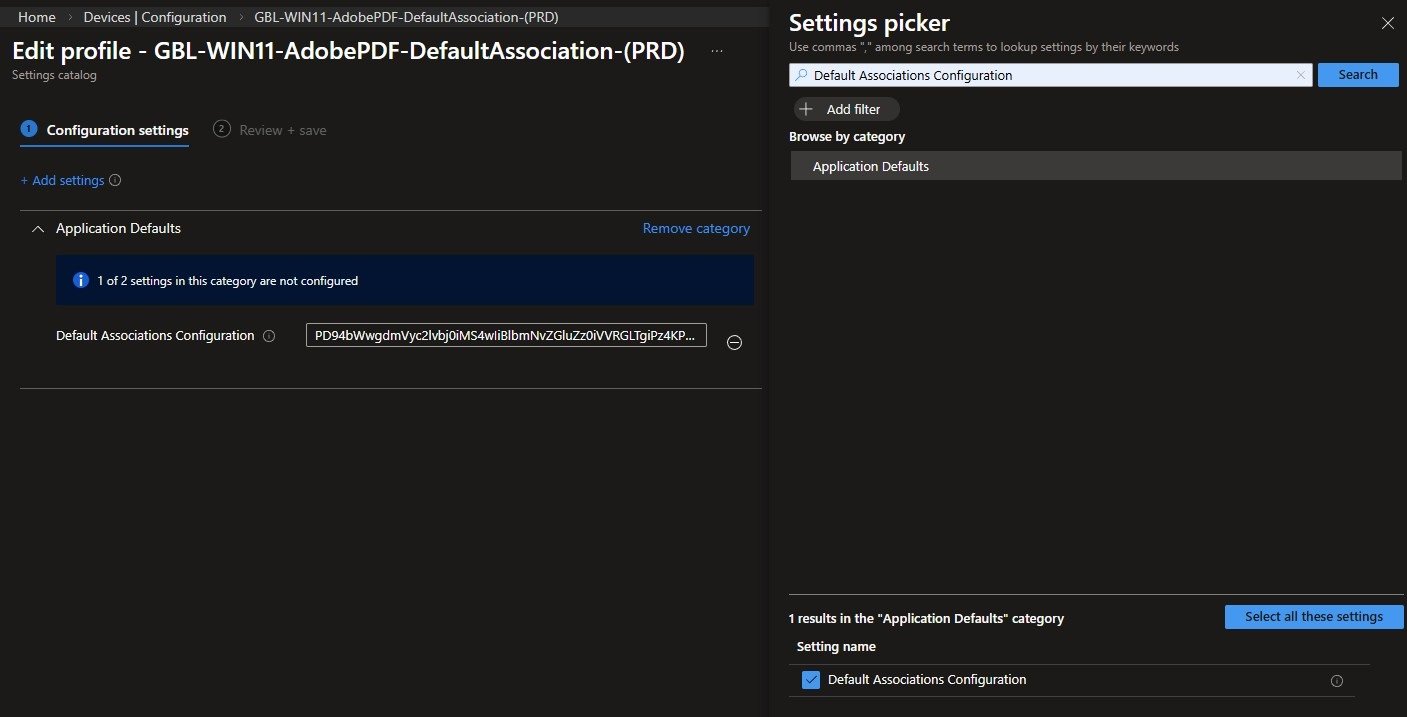
Take the trimmed XML, Base64-encode it using the PowerShell one-liner below and paste the output into the Default Associations Configuration field into the Intune Settings Catalog policy.
Assign the policy to the device group that covers your target devices. If you are testing first, assign it to a small group before rolling it out broadly.
Policy name used in this lab: “GBL-WIN11-AdobePDF-DefaultAssociation-(PRD)”
Part 3 - Silence the Edge PDF Takeover Prompt
Even with Part 2 in place, Edge will display an infobar at the top of PDF documents recommending that users switch back to Edge as their default PDF handler. This is a separate mechanism from the file association itself, so a separate policy is needed to suppress it. All the settings required for this are native in Settings Catalog and no ADMX import is needed here.
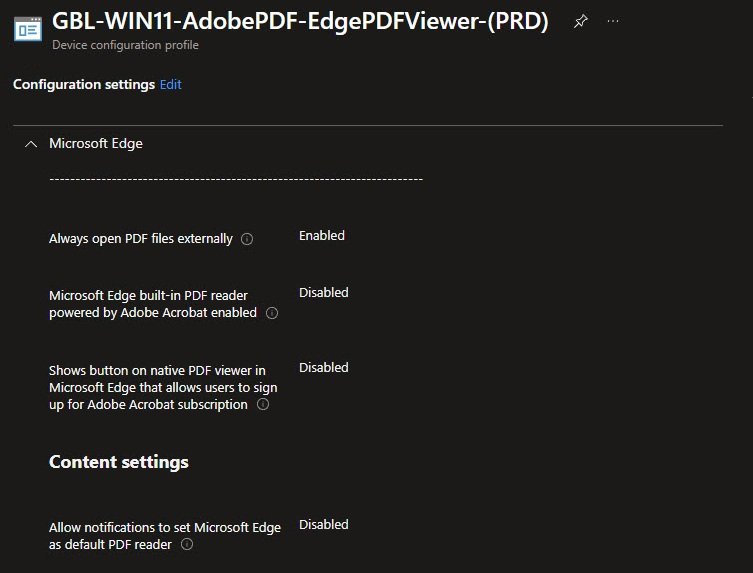
Search for “pdf” in the Settings Catalog picker and navigate to the Microsoft Edge category. You will find all four settings listed below in that category which needs to be configured as follows:
- Always open PDF files externally: Enabled
- Microsoft Edge built-in PDF reader powered by Adobe Acrobat: Disabled
- Shows button on native PDF viewer in Microsoft Edge that allows users to sign up for Adobe Acrobat subscription: Disabled
- Allow notifications to set Microsoft Edge as default PDF reader: Disabled
Assign the policy to the same device group as Part 2, policy name used in this lab: “GBL-WIN11-AdobePDF-EdgePDFViewer-(PRD)”:
Part 4 - Lock Handler Switching via Adobe FeatureLockDown ADMX
Part 2 sets Adobe as the default but does not prevent users from switching it back inside Adobe’s own preferences, and that is where the FeatureLockDown mechanism comes in. It blocks handler switching at the application level via “bDisablePDFHandlerSwitching”, and the correct way to deploy this in 2026 is through an imported ADMX rather than a raw OMA-URI.
Step 1 - Import Windows.admx first
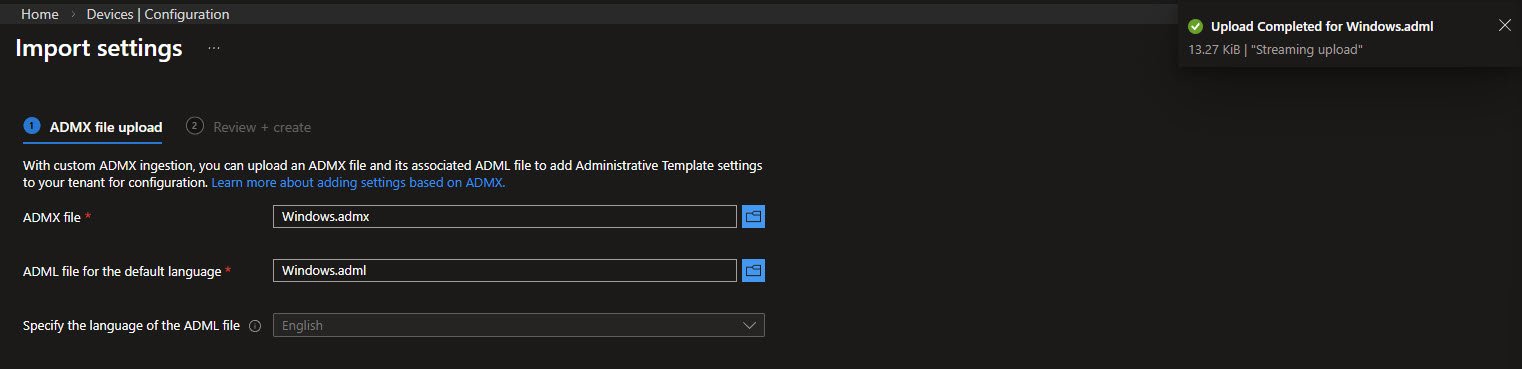
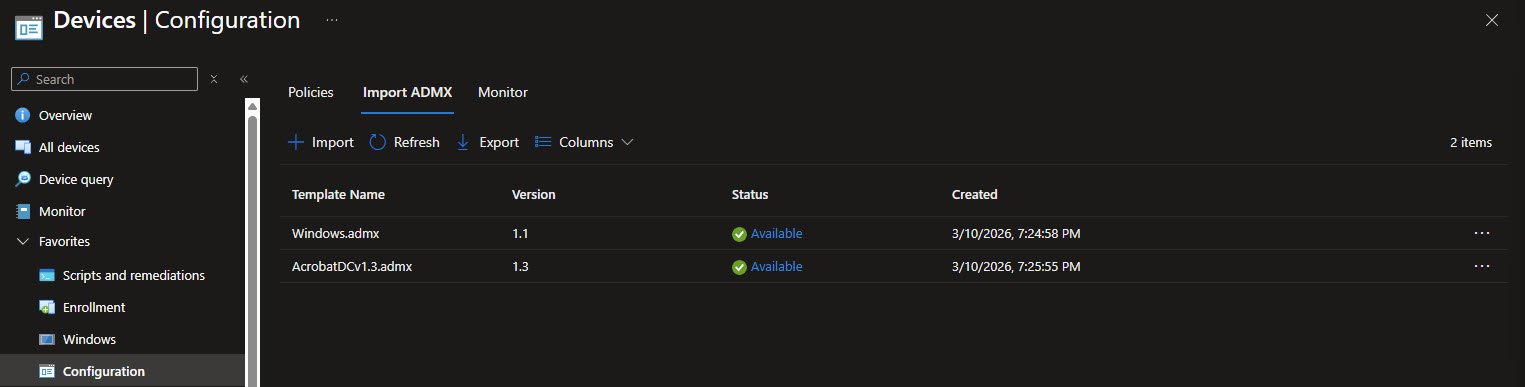
The Adobe ADMX declares a dependency on Windows.admx, which means Windows.admx must be imported first. Head to Devices > Configuration > Import ADMX and upload both “Windows.admx” and its companion language file “Windows.adml”. Wait until the status shows Available before moving on.
Note: Importing the Adobe ADMX before Windows.admx is available will fail.
You can get the latest Windows 11 Administrative Templates from the Microsoft Download Center, at the time of writing this is V3.0 for 25H2: https://www.microsoft.com/en-us/download/details.aspx?id=108542
Step 2 - Import the Adobe ADMX
Do not use the official Adobe ADMX from Adobe’s own website since it (still) has some known import failures in Intune, instead use the community-maintained version from systmworks on GitHub, which is what was used and validated in this lab: https://github.com/systmworks/Adobe-DC-ADMX
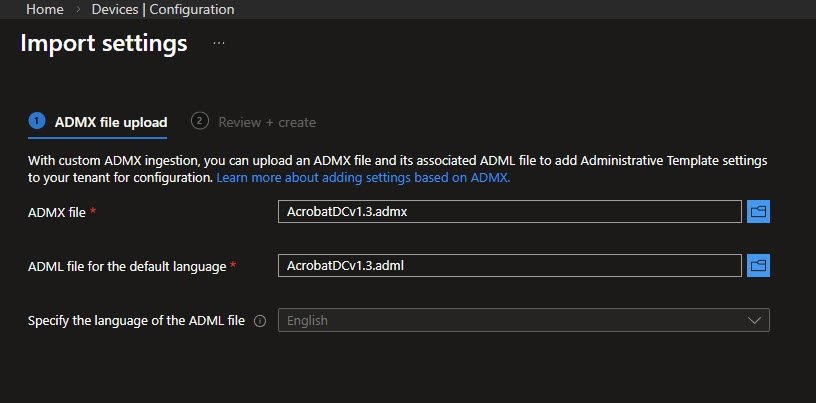
Download the repository and locate “AcrobatDCv1.3.admx” and its companion “AcrobatDCv1.3.adml”, go back to Devices > Configuration > Import ADMX and upload both files.
Both Windows.admx and AcrobatDCv1.3.admx showing Available status in the Import ADMX list. This is the state you need to see before creating the policy in the next step.
ADMX double-negative gotcha
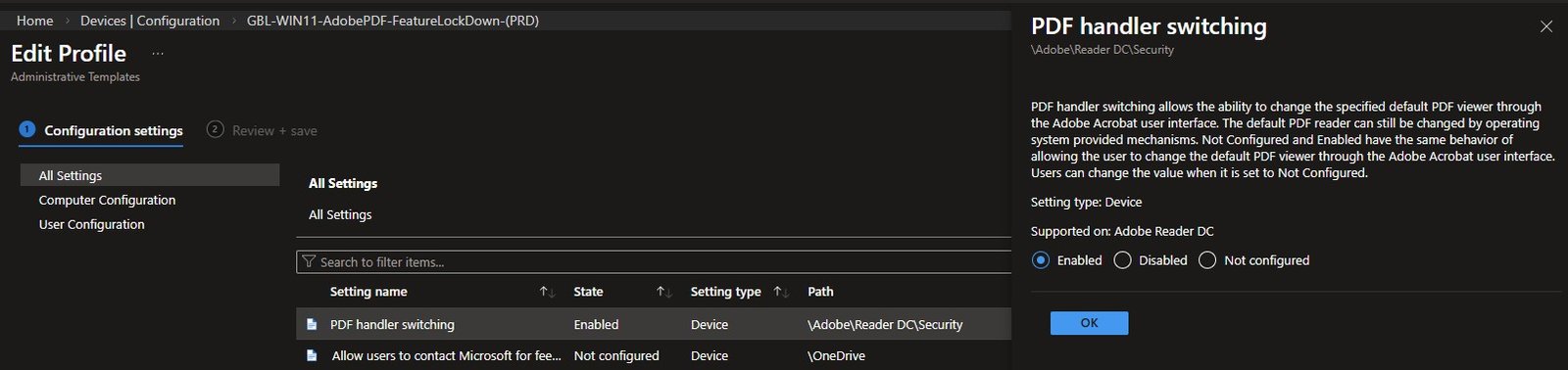
Once both ADMXes show Available, go to Devices -> Configuration -> New Policy, select Windows 10 and later as the platform and Imported Administrative Templates as the profile type. Navigate to Computer Configuration -> Adobe -> Reader DC -> Security and find the setting called “PDF handler switching”.
Before configuring it, be aware of the naming since it’s a bit counterintuitive:
- Enabled = the user CANNOT switch away from Adobe (the lock is on)
- Disabled = the user CAN switch away from Adobe (the lock is off)
Set it to Enabled, this writes “bDisablePDFHandlerSwitching = 1” to the registry, which is what you want. Setting it to Disabled writes 0 and leaves handler switching open. I confirmed this across multiple devices, setting it to Disabled writes 0 and leaves handler switching open.
For the PDF handler switching setting I advise reading the description carefully before configuring it: Not Configured and Enabled are described as having the same behaviour, which makes this setting easy to get wrong. In practice setting it to Enabled is what writes “bDisablePDFHandlerSwitching = 1” and locks handler switching, Disabled writes 0 and does nothing.
Assign the policy to the same device group as Parts 2 and 3, policy name used in this lab: “GBL-WIN11-AdobePDF-FeatureLockDown-(PRD)”
Imported ADMX profiles deliver significantly slower than Settings Catalog policies. If the policy shows Pending for 30 to 60 minutes after a sync, this is normal and a reboot often accelerates delivery.
If you ever need to update the Adobe ADMX to a newer version, the process is to delete all profiles that reference it, delete the ADMX itself, import the new version and recreate the profiles from scratch. There is no in-place update path.
Part 5 - Suppress Adobe’s Own Ownership Prompt
At first launch after installation, Adobe shows users three things: a prompt asking whether to make Acrobat the default PDF handler, a first-launch viewer onboarding tour and a home screen welcome card. Even with the association locked by Parts 2 and 4, the ownership prompt is confusing in practice as users click the wrong option and either undo the configuration or call the helpdesk. The tour and welcome card are not harmful on their own but add unnecessary friction in a managed deployment where Adobe is already configured.
All three are controlled by HKCU registry keys that need to exist for every user profile on every device. A Proactive Remediation running in logged-on user context handles this correctly, including new profiles, roaming profile resets and profile corruption events.
Upload both scripts in Devices -> Scripts and remediations -> Create, set Run this script using the logged-on credentials to Yes and Run script in 64-bit PowerShell to Yes. Assign to your device group and set the schedule to run hourly, policy name used in this lab: “GBL-WIN11-AdobePDF-OwnershipPopup-(PRD)”
Detection-AdobeOwnershipPopup.ps1 script contents:
The detection script checks all three registry keys, if any of them is missing or set to a value other than 1, the device is flagged as non-compliant and the remediation runs.
$regChecks = @(
    @{ Path = "HKCU:\Software\Adobe\Acrobat Reader\DC\AVAlert\cCheckbox";                Name = "iAppDoNotTakePDFOwnershipAtLaunchWin10" },
    @{ Path = "HKCU:\Software\Adobe\Acrobat Reader\DC\FTEDialog";                        Name = "bShownViewerOnboarding" },
    @{ Path = "HKCU:\Software\Adobe\Acrobat Reader\DC\HomeWelcomeFirstMileReader";       Name = "bHasShownHarmonyGetStartedCard" }
)

foreach ($check in $regChecks) {
    $value = (Get-ItemProperty -Path $check.Path -Name $check.Name -ErrorAction SilentlyContinue).$($check.Name)
    if ($value -ne 1) {
        Write-Host "Non-compliant: $($check.Name) = $value"
        exit 1
    }
}

Write-Host "Compliant"
exit 0
Remediation-AdobeOwnershipPopup.ps1 script contents:
The remediation creates the registry path if it does not exist yet and sets all three keys to 1. This handles first-time profile creation where Adobe has not launched yet and the keys are not present.
$regItems = @(
    @{ Path = "HKCU:\Software\Adobe\Acrobat Reader\DC\AVAlert\cCheckbox";                Name = "iAppDoNotTakePDFOwnershipAtLaunchWin10" },
    @{ Path = "HKCU:\Software\Adobe\Acrobat Reader\DC\FTEDialog";                        Name = "bShownViewerOnboarding" },
    @{ Path = "HKCU:\Software\Adobe\Acrobat Reader\DC\HomeWelcomeFirstMileReader";       Name = "bHasShownHarmonyGetStartedCard" }
)

foreach ($item in $regItems) {
    if (-not (Test-Path $item.Path)) { New-Item -Path $item.Path -Force | Out-Null }
    Set-ItemProperty -Path $item.Path -Name $item.Name -Value 1 -Type DWord -Force
}

Write-Host "Remediated"
exit 0
Deployment settings: Run as logged-on user | 64-bit PowerShell | Schedule: every 1 hour.
Part 6 - Disable UCPD to Allow CSP Enforcement
This is the part that most solutions miss entirely and the reason why the DefaultAssociationsConfiguration CSP silently fails in many environments.
What UCPD is
UCPD.sys (UserChoice Protection Driver) is a kernel-level filter driver introduced by Microsoft in early 2024. It protects UserChoice registry keys, the keys that store each user’s default app choices including the PDF handler, by blocking writes from processes that are not signed by Microsoft. PowerShell, regedit and reg.exe are all on the deny list.
When UCPD is running, any script or third-party tool that tries to write to UserChoice gets ACCESS_DENIED. This includes the DefaultAssociationsConfiguration CSP on devices where Edge has already been used to open a PDF. The CSP policy applies correctly at the machine level but Windows reads UserChoice first and UserChoice wins.
Why this breaks Part 2 on existing devices
On a brand new device with no user profile yet, the CSP writes the default cleanly because no UserChoice entry exists. On any device where Edge has already been used to open a PDF, which includes virtually every existing enrolled device and even fresh Autopilot deployments where Edge runs during OOBE, UserChoice already points to MSEdgePDF. With UCPD running, nothing can overwrite it except a Microsoft-signed process.
The fix is simple: disable UCPD via a Proactive Remediation running as SYSTEM, then reboot. After the reboot UCPD is no longer running and the CSP can write UserChoice correctly at the next sign-in.
Is it safe to disable UCPD?
This is the right question to ask before following this step in a production environment.
UCPD was introduced by Microsoft primarily to comply with the EU Digital Markets Act, which requires that users on personal devices are protected from third-party apps silently hijacking default app choices. It was designed with consumer environments in mind. Microsoft shipped it quietly with no official ADMX template, no documentation and no enterprise tooling to manage it. The only way to control it at scale is through scripts or registry preferences, which is exactly what this Proactive Remediation does.
In a fully Intune-managed environment, disabling UCPD is an acceptable and deliberate trade. You are not removing protection and leaving a gap. You are replacing a consumer-grade driver that works against your deployment with intentional MDM policy enforcement via the DefaultAssociationsConfiguration CSP. The CSP is the authority on default app assignments in your environment, not UCPD.
This recommendation does not apply to unmanaged or lightly managed devices. On a device without Intune enforcing the default, UCPD provides meaningful protection against malicious apps silently redirecting file associations and should be left enabled.
One additional thing worth knowing: UCPD generates telemetry sent back to Microsoft that includes the current and new default app settings and the binary that triggered the UserChoice change. Organizations with strict data sovereignty requirements may find this relevant when deciding whether to leave the driver running.
Lab validation
This was confirmed in the lab across three devices. On every device where UCPD was running, UserChoice showed MSEdgePDF and PDFs opened in Edge despite the CSP being applied and showing a valid Base64 value in PolicyManager. After disabling UCPD and rebooting, the CSP wrote UserChoice = AcroExch.Document.DC at sign-in and PDFs opened directly in Adobe with no dialog.
Important caveat
Disabling UCPD requires a reboot to take effect, the service can be set to Disabled immediately but the driver remains loaded in the current session until the next boot. This is expected kernel driver behaviour and not a configuration problem.
A Windows update may re-enable UCPD. The Proactive Remediation running on a daily schedule will catch and re-disable it within 24 hours of any such update.
The detection script checks both the UCPD service startup type and the associated scheduled task so both need to be Disabled for the device to be considered compliant.
Detection-UCPD.ps1 script contents:
$service = Get-Service -Name "UCPD" -ErrorAction SilentlyContinue
$task = Get-ScheduledTask -TaskName "UCPD velocity" -TaskPath "\Microsoft\Windows\AppxDeploymentClient\" -ErrorAction SilentlyContinue

if ($service.StartType -eq "Disabled" -and $task.State -eq "Disabled") {
    Write-Host "Compliant: UCPD disabled"
    exit 0
} else {
    Write-Host "Non-compliant: UCPD service=$($service.StartType) task=$($task.State)"
    exit 1
}
Remediation-UCPD.ps1 script contents:
The remediation disables the service startup type and the scheduled task that would otherwise re-enable it. A reboot is still required after this runs for the driver to actually stop. Until the device reboots, UCPD remains loaded in memory and the CSP cannot correct the association.
Set-Service -Name "UCPD" -StartupType Disabled
Disable-ScheduledTask -TaskName '\Microsoft\Windows\AppxDeploymentClient\UCPD velocity' -ErrorAction SilentlyContinue

Write-Host "Remediated: UCPD disabled"
exit 0
Deployment settings: Run as SYSTEM | 64-bit PowerShell | Schedule: daily, hourly during initial rollout, policy name used in this lab: “GBL-WIN11-AdobePDF-UCPD-(PRD)”
Validation Checklist
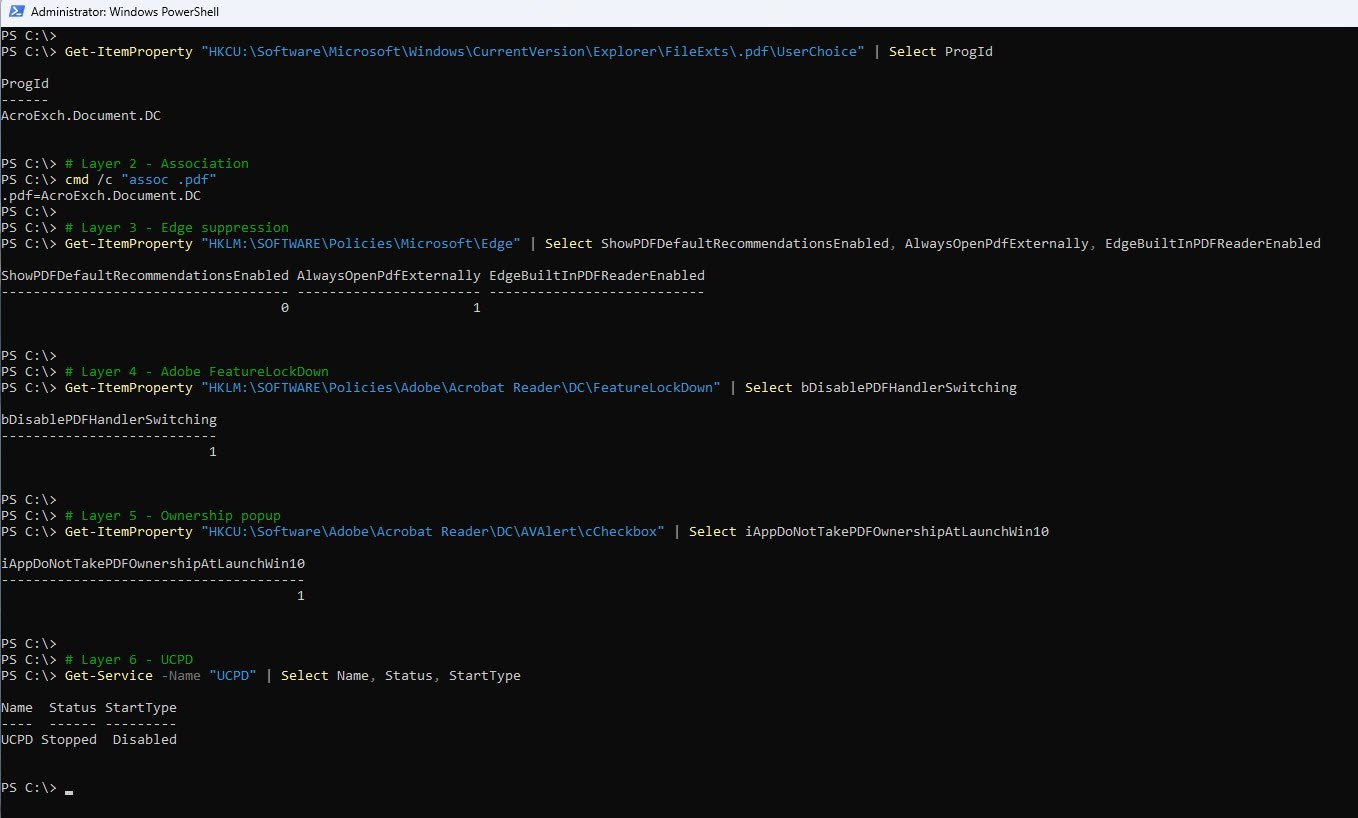
Run the following on a device after all six parts have applied. Each check maps to a specific part.
| Part | PowerShell check | Expected result |
|---|---|---|
| 2 | cmd /c “assoc .pdf” | .pdf=AcroExch.Document.DC |
| 3 | Get-ItemProperty “HKLM:\SOFTWARE\Policies\Microsoft\Edge” | Select ShowPDFDefaultRecommendationsEnabled, AlwaysOpenPdfExternally | 0 and 1 |
| 4 | Get-ItemProperty “HKLM:\SOFTWARE\Policies\Adobe\Acrobat Reader\DC\FeatureLockDown” | Select bDisablePDFHandlerSwitching | 1 |
| 5 | Get-ItemProperty “HKCU:\Software\Adobe\Acrobat Reader\DC\AVAlert\cCheckbox” | Select iAppDoNotTakePDFOwnershipAtLaunchWin10 | 1 |
| 6 | Get-Service -Name “UCPD” | Select Name, Status, StartType | Stopped / Disabled |
The screenshot below shows the output from a fully configured device with all parts confirmed:
A Few Things Worth Knowing
ProgID must match what is installed - The XML you deploy to Intune contains a ProgID that tells Windows which application to use for PDF files. If that ProgID does not match what Adobe actually registered on the device during installation, the association will not work. This is why the export must always be done from a machine that already has Adobe installed and set as the default, not from a clean machine.
Open With still works - Locking the default does not prevent users from opening a PDF in a different application when they need to. Right-clicking a PDF and choosing Open With still works normally for that one instance. The default assignment does not change and no policy is violated.
The PDF default option will be greyed out in Windows Settings - Once the policy from Part 2 applies, users will notice that the default app setting for PDF files is no longer editable in Windows Settings. This is intentional and expected, so it is worth letting your helpdesk know before rollout so they are not surprised by the calls.
Adobe must be installed before anything else applies - The other five parts depend on Adobe being present on the device. If Adobe is not installed yet, the association policy has nothing to point to, the ADMX policy has no application to lock and the popup suppression has no registry keys to write. If you are deploying through Autopilot, Adobe does not need to be in the ESP blocking list. It can be deployed after first login and the remaining parts will align once it lands on the device.
New Autopilot devices are not exempt - Even on a brand new device that has never been used, Edge opens during the out-of-box experience and claims PDF ownership before any Intune policies have had a chance to apply. Part 6 handles this, but the device needs to reboot after the remediation runs before the association corrects itself at the next sign-in.
The Adobe product code does not change between versions - The product code used in the detection rule and uninstall script is the same across all Adobe Reader DC versions. You do not need to update it when Adobe releases a new version.
Note: If you are deploying through Autopilot, Adobe does not need to be in the ESP blocking list. It can be deployed after first login and the remaining parts will align once it lands on the device. If you want to guarantee Adobe is present before the user reaches the desktop, the add it to the ESP blocking list. Otherwise, be aware there is a window between Adobe landing and the Proactive Remediation firing for the first time where the ownership popup could appear if the user opens a PDF immediately it will correct itself on the next scheduled run.
References
UserChoice Protection Driver - UCPD.sys Part 1- by Christoph Kolbicz
UserChoice Protection Driver - UCPD.sys Part 2- by Christoph Kolbicz
Inside Windows’ Default Browser Protection - by Xusheng Li
This reflects my own approach and what I validated in my environment. It may not be the right fit for every organization so if you have tackled this differently or have suggestions, I would be curious to hear about it. Feel free to reach out on LinkedIn.